The most common way to install Drift on your website is through direct injection of your personalized Javascript snippet. Here's a step-by-step guide to get Drift up and running on your site!
Billing Plan: Installing Drift with Javascript is available on all Drift plans.
In this doc we'll cover:
Logging into Drift for the first time? As part of the Drift Setup process, the account owner will be prompted to select color, language, and add company and company website information before being brought to the Drift Dashboard. To learn more about how to adjust these settings once you are brought to your Dashboard and what will appear on your site after installing Drift, check out this article .
Your Drift account has a unique and personalized snippet that points to your organization's inbox. Make sure you use the code located in your account!
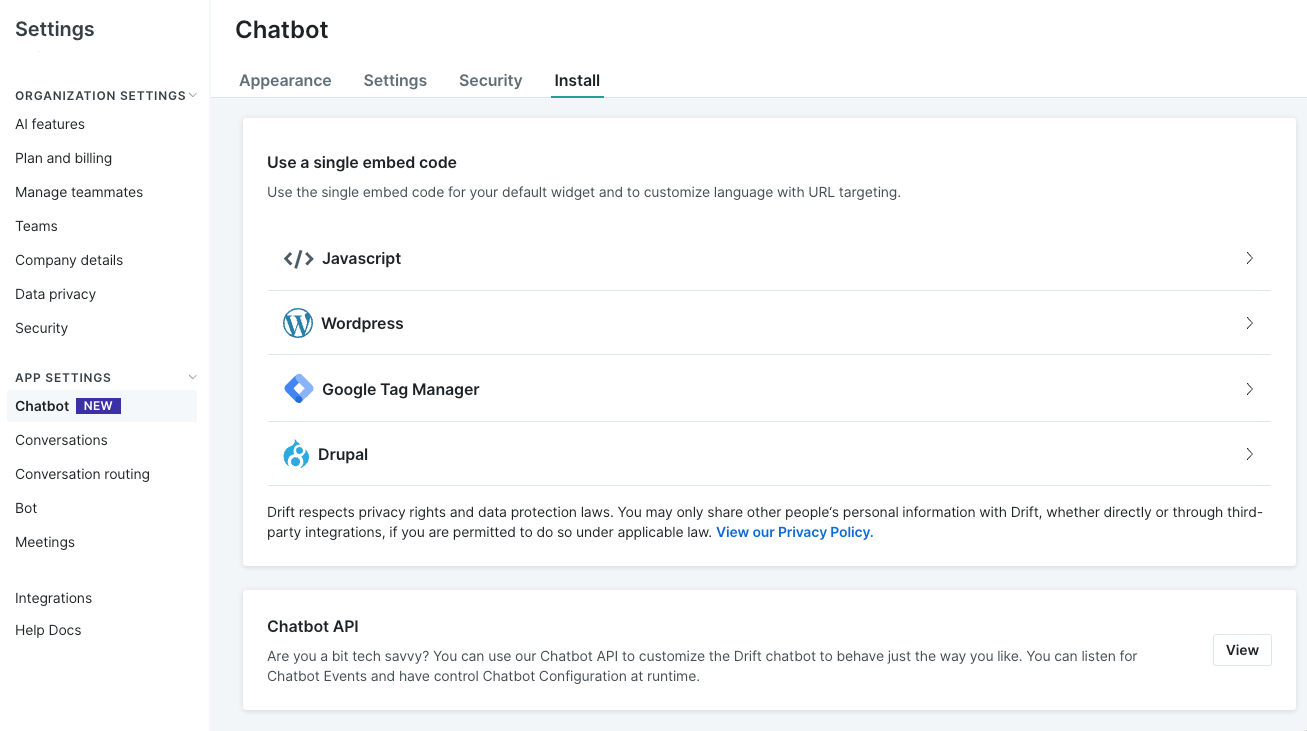
Locate the Code Snippet. You can find the snippet by going to Settings > App Settings > Chatbot > Install tab.
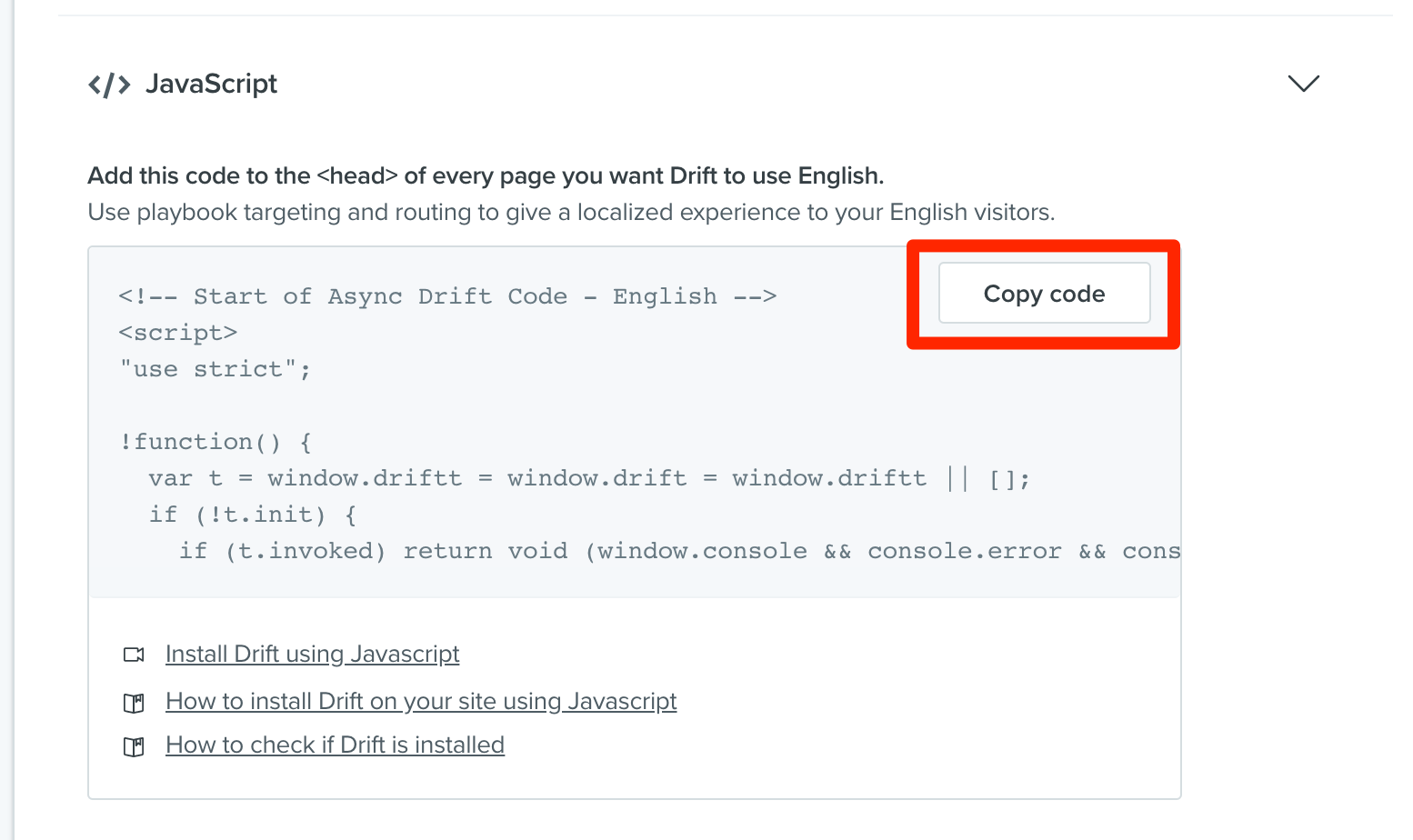
Click Javascript to expand the section and expose your code snippet, and Click Copy Code. That will copy the code to your clipboard.
Paste the code just before the end of the </head> section of your website's back end.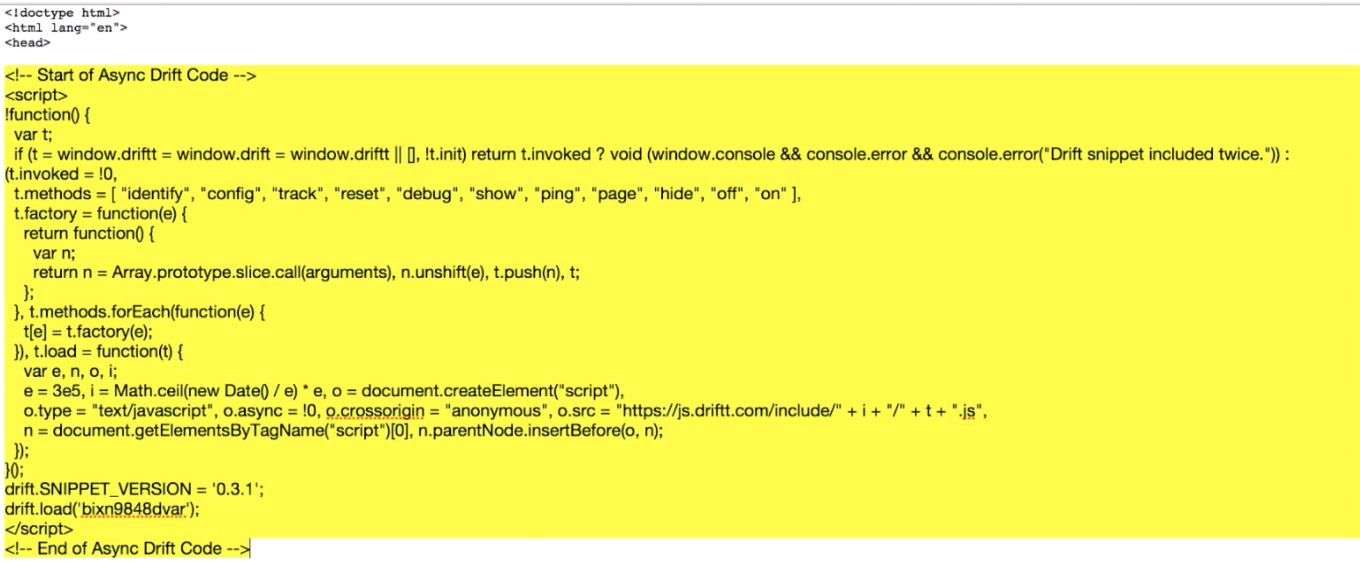
Note: Please make sure that the widget is only installed once on your site, otherwise you may run into issues with your widget behavior.
For All Plans, there will not be any visible changes to your site until you turn your Drift Widget and your Online or Offline Welcome Message Playbooks on yourself. By default, all messages are turned OFF when you first log in.
To learn more about the difference between the Widget and Playbooks, click here .
To edit your Default Greeting, click here and select the Visibility tab. Your default greeting will be shown when the Display Icon to drop down is set to anything other than "No Visitors." These messages are reactive, so they will only appear on your site when the widget is clicked on. The Online vs. Offline greeting is based on your account’s “business hours.” You can edit business hours by going to Settings > App Settings > Chatbot, and selecting your Language on the right hand side.
Note:
If your Drift Widget icon visibility is off, your Playbook messages will still appear on your site if they are on. “Advanced targeting settings” are also only available on paid plans.
Navigate to your Playbooks tab on the left side-bar, or click here, to edit your Playbooks or to turn them on or off.
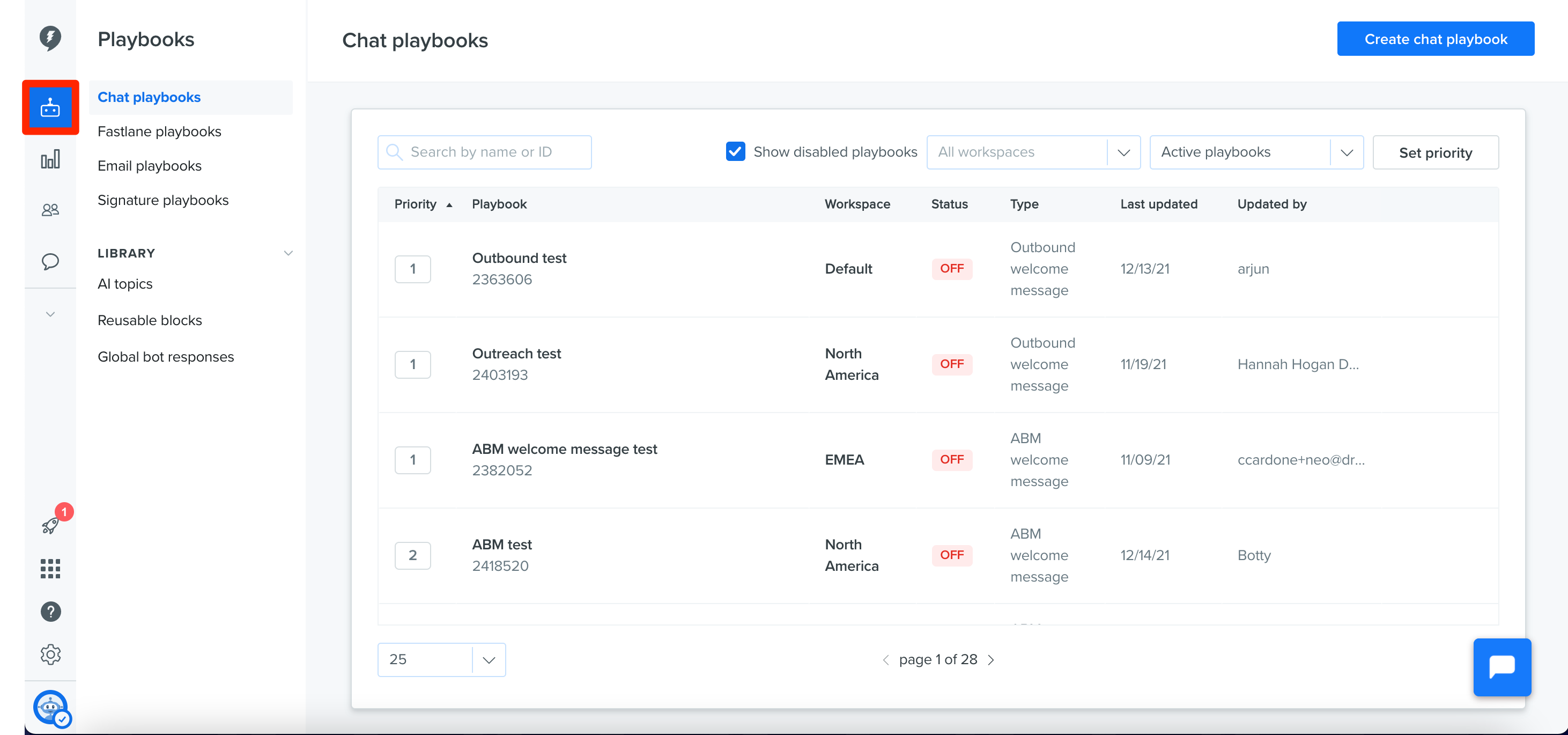
Playbooks are proactive, pop-up-style messages that are designed to engage your visitors. Every Drift account comes set up with the three playbooks pictured above. Click on the name of the playbook to edit them, and toggle it back on when you’re done if you turned it off to have them appear on your site.
Note:
Online vs. Offline also refers to your business hours. These messages will appear on your site over the Widget Default Greeting messages. For more on setting up and editing your Welcome Message Playbooks, check out this doc
Troubleshooting Tip
Not seeing the edits on your site that you just made? Make sure to Publish changes (located in the top right corner of your playbook page).
What happens after I install Drift?
Ready to install Drift, but aren't sure what to expect on your site? Check out this article to learn more about what should appear on your site after installation, where to edit your widget and playbook messages and more!
Can you install Drift for me?
We can not install Drift on your website for you, as we don't have access to your site's code. If you are having any issues with installing Drift on your site, click the widget inside app.drift.com and chat in to our Customer Advocate team, who is available 24/7!
Will Drift affect page load times?
No. Your site will load just as fast as it does today. Drift is loaded asynchronously. This means it won’t slow down your page or prevent users from interacting with your site. Drift also uses a Content Delivery Network (CDN) to ensure that Drift appears as efficiently as possible no matter where in the world your users are coming from.
Why isn't my Widget showing on my website?
There are various reasons why the Widget may not be showing up (Whitelisting, Ad Blockers, Installation Errors.). For more in depth information on troublshooting these details, check out our Widget Troubleshooting Guide here.
Why isn't my Widget showing on my mobile website?
If you only see half of the widget or it's cut off on the mobile version of your website, check out this developer doc from Mozilla.
