Salesloft provides tracking technology to deliver real-time alerts when your prospects interact with you. This valuable information is visible from your Live Feed. The Live Feed shows events as they occur in real time, for instance, an event will appear if a Person opens an email with open tracking enabled.
In this article, you will learn about your Live Feed and how to view events, including:
Before you start viewing Live Feed events, there are some important things you should know.
- Your Live Feed events are the activities that will cause an item to appear in your Live Feed. The event details will only contain information that exists in Salesloft.
- By default, if none of the filters are selected, you will see all of the Live Feed events.
- If there has been zero activity for an individual filter, you will see an empty state message for "No activity yet."
- The Time Range and Date filters default to "All Time," which means it will show your entire Live Feed history.
- The following information may display within the event details:
- Event Icon
- Person's Name
- Person's Role
- Account Name
- Event
- Email
- Number of Times action occurred
- Cadence Name
- Phone Number
- Only notifications built by integration partners will appear in the Live Feed. To inquire about the ability to view an integration in the Live Feed, please reach out to the integration partner. If you are an integration partner looking to create a Live Feed notification, you can build notifications for your Salesloft integration. Check out the documentation for more information.
- Live Feed loads 20 events initially, with infinite scroll to load the next 20 events upon reaching the bottom.
To view live feed events, follow these steps:
- Access the Live Feed: You can view the Live Feed from any of the following locations:
- From the Rhythm Workflow Page: Your Rhythm Workflow (aka the Salesloft Home page), shows the Live feed on the right side of the page.
- From the Notification Icon: The Notification icon (which looks like a bell) is located in the top navigation bar and notifies you when a Live Feed event has occurred. Any time someone interacts with a Live Feed event, a dot with the number of events will appear on the icon. Click the Notification icon to open a side menu full of Live Feed events.
- View All Events on the dedicated Live Feed Page: You can see the entire history of your Live Feed by navigating to the dedicated Live Feed page. From the side menu that opens after clicking the Notification icon, scroll to the bottom of the dropdown. Click View All Events. This will take you to the dedicated Live Feed page, which shows a complete list of activity that has been tracked.
- Filter the Live Feed by Event Type (Optional): You can filter the list of Live Feed events on the Rhythm Live Feed and the dedicated Live Feed page. You may select multiple filters at one time. When you select a filter option, the filter option will turn green when the filter is active. The filters include the following options:
- Rhythm Live Feed includes the Activity Type and Date filters
- Dedicated Live Feed Page includes Time Range and Activity Type filters.
- Select inside the event details for more information: The details in an event may offer linked information. Depending on the event type and information available in Salesloft, you can listen to a recording, view an email thread, go to a Person or Account Profile, and more.
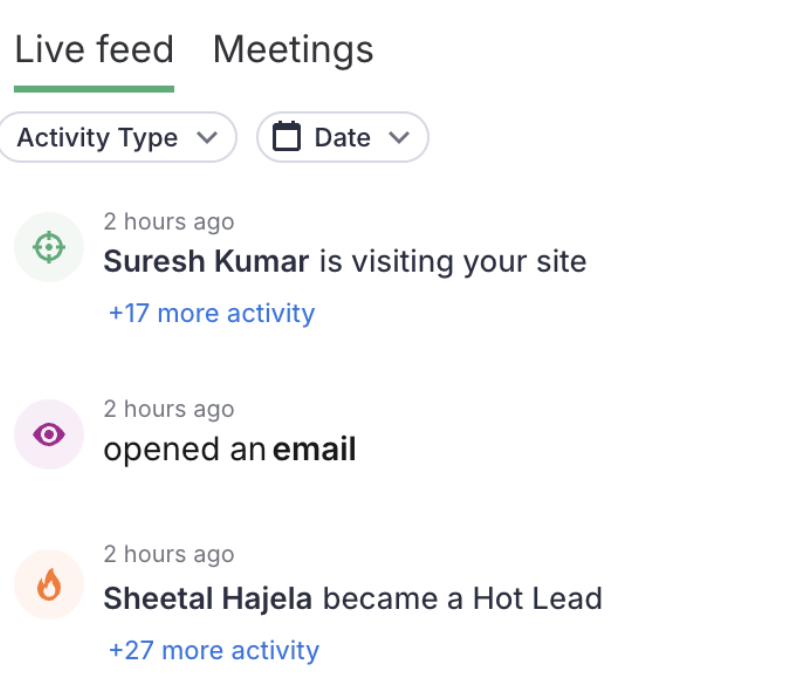
Figure 1: Live Feed from the Rhythm Workflow Page
The Live Feed panel consists of two tabs: Live Feed and Meetings. The Meetings tab allows you to view upcoming and past meetings.
Here’s a look at the Meetings tab:
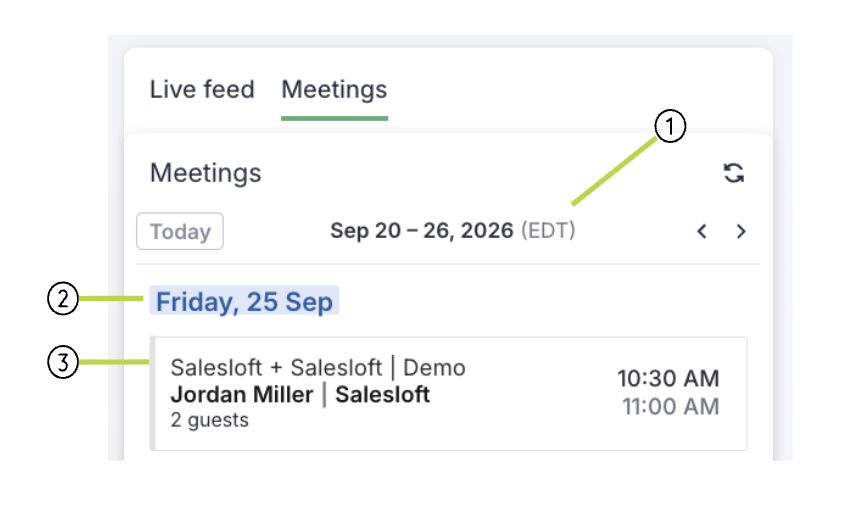
Figure 2: Meetings tab layout.
- Week: Shows the week currently being viewed
- Date: Shows the date of the meetings currently being viewed
- Meeting: Displays details for each meeting, including
- Meeting title
- Meeting host
- Number of guest
- Meeting time
Hover over the meeting time to show the following meeting actions:
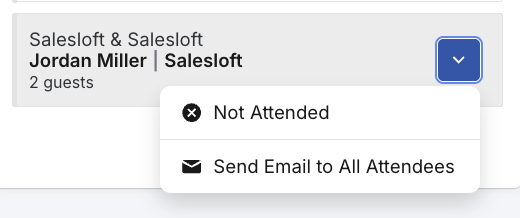
Figure 3: Meeting actions on the Meetings tab.
Types of Events
Events that appear in your Live Feed include:
| Event Icon | Event | Definition |
|---|
 | Clicked | A link in an email was clicked |
 | Failed to send | An email failed to send |
 | Replied to | An email was replied to |
 | Opened | An email was opened |
 | Voice Mail | The Person left a voice mail |
 | Missed Call | The Person called and the call was missed |
 | Booked Meeting | The Person booked a meeting from a link sent from a Salesloft user. |
 | Hot Lead | The Person became a Hot Lead |
 | Live Website Tracking | The Person is visiting your website |
Multiple Recipients
When an email with multiple recipients (CC or BCC) is opened or clicked, the Live Feed and Chrome pop-up notification will show the number of additional people who may perform an action. Salesloft cannot identify exactly who viewed or clicked the email.
Integrations
Integrations in your Live Feed events show real-time updates from partners inside of Salesloft. Only notifications built by integration partners will appear.
After viewing the Live Feed, you can take action based on the event that you see. For example:
