All your recorded calls are stored in the Conversation Intelligence recordings view under Activity > Conversation Intelligence. Use this guide to access your recordings, use search and filters to find a specific call quickly, and review the call summary.
In this article,
- Navigation may look different if your organization uses standalone access to Conversation Intelligence. This article reflects the Salesloft platform experience.
- Conversation Intelligence role: You must have a Conversation Intelligence role assigned.
- Observers can only access calls shared with them.
- Reps see My Calls.
- Managers see Team Calls.
Step 1 — Navigate to your recordings
In the Salesloft top navigation, hover over Activity and select Conversation Intelligence. Select My Calls to view your own recordings, or Team Calls to view your team's recordings (managers and admins only). Your most recent calls appear at the top of the list by default under Completed Calls.
Things to Note: My Calls and Team Calls don't offer identical tools. My Calls shows a simpler completed-calls list with a "Show unrecorded calls" toggle. The fuller search and filter tools described in Steps 2–4 below are most reliably available from Team Calls.
Step 2 — Search for a specific call
From Team Calls, use the Search field to look up a call. You can search by: call title or meeting name; participant name or email address; account or deal name (when Salesforce is connected); or words or phrases from the call transcript.
Things to Note: Transcript search finds calls where the phrase was spoken, even if it doesn't appear in the title. This is useful for finding calls where a specific topic, competitor, or objection came up.
Step 3 — Apply filters to narrow results
- From Team Calls, use the Saved Filters dropdown, or select + More Filters above the recordings list.
- Select from available filter options, including: Reps; Team; Duration; and additional options under + More Filters (topic mentions, competitor mentions, AI-detected attributes such as pricing questions or objections, and date range).
- Apply the filters — the recordings list updates immediately.
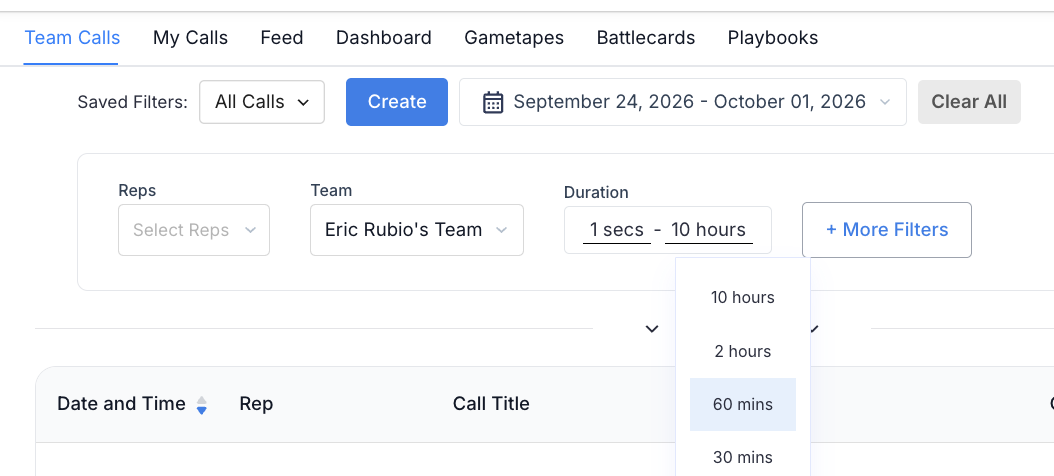
Figure 1: Filters on the Team Calls page
Step 4 — Save a filter for repeat use (optional)
- With your filters active, select Create near Saved Filters.
- Give the filter a name.
- Check Filter Alert to receive a notification whenever a new call matches your criteria.
- Save: Saved filters appear in the Saved Filters dropdown for quick access on future visits.
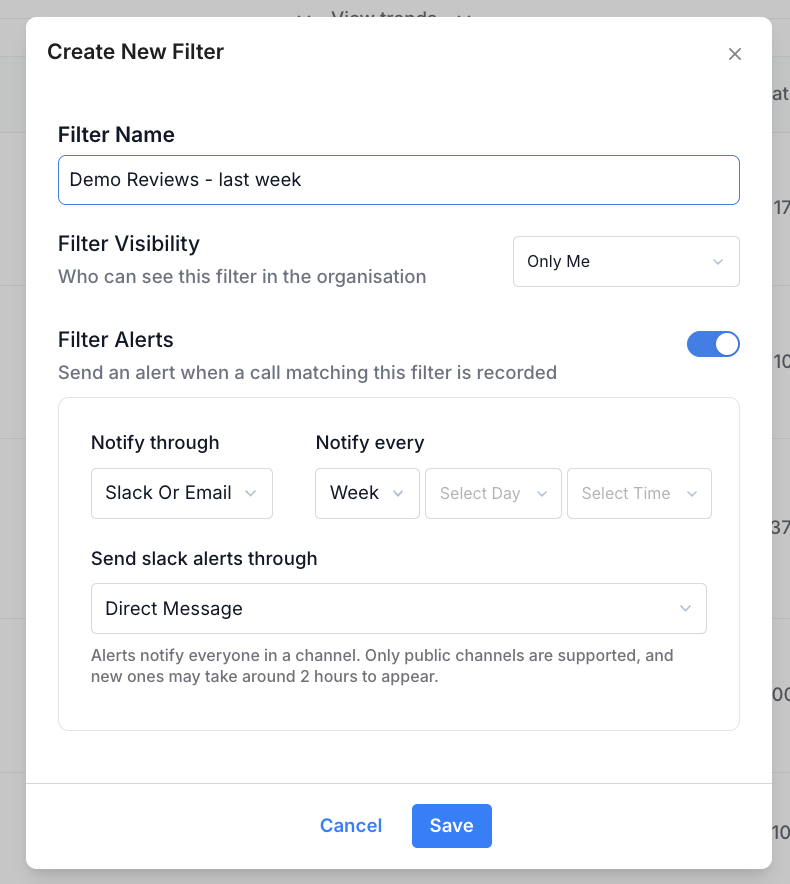
Figure 2: Create New Filter window
Step 5 — Open a call recording
Select any call title in the recordings list to open the call review page. The right panel includes Insights (with Summary, Chapters, Topics, and Playbooks tabs), Comments, and a per-call Search. For a full reference of everything on the call review page, see Conversation Intelligence: Call Review Page UI Reference.
Step 6 — Review the call summary (optional)
- Open the Summary tab: In the right panel, select Insights, and then select Summary.
- Scan the summary: Review the short, point-form summary of the call’s key discussion points.
- Show more detail (optional): Select Show more to see a fuller summary.
- Review action items: Review the action items from the call. Select a timestamp to jump to that moment in the recording.
Things to Note: Summaries require your admin to enable Advanced AI Features. If you do not see a summary, contact your admin.
- The call you were looking for appears in the results list.
- Selecting the call opens the recording with transcript and AI summary visible.
- The Summary tab shows a short, point-form summary, and Show more displays a fuller summary.
- Follow-Up column: Completed Calls includes a Follow-Up icon on each row, tied to the Generate Follow-up feature available on the call review page. (Full documentation of this feature is pending — see AI Agents, currently on hold pending product guidance.)
- Feed: The Feed tab (alongside Team Calls, My Calls, Dashboard, Gametapes, Battlecards, and Playbooks) shows a distinct call activity feed within Conversation Intelligence — separate from the Person and Account Activity Feed described in Conversation Intelligence in Salesloft
