Introduction to Ask Salesloft
Ask Salesloft is a conversational AI assistant that allows you to ask questions and receive intelligent responses in a natural, back-and-forth dialogue.
By leveraging Ask Salesloft, you can uncover insights from across the platform to perform sales tasks more effectively, make data-driven decisions faster, and ultimately improve your overall sales performance. In this article, you will learn about the core functionalities of Ask Salesloft, including:
Package and Permissions
Ask Salesloft's availability is controlled at the team and user level.
- Team-Level Setting: Ask Salesloft is available via the Generative artificial intelligence setting. This setting is enabled by default. If this setting is disabled, a Salesloft admin can enable it for the entire team.
- User-Level Permissions: Ask Salesloft respects all existing Salesloft access controls. A user can only receive information about data they are already permitted to view. This applies to all data sources, including Accounts, People, Opportunities, and Conversations.
- Admins have access to all data by default.
- For all other roles, data access can be configured from the Roles settings. The permissions follow the standard Salesloft structure (e.g., Owned by Anyone, Owned by Individual Users Only, Owned by users in their Group/Child Groups).
- Once an admin enables the Generative Artificial Intelligence setting, there are no additional setup steps required for individual users. Users with the correct permissions can begin using it immediately.
You can think of Ask Salesloft as your personal Salesloft data analyst. You can start with a broad question like, "Which of my accounts are at risk?", and then dig deeper with follow-up questions to explore specific details. Ask Salesloft often includes direct links in its responses to help you navigate right to the source.
The AI assistant processes data from the following data sources:
What You Can Ask
Ask Salesloft is designed to answer a wide range of questions by pulling information from across the platform. Here are some examples of what you can ask Salesloft's AI assistant:
| To accomplish this.... |
Ask this...
|
|
Get a high-level account summary
|
"Provide a brief overview of [Account Name]'s activity."
|
|
Identify key contacts
|
"Who are the most engaged contacts at Acme Corp?"
|
|
Prepare for an upcoming meeting
|
"What’s the next meeting with [Account Name]?" / "What’s the next meeting with [Person Name]?"
|
|
Review recent pain points
|
"What are the recent issues raised by stakeholders?"/ "What are the recent issues raised by stakeholders on [Account Name]"
|
|
Assess call/meeting volume
|
"How many meetings have we had with [Account Name] in the last 30 days?"
|
|
Assess seller engagement
|
"How many sellers were engaged with [Account Name] in the last 3 months?"
|
|
Review Person activity
|
"Provide a brief overview of [Person Name]'s activity."
|
|
Find your champions
|
"Who are the most engaged contacts at [Account Name]?"
|
|
Competitive intelligence and battle cards
|
“What are the top 3 differentiators of our Product X compared to Competitor Y?”
|
|
Specific product details and value propositions
|
“[Account] is interested in [new feature X]. What value prop can I share with them?”
|
|
Case studies and customer examples
|
“Do we have case studies for a customer similar to [Account] in industry?”
|
|
Find the right report to review particular metrics and analytics
|
"What are my best performing cadences?"
|
Accessing Ask Salesloft
The primary way to open Ask Salesloft is through its dedicated icon in the global navigation bar at the top of the Salesloft platform. Clicking this icon will open the Ask Salesloft chat panel as an overlay on your current page. You can access the Ask Salesloft icon and chat panel from any page in Salesloft.
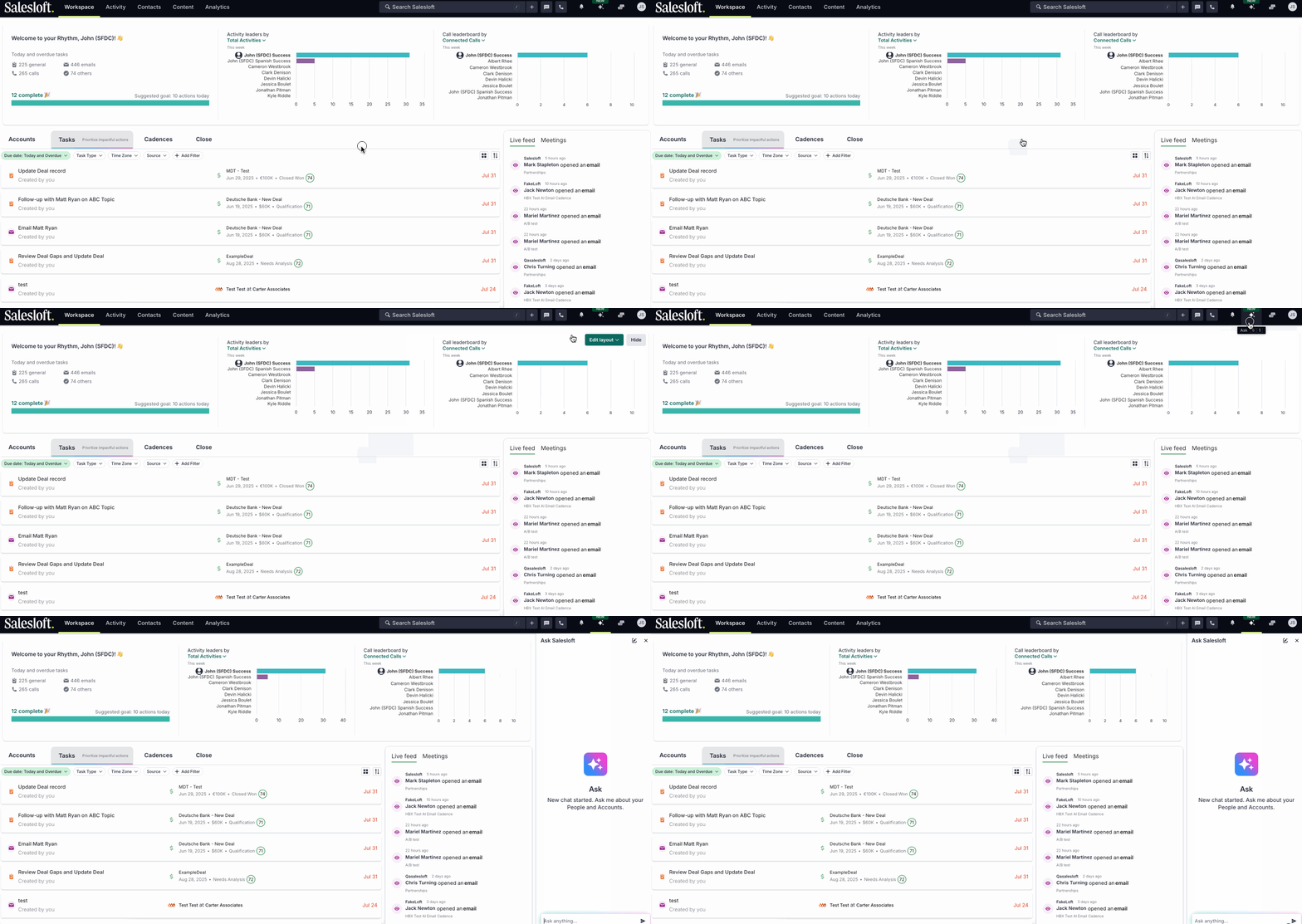
When you click the Ask Salesloft icon, the chat panel will open. The chat panel contains several key elements. Here's a look at the chat panel:
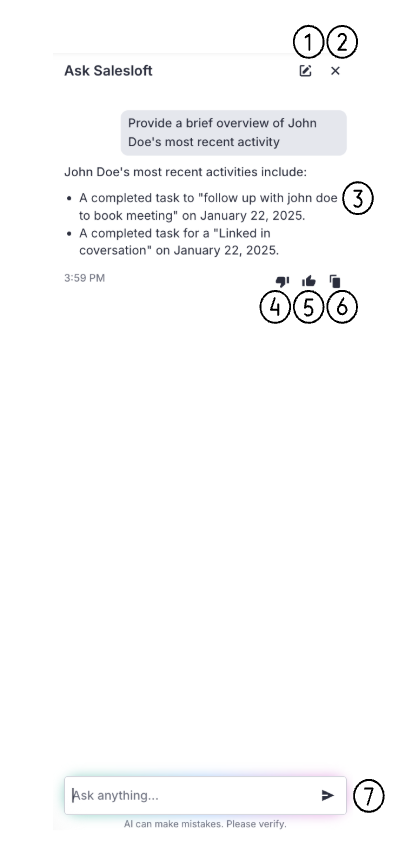
The Ask Salesloft chat panel contains the following elements:
- New Chat: The New Chat icon allows you to erase your current or ongoing chat and start a new one
- Close Chat: The 'X' icon allows you to close the chat.
- Chat History: The clock icon opens a list of your past chats so you can reopen, continue, or delete them.
- Input Field: A text box at the bottom of the panel where you type your questions.
- Resize handle: Drag the edge of the chat panel to make it wider, up to 50% of your screen.
- Conversation window: The main window displays the current conversation, showing your questions and the AI assistant's responses in order. Before you ask anything, it shows a welcome message: "Get instant answers about your deals, accounts and activities."
- Feedback Mechanism: When you hover over the responses, the following feedback mechanisms appears:
- Thumbs Up: Click the 'Thumbs Up' to positively rate the quality and accurancy of the response
- Thumbs Down: Click the 'Thumbs Down' icon to indicate that the response did not meet your expectations for quality or accuracy.
- Copy Response: Click the 'Copy Response' icon to copy the response to your clipboard
- Ask Salesloft: The AI-powered interface that allows users to ask questions about their Salesloft data.
- AI Agent: A software program powered by Artificial Intelligence, designed to perform specific tasks.
- Chat History: The saved list of your past Ask Salesloft conversations.
