Roles and permissions let Salesloft Admins create and customize a user's Salesloft access to best fit their job.
For example, maybe you have mid-tier managers that need permission to view and edit their team's content (templates, Cadences, People), but don't need access to all of the administrative settings, like Payments and Integrations. You can create a custom role called "Mid-tier Managers" with the proper permission settings.
In this article, you will learn about roles and permissions, including:
All Salesloft teams have two default roles that they can assign: Admin and User. These roles' privileges are locked (literally, there is a lock icon next to their role name). This means the permissions assigned to these roles cannot be edited. If you would like to edit one of the default roles, create a new role and adjust the permissions.
Let's break down what each role offers:
Admin
Admins manage and control your Salesloft team. By assigning the Admin role to a user they will be able to access and edit the full range of settings.
In addition to having control over your team's Salesloft account, being an admin offers further intel into your team's Salesloft use. Salesloft sends a weekly email report that breaks down your team's activity over the past week. The report will include a breakdown of the active users on your team, the number of emails and calls they made, the meetings they booked, and metrics relating to the completed tasks.
There are certain permissions/privileges that only a default Admin can do. These permissions may not be assigned to any custom roles. True admin only privileges in Salesloft include:
To view more information about these permissions, check out the Complete List of Available Permissions.
User
The User role is designed for the basic level of permissions required to use Salesloft. Users have access to their Personal Settings, as well as the creating and sharing of Salesloft data in the form of templates, Cadences, People, etc.
Collaborator
The Collaborator role is a free license type that allows users to access Conversations in a listen/view-only function. Users that are assigned a Collaborator License cannot record calls or access any functionality outside of Conversations features.
See the Getting Started With Collaboration Licenses article for more information.
Roles can be created and edited from the Roles Settings. Each role defines a group of users who have certain privileges. Team admins and users with the Manage Roles & Permissions permission enabled will have access to this page. To navigate to page, click your initials in this upper right to open the profile menu and click Settings. On the left hand side, select the Roles Settings found under the Team area.
When you reach the Roles Settings, you will see a table that contains a list of Roles currently available to your team. The table shows the role name and the number of users on your team that are currently assigned to that role.
The first 2 roles listed will the the Default Admin role and User role. These roles cannot be edited, renamed, or deleted, though custom roles can.
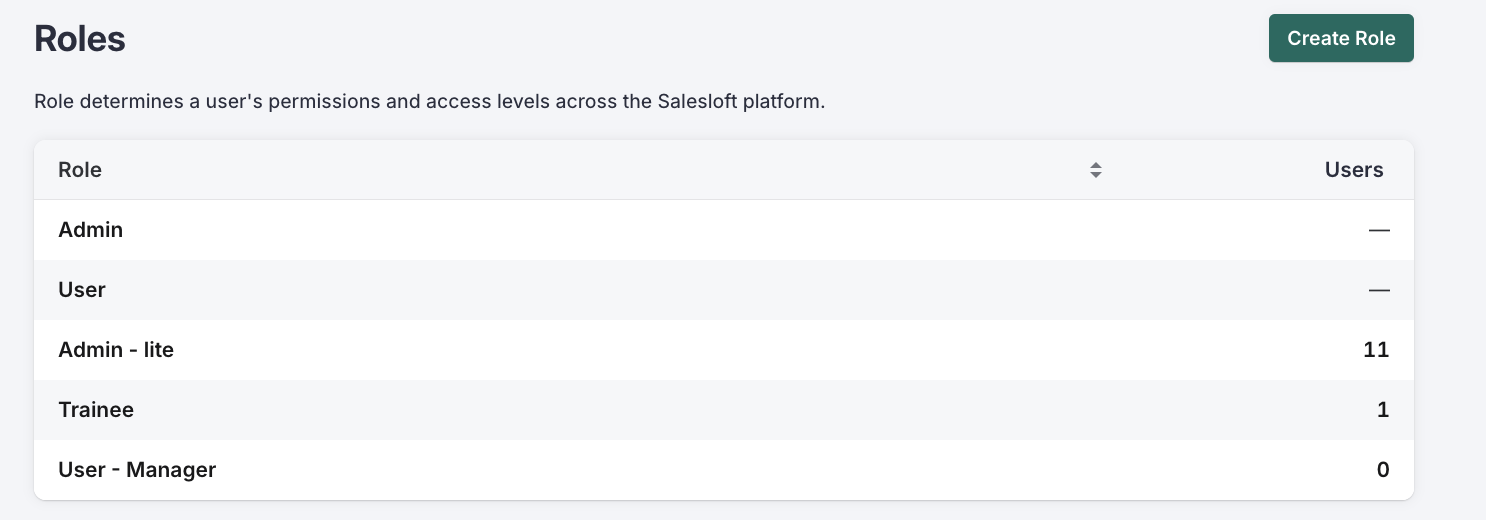
We understand that users may need more or fewer permissions than those set for Admins or Users. This is why you can add a new role to your Salesloft team and then the custom set permissions to best fit the role's use case.
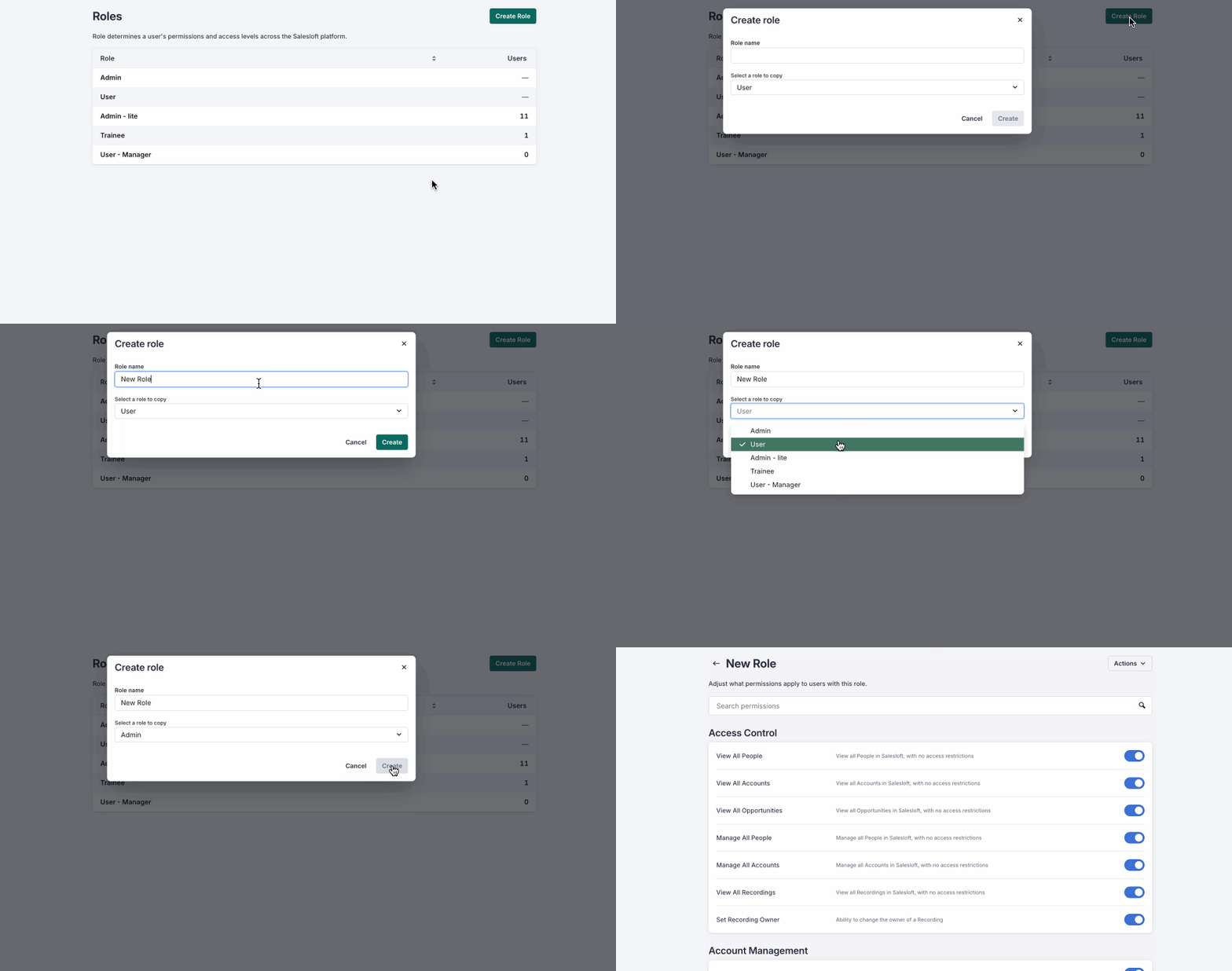
Custom roles can be created and named in one step by following the instructions below:
- Users assigned the Admin role or user roles with Manage Roles and Permissions enabled can navigate to the Roles Settings.
- In the Roles Settings, select Create Role, found above the top right corner of the Roles table.
- When the Create Role box appears, enter the name of the role in the Custom Name text box.
- Use the drop-down pick list and Select an existing role to copy. If this is your first time adding a new role, choose from either Admin or User as the baseline for your new role.
- Click Save. The role will appear in the Role table. Now you can edit the role to update the permissions you prefer.
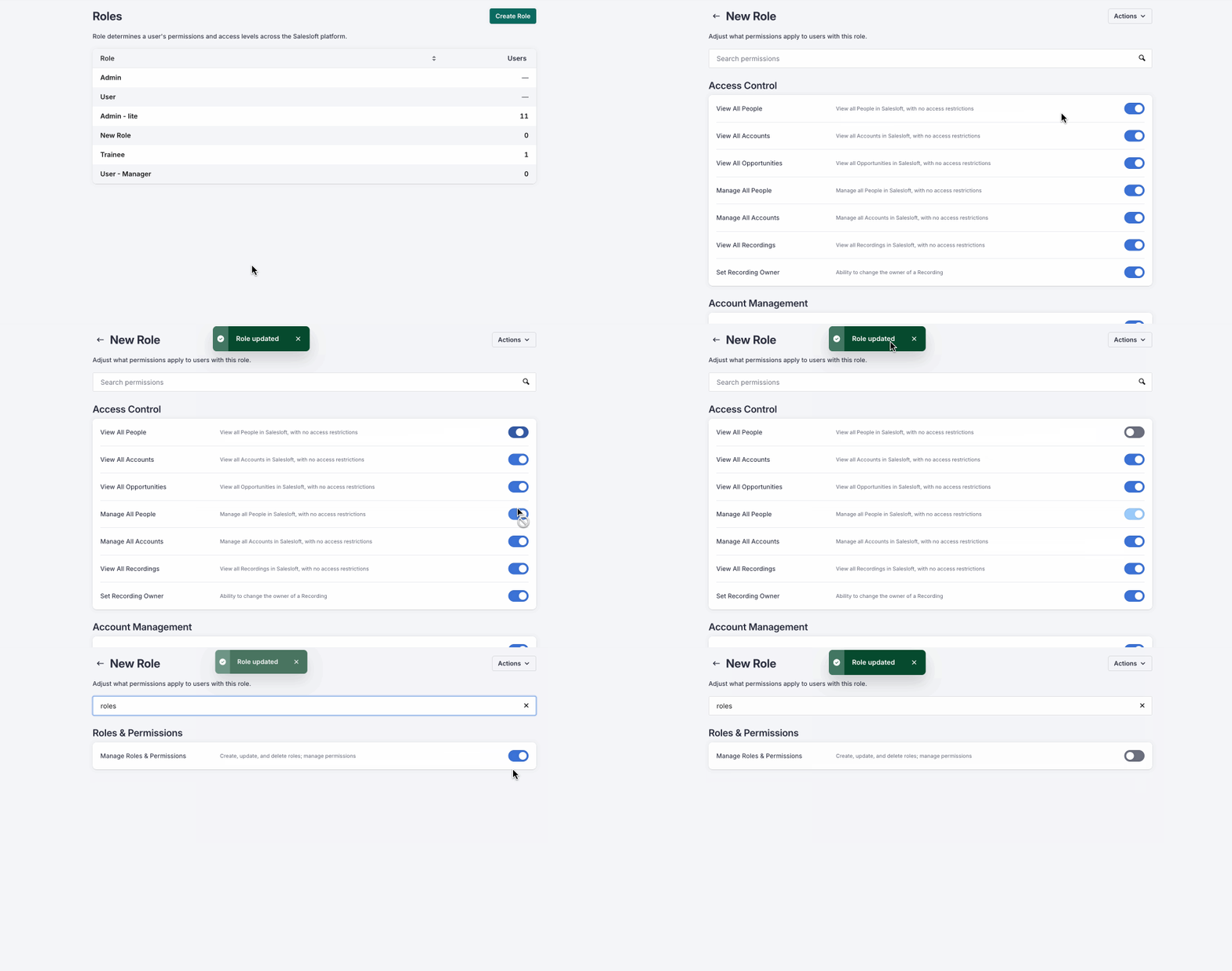
Custom roles can be edited to alter the permissions set for that role.
To edit an individual role, follow these steps:
- Navigate to the Roles Settings in your Settings.
- In the Roles table, find the custom role you would like to edit. Select the name of the role.
- You will be redirected to the Permissions tab. Here you can toggle permissions that you would like turned on or off. Once the boxes are selected, the role permissions will be saved.
Things to Note: New admin-level Salesloft features must be added to any custom role – they do NOT inherit new feature permissions from their original role parent.
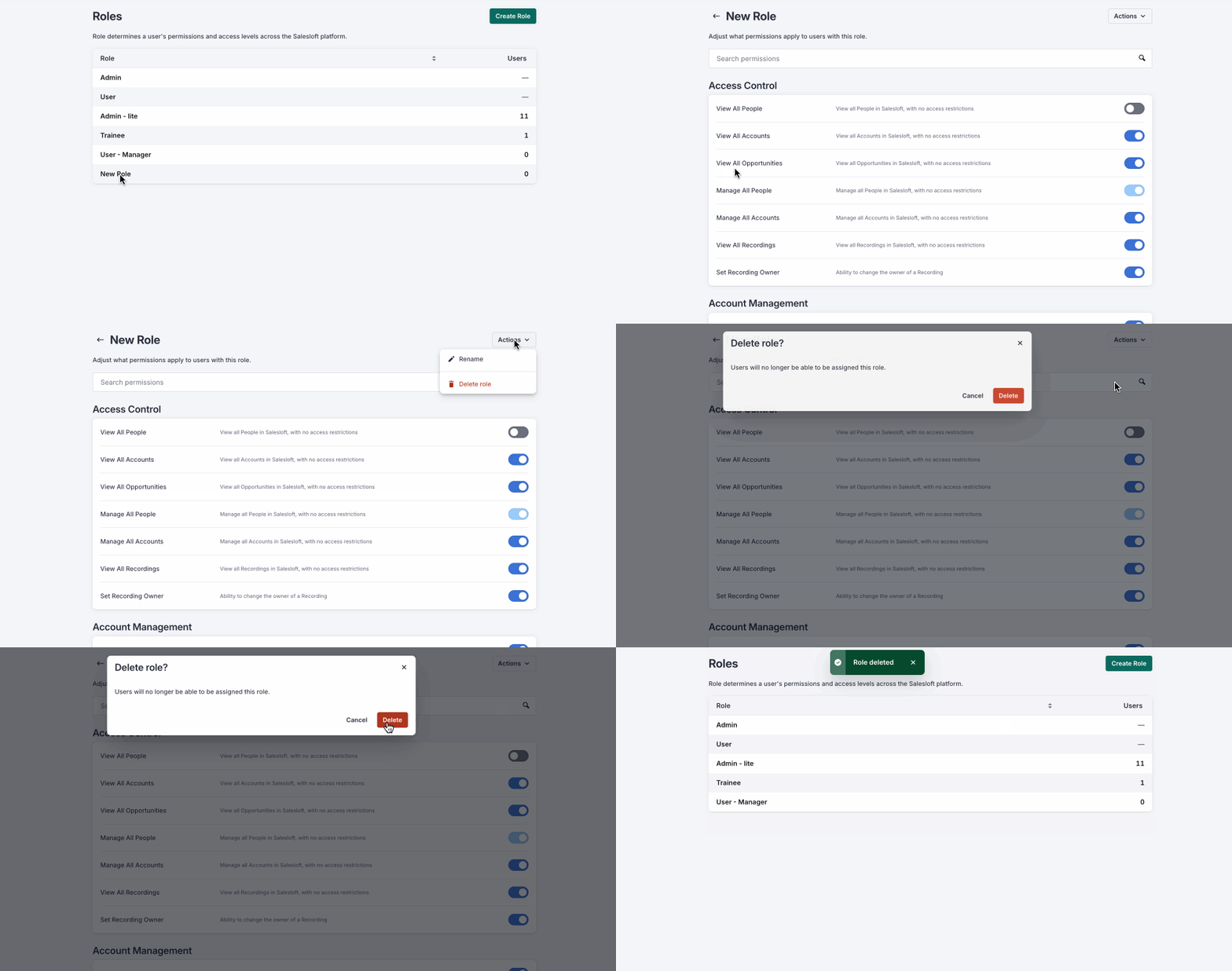
If a role is no longer necessary, and there are no users assigned to that role, you can delete the role.
Things to Note: When you delete a custom role, Salesloft will scan to make sure there are users assigned to that role. If there are, we issue an alert and ask that you first reassign users to a different role.
To delete a role, follow these instructions:
- Navigate to the Roles Settings in your Settings.
- In the Roles table, select the name of the role you would like to delete. You will be redirected to the Permissions tab.
- On the Permissions tab, select the Actions menu in the upper right corner. A dropdown will appear.
- Click Delete Role. You will be prompted to confirm the decision. Click Delete.
- Things to Note: You cannot delete active roles. If the role is assigned to any user, you need to reassign users to a different role in the Users table before you can delete a role.
Permissions let admins control what users can see and do in Salesloft. You can define a specific set of permissions for each role. The default Admin and User permissions cannot be edited.
Permissions are grouped into various types. You can search permissions by group name, permission name, or words found in the permission description.
When you edit custom roles, you can toggle the permission on or off.
The Permissions toggle will appear in one of the following options:
| On / Enabled |  |
| Off / Disabled |  |
| Unavailable / Requires additional permission - Hover over the toggle to learn what permission is required | 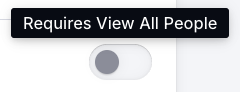 |
There’s a wide range of permissions available to you in Salesloft. You can pick and choose from any of the permissions listed. Our current permission categories and actions can be found in our Complete List of Available Permissions article.
