The ability to import a .CSV of users into Salesloft allows an Admin to quickly add users to Salesloft. When you import users via CSV, each user will receive a Salesloft invite email.
This article includes:
Have a .CSV complete with at least the following fields:
- First name
- Last name
- Email
- License
Things to note:
- If you don’t have a .CSV template, Salesloft will provide you a link to download a .CSV template after clicking Import Users during step 2 of the Bulk Import process.
To bulk import users via a CSV:
- Click on your initials on the top right hand corner and go to Settings > Team > Users.
- Click Import users.
- Select Choose CSV.
- After importing your CSV you’ll be able to select if you’d like to Update existing users, or Skip and not update existing users and map your fields from the CSV header to the Salesloft field.
For an outline of the fields available for importing users via CSV, specifying required fields, accepted values, and default behaviors, check out the chart below.
|
Field Name
|
Required
|
Accepted Values / Description
|
Default Value / Notes
|
|
First Name
|
Yes
|
Text
|
None
|
|
Last Name
|
Yes
|
Text
|
None
|
|
Email
|
Yes
|
Valid Email Address
|
None
|
|
License
|
Yes
|
Premier, Advanced, Admin, Collaboration
|
None
|
|
Salesloft Role
|
No
|
Exact name of a Salesloft Role (custom or standard).
|
"User" (if left blank)
|
|
Salesloft Group
|
No
|
Exact name of the user's Group.
|
"Not in group" (if left blank)
|
|
Manager Email
|
No
|
Valid Email Address of the manager.
|
Primarily recommended for customers not using Salesforce, as Salesforce customers typically use the "Manager" field for automatic import.
|
|
Job Roles
|
No
|
XDR, Account Executive, Account Manager, Management, XDR Manager, Account Executive Manager, Rev Ops, Marketing, Customer Success, Executive Leader, Developer, Other
|
None
|
Things to note: In lieu of using a .CSV file to bulk add users to Salesloft, you can select Create User during step 2 to create a single user.
After importing your .CSV, Salesloft will let you know if there were any errors in the process and give you an opportunity to Review failed users.
To review the failed imports, click Review failed users after running your import.
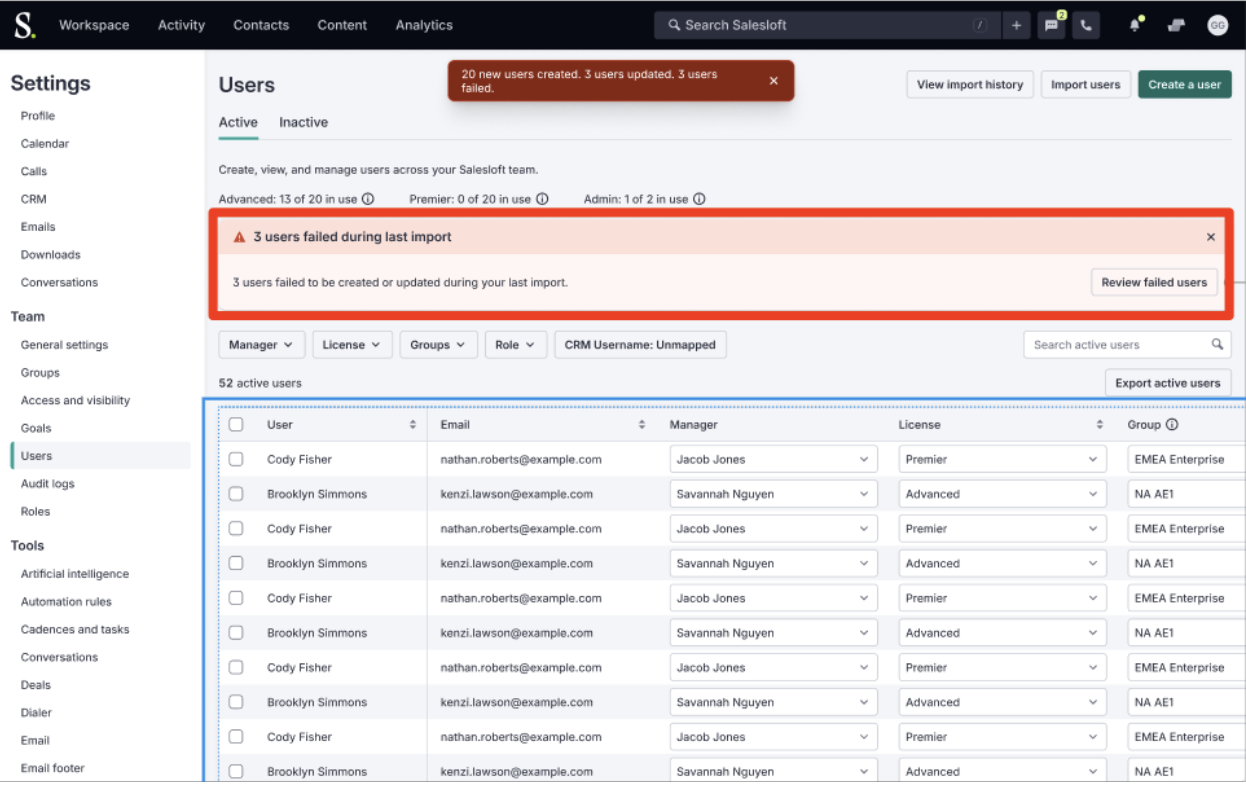
Fig 1: Highlight of the failed user error
You can review your import history to view or download the .CSV used, view the number of users updated, number of users created, number of users failed, when they were imported, and who imported the users.
To review your import history:
- Click on your initials on the top right hand corner and go to Settings > Team > Users.
- Click View import history.
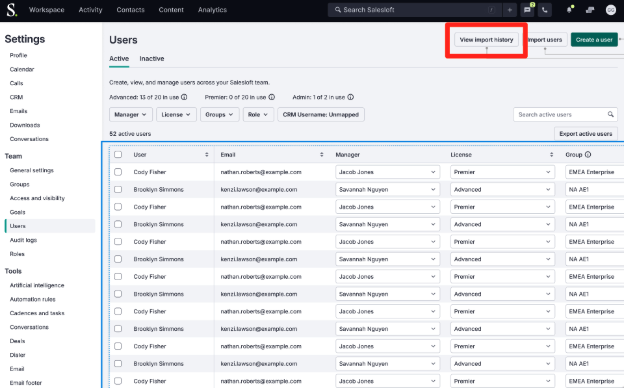
Fig 2: Highlighting the View Import History button
