Changes within a team structure are inevitable. While changes like bringing on new team members may be exciting, other changes, like offboarding, may require very specific tasks.
Offboarding a Salesloft user means removing their Salesloft access and making sure that someone is working their book of business. Offboarding starts with deactivating a user from their Salesloft license and includes steps like reassigning their Cadences and other tasks.
If a Salesloft user has exited your organization or moved to another role, there are specific steps you should take to properly offboard them.
In this article, we will walk through the steps to offboard a user, including:
-
Messenger license will be removed upon deactivation. Before you deactivate a user, we recommend communicating, if possible, about the deactivation process. This allows them to transfer any necessary data or provide context.
In the event that a user is no longer on your team, you may deactivate their Salesloft license.
Deactivating a user’s Salesloft license is an important step in maintaining security for your organization, as it removes an inactive user’s access to your team’s Salesloft account.
To deactivate a Salesloft user, follow these steps:
- Go to your settings.
- Select Users under the Team category. You will land on the Active tab.
- From the Users table, check the box beside the name(s) of the user(s) you would like to deactivate. To deactivate all users at once, check the box at the top left of the table beside User.
- Click Deactivate. The user(s) will be moved to the inactive list.
The next step in offboarding a Salesloft user is to update Person ownership. Updating Person ownership means transferring ownership of Person records from one user to another.
Things to Note: Your organization may have enabled the automation rule that automatically transfers Person ownership to the CRM owner when a Person owner changes. To review the automation rules enabled for your organization, check out the Manage Automation Rules article.
To update Person ownership and transfer Person records from one user to another, follow the steps below:
- Hover over the Contacts tab, then select People. This will direct you to the People Page.
- Click the Owner filter dropdown, and search for the Salesloft user you would like to deactivate. You can search by typing the user's name in the search bar, or by selecting a filter option, such as Inactive Users, to populate a list of users who fit within that filter criteria.
- Check the box next to each Person record whose ownership you would like to transfer to a different Salesloft user. As you select boxes, Select People Actions from the People Page will appear above the table.
- Things to Note: If you are transferring all of an Inactive user’s Person ownership to one Salesloft user, you can use the check-all box in the upper left corner of the table to select all of the Person records at once.
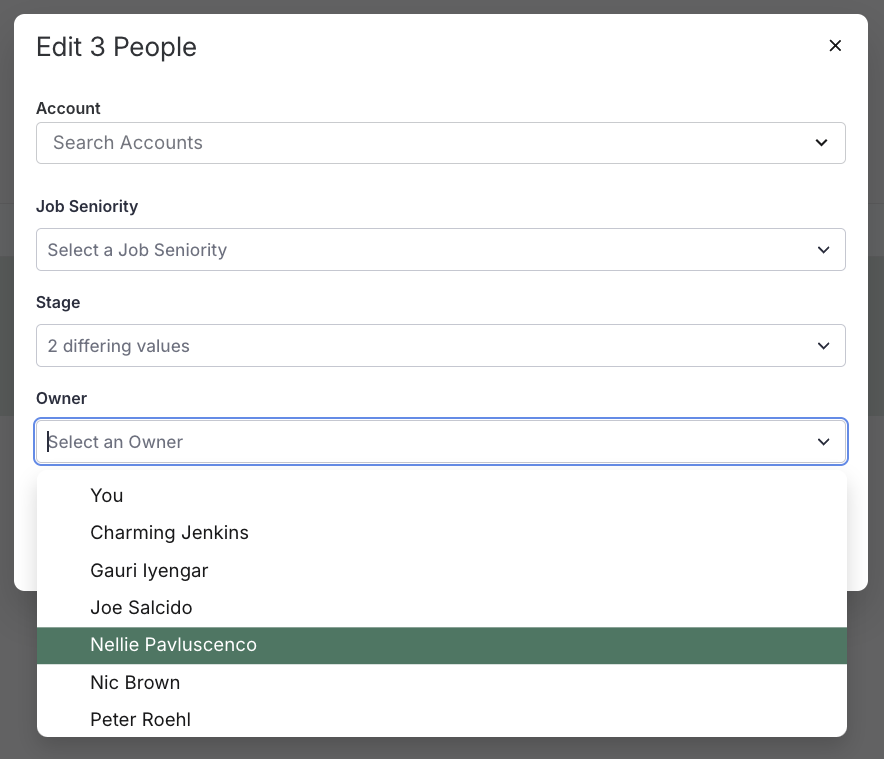
- Click Edit. The Edit window will appear.
- Select the dropdown next to Owner and select the Salesloft user that you would like to transfer ownership of the Person record to. You can scroll down the list or type the user's name into the search bar.
- Click Save.
If you would like a visual guide to updating Person ownership, check out our Transfer Ownership video.
After Person ownership is reassigned, any tasks associated with the Person record must be reassigned as well. You can enable Automatic Task Reassignment to automatically reassign any remaining tasks associated with a Person record.
To enable Automatic Tasks Reassignment, follow the steps below:
- Navigate to your Settings.
- Select Cadences & Tasks under the Data category.
- Scroll down to the Automatic Task Reassignment setting and click the toggle to enable it. When the toggle area is blue, the setting is enabled.

Once a user’s Salesloft account has been deactivated and their Person ownership records have been updated, you will need to re-assign any Personal Cadences.
Personal Cadences are Cadences owned by an individual rep. If a former Salesloft user was using Personal Cadences to engage a buyer, you'll want to make sure that someone else takes over that communication. Reassigning the Personal Cadences allows you to transition the workflow from a former Salesloft user to a current user.
To reassign Personal Cadences, you will first need to convert them into Team Cadences. Once you have converted the Personal Cadences into Team Cadences, you can reassign the Cadence steps.
To convert Personal Cadences into Team Cadences and reassign the Cadence steps, check out the Complete Team Cadences article.
In the event that a user has been moved to the Inactive list, but needs Salesloft access you may activate (or reactivate) the user to the active status.
To reactivate a user from inactive, follow these steps:
- Go to the Users Settings under your Settings.
- Go to the Inactive tab.
- Select an individual email address, or select the checkbox in the upper left corner of the column to select all of the email addresses.
- A green button will appear to activate. Click Activate to complete the action. The user(s) will move to the Active tab.
View Inactive Users
Once a user has been deactivated, they are known as an Inactive User. Your inactive users no longer have access to Salesloft.
You can view all inactive users by going to the Users Settings in your Settings. Then select the Inactive tab.
Inactive users will still show their previously assigned group. If a group was never selected, the group will display Not in Group. You may edit the group name (maybe switch them to Not in Group) to remove the user from any data attributed to that group.
Inactive users will also still show their previously assigned role. You may edit the role using the dropdown menu.
