The Multi-team Enterprise Management simplifies management and improves efficiency for large organizations with multiple Salesloft instances. Multi-team Management uses Salesloft Instance Switcher which allows you to toggle between instances without having to log into Salesloft and re-authenticate.
In this article, you will learn about the Instance Switcher functionality, including:
- You must have the Elite Salesloft license to leverage the Instance Switcher.
- Technical Configuration of the Instance Switcher will be configured by your Salesloft Account team.
- All instances remain isolated and GDPR compliant.
- Your email address is globally unique, meaning that each user can have a single email address in an enterprise. This single email address can be used in every instance the user exists in, without any work arounds.
- Email usernames of the individual tenants can be the same, but it is not a requirement.
- Salesloft can still support unrelated email usernames linked to a single Enterprise member email username.
- The Salesloft Chrome Extension and Salesloft Mobile will not automatically switch instances when a user switches in app.salesloft.com.
- Organizations will be able to do instance assignments from Okta SCIM with the help of their IT department.
- SSO at the Enterprise must be enabled and SSO cannot be shut off.
- All users in the enterprise must come from the same instance of their IAM (identity provider).
- This feature is only compatible with SAML and Google's OpenID Connect authentication.
- A password will not be allowed to authenticate any user within an Enterprise.
- For additional support on, check out our help doc on User Provisioning with Okta - Saleslot Enterprise.
After the Instant Switcher has been enabled for your license, follow these steps to log into your Salesloft instance:
- Log In: Log into your Salesloft account using your email address.
- Select your Enterprise Instance: Click the instance you’d like to log into.
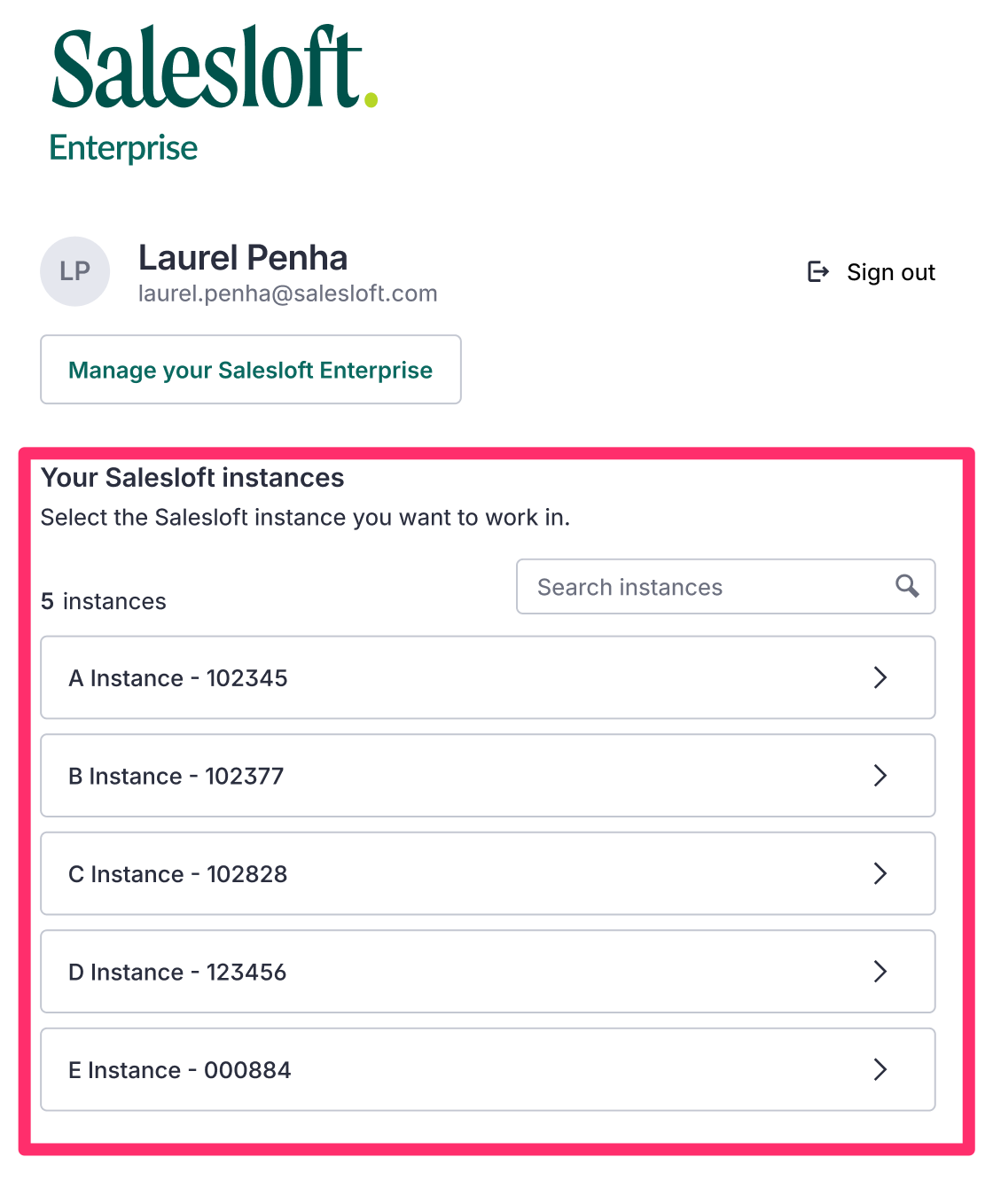
Figure 1: Enterprise Login screen with instance selections
After the Instant Switcher has been enabled for your license, follow these steps to switch between Salesloft instances after you’ve logged in:
- Log In: Log into your Salesloft account using your email address.
- Select your Enterprise instance: Click the instance you’d like to start your session with.
- After Logging in, locate the Instance Switcher: Click the Instance Switcher in the top right hand corner to view your additional instances.
- Select your Instance: Click on the appropriate listing to switch to a different Salesloft instance.
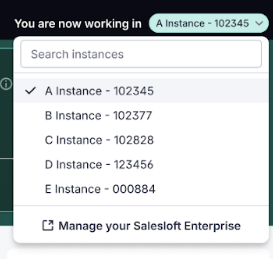
Figure 2: Example of the Instance Switcher in platform
- Switch between tenants as needed.
- Adjust your Enterprise settings as needed.
