In our fast paced sales environment, every minute counts. Yet, many reps find themselves bogged down by manual tasks that consume a lot of time and energy, one of which being capturing a lead’s contact information.
Salesloft’s Auto-Person Capture setting automatically creates a Person record when you send a Lofted email or meeting invite to someone that is not already a Person record in Salesloft. The email recipient or meeting invitees’ email address creates a Person record, then logs the activity to your CRM.
Auto-Person Capture is enabled by default. It can be managed using the Auto-Person Capture team setting and assigning users roles with the Create People Create People while Lofting permissions enabled.
In this article, you will learn how to set your team up for Auto-Person Capture success, including:
There are two permissions that must be enabled for Salesloft to initiate Auto-Person Capture.
- Create People
- Create People while Lofting
Salesloft will determine whether a user has these permissions enabled before creating a Person record. This allows you to manage which users on your team are capable of Auto-Person Capture.
Both of these permissions are enabled by default for the standard Admin and standard User roles, however, for users who would like to access Auto-Person Capture, we suggest double-checking that these permissions are enabled for their role.
Things to Note:
- The Auto-Person Capture setting is enabled by default. This means that Salesloft will automatically begin creating Person records for your team.
- When a person record is created in Salesloft via Auto-Person capture, the record will be created only with the email address. Salesloft won't pull First name or Last name, or any other information.
- Both the Create People permission and the Create People while Lofting permission must be enabled for Auto-Person Capture.
- The Create People permission and the Create People while Lofting permission alone will not take precedence over the default Auto-Person Capture setting. If the Auto-Person Capture setting is disabled, Salesloft will stop automatically creating Person records, regardless of whether these permissions are enabled.
- It is not recommended to enable these permissions if you prefer that all record creation originates from your CRM. If certain roles (i.e. CSM/AE) should have this permission, then you can enable the Auto-Person Capture setting, then disable the Create People, and Create People while Lofting permissions for individual roles.
To enable the Create People permission and the Create People while Lofting permission, follow the steps to Edit a Role.
Once you’ve enabled the Create People and the Create People while Lofting permissions for your desired roles, you’re all set!
Inside your Team General Settings, you can find the Auto-Person Capture setting. This setting is enabled by default, meaning the auto-capture process will automatically take place as long as the appropriate permissions are enabled.
As an admin, you may choose to disable the Auto-Person Capture setting for your team.
To disable the Auto-Person Capture setting, follow these steps:
- Navigate to the settings.
- Select General Settings under the Team category.
- Scroll to the Auto-Person Capture tile and select Edit. The Edit Auto-Person Capture window will appear.
- From this window, select the Never automatically create people records option.
- Hit Save.
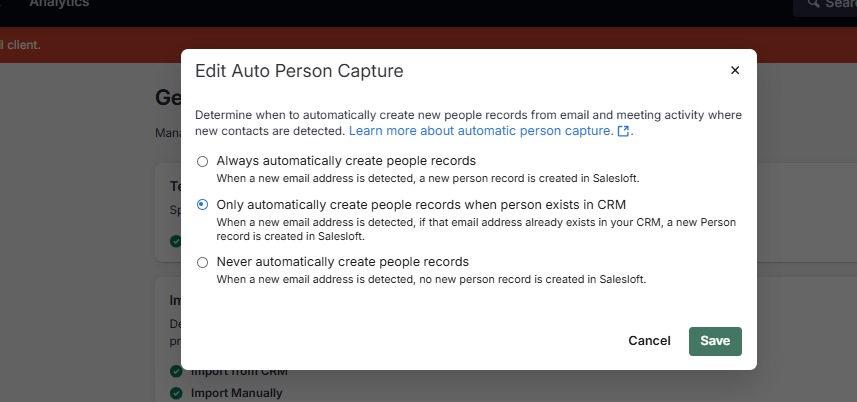
Figure 1: Edit Auto Person Capture window
Salesloft’s Auto-Capture can help you help your team increase productivity by streamlining their workflow.
To ensure your team is set up for Auto-Capture success, we recommend walking through the setup checklist. This checklist is designed for you to double-check your understanding of Salesloft processes so that your team can make the most of Auto-Person Capture:
- Confirm your email recipient’s/meeting invitees’ communication preferences: Checking communication preferences helps your team avoid conflict. For leads who do not prefer email communication, you can add their email client to the Domain Exclusion List to avoid their email being automatically added to the Person record.
- Consider your Person capture preferences: Auto-Person Capture uses email addresses to automatically create Person records that don’t exist in Salesloft. This process occurs whether a record exists in the CRM or not. If you prefer to only capture Person records that already exist in the CRM, we recommend creating an Automation Rule that creates all Leads/Contacts from the CRM. If you choose to create this type of rule, you will need to disable Auto-Person Capture.
- Consider recipients in the TO:, CC:, and BCC: fields: When you send a Lofted email directly from Salesloft or using the Salesloft extension, Salesloft will identify whether the recipients in the TO: field and the CC: field have a Person record. Salesloft will not create Person records for recipients in the BCC: field. We recommend including all recipients who you would like Salesloft to create a Person record for in either the TO: field or the CC: field.
- Create Lead Records in your CRM: If you would like to use Auto-Person Capture but also want to minimize unlinked Person records and activity sync errors, we recommend creating Lead records in your CRM. You can do this by creating an automation rule that sets default values if certain values are missing, i.e. first name, last name, company name…etc. This will ensure that you are not setting default values if one exists. You can also leverage CRM data enrichment tools to populate missing data which ensures the records won’t have Unknown values.
