If your team records sales calls, you are responsible for informing meeting participants and obtaining their consent (depending on your jurisdiction).
Conversation Intelligence provides three mechanisms for collecting consent that are all configured from the Conversation Intelligence Admin settings:
- pre-meeting consent page
- audio announcements
- email reminders
To access the Consent settings, in the Salesloft top navigation, click your initials in the upper right corner. Then go to Settings > Conversation Intelligence > Compliance and data policy > Consent and compliance. (This tab sits alongside Data retention — see Data Retention and Compliance Reporting — and Audit logs.)
Use this guide to configure the right setup for your team's compliance requirements.
In this article,
- Navigation may look different if your organization uses standalone access to Conversation Intelligence. This article reflects the Salesloft platform experience.
- Permission / Role: Salesloft Admin access required for all consent configuration steps.
- Plan requirement: Full consent and compliance tab features may require the Conversation Intelligence Enterprise plan. If the Compliance tab shows "You don't have access to these settings," confirm your org's Conversation Intelligence plan with your Account team.
- Legal review: Consent requirements vary significantly by jurisdiction. The information in this guide is a general summary, not legal advice. Consult your legal team before configuring compliance settings.
- When a participant clicks a meeting link, the link text itself updates (e.g., "Join with Google Meet" becomes "Join Google Meet via Conversation Intelligence") once their calendar is synced with the current consent settings.
- The consent page includes an option for participants to request a copy of the recording — doing so immediately emails the meeting organizer.
- Supported calendars: Google Calendar and Outlook Calendar are both supported for the consent page.
|
Consent type
|
What it means
|
Where it applies
|
|---|
|
One-party consent
|
Only one party needs to consent — typically the person recording
|
US federal law (ECPA); many US states
|
|
Two-party / all-party consent
|
All parties must be informed the call is being recorded; prior consent required
|
Up to 12 US states; Australia; Canada; South Africa; UK and Ireland
|
|
Active consent (GDPR)
|
All parties must provide unambiguous active consent before recording begins
|
European Union and EEA countries
|
|
Passive consent
|
Participants are informed the call will be recorded — joining counts as consent
|
Many two-party consent jurisdictions
|
If your team records calls with participants across multiple jurisdictions or globally, apply the highest consent standard to all calls. Consult your legal counsel on which requirements apply to your business.
The consent page is shown to participants before they join a meeting, requiring them to click through before entering. This provides active consent and is the most comprehensive option for compliance. The consent page is enabled by default for all customers.
Under Consent Page Settings, configure:
- Enable Consent Page — turns the page on or off as a means of collecting recording consent.
- Enable Post-Meeting Page — redirects participants to a default or custom post-meeting page after the call ends.
- Schedule Meeting Link Replacement — sets how far in advance of the meeting the calendar link is automatically swapped for the consent link (e.g., 10 minutes before).
- Team Config — scope the consent page to specific teams, or leave at All Teams.
- Active Consent — lets any participant disable recording for the call before joining. This is a requirement in certain geographies (GDPR-aligned); scope by team the same way as Team Config.
- Customize Consent Page — select to add your company logo, brand colors, and a custom recording disclaimer.
Things to Note: After enabling or changing consent page settings, recording users need to re-sync their calendars for the change to take effect on their scheduled meetings.
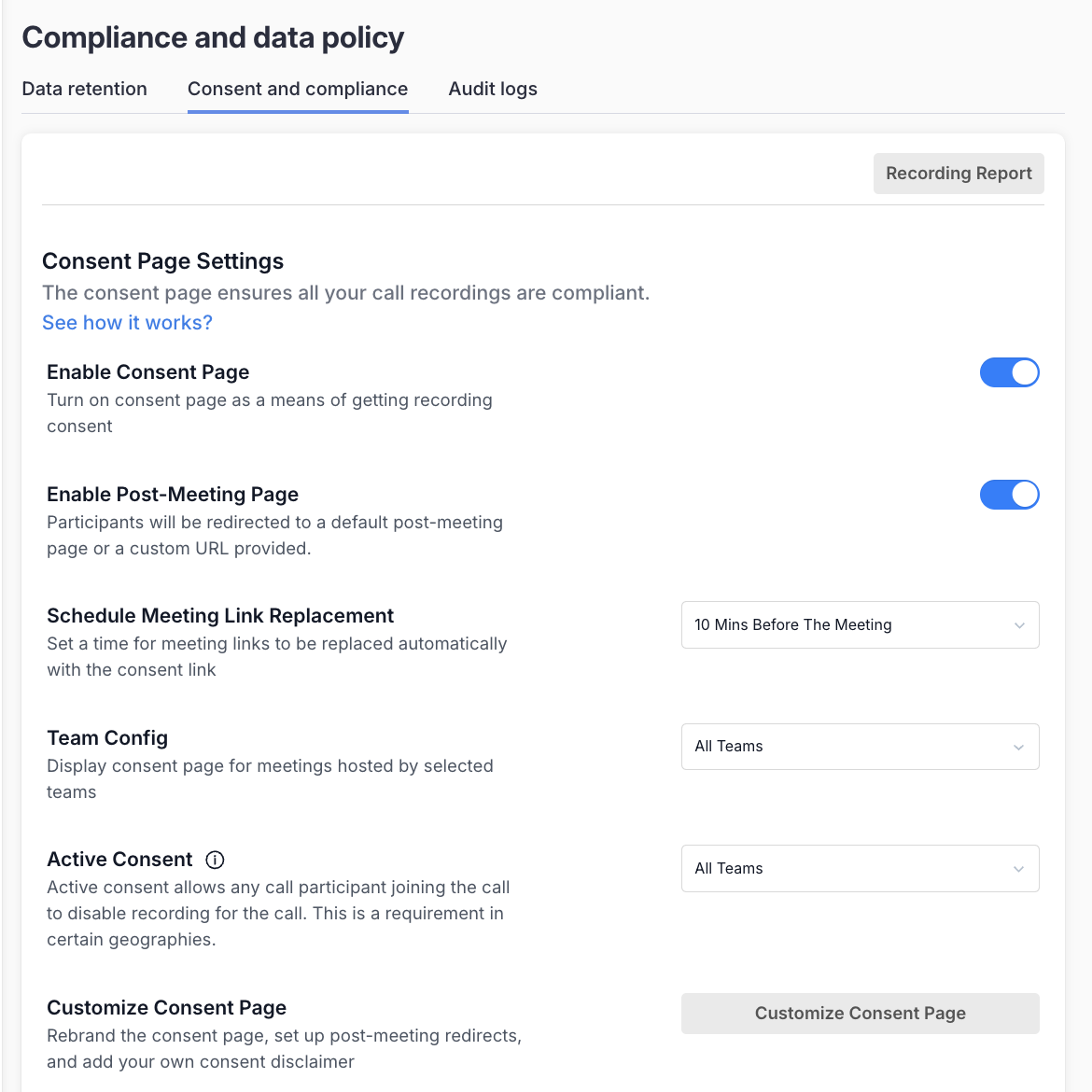
Figure 1: Consent Page Settings
Under Recording Consent via Audio, choose when an audio announcement plays for participants joining a recorded call:
- Meetings organized by a recording user
- Any meeting that is being recorded
- None
Things to Note: This setting does not affect Zoom. Zoom automatically plays its own native recording announcement ("This call is being recorded") and displays a red recording indicator regardless of this setting — see Additional Information below. This audio consent setting primarily applies to other connected platforms (e.g., Microsoft Teams, Google Meet).
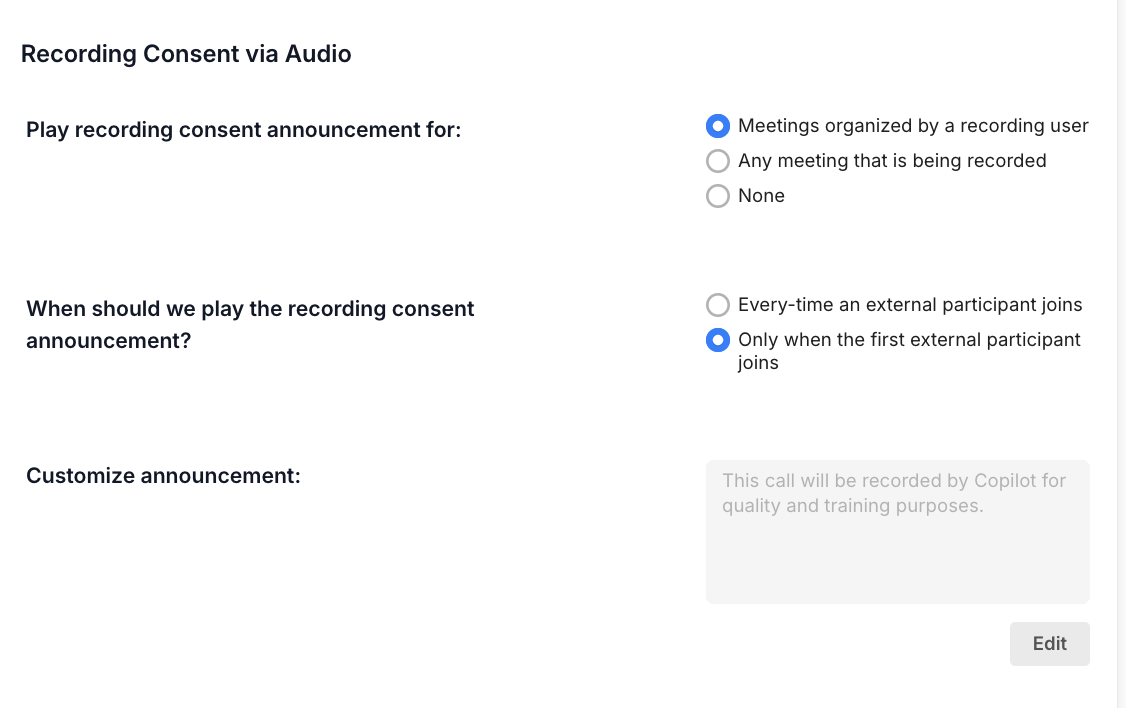
Figure 2: Recording Consent via Audio Settings
Under Recording Consent via Email:
- Toggle Enable Recorder consent via email On. This sends a reminder email that also notifies external guests the meeting will be recorded by Salesloft Conversation Intelligence.
- Set email reminder timing — how far in advance of the meeting the email is sent (e.g., 5 minutes before).
- Select Edit Email to customize the compliance message included in the reminder.
- Choose the email reminder setting: send reminder emails only for meetings hosted by recording users in your org, or send reminder emails for all meetings.
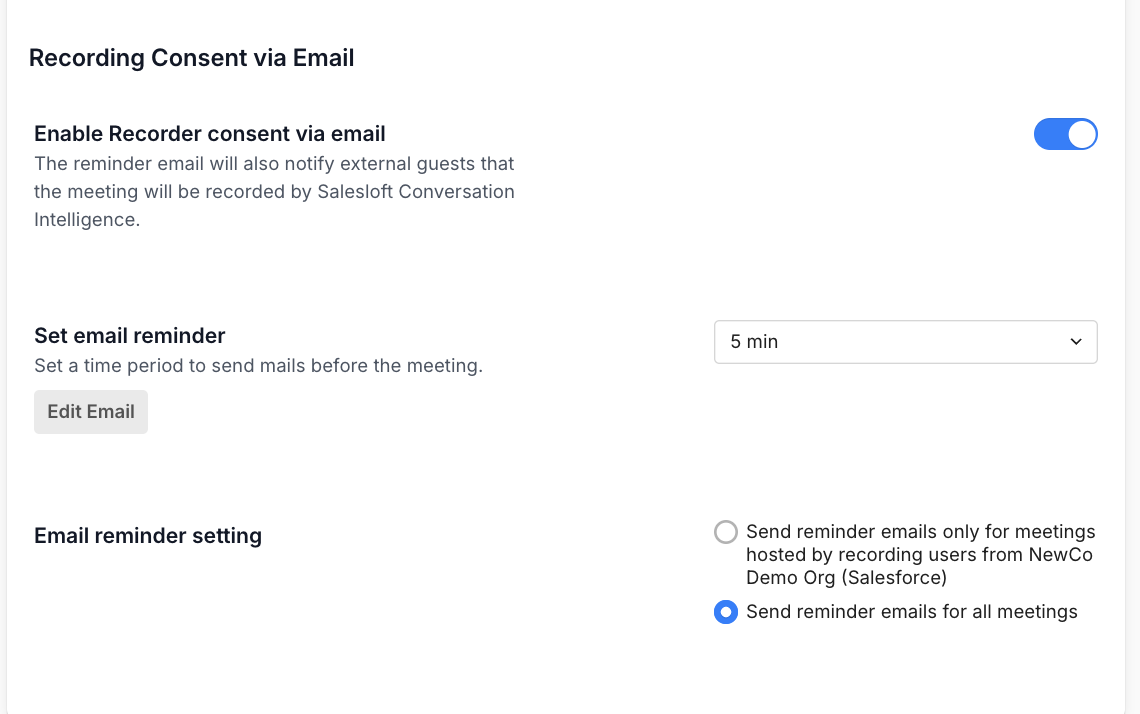
Figure 3: Recording Consent via Email Settings
- For the consent page: participants clicking your meeting link see the consent page before entering the meeting.
- For audio announcements: participants hear the consent announcement when joining a call, according to the rule you configured (excluding Zoom, which always plays its own).
- For email reminders: participants receive a reminder email with the compliance note before recorded calls, according to your targeting setting.
- When Salesforce is connected: consent may be logged per account in Salesforce as a CRM activity after each recorded call.
Zoom-specific consent and recording permission
For Zoom recordings, Conversation Intelligence triggers Zoom's own default recording announcement automatically — participants hear "This call is being recorded" and see a red flashing indicator. This is automatic and requires no additional configuration; the consent page and audio announcement settings above are supplemental to it.
If your org has not synced Zoom with local recording enabled and locked at the org level, the meeting host will see a popup asking them to permit recording for each individual call — and the call will only be recorded if they allow it. Once an admin enables and locks local recording at the org level (see Manage Your Team's Recording Platform with Conversation Intelligence), this per-call host prompt is no longer needed.
Common Zoom consent issue: if a call shows "This meeting was not recorded as recording permission was not granted by the host" on the call review page, local recording was off for that user and the bot could not start it — it will automatically leave after about 10 minutes of silence.
Recording and consent reporting
For detailed diagnostics on why specific calls weren't recorded, which teams are missing the most recordings, and an audit log of consent/recording configuration changes, see Call Recording and Consent Reports.
Dialer calls: For calls recorded through the Salesloft Dialer or other supported dialers, Conversation Intelligence imports the recording. Most dialers can be configured to play a consent message before connecting to a rep for inbound calls. For outbound calls, starting the call with "Hi, this is [name] calling on a recorded line..." informs participants.
| Problem | Likely Cause | Fix |
| Call shows "recording permission was not granted by the host" | Zoom local recording was off for that user, or Zoom isn't synced/locked at the org level | Confirm Zoom local recording is enabled and locked at the org level — see Manage Your Team's Recording Platform with Conversation Intelligence |
| Bot joined but call wasn't recorded, no clear error | Participant may have declined consent via the Consent Page, or belongs to a restricted domain/email | See Call Recording and Consent Reports for the specific reason code; review Restricted Domain(s)/Email(s) settings under Recorder Settings |
