Game Tapes are curated collections of call clips organized around a theme — discovery call techniques, objection handling, competitor responses, customer stories, and more. Use this guide to create a Game Tape from a call recording or transcript and add it to a folder your team can access.
- Navigation may look different if your organization uses standalone access to Conversation Intelligence. This article reflects the Salesloft platform experience.
- Access to the call: You can create a Game Tape from any call you have access to — your own calls (My Calls) or your team's calls (Team Calls, for managers).
Step 1 — Open the call you want to clip
In the Salesloft top navigation, hover over Activity and select Conversation Intelligence. Find the call you want to create a Game Tape from and select the call title to open the call review page.
Step 2 — Open the Game Tape creator
In the top-right area of the call review page, select the ••• (overflow) menu, then select Create Game Tape. The Trim Call window will appear on the page.
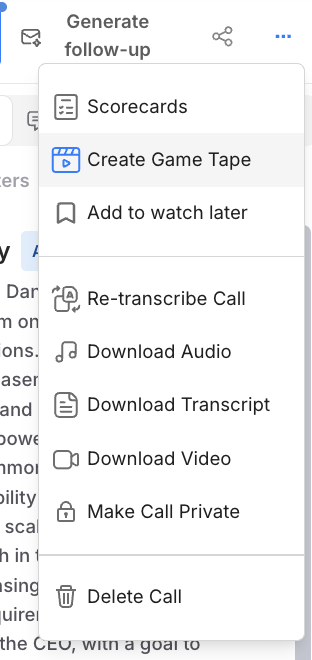
Figure 1: Create Game Tape option as seen in the overflow menu on the Recording Page
Step 3 — Trim the clip
In the Trim Call window:
- Use the sliders on either end of the timeline to select the portion of the call you want to include, or enter exact Trim start and Trim end times (MM:SS) directly.
- Select play to preview and confirm you've captured the right moment.
- Select Next. The Trim Call window will shift to Create Game Tape screen.
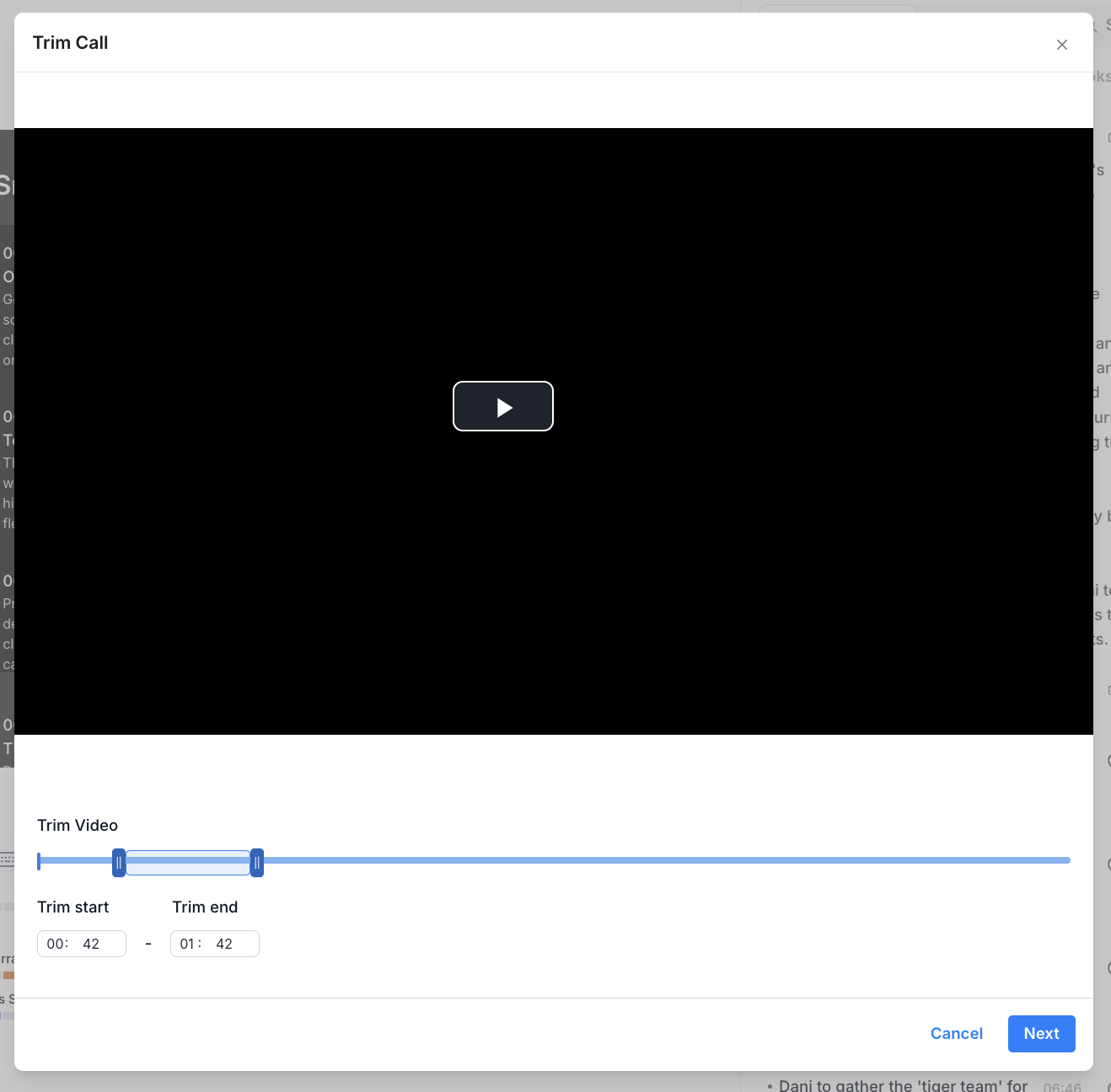
Figure 2: Trim Call window with selection
Step 4 — Name and describe the Game Tape
In the Create Game Tape window, complete the following:
- Name: Give the Game Tape a descriptive title, something that tells a teammate what to expect before they click it.
- Description: Add an optional description for additional context.
- Tags: Enter the names of any tags to easily identify the Game Tape. Type and press enter to create new tags
- Folder: Add to a folder. Select an existing folder to add your Game Tape to, or select New Folder to create one. Some additional folder ideas you can use as an example include:
- "Discovery Call Examples"
- "Objection Handling,"
- "Competitor Mentions"
- "New Rep Onboarding"
- "Customer Stories"
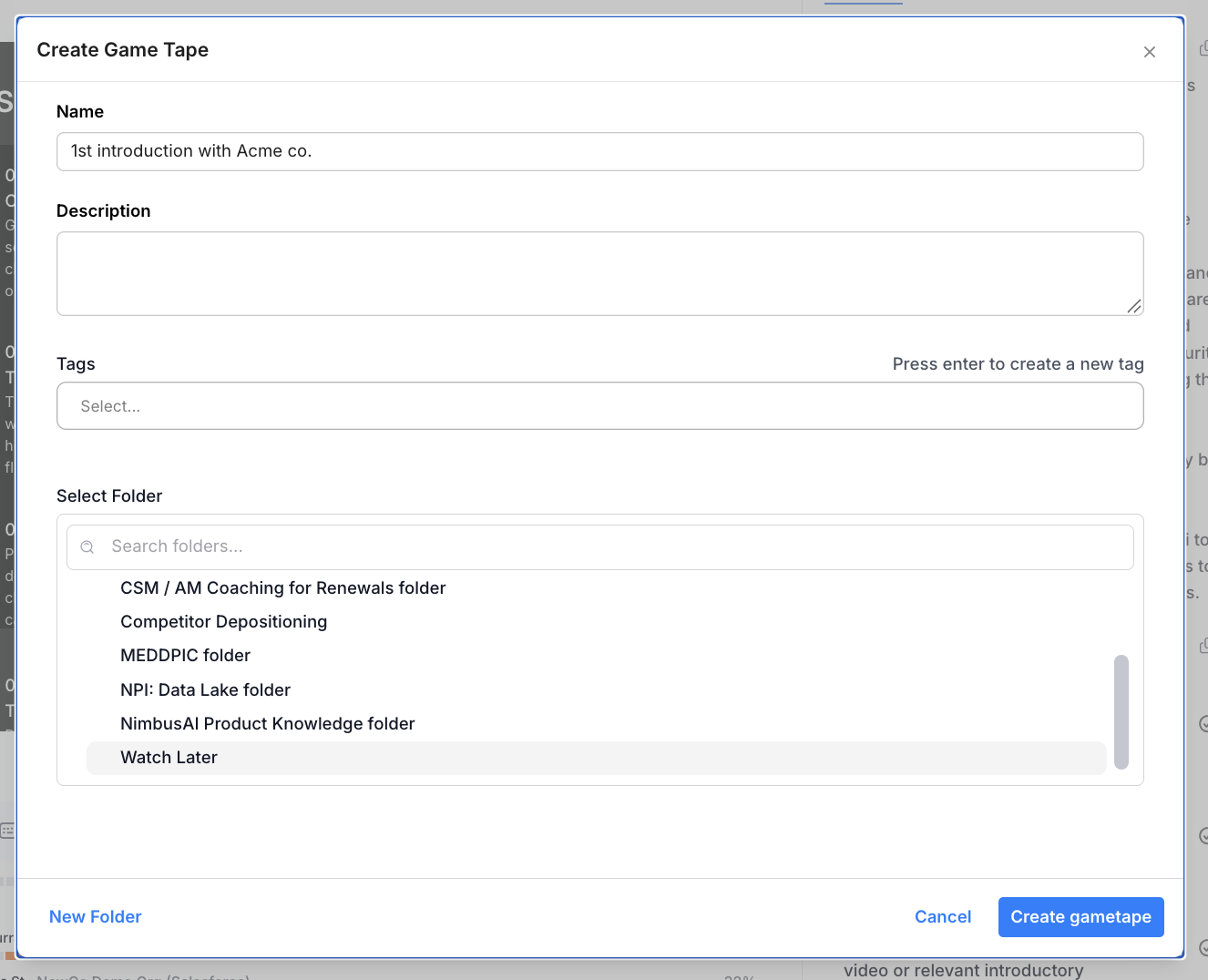
Figure 3: Create Game Tape Window
Step 5 — Create the Game Tape
Select Create Game Tape. It's created and added to the selected folder. You can go to the folder page to check while it's processing or visit the folder at a later time.
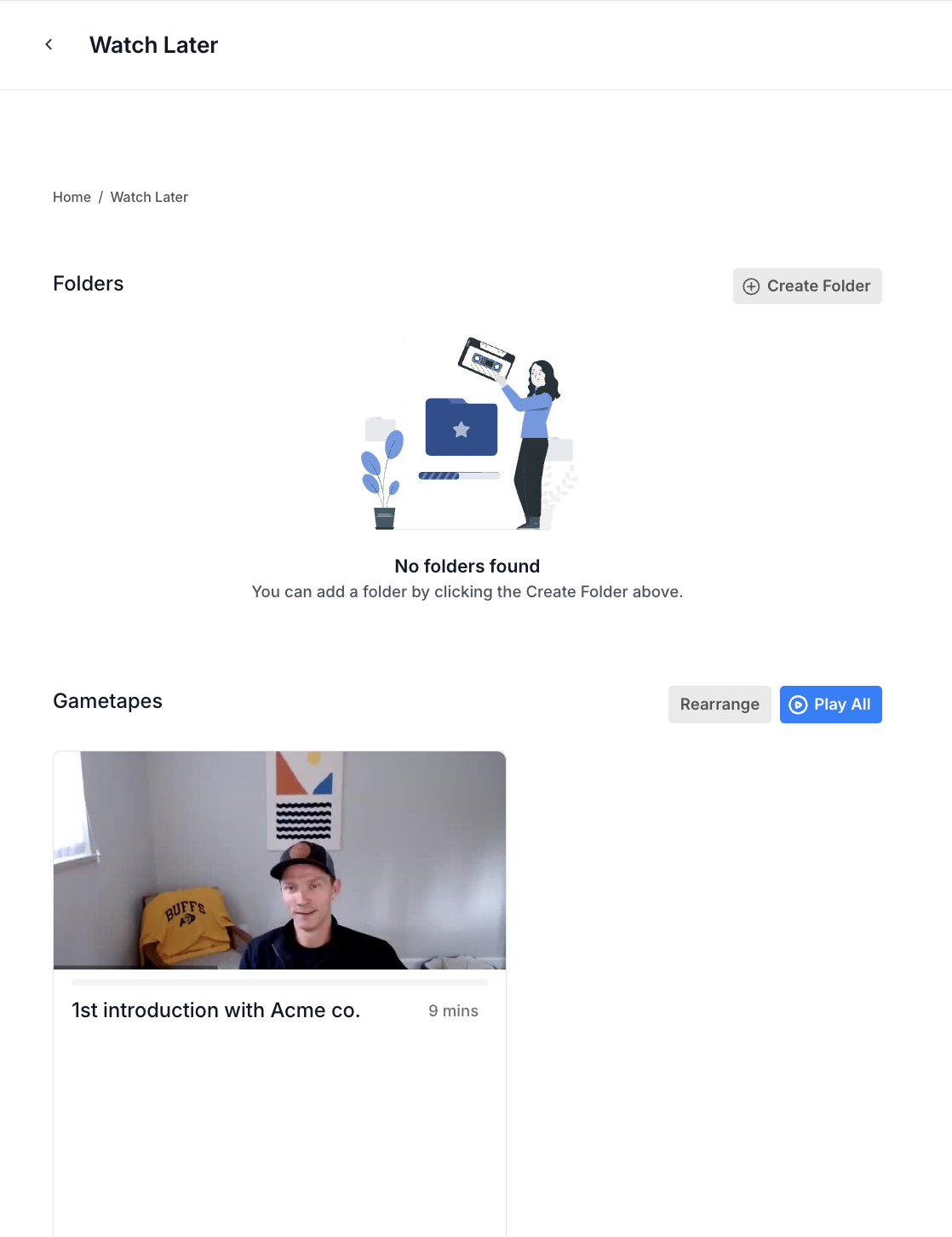
Figure 4: Game Tape included in the selected folder after processing
Step 1 — Switch to transcript view
Below the video player on the call review page, select the transcript icon (document) to switch to the transcript view.
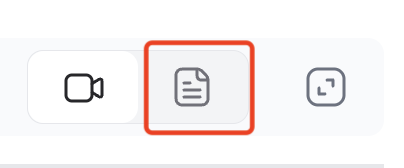
Figure 5: Transcript icon below the video player
Step 2 — Select the transcript text
Click and drag to select the portion of the transcript you want to turn into a Game Tape. Transcript options will appear when text is selected.
Step 3 — Create the Game Tape from the selection
- Click the Create Game Tape button (closed movie clapper icon). The Create Game Tape window will appear.
- Give the Game Tape a title and description.
- Select or create a folder.
- Select Create Game Tape.
Game Tapes added to a shared folder are automatically visible to all team members with access to that folder. To share a specific Game Tape outside your org, use the Share functionality from the Game Tape view.
To view a game tape, follow these steps:
- In the Salesloft top navigation, hover over Activity and select Conversation Intelligence, then navigate to the Gametapes section in the left navigation.
- Browse by folder or search by title.
- Select any Game Tape to play it.
- Select the the ••• (overflow) menu to perform additional actions, including:
- Edit: Make changes to the Game Tape.
- Duplicate: Copy the Game Tape.
- Move: Put the Game Tape into a different folder.
- Share: Deliver the Game Tape to additional users or people outside of your team.
- Download: Save a file of the Game Tape.
- Delete: Remove the Game Tape.
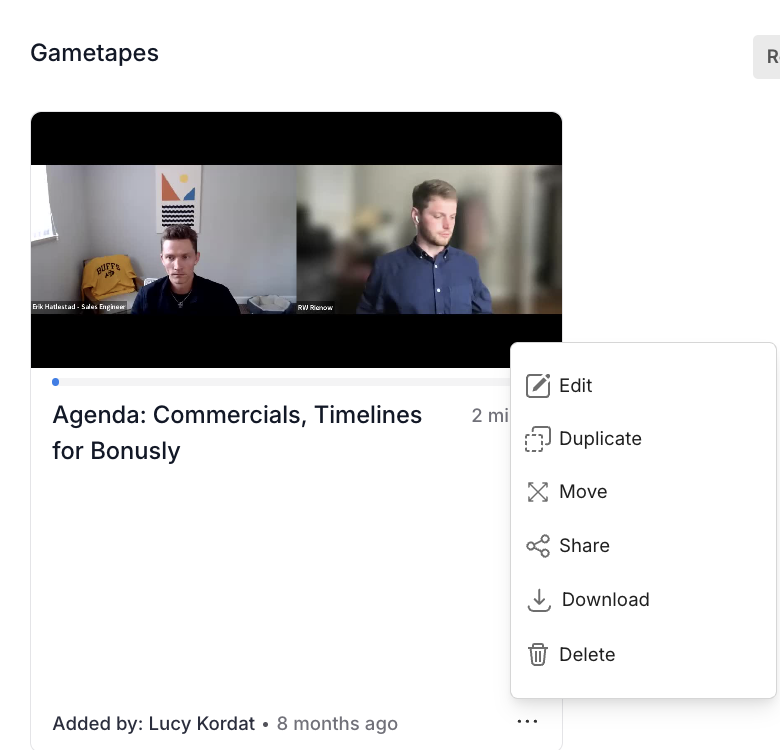
Figure 6: Additional Game Tape Actions menu
- The Game Tape appears in the folder you selected under the Game Tapes navigation.
- Team members with access to the folder can see and play the Game Tape.
Game Tape use cases:
- Real customer calls showing coaching examples for onboarding
- Best objection handling examples
- Competitor mentions and how your team addressed them
- Product feedback to share with your product team
- Highlight reels from your team's best calls for monthly reviews
Folders
Create one folder per coaching theme or use case. Reps can be pointed to specific folders during onboarding rather than browsing all Game Tapes.
