You can download any call recording as a video file, an audio-only file, or a text transcript directly from the call review page.
In this article,
- Navigation may look different if your organization uses standalone access to Conversation Intelligence. This article reflects the Salesloft platform experience.
- Download permission: Download access is controlled by your admin. If you don't see download options on the call review page, contact your admin to confirm your permissions.
Step 1 — Open the call recording
In the Salesloft top navigation, hover over Activity and select Conversation Intelligence. Find the call you want to download — use search or filters if needed. Select the call title to open the call review page.
Step 2 — Open the overflow menu
In the top-right area of the call review page, select the ••• (overflow) menu, next to Share.
Step 3 — Select your download format
From the menu:
- Download Audio: Downloads the audio track only. Smaller file size, no video.
- Download Transcript: Downloads the full call transcript as a text file, speaker-labeled and timestamped.
- Download Video: Downloads the full call recording as a video file. Includes the video feed of all participants.
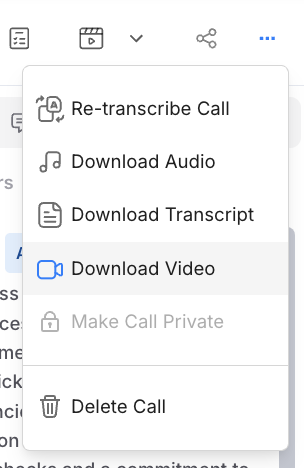
Figure 1: Download options for a conversation
The file downloads to your device's default downloads folder.
Things to Note: The same overflow menu also includes Re-transcribe Call (see Transcribe Calls in Conversation Intelligence), Make Call Private (may appear grayed out if you aren't a participant on the call), and Delete Call.
- The file appears in your device's downloads folder.
- The video or audio file plays correctly when opened.
- The transcript file opens and shows speaker-labeled, timestamped dialogue.
Downloading vs. sharing: Downloading saves the file to your device. If you want to give someone else access to the recording without downloading, use the Share option instead — it generates a link they can click to view the recording in a browser. See Share a Call in Conversation Intelligence.
