Draft with AI uses artificial intelligence to generate email drafts for your Cadence email steps.
When it comes to completing a Cadence email step, brainstorming what to include in your email can be pretty time consuming. On one hand, you want to maintain consistent communication, but on the other hand, you want to send emails that are original and show personality.
By drafting email steps with AI, you can generate up to three email drafts that can be customized to your liking.
Draft with AI can be used in Personal Cadences and Team Cadences to simplify your workflow and take you and your team's engagement to the next level.
In this article, we will walk through composing an email with Draft with AI, including:
Important Things to Know Before You Draft with AI
- Draft with AI uses Google Gemini to generate email content. The data is shared with Gemini via an API (application program interface) and is not used to train or improve Google Gemini's AI model.
- The information you provide will be used to build the email draft. We recommend only including information that you’re comfortable sending to a potential customer in a sales email.
- Only admins and users with Team Cadence permissions can create and edit Team Cadences.
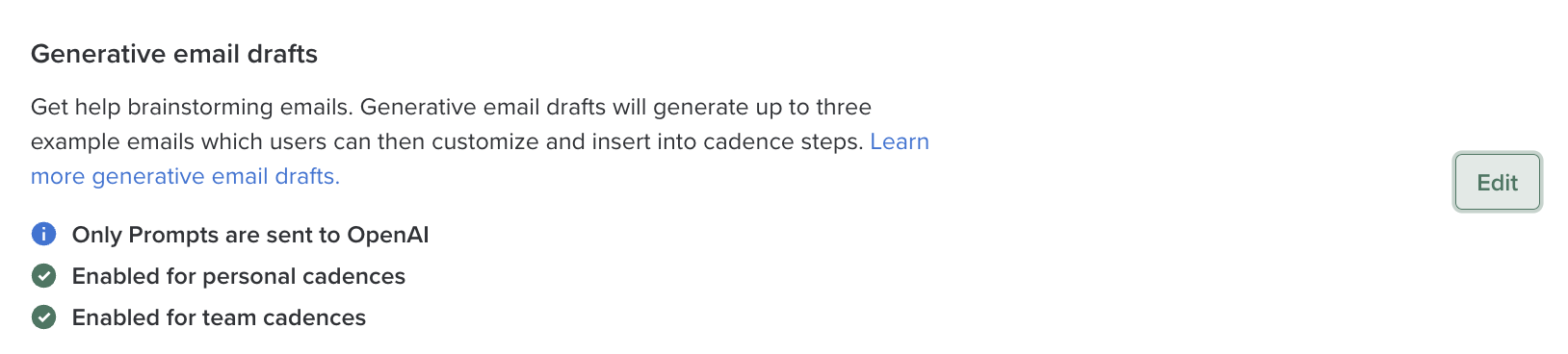
Admins Enable Generative Email Drafts Setting
Draft with AI works via the Generative Email Drafts and Generative Artificial Intelligence settings. By default, the Generative Email Drafts setting is enabled for Team Cadences. Admins can manage their team's access to Draft with AI for Personal and Team Cadences via the Generative Artificial Intelligence settings.
Things to Note: We recommend consulting with your legal team to ensure that you use Generative AI in compliance with applicable laws and regulations.
Drafting A Cadence Email Step With AI
Drafting with AI allows you to generate text for Cadence email steps. Cadence email steps are part of the blueprint for building consistent engagement, and with the help of Draft with AI, you can speed up the process.
Once an admin has enabled the Generated Text setting, you can begin drafting Cadence email steps with AI.
Things to Note: Drafting with AI is only available for Cadence email steps. This does not include one-off emails, tasks, or templates.
To draft a Cadence email step with AI, follow these steps:
- Open a Cadence.
- Choose an email step to complete.
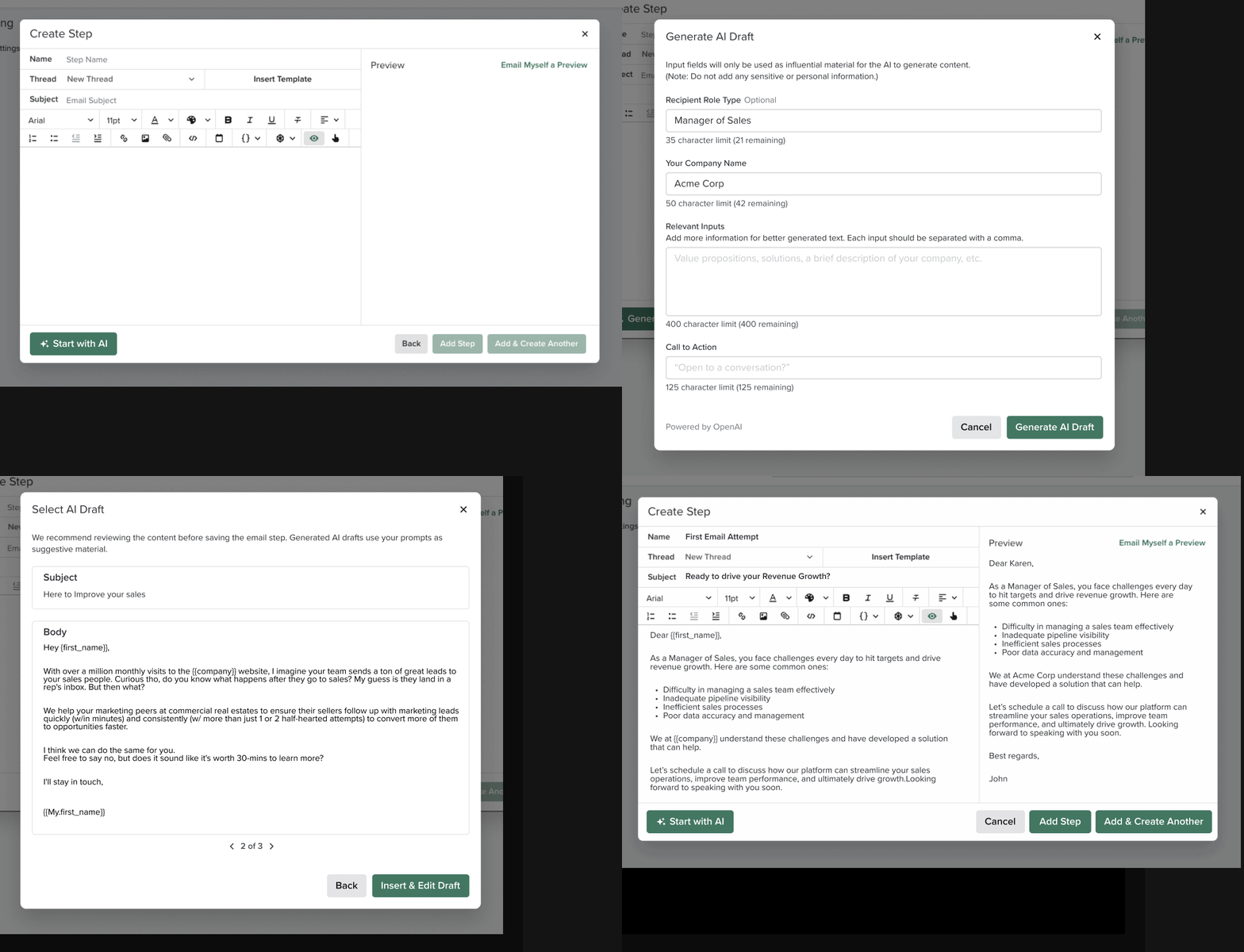
- Click Start with AI.
- Complete these fields:
- Recipient’s Role Type: Recipient or target audience’s role, ex: Manager of Sales
- Relevant Inputs: Words or phrases related that help the AI generate your desired email draft, ex: If you want to send a Value Proposition email, you may enter ‘Value Proposition’, ‘Solutions’, or ‘A brief description of your company’.
- Call to Action: Text that prompts an action or response, ex: ‘Schedule a Demo’
- Click Generate AI Draft. This will generate up to three different draft options.
- Review the options provided.
- Things to Note: The AI may provide up to three draft options.
- Choose a generated text option and select Insert & Edit Draft. The AI-generated text you choose will appear in the email body.
- From the email body, you can review and edit the draft to make it your own. You can also email yourself a preview of the email for more insight.
- Click Add Step to add the completed email draft to the Cadence. You can also select Add & Create Another to add your edited draft to the Cadence and create another.