The Failing CRM Activities page shows a log of any activities that failed to push to your CRM. These logs are kept in Salesloft, and show the issue in your CRM (like an unmapped field or field restriction), that is keeping Salesloft from completing the log.
You can access the Failing CRM Activities page from one of the following locations:
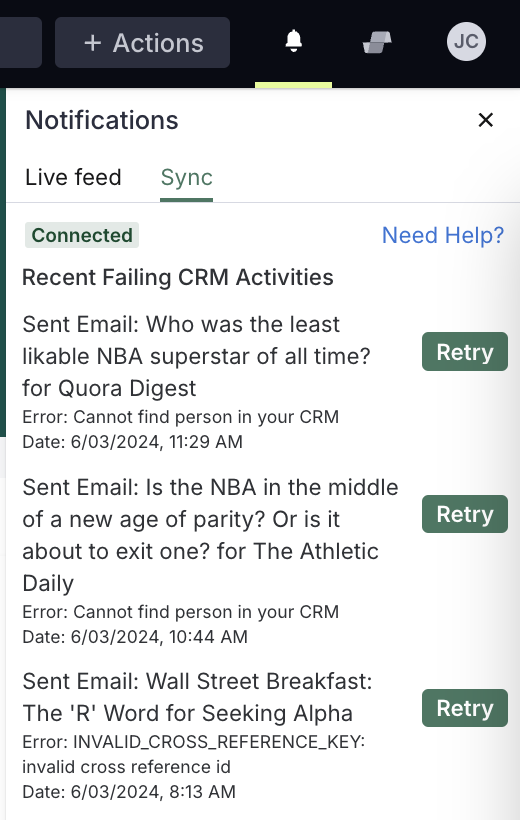
- Click the bell icon in the upper left corner of the navigation bar and then click sync.
- Inside your Personal CRM Settings, click the View Failing Settings option.
On the Failing CRM Activities page, you will see a table with all of the failed activities listed. The data shown on the page will differ based on your roles and permissions. For example, as a standard user, you will only see logs that you have attempted. Team admins and users with the Manage CRM Logs permission with see logs for the entire team.
In this article, you will learn the details found in the Failing CRM Activities page, including:
The User filter allows you to filter by a specific user. This way, if a certain user was experiencing issues with between their CRM and Salesloft, you can view only errors that occurred between their instance.
The User filter includes the following options:
- A specific team member
- Your entire team
- Just your own
The Failed CRM Activities Date filter lets you view the failed CRM activities by the date the log was attempted. This is particularly helpful if any error occurred on a certain date and you would only like to see those records or you want to see the number of logs that took place during a period of time.
Things to Note: Admins can select a date range of up to 90 days in the past.
The Date filter includes the following options:
- Today
- Last 2 Days
- Last 7 Days
- Last 14 Days
- Last 30 Days
- Last 60 Days
- Last 90 Days
- Custom Date Range: Enter the Start and End dates for the range you would like to see.
When you select a date range, hit Apply to set the filter.
The Error Theme filter categorizes sync errors into various error themes. This way, you can select a theme and view any errors that fit the error classification. When you filter by an error theme, you gain visibility into how big or small an issue is. You can also gain further understanding into the reason an error is happening across a series of logs.
To apply the Error Theme filter, search and/or select for a certain theme from the Error Theme dropdown. Once you click a theme, the filter will be applied to the list.
You can clear the filter by clicking the X in the filter box at the top of the list view.

When activities fail, a team admin may need to go into your CRM and address the error causing the failure. Once that adjustment has been made, you can retry to attempt the log to your CRM.
Things to Note: Errors listed under the Failed CRM Activities tab are removed once they are successfully retried.
The Retry Past 30 Days option allows you to attempt to sync all failing activities from the past month. If there are any eligible retry activities from the past 30 days, the Retry Last 30 Days button will appear at the top of your list view.
When there are no errors or the errors fall outside the 30 day window, the message No items from the past 30 days is shown.
The Failing CRM Activities filters can help you quickly identify potential errors that could negatively impact your activity logs. If you notice errors occurring for multiple logs, you can use the error messages to help resolve the issue. After the error is fixed, you can retry the failed activities.
Things to Note: Errors listed under the Failed CRM Activities tab are removed once they are successfully retried.
To retry failed activities, follow these steps:
1. Go to your Failed CRM Activities Log. You can filter the table by a user or error theme if you want to view a certain type of error.
2. Once the filter is in place, go to the table and hover over the Error column to see the complete error message.
Best Practice Tip: When you hover over the message, you have the option to Copy Error. Select copy error and paste the error message into a search engine. The CRM or other sources may have instructions on how to correct the error.
3. Correct the error. Usually this will require some work inside of your CRM.
4. In your Failed CRM Activities Log, check the boxes for each line item you would like to retry. You can also select a full page worth of logs. When you select a check box, the Retry Sync button will appear at the top of the list.
Things to Note: The maximum number of items on a page is 100. If you have a list of errors that is greater than 100 items, you will need to perform the retry for each page.
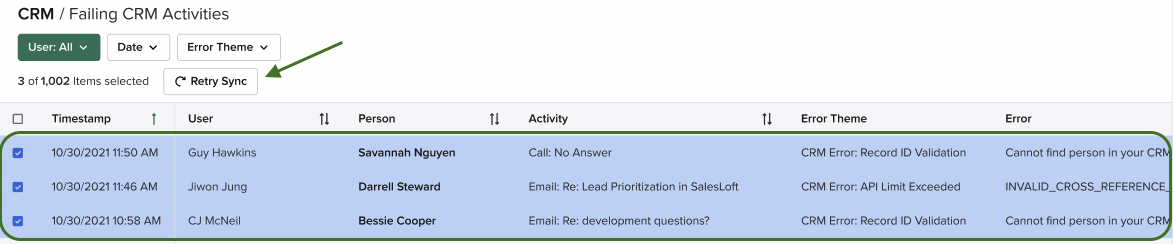
5. Click Retry Sync. A pop up will show you the number of items being retried and other relevant details. Clicking on Cancel or X closes the window without the retry being executed. You can click View retry tips to learn more in Troubleshooting Guide article.
6. Click Retry. When the retry is successful, a blue notification displaying the number of items being retried will appear.
If none of the items fit the retry criteria, a Red notification will appear with the reason for the failure.
This number shows the total API calls made from all of your team's integrations (not just Salesloft) and the total API calls allowed by your CRM. To learn more about API Limits, check out the Salesloft API Limits article.
Below the actions on the Failing CRM Activities page, you will see the table layout. This shows the available information related to the failed activities.
Things to Note: Errors listed under the Failed CRM Activities tab are removed once they are successfully retried.
You may sort the list by selecting any of the column headers.
The table includes the following columns:
- Timestamp: Date and time that the Activity was logged.
- User: Salesloft user that completed the action.
- Person: The Salesloft Person's last name, and who the record will log to in Salesforce.
- Activity: The activity that is completed.
- Error Theme: The data category that the error falls into.
- Error: This is the error message causing the activity to fail. For additional help correcting the failed activity and the error, check out the Salesforce Troubleshooting Guide.
- Retry Button: Allows you to retry a single Failed CRM Activity at a time.
