Conversation Intelligence automatically joins and records eligible meetings from your synced calendar. Use this guide to confirm automatic recording is working, understand why a meeting might be skipped, toggle recording on or off for specific meetings, and manually add the bot to ad hoc calls that aren't on your calendar.
In this article,
- Navigation may look different if your organization uses standalone access to Conversation Intelligence. This article reflects the Salesloft platform experience.
- Conversation Intelligence role: You must be assigned a recording role (Rep Recording or Manager Recording). Observers and Non-Recording Managers cannot record.
- Calendar connected: Your calendar must be connected to Conversation Intelligence for automatic recording to work. For full calendar connection steps and known limitations, see Manage Your Team's Recording Platform with Conversation Intelligence.
- Desktop app: Some manual recording controls are accessible from the Conversation Intelligence desktop app.
Once your calendar is connected, the Conversation Intelligence bot automatically joins meetings that meet both of these criteria:
- the meeting has a video conference link (Zoom, Teams, or Google Meet), and
- at least one participant is from an external email domain. Internal meetings are not automatically recorded
To record an internal meeting, manually toggle recording on (see Step 2 below).
Step 1 — Confirm your upcoming meetings appear in Conversation Intelligence
In the Salesloft top navigation, hover over Activity and select Conversation Intelligence. Select My Calls, then look for the Upcoming Calls panel on the right side of the recordings view. Confirm your upcoming external meetings appear in the list.
Things to Note: If no upcoming meetings appear, your calendar is not connected or the connection hasn't synced yet.
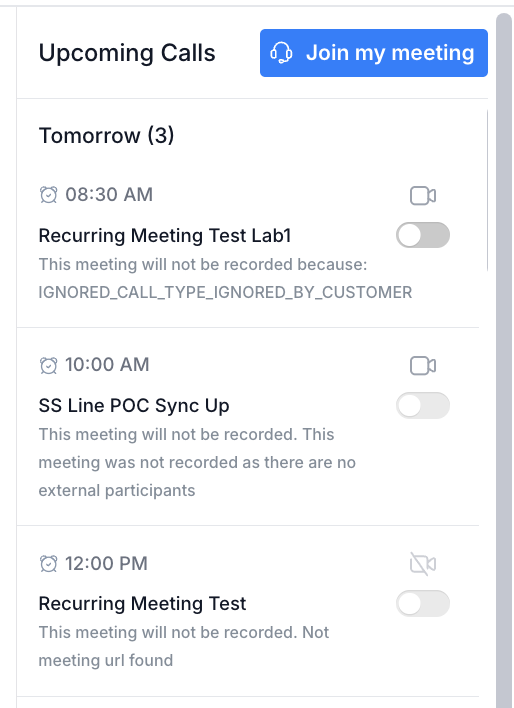
Figure 1: Upcoming Calls panel with reasons call will not be recorded
Step 2 — Check why a meeting will or won't be recorded (if necessary)
Each entry in Upcoming Calls shows whether that meeting will be recorded.
If a meeting won't record automatically, a note explains why, right on the panel — for example:
- "This meeting will not be recorded. This meeting was not recorded as there are no external participants."
- "This meeting will not be recorded because: IGNORED_CALL_TYPE_IGNORED_BY_CUSTOMER"
- "This meeting will not be recorded. Not meeting url found."
Use this to catch and fix issues (like toggling recording on manually) before the meeting starts, rather than discovering a missed recording afterward.
Step 3 — Toggle recording on or off for a scheduled meeting
Find the meeting in Upcoming Calls and use the toggle to turn recording on or off for that meeting. If no toggle is available for a meeting, a grayed camera icon and note indicate why (see Step 2).
Things to Note: Toggling recording off prevents the bot from joining. The meeting still takes place normally. You can toggle it back on before the meeting starts.
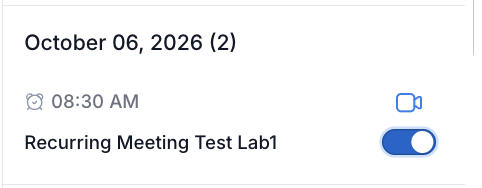
Figure 2: Recording enabled for upcoming call
Step 4 — Allow the bot into the meeting when it joins
When a meeting starts, the Conversation Intelligence bot joins as a participant named "Conversation Intelligence Notetaker" (or your org's custom bot name). When prompted by your video platform, click Allow or Admit to let the bot in.
IMPORTANT: If the meeting host does not admit the bot, the call will not be recorded. For meetings not hosted by your team, let the host know in advance that the Conversation Intelligence bot will be joining.
Manually inviting the bot is especially useful for: a spontaneous or last-minute call that isn't on your calendar; an internal call your recorder settings would otherwise skip; or a meeting hosted by an external participant that your settings are configured to skip.
Step 1 — Add the bot from the web app
- From My Calls, select Join my meeting in the Upcoming Calls panel.
- Paste the video conference link (Zoom, Google Meet, or Microsoft Teams).
- Add the meeting title.
- Things to Note: if you skip this, the system defaults to a generic name like "My Zoom meeting 1" — over time, generic titles get hard to tell apart. Use something descriptive.
- Add at least one meeting attendee email — this helps Conversation Intelligence associate the call with the correct Salesforce account or contact.
- Select Join Meeting — the bot will join within about a minute.
IMPORTANT — Consent note: When you manually invite the bot using Join my meeting, the pre-meeting consent page is not shown to participants. You must inform attendees that the call is being recorded verbally or via prior email. The video platform's standard recording announcement will still play.
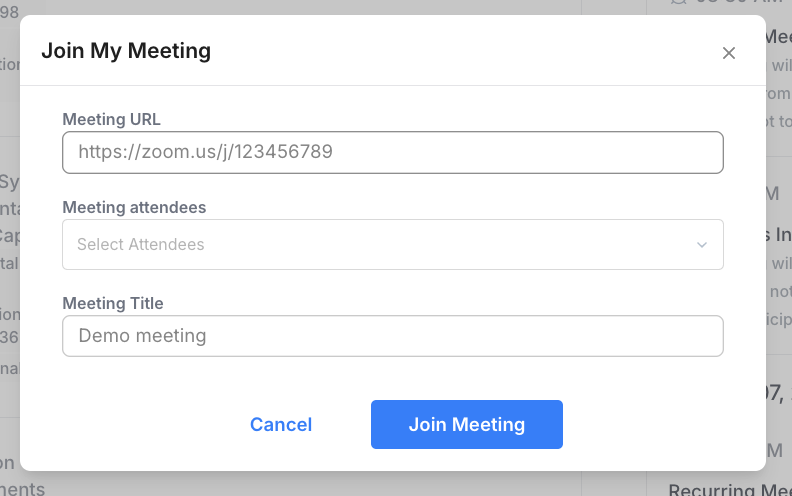
Figure 3: Join my Meeting window
Step 2 — Add the bot from the desktop app
Recording users can also manually invite the bot directly from the Conversation Intelligence desktop app by selecting Enable Recording.
Step 3 — Toggle recording on for an internal or external-hosted meeting
For meetings that don't auto-record (internal calls or meetings hosted by an external participant), toggle recording on manually from Upcoming Calls before the call starts.
Remove the bot from an ongoing call
- From the web app: go to My Calls. Your ongoing call appears at the top of Completed Calls. Open the call, select Stop Recording, and confirm.
- From the desktop app: open the Conversation Intelligence desktop app — the active meeting appears automatically. Select Disconnect to remove the bot and stop recording.
Remove the bot from a scheduled meeting (before it starts)
- From the web app: go to My Calls and find the meeting under Upcoming Calls. Toggle recording off for that meeting.
- From the desktop app: view upcoming meetings and toggle recording off for the meeting.
Things to Note: Removing the bot or toggling recording off doesn't end the meeting — it only stops Conversation Intelligence from recording it. You can toggle recording back on before the meeting starts, as long as it hasn't already begun.
- After a meeting ends, the recording appears in Activity > Conversation Intelligence within a few minutes.
- The call shows a transcript and AI summary when opened.
- For manually added calls, the call appears in My Calls with the title you provided.
| Problem | Likely Cause | Fix |
| No upcoming meetings appear in the panel | Calendar not connected or not synced | See Manage Your Team's Recording Platform with Conversation Intelligence for calendar connection steps |
| Upcoming meeting shows "will not be recorded" with a reason listed | No external participants, meeting URL missing, or the call type is set to be ignored | Review the reason shown on the panel; toggle recording on manually if you want this specific meeting recorded anyway |
| Bot joined but didn't record | Host denied bot admission, or local recording was disabled in Zoom | Confirm bot was admitted. For Zoom, confirm local recording is enabled at the org level. See Manage Your Team's Recording Platform with Conversation Intelligence and Configure Recording Consent and Compliance in Conversation Intelligence. |
| Recording doesn't appear after the call | Processing delay or bot was removed before recording started | Wait a few minutes after the call ends. If still missing after 15 minutes, contact support. |
