The Slack Integration provides the ability to send custom notifications to a Slack channel when key triggers happen inside of Salesloft automation rules. This integration is available to all users who have current instances of Salesloft and Slack.
As a licensed Salesloft Admin, you can set up the Slack Integration for your team.
In this article, you will learn about Salesloft's Slack integration, including:
Salesloft admins must enable the slack integration for your team. Once the integration has been enabled from the admin Team Settings, Salesloft users can incorporate slack through a series of automation rules.
To set up the Slack integration, follow these steps:
1. Navigate to your Salesloft team settings.
2. Under the Administration section, select Integrations.
3. Find the Slack integration row. Select Configure.
4. The row will expand. Click Add to Slack.
5. Slack will ask you to authorize the application.
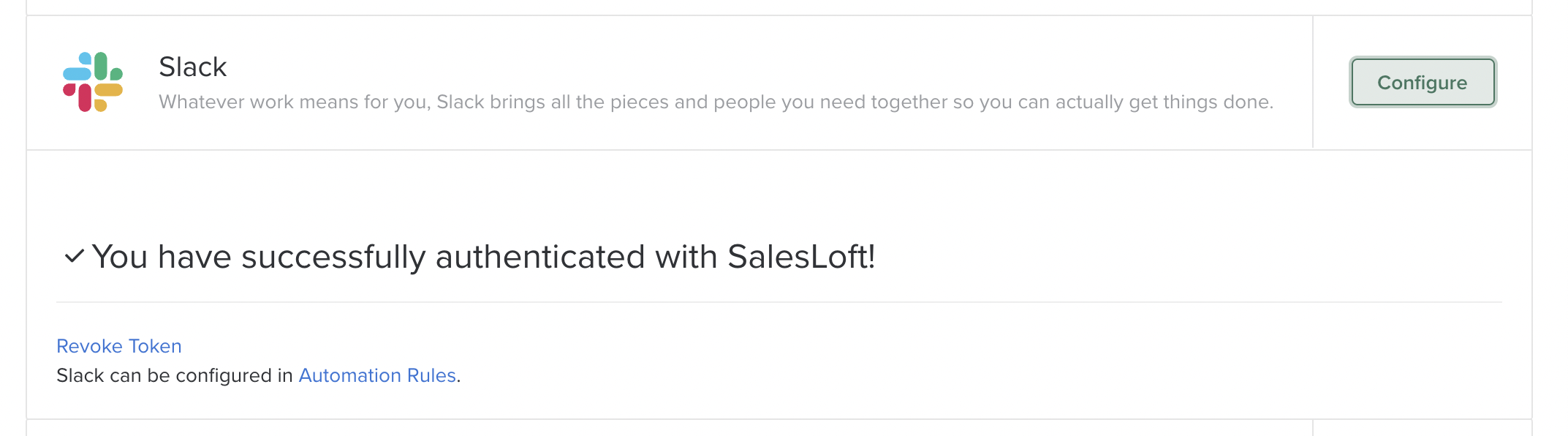
6. After installing the Salesloft application in Slack you will see a confirmation on the integrations page and have the option to revoke the token for the application, should you choose to quit using the integration.
Slack integration is currently available for 6 trigger types:
- When a Success is recorded for a person
- When a Person changes in Salesloft
- When a Person clicks on a link in an Email
- When a Person replies to an Email
- When an opportunity changes
- When a meeting is booked
To create an automation rule using one of the Slack trigger types listed above, check out the
Create an Automation Rule article.
When you create an automation rule that triggers a Slack message, you can edit the Slack message to include dynamic fields. These dynamic fields allow you to tag People, Accounts, and even time based on who triggered the automation rule.
For example, if you set up an automation rule that triggers a Slack message whenever someone books a meeting, you can add the {{name}} dynamic field to the Slack message. This dynamic field includes the name of the person who booked a meeting in the Slack message.
The Salesloft integration with Slack allows you to create custom Slack notifications as part of your Automation Rules.
Each user can add their slack handle from their Profile Settings under Slack Username. If an automation rule triggers the slack integration, your username will appear in the slack message.
When you create your automation rule, select Send Message to Slack as the result of your trigger. See below for a set list of automation rules that comply with Slack.
Things to Note:
- Slack messages can only be shared to public slack channels. Private channels, aka channels that are shown with the lock icon, will not appear in the list of channels available in Salesloft.
- Currently @here and @channel are not available in custom Slack messages.
Here are some of the features you can incorporate when using the Salesloft integration with Slack:
- Select a designated Slack channel for your message.
- Create a custom message to release to your team.
- Use Salesloft dynamic tags to populate your message with content that will update based on the context of the message and tag relevant Slack users.
- The dynamic tag {{My.slack_tag}} allows you to dynamically add the @person tag to a message.
- Things to Note: The Slack tag estimates the username. It is created using the the user's email. For instance "john.smith@salesloft.com" would have a My.slack_tag of "@john.smith." You can always change what your Slack tag will appear as in your profile settings.
- Add emoji to your message using this syntax ":emojiname:"
When the action is completed, the custom message will appear in the designated Slack channel.
And your team can help you celebrate!
