Funnel Overview
Funnel shows you how deals convert through your revenue process and where to focus your attention for improvement. You can see each step in your process between two points in time and understand metrics like win rate and average sales process for the cohort you have defined.
Note: Data might be different in Analyze visuals (Pulse, Waterfall, Funnel, Flow, Trend) versus data you see when you drill down into the Opportunities Module. This usually happens because in the Opportunities Module, Clari queries Salesforce and gets live data, but in Analyze, data refreshes every 15 minutes.
This article covers:
- Use cases
- Navigation
- Constructing Funnel
- Analyzing Funnel
- Chart Settings
Use Cases
Different personas can use Funnel to understand the metrics that are relevant to them. Below are a few use-case examples we have seen across the Clari customer base:
- As an Operations Manager or First Line Manager, I want to know what our conversion rate is from stage to stage so I know where deals drop off and whether or not our process is working for the team.
- As an Operations Manager or First Line Manager, I want a list of deals that have dropped off at a certain stage so that I can take a closer look at, and better understand, what causes deals to drop out (post-mortem).
- As a Marketing Manager, I want to know how long the sales cycle is for a specific business segment and what the conversion rate or coverage is, so I know how much pipeline generation we need to target for X quarters out.
Navigation
You can customize your view to focus on the data that matters most. Below are the key actions you can take in Funnel.
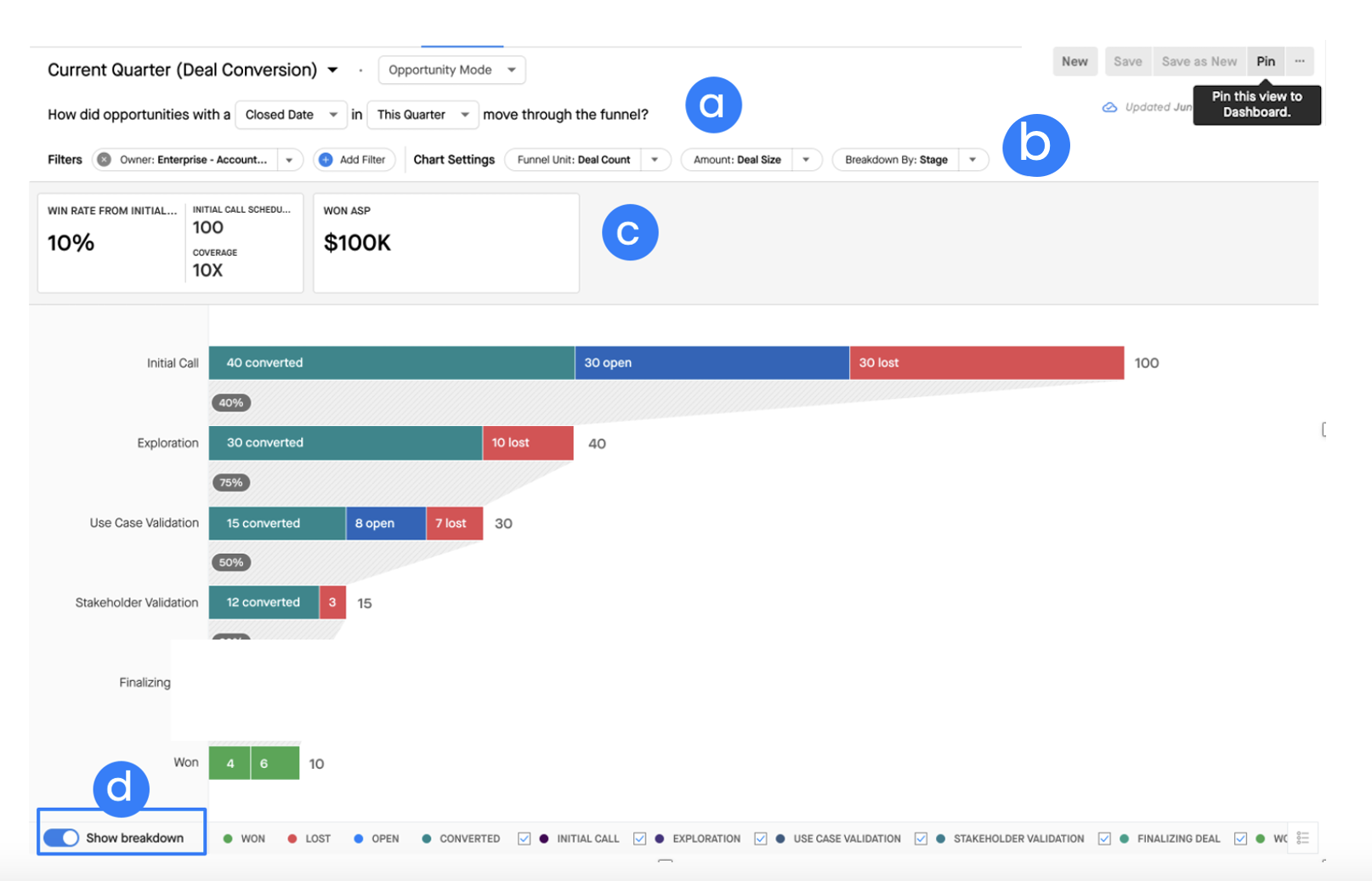
a. Cohort Selector: Choose the cohort of opportunities you want to analyze
b. Filters and Chart Settings: Filter certain deals out of the cohort and configure the fields you care about
c. KPIs: Highlighted summaries of your data below
d. Show Breakdown Toggle: Use this to turn the Chart Breakdown on or off
Cohort Selection
These settings control the cohort (or group of deals) being analyzed and over the time period we want to review conversions through the funnel.
Cohort Options: By default we look at the close date of deals to organize them in a cohort. Users can choose to group by created date:

Unlike other modules, Funnel allows you to organize your cohort by not only close date but also created date so you can construct a funnel by either organizational attribute.
Date Selection: You can organize their cohort by the selected date and time frame selected here.
Monthly
- Next Month
- This Month
- Last Month
- 2 Months Ago
Quarterly
- Next Quarter
- This Quarter
- Last Quarter
- 2 Quarters Ago
- 3 Quarters Ago
- 4 Quarters Ago
Yearly*
- Next 2 years
- Next Year
- This Year
- Last Year
Mode and Scope Options
Make sure you select the appropriate mode to view the deals you're looking for.
Scope
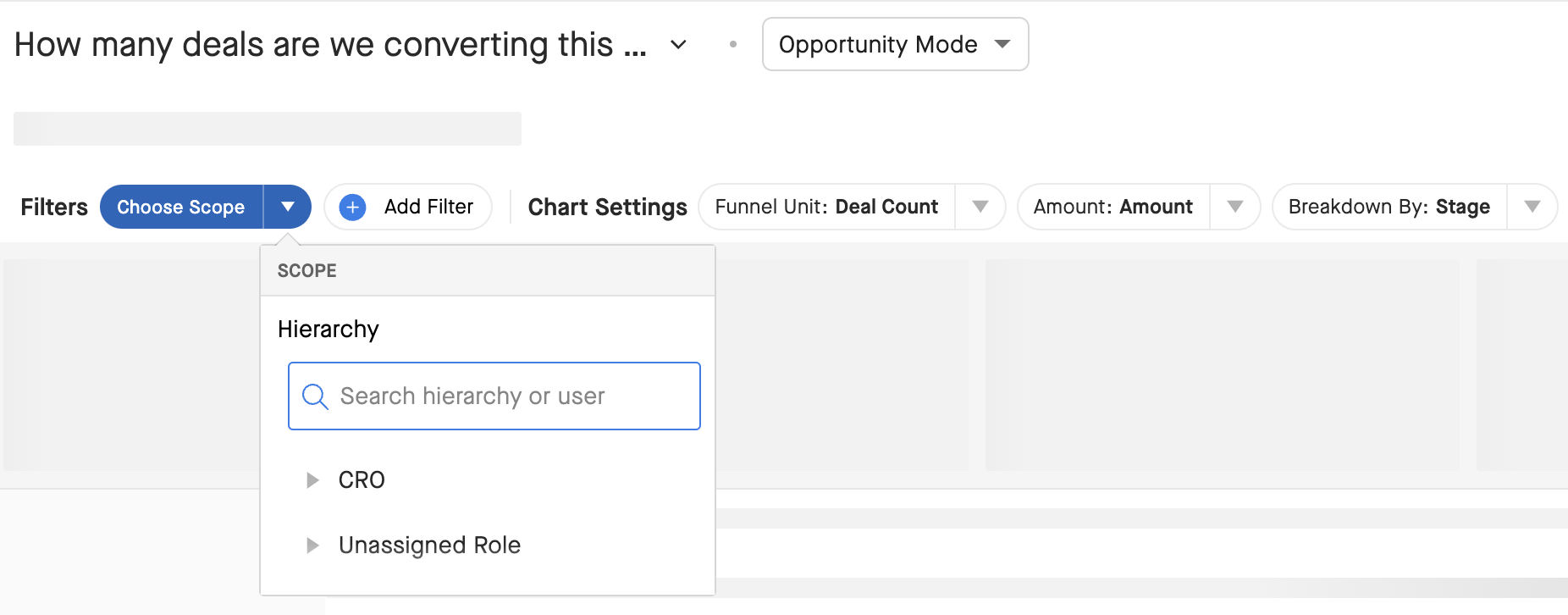
If you want like to drill down to a specific rep or team, use the Choose Scope menu (blue, at the top) to update the scope of the deals n the Funnel:
Filters
You can filter out certain deals to see a specific subset of opportunities in Funnel.
Click Add Filter to create a new filter.
Click the X on a filter to remove it.
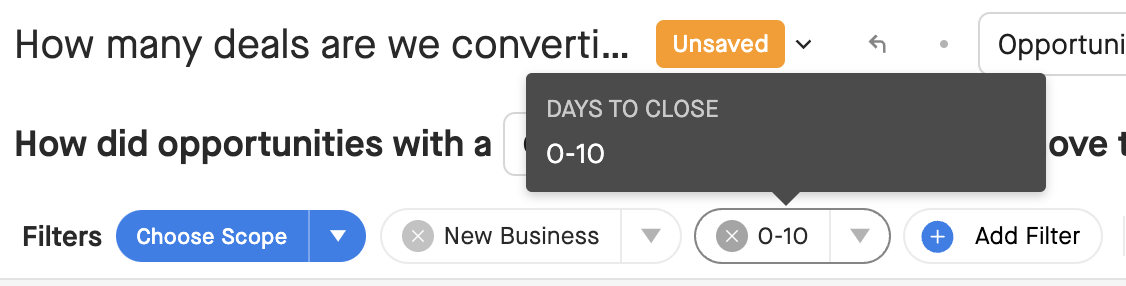
Tip: If you have to uncheck certain stages or categories that are not applicable to the view you are creating in Funnel, you can save it as a Saved View for you to reference later.
Chart Settings
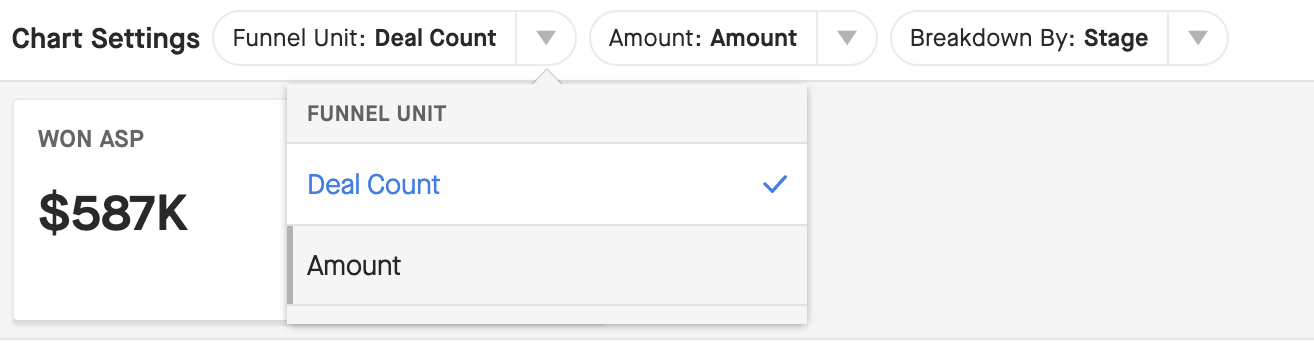
With Funnel charts you have different levels of visibility that you can toggle between at the top, above the chart.
You can choose between showing Deal Amounts or a Deal Count that lists how many deals are within each funnel step. You can also adjust how conversions are calculated across the funnel by either Deal Amount or Deal Count depending on your use case:
Constructing Funnel
Once you have configured your Funnel, Clari will render a complete funnel that includes every single step within the selected Breakdown field (Stage or Forecast Category). This means that, depending on your CRM fields, there could be a very large number of steps in your funnel because, for example, you might have both renewal and new logo values in these fields.
You can see your steps at the bottom of Funnel (see the image below). Uncheck a step to hide it from your funnel. If there are too many steps, you might see a pop-up suggesting you uncheck some boxes.

Analyzing Funnel
KPIs
There are several KPIs displayed to highlight key insights from the chart below. T
he KPIs are in the boxes at the top:
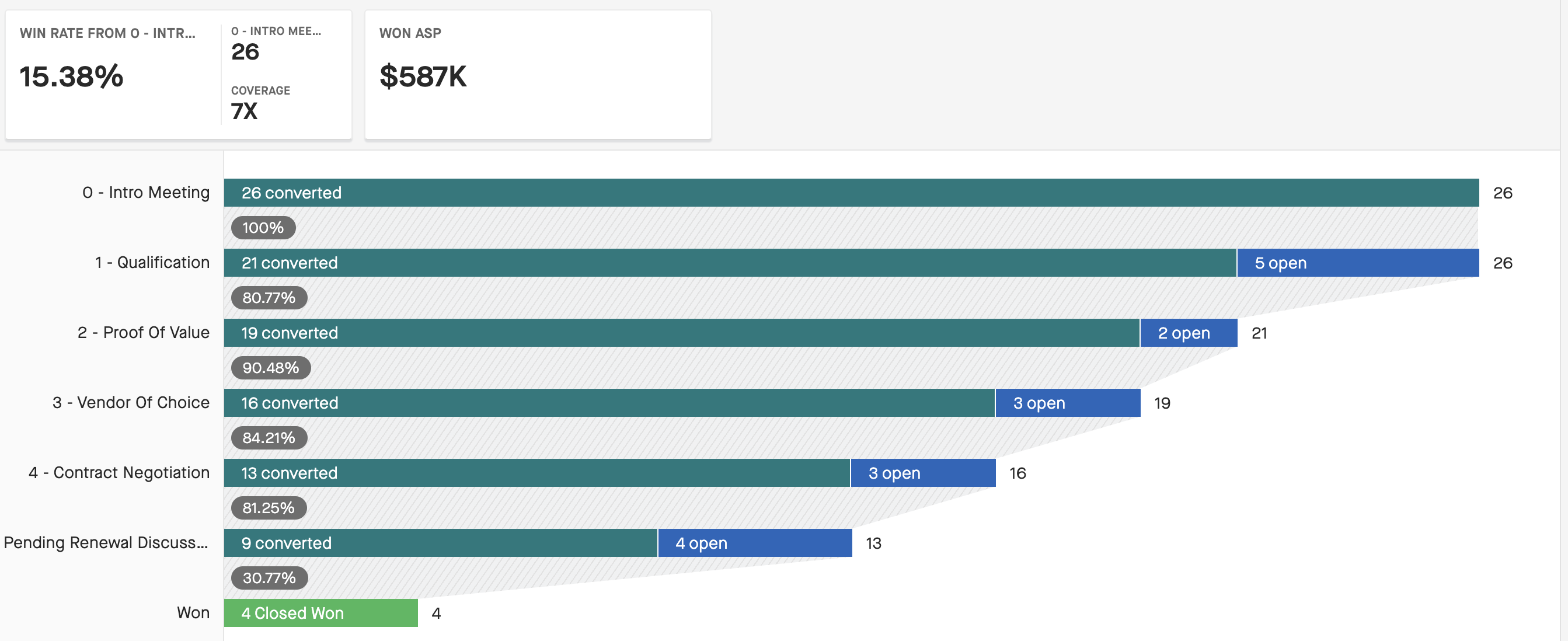
Let's cover what each KPI means and how they're calculated.
KPI: Win Rate from the first step
Win Rate from the first step: Displays the win rate % by dividing won deals by the count (or amount) of opportunities in the first step of the funnel.
[$ or # Won] / [$ or # First Stage]
First Step in Funnel Inventory: calculates the number of deals in the first category in the funnel.
Coverage: First Step / Last Step to give a multiplier for coverage targets.
KPI: Won ASP
Won ASP: average amount for all closed-won deals.
[Total closed won amount] / [deals that were won]
Funnel Charts
Depending on how you’ve set up your funnel (deal count or amount) and Breakdown by, Clari will construct a funnel that includes all steps and show the inventory of deals across each step.
Chart 1
Funnel Unit = Deal Count
Breakdown by = Stage

Each step aggregates the total number of records that existed within it for the selected cohort.
- Converted: Records that progressed to the next step in the funnel
- Open: Records that did not progress and remain in the current step.
- Lost: Records that did not progress and were lost from this step.
Between each step, the % of records that moved to the next step is calculated and highlighted.
Chart 2
Funnel Unit = Amount
Breakdown by = Stage

Each step aggregates the total amount of records that existed within it for the selected cohort.
- Converted: Records that progressed to the next step in the funnel (displayed as amount).
- Open: Records that did not progress and remain in the current step (displayed as amount).
- Lost: Records that did not progress and were lost from this step (displayed as amount).
Between each step, the % of the amount that moved to the next step is calculated and highlighted.
Time Machine in Funnel
You can see the opportunities that compose a certain stage or forecast category in Funnel that you selected in the chart. Note that because Funnel does not use “as of” date values, you will always see the most current values for the opportunity in the right side Panel. This feature allows you to quickly understand exactly what deals comprise each bucket within each stage (converted, open, won, or lost).
Note that the amount field shown in the sidebar matches the amount field you select in the main Funnel chart.
If you want to change the amount field, then click X to get out of the Panel (see X at the top of the right Panel) and change the field in the main Funnel chart:
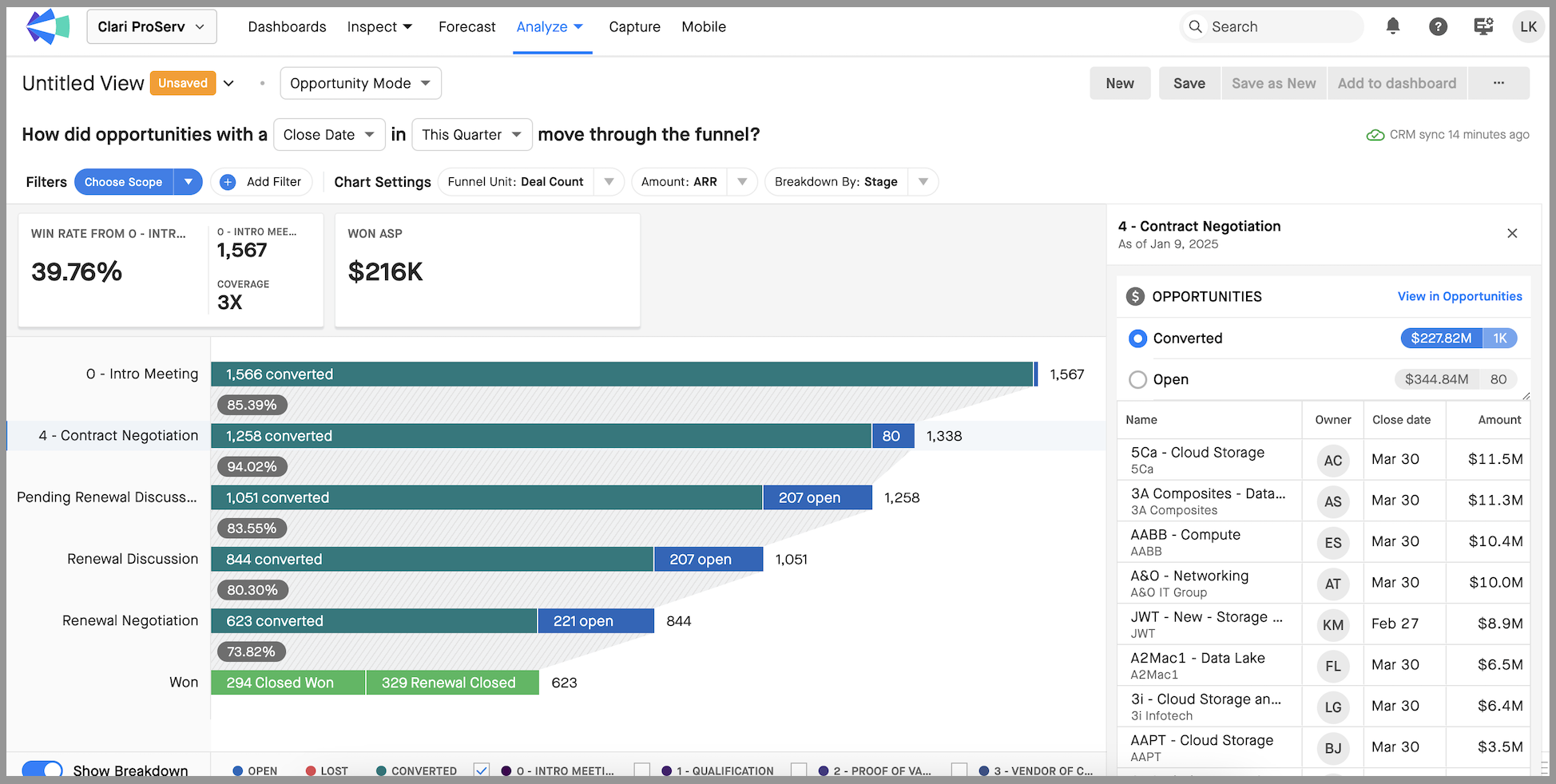
To see how the deals in the right side Panel are in their current, present state, click "View in Opportunities." This takes you to the Opportunity Module and shows these specific opportunities as of current state because Funnel has no as-of date functionality.
Funnel Widget in Dashboards
Note: you can pin up to two Funnel widgets to each dashboard (this can be configured up to six Funnel widgets in app builder, using maxFunnelWidgetsLimit).
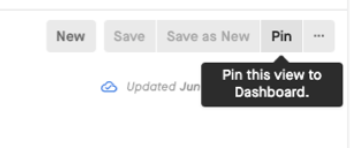
Pin a Funnel widget of a specific view to your Clari dashboard. In Funnel, open a view you have saved, and click "Pin" on the top right:
Next type a name for your Widget and choose which Dashboard you want it to appear in.
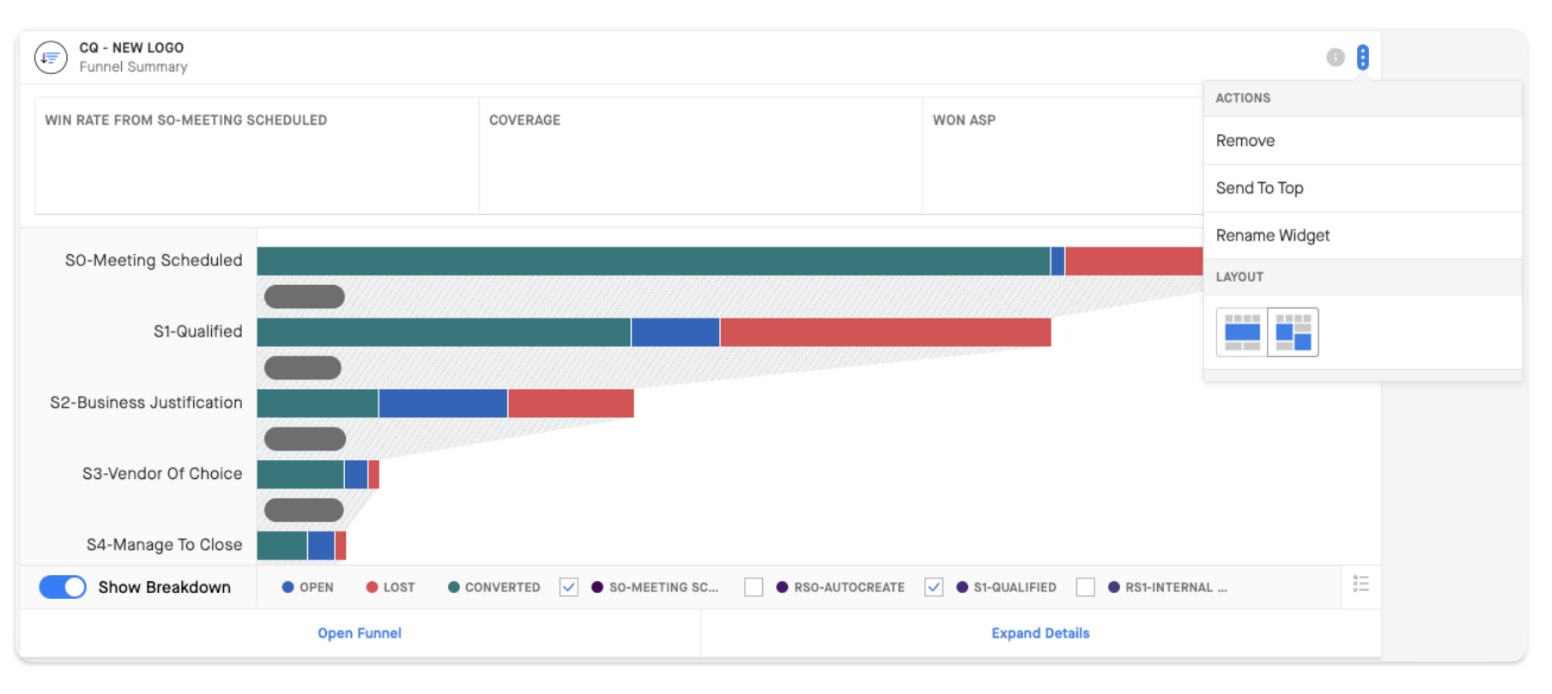
You should see your Widget in your chosen Dashboard. Note that you can click the three dots at the top of your Widget to move it or change the layout:
FAQs
I've added a filter for a specific record type (i.e., "New Business) in Funnel but I still see stages for Renewals in Funnel, why?
There is not any mapping today that Funnel can use to determine which stages correspond to which record types. Expanding on this, Funnel cannot look at every historical snapshot for every record and only fetches the stages that record went through. Instead, Funnel looks at the final (current) stage of the deal, and the stages before, to build the Funnel and conversions.
Example:
A deal is currently in Won, and its previous stage was S4. Funnel assumes the deal also went through S1-S3 based on the stage progression defined. Similarly, if a deal is in S3 and open, then it's placed in the S3 step in Funnel, and it's assumed it converted through S1-S2 as well.
Stages are listed in an incorrect order in Funnel, how can this be fixed?
The order of breakdown fields (stage, forecast category, etc.) in Funnel is based on the order of the picklist values in Salesforce. This will need to be corrected in Salesforce, and then the updated order will be displayed in Clari. Once the ordering is updated in Salesforce, the correct order should be updated in Funnel by the next Analyze refresh (15-30 minutes).
I see "MostLikely" when I select Forecast Category (opportunity.forecastcategory) to breakdown Funnel by, but hthe customer does not user this value.
MostLikely appears in Funnel because Salesforce added this value to the standard forecast category field values. Since Funnel makes an assumption that a record has to go through every value in the breakdown field (stage, forecast category, etc.), it will show any values in the visual—even if they are not used.
We recommend that you map this value in Clari to another category (like Commit). This can be completed by the Clari Customer Support team if a support ticket is open for this request.
