Scheduling meetings is a fundamental part of any sales workflow. The Salesloft Connect for Outlook add-in brings this essential capability directly into your Outlook environment, allowing you to book meetings efficiently without switching applications.
Whether you are composing an email in your Inbox or creating an event on your Calendar, you can schedule meetings and ensure all relevant details are automatically logged in Salesloft and synced to your CRM.
In this article, you will learn how to book a meeting in Outlook using the Salesloft Connect add-in, including:
Before you can book meetings from Outlook, here are some things you should know:
- You must have the Salesloft Connect for Outlook add-in installed and enabled in your Outlook client.
- Make sure you are using a support version of Outlook when using the Salesloft Connect for Outlook Add-in.
- Booking a Meeting from Outlook is available for both the Outlook Inbox and the Outlook Calendar.
- When you book a meeting using the Outlook add-in, all the details you provide—including the associated Person, Account, Opportunity, Meeting Type, and custom field values—are automatically logged in Salesloft and synced to your CRM.
- Updates made to meetings in Outlook, automatically sync to Salesloft. This includes:
- Updating standard meeting details like meeting title, date and time.
- Adding, removing, or replacing attendees in Outlook will now sync perfectly to the Salesloft event record.
- Recurring series are not currently supported in Outlook.
You can book a Salesloft meeting from your Outlook Inbox when composing a message. This way, you can remain in your inbox rather than having to jump into other applications to book a meeting.
To book a meeting from your Outlook Inbox:
- Compose a new email: Open an email window, and enter the name or email address of the Person you want to book a meeting with in the To: field. Salesloft will associate the meeting with the corresponding Salesloft Person.
- If a matching Person does not exist, you will be prompted to create one.
- Open the Salesloft Connect sidebar: Click the Salesloft Connect add-in in the Outlook toolbar, then select Open Salesloft. This will open the Salesloft Connect add-in sidebar.
- Click Book a Meeting icon: In the Salesloft Connect add-in, click the Book Meeting icon. This will open a calendar.
- Select Meeting Time: Select meeting times by clicking within the calendar schedule.
- Complete the meeting fields: To the left of the calendar are meeting fields that allow you to add additional details to the meeting. Ensure each field is completed, including:
- Meeting Type
- Calendar to Book on
- Meeting Title
- Duration
- Location
- Description
- Attendees
- Hit ‘Book’: Click Book to schedule the meeting. All the details you provided will automatically sync to Salesloft and your connected CRM once the meeting is confirmed.
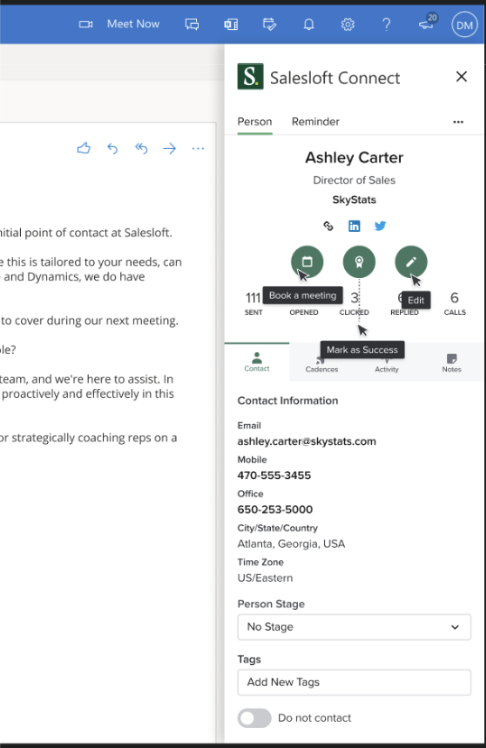
Figure 1: Book a Meeting from your Outlook inbox.
Salesloft meetings can be created directly from your Outlook Calendar when creating an event.
To book a meeting from your Outlook Calendar:
- Create a new calendar event: From your Outlook Calendar, create a new calendar event.
- Open the Salesloft Connect sidebar: Click Salesloft Connect in the Outlook toolbar. This will open the Salesloft Connect add-in sidebar.
- Add the Meeting Title: Add a title to your calendar.
- Add Meeting Attendees: Add your attendee(s) to the Outlook invitation as you normally would. Salesloft will automatically associate the meeting with the right Person.
- If a matching Person does not exist, Salesloft will prompt you to create one.
- Complete the Custom CRM fields: Additional fields may be visible in the event if your admin has included them in your CRM field configuration. Add the appropriate information for the visible fields.
- Hit Send: Click Send or save the calendar invitation. The meeting and all its associated data will sync to Salesloft and your CRM.
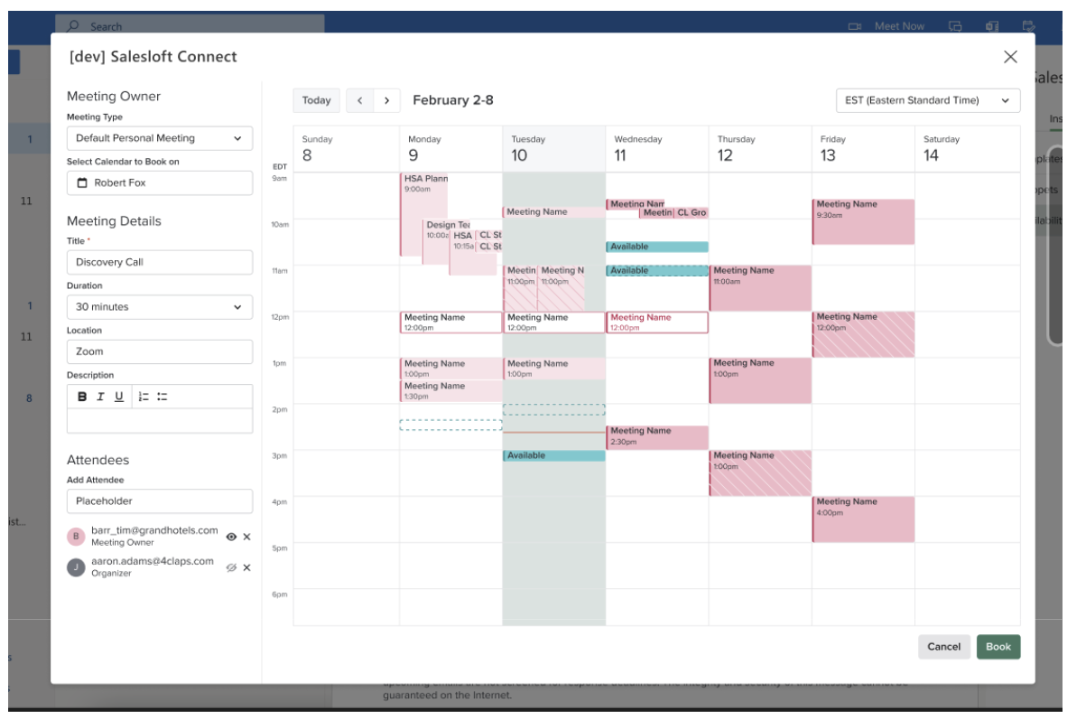
Figure 2: Book a meeting from your Outlook Calendar.
FAQs
Questions: Is a duplicate event created when I change the date?
Answer: No. The system overwrites the existing event record to maintain a single source of truth.
Question: What happens if I edit an event while offline?
Answer: Outlook stores the change locally; once you are back online, the update will sync to Salesloft.
Troubleshooting Tips
If an event fails to log or an updated event does not sync, here are some troubleshooting tips to confirm:
- Verify the "Loft" toggle is enabled in Salesloft Outlook add-in Connect.
- Confirm "Calendar Sync" is enabled in your Salesloft Settings.
- Make sure you clicked "Send" on the invite in Outlook; simply saving the draft may not trigger the sync.
