You can share a call recording from Conversation Intelligence with anyone — teammates, stakeholders, or external participants — using a shareable link or embed code. You control whether the link is active, whether viewers need to provide their email, and whether AI insights like summaries and chapters are visible in the shared view.
- Navigation may look different if your organization uses standalone access to Conversation Intelligence. This article reflects the Salesloft platform experience.
- AI sharing: Sharing calls with AI Insights (summaries and chapters) requires an admin to enable "Share with AI Insights" in Settings > Conversation Intelligence > Others > Call sharing settings. If that option isn't available when you share, contact your admin. When enabled at the org level, this becomes the default for all shared calls — individual users can still opt out per share.
- White-labeling: Enterprise orgs can upload a custom logo and link for the shared call view. An admin configures this from Settings > Conversation Intelligence > Others > Call sharing settings > Customize shared call. Changes apply to all calls shared org-wide.
Step 1 — Open the call you want to share
In the Salesloft top navigation, hover over Activity and select Conversation Intelligence. Find the call you want to share and select the call title to open the call review page.
Step 2 — Open the Share dialog
In the top-right area of the call review page, select Share. The Share Call dialog opens with a generated link and embed code.
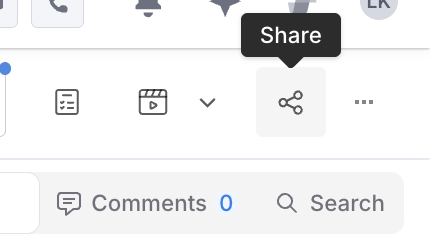
Figure 1: Share Button
Step 3 — Activate and copy the link, or copy the embed code
- In the Share a Call window, toggle Make Link Active to enable. The link is now shareable.
- Select Copy Link and send via Slack, email, or any other channel.
- To embed the recording elsewhere (e.g., a third-party tool like Highspot), select Copy Embed to copy the iframe code, then paste it into the destination application.
Things to Note: You can share the call before transcription and AI processing are complete. The recipient will see the video immediately; the transcript and AI insights will appear once processing finishes, typically within about 10 minutes.
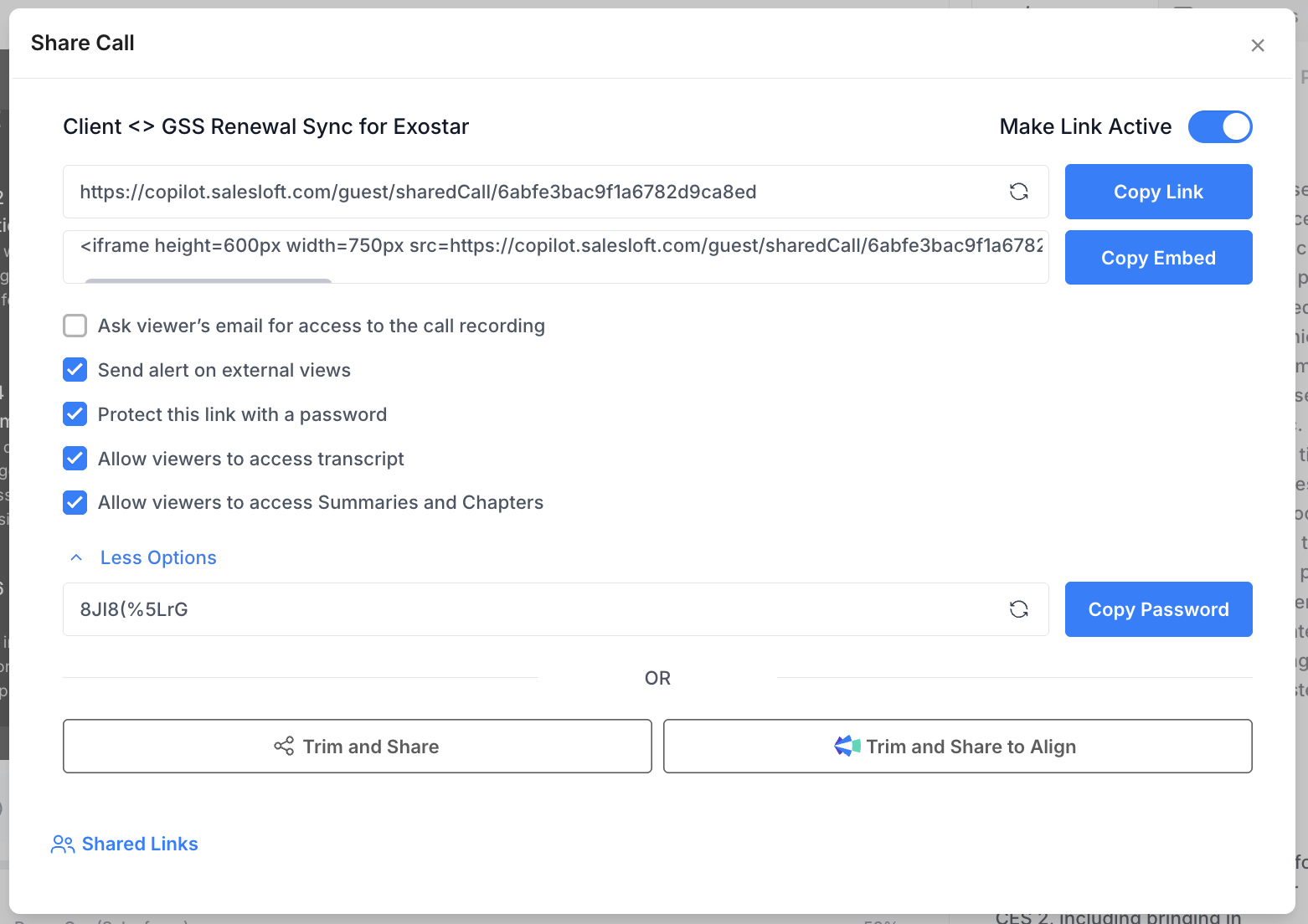
Figure 2: Share Call Window with Make Link Active enabled
Step 4 — Configure access settings (optional)
Select the settings you would like to apply. The options include:
- Ask viewer's email for access: Requires recipients to enter their email before viewing. You can see who viewed the call in Shared Links management.
- Send alert on external views: Sends you a notification when the link is viewed by an external user.
- Protect this link with a password: Generates a password field with a Copy Password option. Share the password separately from the link.
- Allow viewers to access transcript: Controls whether the transcript is visible in the shared view.
- Allow viewers to access Summaries and Chapters: Controls whether AI summaries and chapters are visible in the shared view. Requires the org-level AI sharing setting to be enabled.
Step 5 — Share a snippet instead of the full call (optional)
- In the Share dialog, select Trim and Share:
- Adjust the sliders on either end of the timeline to select the portion you want to share.
- Give the snippet a title.
- Select Next to generate a link (or embed code) for the trimmed snippet.
- Copy and share the snippet link.
Alternatively, select text directly in the transcript view, then use the share button that appears to create a snippet from that selection. Snippets can be set to expire in 30 days.
From the Share dialog, select Shared Links to:
- Review all active shared links for this call.
- Disable a link — it immediately stops working.
- Generate a new link using the refresh icon in the link field.
- See view counts and viewer identities for links where "Ask viewer's email for access" was enabled.
Open any call in the Conversation Intelligence mobile app and select Share.
- The shared link opens the call in a browser for the recipient without requiring them to log in to Salesloft.
- If email capture is enabled, viewing activity appears in the Shared Links management view.
- If AI sharing is enabled, the recipient sees summaries and chapters in the shared view once processing completes.
