Connecting Conversation Intelligence to Salesforce lets call recordings, AI summaries, and call metrics sync automatically to Salesforce records. It also enables Smart CRM Suggestions and allows action items from calls to be written back to Salesforce tasks.
In this article:
- Navigation note: Navigation may look different if your organization uses standalone access to Conversation Intelligence. This article reflects the Salesloft platform experience.
- You must be both a Salesloft Admin and a Salesforce account admin to complete this integration.
- Salesforce is the only fully supported CRM.
- Team Access must be enabled in Settings > Conversation Intelligence > Team Access before integration settings are available.
Step 1 — Navigate to the Integrations tab
From the Salesloft left-hand navigation, select Settings > Conversation Intelligence > Integrations. Under the CRM section, you'll see cards for CloseIO, HubSpot, Pipedrive, and Salesforce.
Step 2 — Connect Salesforce
- Select Connect on the Salesforce card.
- Sign in with your Salesforce admin credentials.
- Authorize Conversation Intelligence to access your Salesforce org.
Things to Note: If Connect is not available on the Salesforce card, contact support.
Once connected, the Salesforce card shows an "Active" status with a Disconnect option. Conversation Intelligence automatically syncs to Salesforce after every call: recording link, Smart Summary, action items, Revenue Critical Moments (as a Salesforce comment), and any mapped call metrics — logged against the associated lead, contact, and opportunity.
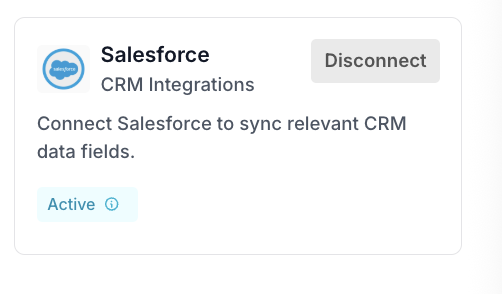
Figure 1: Salesforce integration Connected
Step 3 — Confirm CRM data appears in Conversation Intelligence
When viewing a call recording, select the CRM dropdown in the top-right of the call review page. Once synced, this panel shows:
- A "Logged to CRM" status indicator
- Deal Name, Deal Size, Close Date, and Deal Stage
- A Deal Alerts / warnings indicator (e.g., "1 warnings") flagging things that may need attention on the deal
- CRM contacts associated with the call
- Action buttons: Update Fields in CRM (apply Smart CRM Suggestions directly), Review Deal, and Go to CRM
This confirms the two-way sync is active.
Conversation Intelligence's CRM configuration lives in its own CRM settings area (Settings > Conversation Intelligence > CRM settings), with four sub-tabs that each serve a different purpose:
Smart CRM Suggestions
Create field groups (e.g., MEDDIC, BANT, or custom groups like CSM Strategy) tracked across calls, enabling Smart CRM Suggestions to surface relevant insights during call reviews. See Additional Information below.
Smart CRM Fields
Configure custom fields (e.g., "Account Health," "Technical Requirements," "Potential Blockers") that Conversation Intelligence tracks and extracts from call transcripts using AI, feeding suggestions for CRM updates.
Import CRM Fields
Import existing Salesforce fields (grouped by Account, Contact, Lead, and Opportunity) into Conversation Intelligence so users can filter calls based on those field values.
CRM Writeback
This is where call metadata from Conversation Intelligence is mapped to Salesforce fields, so the sync described in Step 2 above actually knows where to write. Configure mappings separately for:
- Event Field Mapping
- Task Field Mapping
For each mapping table, locate the Conversation Intelligence call field in the left column and select the corresponding Salesforce field from the dropdown on the right.
Available call fields for Salesforce mapping:
|
Metric
|
Description
|
Type
|
|---|
|
Call Duration
|
Call duration in seconds
|
Number (seconds)
|
|
Call Time
|
Start time of call, ISO format
|
Date
|
|
Call Title
|
Meeting title
|
String
|
|
Call Link
|
URL to CI call recording
|
URL
|
|
Call Type
|
Type of call (e.g. Zoom, Google Meet)
|
String
|
|
Attendees
|
Email IDs of all attendees, comma separated
|
CSV of email addresses (String)
|
|
Reps
|
Email IDs of all internal attendees, comma separated
|
CSV of email addresses (String)
|
|
External Attendees
|
Email IDs of all external attendees, comma separated
|
CSV of email addresses (String)
|
|
Interactivity
|
Rep interactivity score, scale of 1–10
|
Number
|
|
Talk-Listen (TL) Ratio
|
Ratio of rep talk time to listen time
|
Number
|
|
Number of Engaging Questions
|
Questions asked by rep that got a 30+ second reply
|
Number
|
|
Longest Monologue
|
Longest duration rep spoke without pausing, in seconds
|
Number (seconds)
|
|
Topics Discussed
|
Topics discussed in the call, comma separated
|
Multipicklist or CSV of topic names (String)
|
|
Competitors Mentioned
|
Competitors mentioned in the call, comma separated
|
Multipicklist or CSV of competitor names (String)
|
|
Call Type
|
Unique meeting identifier (iCalUid)
|
String (e.g., ZOOM, Google Meet)
|
Things to Note: For CRM breakdown by Topics, only Dropdown/Picklist type Salesforce fields are supported. Other field types are not supported for this use case.
If a call gets associated with the wrong Salesforce account or opportunity, you can relink it manually from the call review page.
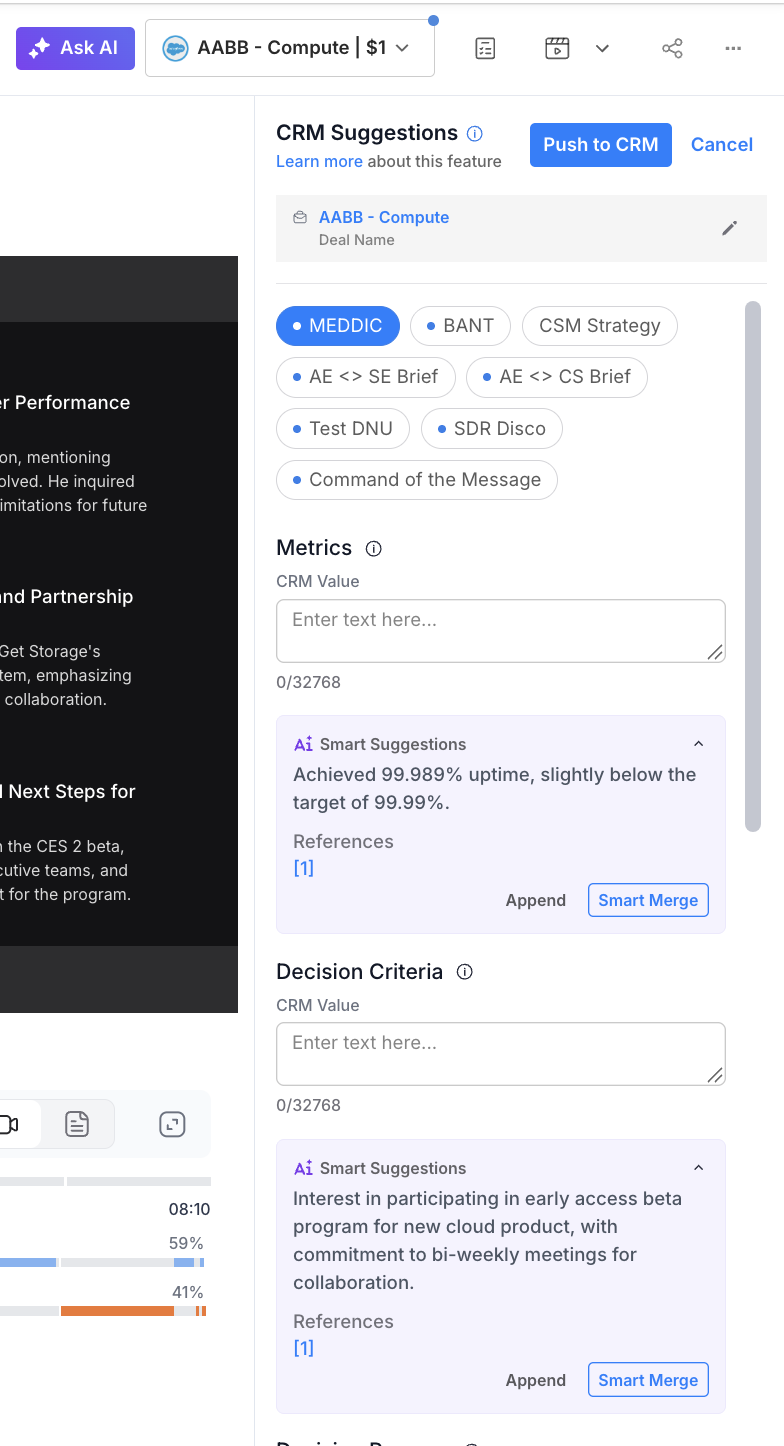
Figure 2: CRM Suggestions
Add or update an Account:
- Open the call review page and locate the CRM Info section in the top right.
- Select Add Account, or select the edit icon next to the current account.
- Search for and select the correct account from the list.
Add or update a Deal:
- Confirm the correct account is selected in the top dropdown.
- Choose from the list of relevant open and closed deals under the account.
Things to Note: When a call is relinked, the associated CRM activity in Salesforce is also updated to reflect the correct account and opportunity.
- The Salesforce card in Settings > Conversation Intelligence > Integrations shows a Disconnect option.
- CRM data (account, deal value, deal stage, stakeholders, deal alerts) appears in the top-right panel when viewing a call recording.
- After a completed call, a recording link, AI summary, and action items appear in the associated Salesforce record.
- Any mapped custom fields populate in Salesforce after a call completes.
Smart CRM Suggestions: After a call, Conversation Intelligence surfaces suggested Salesforce field updates based on what was discussed. Reps can review and apply suggestions directly from the call review page using the Update Fields in CRM button. Requires Salesforce integration to be active.
Task Writeback: Action items extracted from calls can be written back to Salesforce as individual tasks associated with the relevant contact or opportunity.
|
Problem
|
Likely cause
|
Fix
|
|---|
|
Connect Salesforce not visible in Integration tab
|
Additional org-level configuration may be required
|
Raise a support ticket with your Clari team. Include your Salesloft account name.
|
|
CRM data doesn't appear in call recordings after connection
|
Sync hasn't resolved yet, or contact is not in Salesforce
|
Allow a few minutes. Confirm call participants are associated with Salesforce records.
|
|
Custom field mappings aren't syncing after calls
|
Field type mismatch
|
Review field type requirements in the metrics table above. Ensure the Salesforce field type matches the metric type.
|
For admins:
For users:
