Chart Widget
Overview
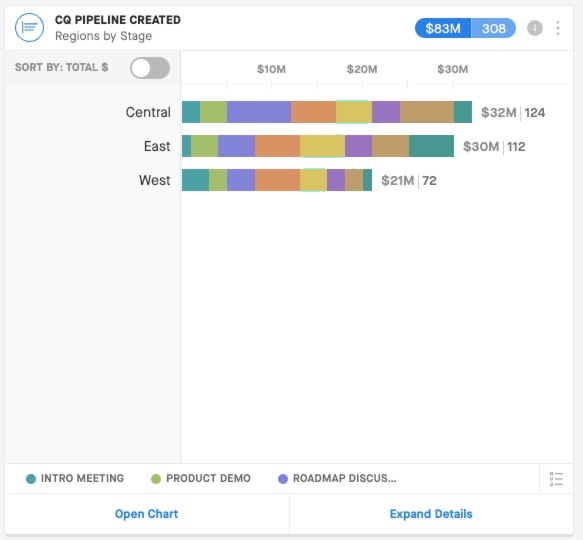
Pin any Chart from the Opportunities Module to your Dashboard for quick data reference! Chart Widgets are a great way of tracking one of your Saved Views on a Dashboard.
How to Pin a Chart to a Dashboard
1. In the Opportunities Module, add 1-2 Groups to your View and toggle to Chart Mode. If you don't know how to create a Chart in Opportunities, check out our article on Creating Charts.
2. Click the Actions Drop-down and select Pin to Dashboard.
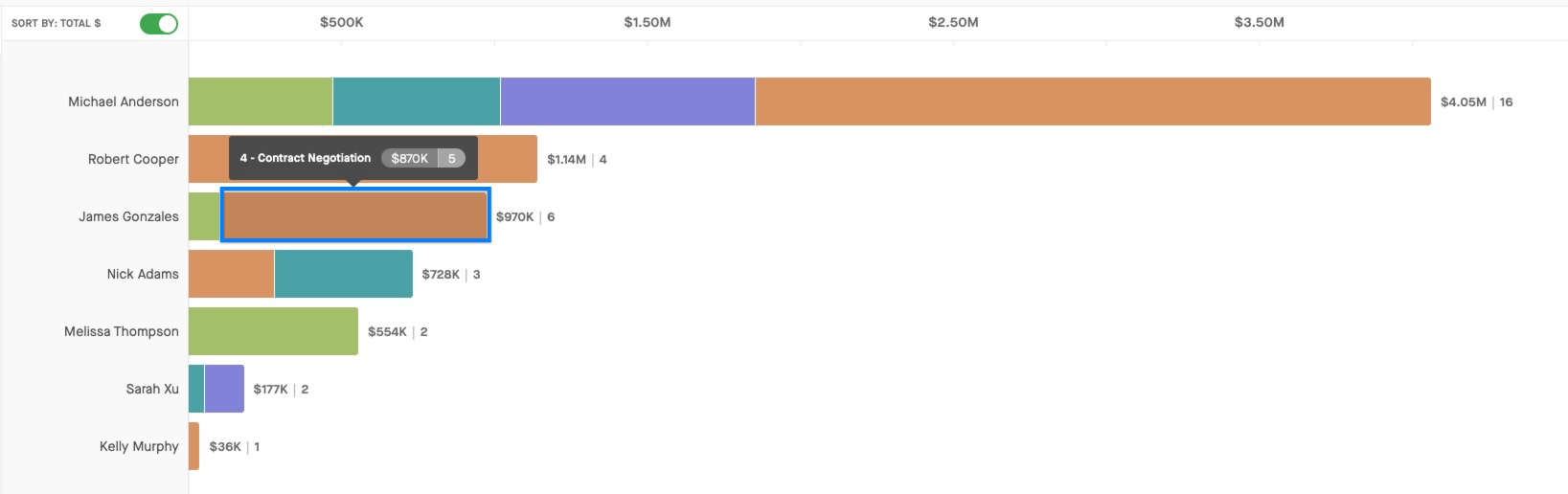
Tip: If it's helpful, you can sort your data by total dollar amount by enabling the Sort by Total $ toggle.
To see the total amount and total number of deals associated with a segment in the Chart, hover your mouse over a segment in the bar graph.
Settings Options
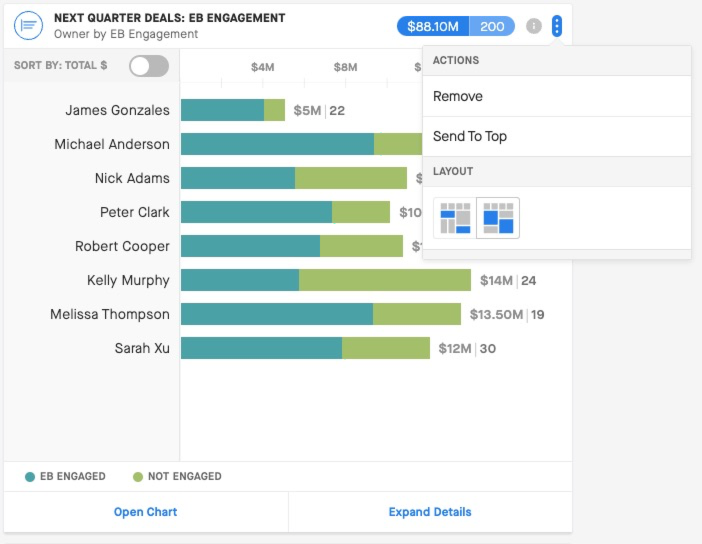
To adjust the setting for the Widget, hover your mouse over the 3 horizontal dots.
Remove: Remove the Widget from the Dashboard.
Send to Top: Move the Widget to the top of the Dashboard.
Layout: Change the layout of your Widget to make it a square or size to your data.