The Digital Success Center (DSC) is a centralized, in-app resource designed to empower platform administrators and enablement leads with the tools and information they need to drive continued success with Salesloft.
In this article, you will learn how to access and utilize the Digital Success Center. This article includes:
Before using the Digital Success Center, there are some important things for you should know:
- User Role: You must be assigned the Admin role on the Salesloft platform to access the Digital Success Center.
- Customer Eligibility: Your company must be an existing Salesloft customer, out of the initial onboarding phase.
- Access: The Digital Success Center is only available via the in-app link and cannot be directly bookmarked.
Follow these steps to access the Digital Success Center within your Salesloft platform:
1. Navigate to Your Profile: In Salesloft, locate and click on your Profile icon in the top right corner.
2. Open the Customer Center: From the profile menu, select the "Customer Center" link.
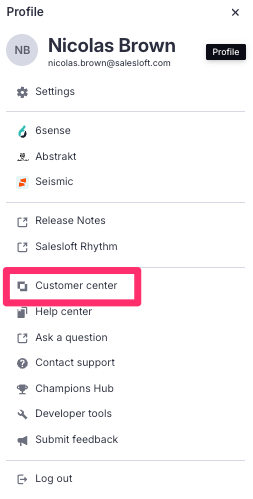
Figure 1: Highlighting the Customer center link in your profile
3. Explore the Digital Success Center: Once inside, you can navigate the various sections of the Digital Success Center available to your account, including:
-
- Platform Health Dashboard: Review your account's health metrics.(Licenses and Users, Platform Adoption, User Configuration Report)
- Success Plan (Select Customers): Create and manage actionable success plans with guided steps.
- Partnership: Review and update your company's points of contact (POCs).
- Resources: Review support resources available to your teams. (Salesloft AI Assistant, Champions Hub, Courses, Webinars)
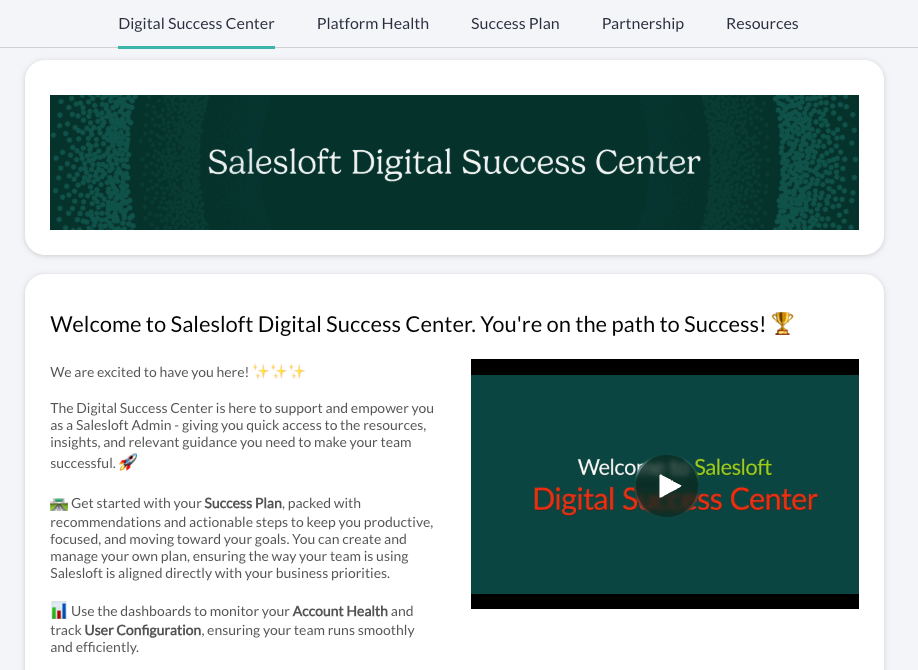
Figure 2: The Digital Success Center homepage
If your account is eligible for self-service success plans, use the Success plan to manage your goals.
Creating a Success Plan
- Go to the Success Plan tab within the Digital Success Center.
- Select your desired goals from the menu.
- Click the "Create Success Plan" button to generate a plan personalized to your selections.
Managing Your Plan
- Your plan is organized into actionable items.
- Use the checkbox next to each item to manually track your progress.
- Click the "Run Task" button to be taken directly to the relevant page in the platform to complete a recommended action.
Updating Success Plan Goals
- Click on the “update goals” button.
- Select your new goals and deselect any old ones.
- Click the "Update Success Plan" button to refresh your plan.
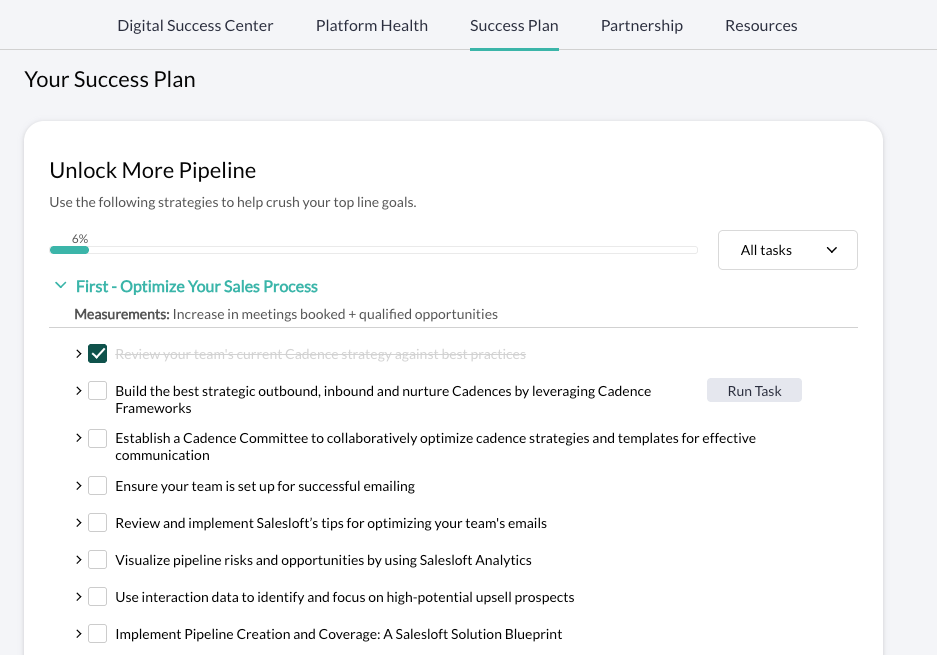
Figure 2: The Success Plan in the Digital Success Center
The Partnerships section within the Digital Success Center is synchronized with your Salesloft company records and allows admins to manage key contacts.
Adding New Contacts
- Click the "Add New Contact" button.
- Fill in the required information.
- Click "Add" to save the new contact.
Things to Note: You cannot add a contact with an email address that already exists in the system.
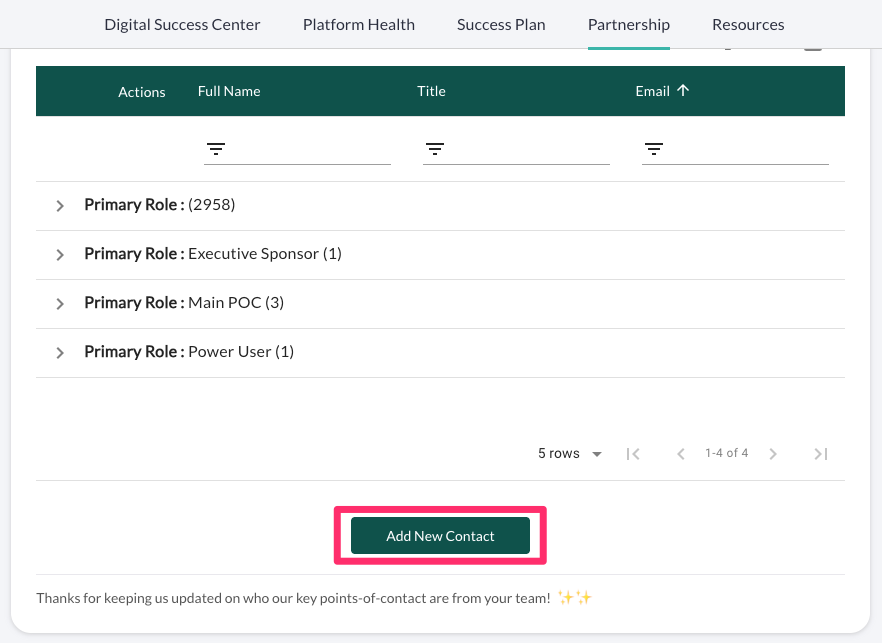
Figure 2: Highlighting the Add New Contact button in the Partnership section
Updating Contacts
- Click the pencil icon next to an existing contact.
- Make your changes.
- Click the checkmark icon to save your updates.
Things to Note: Admins can edit contacts but cannot delete an existing contact from the hub.
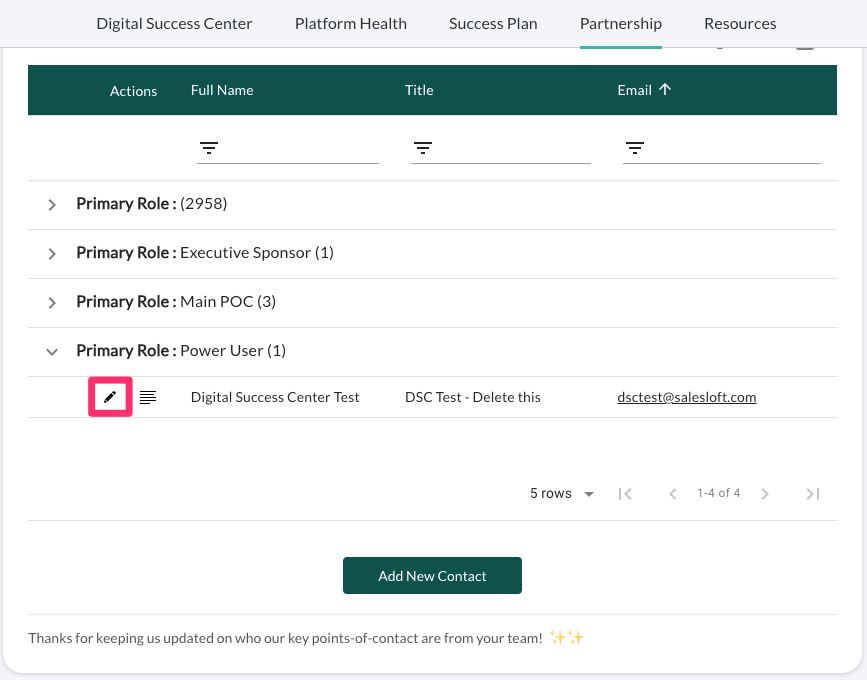
Figure 3: Highlighting the pencil icon used to edit contact info
- Metric Definitions: All metrics used in the dashboard include a tooltip. Hover over any metric to view a clear definition and understand what the data represents.
- Report Data Timelines: The User Configuration report data is typically reflected as of the previous day. Other metrics, such as Email Configured and CRM Connection status, are updated hourly.
- Exporting Data: In the User Configuration report, click the download icon to export the data in your choice of CSV or PDF format.
- Browser Refresh: Users can freely move between tabs in the Digital Success Center as needed as long as they don't refresh the page. If a refresh occurs, users will need to refresh the Salesloft page and re-enter through the Digital Success Center link as defined in the Digital Success Center Navigation section above.
- Review each section of your Digital Success Center and contact your dedicated Customer Success Manager (CSM) or the support team if you encounter any technical issues or have strategic questions.
