There may be times you see multiple cases in the Support Queue submitted from the same org, regarding the same issue. If this happens, you can merge these cases and track everything in one location. The steps below outline how to do so.
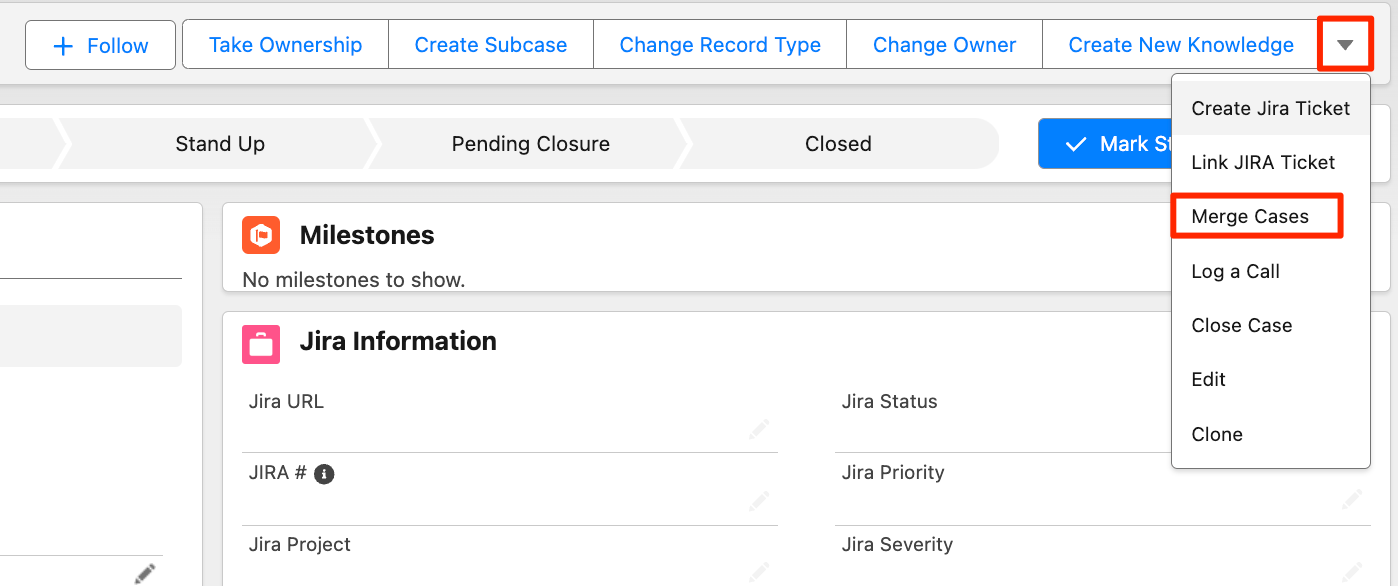
1. Within the case, you will find a "Merge Cases" option from the dropdown menu at the top right section of the case.
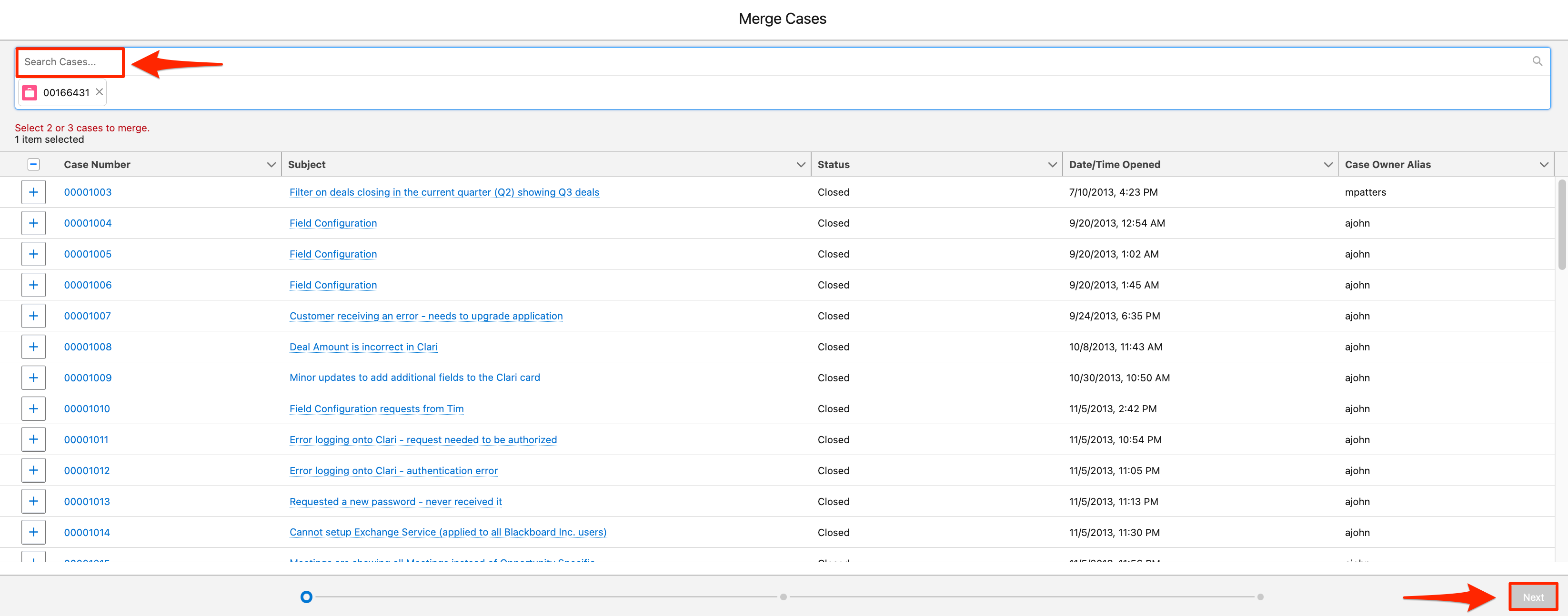
2. From the Merge Cases screen, input the case number you are looking to merge. Once selected, the "Next" button at the bottom will turn blue. Proceed with hitting "Next".
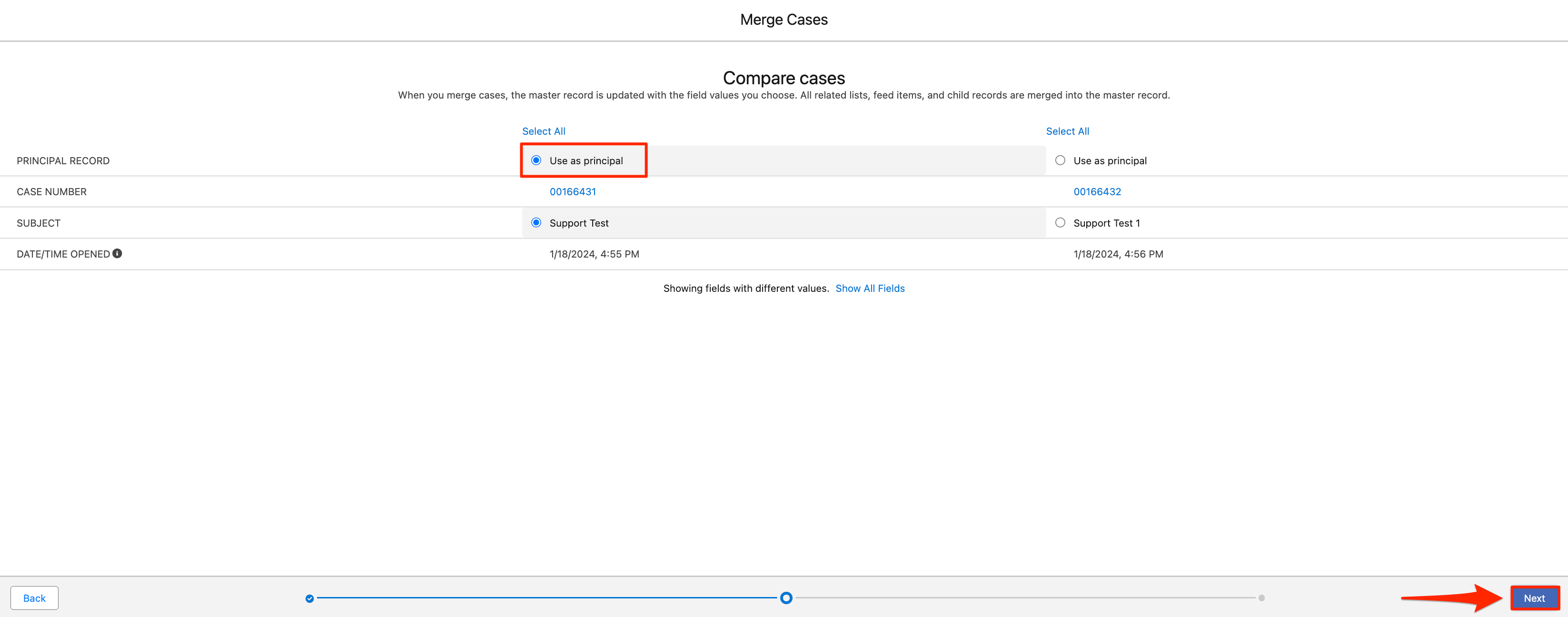
3. From here, you will need to select which case will be the "Principal Case". The Principal Case will be the main record that the other case will be merged into. Typically, the Principal Case should be the case containing the most detail within it, or in some cases, the one that is already being worked on by a Support member.
Once you select which case is the Principal Case, click Next and confirm the Merge on the following screen.
One thing to note, all email activity will merge into the Parent Case, but the case description, subject, or internal notes will not.
