The OAUTH_APPROVAL_ERROR_GENERIC is an authentication error that occurs when Salesforce prevents LinkedIn Sales Navigator (LISN) from establishing a secure connection. This issue typically arises during the InMail workflow, preventing users from logging activities or syncing data between the two platforms.
Symptoms
Users may encounter the following indicators when facing this issue:
-
An error message stating: "OAUTH_APPROVAL_ERROR_GENERIC: An unexpected error has occurred during authentication. Please try again."
-
A persistent banner in the LinkedIn Sales Navigator window: "Unable to log because you are disconnected. Connect to CRM."
-
A pop-up message: "Unable to connect to CRM. We were unable to connect to your CRM. Please try connecting again."
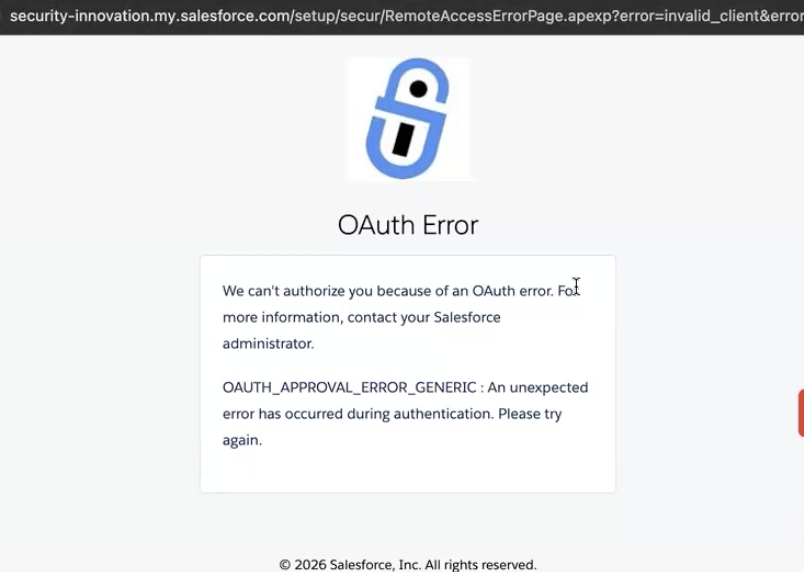
Figure 1: The LinkedIn Sales Navigator OAuth Error
Common Causes
This error is almost always caused by a configuration gap in Salesforce:
-
Uninstalled Connected App: The "LinkedIn Sales Navigator Writeback" app exists in the Salesforce environment but has not been formally "Installed" to allow OAuth traffic.
-
Authentication Block: Security policies are preventing the handoff between LinkedIn and Salesforce APIs.
Step-by-Step Troubleshooting Guide
Step 1: Log in as a Salesforce Administrator
This resolution requires administrative permissions to modify Connected App settings.
-
Log in to your Salesforce organization as an Admin..
-
Click the Gear Icon in the top right and select Setup.
If you are not the Salesforce administrator for your team, contact your admin for additional assistance.
Step 2: Locate Connected Apps OAuth Usage
Find where Salesforce manages the permissions for external integrations.
-
In the Quick Find box on the left, search for and click Connected Apps OAuth Usage.
Step 3: Install the LinkedIn Sales Navigator Writeback App
Identify the specific app causing the block and authorize it for your organization.
-
Locate LinkedIn Sales Navigator Writeback in the list of apps.
-
Click the Install button in the far-right column for that specific row.

Figure 2: The Linkedin Sales Navigator Writeback selection
Alternative Solutions
If the steps above do not immediately resolve the error:
-
Alternative 1: Clear your browser's cache and cookies. Sometimes a "stuck" session in the browser prevents the new Salesforce settings from being recognized.
-
Alternative 2: Re-authenticate from the LinkedIn Sales Navigator Account. Navigate to Sales Navigator Settings > CRM Settings, click "Disconnect," and then initiate a fresh "Connect to CRM" request.
Preventative Measures
To avoid this issue in the future, administrators should ensure that all required LinkedIn Connected Apps (including "LinkedIn" and "LinkedIn Sales Navigator") are "Installed" during the initial integration setup phase before rolling out to end-users.
Additional Resources
