“Lofting” a meeting sends a meeting invite and allows meeting data sync to Salesloft platform and CRM for tracking and analytics. In the event you need to update fields in Salesloft from an event invite, you need a way to kick start the tracking and data sync that won’t trigger email invitation updates to your attendees.
To maintain accurate tracking of your Salesloft meetings without disrupting your prospects, you can log existing calendar meetings using “Loft It” to make changes to existing calendar invites.
By “Lofting” changes to existing calendar invites, you can update meeting details internally without resending invites or resetting RSVP statuses. By using this feature, you can improve data accuracy, enhance the prospect experience, and increase your own efficiency.
In this article, you will learn how to loft an existing calendar invite. This article includes:
- No special configuration is required to use the "Loft It" functionality for existing meetings.
- This feature is currently only available for Google Calendar. Connect your Google Calendar in your Salesloft settings.
- The Salesloft Chrome Extension installed and up to date.
- Lofting changes to existing calendar invites is not intended to update meeting details; it is meant to associate an existing event with Salesloft records.
This feature is designed for meetings that already exist on your calendar. The process for applying "Loft It" to an existing meeting has been modified so it associates the event with Salesloft records without resending a calendar invitation to attendees.
To Loft an existing calendar invite, follow these steps:
- Open an Existing Calendar Event: Find an existing meeting on your Google calendar that you want to log in Salesloft. Open the event to view its details.
- Initiate the Lofting Action: Within the meeting details, initiate the "Loft It" action. The method for this will depend on whether you are using Google Calendar or Outlook Calendar.
- Verify the Changes: Salesloft will now silently associate the meeting with the selected Salesloft records (such as Person or Account). Critically, no new invitation is sent to attendees, and their original RSVP statuses (Accepted, Declined, Tentative) will remain visible and unchanged on the calendar event.
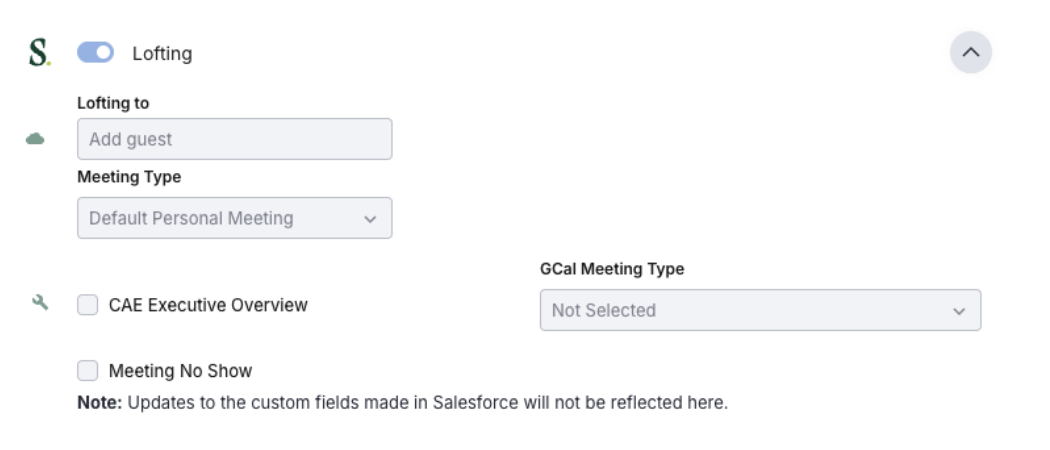
Figure 1: Loft an Existing Calendar Invite from Google Calendar
- This feature does not change the workflow for new meetings. When you use "Loft It" on a new meeting you are creating, the standard behavior of sending an initial invitation to attendees remains unchanged.
- Resending of Invites: This change specifically stops the resending of invites when you log an existing, unchanged meeting. If you modify other meeting details like the time, date, or attendees, your calendar provider may still send an update notification based on its own standard behavior.
- Troubleshooting:
- If a meeting fails to Loft, an error message should appear. Check your connection and try the action again.
- If an invite was re-sent, confirm whether any part of the meeting was also modified like the date, time, or attendees. Any change to the event can trigger a standard calendar update.
After Lofting an existing meeting, verify that the meeting appears correctly in the activity feed of the associated Salesloft records to ensure the data sync was successful.
