Salesloft Calendar Sync includes the ability to sync recurring meeting series, so that all meeting instances are captured accurately.
When you use calendar sync, any changes you make to your “Lofted” meetings in your calendar, such as adjustments to time, date, or description, will automatically update the corresponding Event record in your CRM.
Similarly, deleting or cancelling a meeting will remove it from your CRM. Salesloft also synchronizes updates made to its own meeting fields back to the CRM.
In this article, you will learn how to sync recurring meetings, including:
Before you can set meetings to recur and sync them to your CRM, there are important details you should know:
- Connect your Google Calendar to Salesloft.
- Download the Salesloft Chrome Extension.
- Verify your CRM is correctly connected in inside your users CRM settings.
- For the Recurring option to appear when booking a Meeting in Salesloft, a team admin must add the Custom Activity field for Recurrence Type that logs to the Event. This will add the Recurrence field to appear in the Book a Meeting window.
- Lofting is disabled when editing recurring meetings.
- The Changes made to a past meeting series will not sync to the CRM.
- Recurring sync is not currently available for Outlook.
- Currently, recurring meeting labels are only supported for Google Calendar integrations. Meetings booked in Outlook will not be labeled at this time.
A recurring meeting being synced with Salesloft, means that your meeting is “lofted” aka it’s been logged to Salesloft and your connected CRM.
Once a recurring meeting series is lofted, any changes you make in Google Calendar or Outlook to the time, date, description, or attendees of lofted meetings will automatically sync to your corresponding CRM Event record.
Similarly, cancelling or deleting a lofted recurring meeting in your external calendar will automatically delete the associated Event record in your CRM.
In order for meetings to sync properly, you need to send the meeting invite in a way that creates a recurring meeting and logs that meeting in Salesloft (and your CRM).
If you spend your time directly in your Google workspace, you can create recurring meetings and set sync in motion by using the Lofting feature in your Google Calendar. The Lofting functionality is available when you download the Salesloft Connect Chrome Extension.
To set up recurring events from your Google Calendar that will sync to Salesloft and your CRM, follow these steps:
- Create a Calendar event: In your calendar, create an event.
- Loft the recurring meeting series from your Google Calendar: In your calendar invite, toggle on the Lofting option.This sends the meeting details to Salesloft and creates corresponding Event records in your CRM.
- Send the invite: Complete the send.
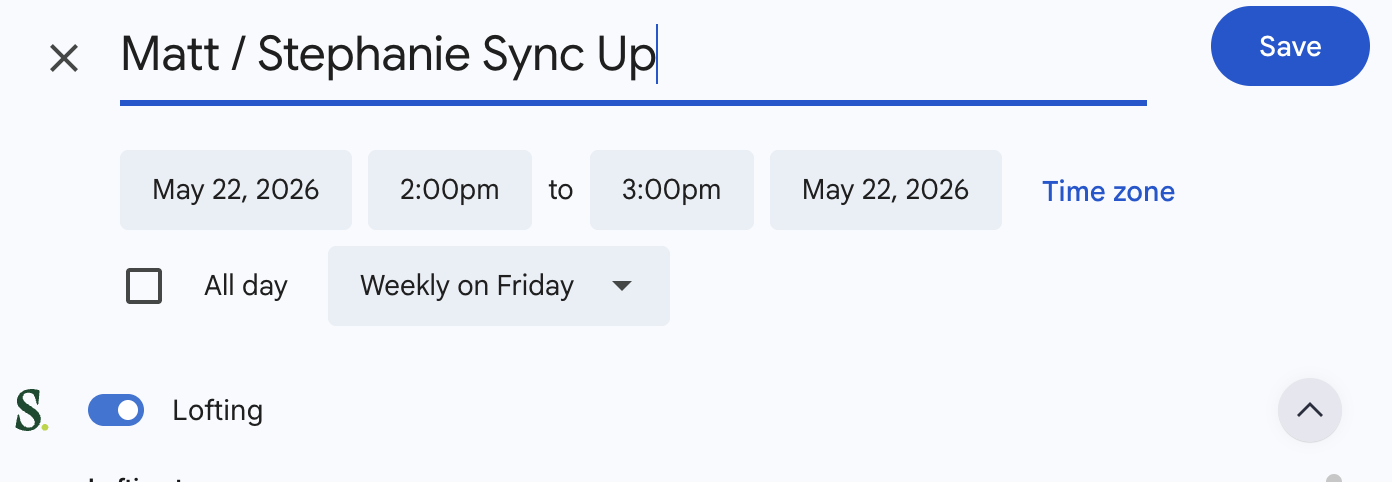
Figure 1: Lofting enabled for a recurring Google Calendar invite
You can set and book recurring meetings in the Book a Meeting window. Meetings booked from the Salesloft application will be logged and synced to Salesloft and your CRM.
This action is particularly helpful when you are reviewing a profile page to catch up on your account history and wish to set a recurring meeting as you inch towards a new deal.
To book a recurring meeting from inside Salesloft, follow these steps:
- Access the Book a Meeting Module: Use one of the following methods to open the book a meeting module:
- Book a Meeting from the Quick Actions found in the Person Information Panel: Navigate to the Profile page of the Person you want to schedule a meeting with. In the Upper left corner you'll see a panel with the person's name and details. In the quick actions icons, click the plus sign + to view more actions. Select Book Meeting. The Book a Meeting module will appear.
- Book a Meeting action inside the Deals Buying Group Panel: Schedule a meeting with a stakeholders in the moment. Once a meeting is booked it will appear in the Activity Feed on the deal as an Upcoming Meeting Activity.
- Confirm the Meeting Owner and other Meeting Fields: Your meeting fields will include many default selections based on the user booking the meeting, the Person you are booking the meeting with, and designated team defaults. Review these fields. Edit any fields where changes are necessary
- Open the “Recurrence Type” field: Under the Meeting Details, you should see the Recurrence Type field. Click the field to open the dropdown menu.
- If the field is not visible, contact your team admin and have them confirm the Recurrence field has been mapped to your CRM.
- Select the Recurrence: Pick how often you would like the meeting to occur.
- Select the time on the calendar: Click the time slot within the calendar when you would like the meeting to occur.
- Click Book Meeting: Complete the action by selecting Book Meeting.
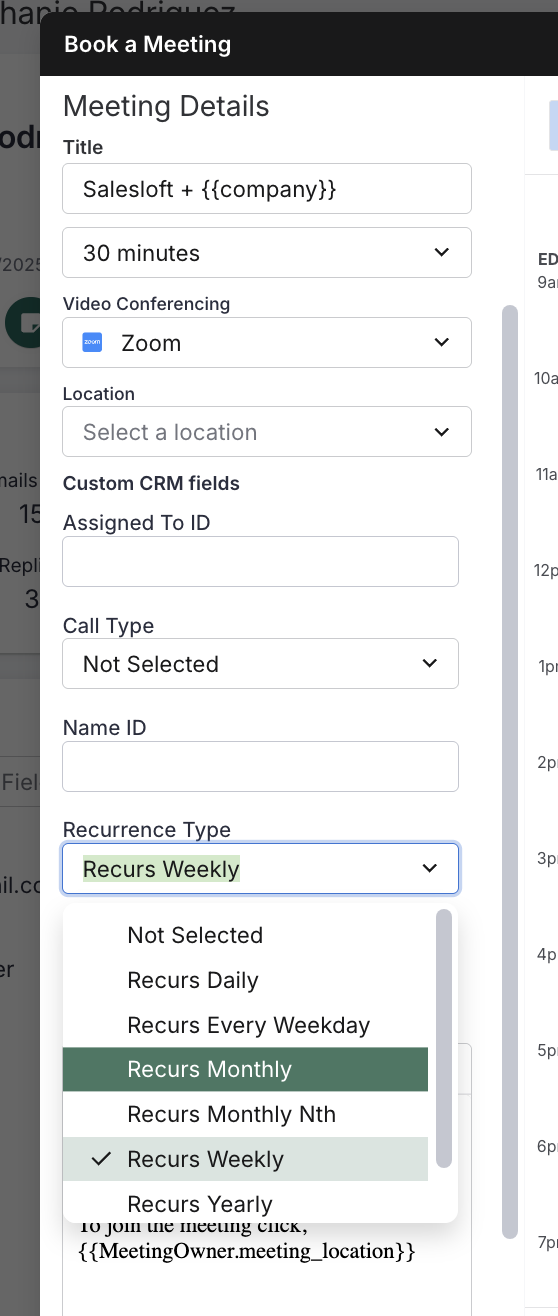
Figure 2: Recurrence Type field in the Book a Meeting window
- Removing attendees from a meeting invite in Google Calendar may not automatically remove them from the corresponding CRM event record. This is consistent with the general behavior for meeting sync.
- Salesloft-specific fields related to that meeting (e.g., changing the "Meeting Type," setting the "Meeting Outcome," or filling in custom meeting fields within Salesloft) should be synced.
- Rescheduling a lofted meeting in Google Calendar automatically updates the corresponding Event record in your CRM with the new time and date.
- Cancelling a lofted meeting in Google Calendar automatically deletes the corresponding Event record in your CRM.
- Updates made to Salesloft meeting fields (standard and custom) on a lofted meeting will sync back to the linked CRM Event record.
Recurring Meetings in the Activity Feed
Recurring meetings are automatically logged to the Person Profile Activity Feed and synced to your CRM, ensuring full data parity. This applies to recurring meetings booked in Salesloft or your linked calendar.
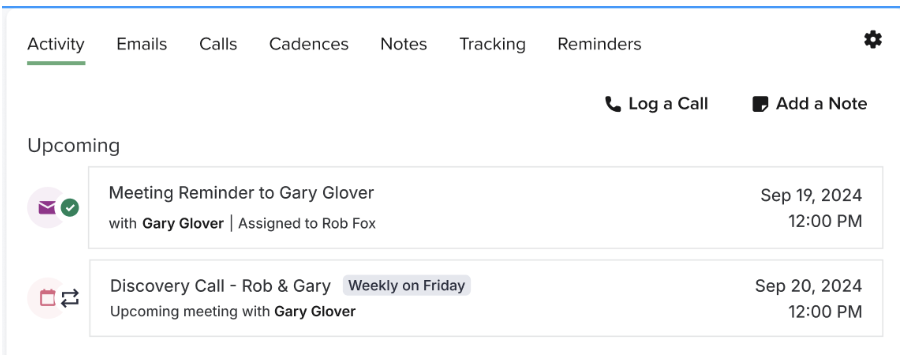
Figure 3: Recurring meeting seen on the Person Profile Activity Feed
When a change is made to a recurring meeting series in your connected calendar (e.g., a time change, cancellation, or modification to a single instance), that change will be reflected in Salesloft after the next sync.

Figure 4: Canceled Recurring Meeting in Person Profile Activity Feed
- After lofting the meeting, allow several minutes for sync actions to reflect in your CRM; then check your CRM to ensure the sync has been completed.
- View the CRM Sync Logs to verify if information has been passed to your CRM. For more information, check out our View CRM Sync Logs help doc.
