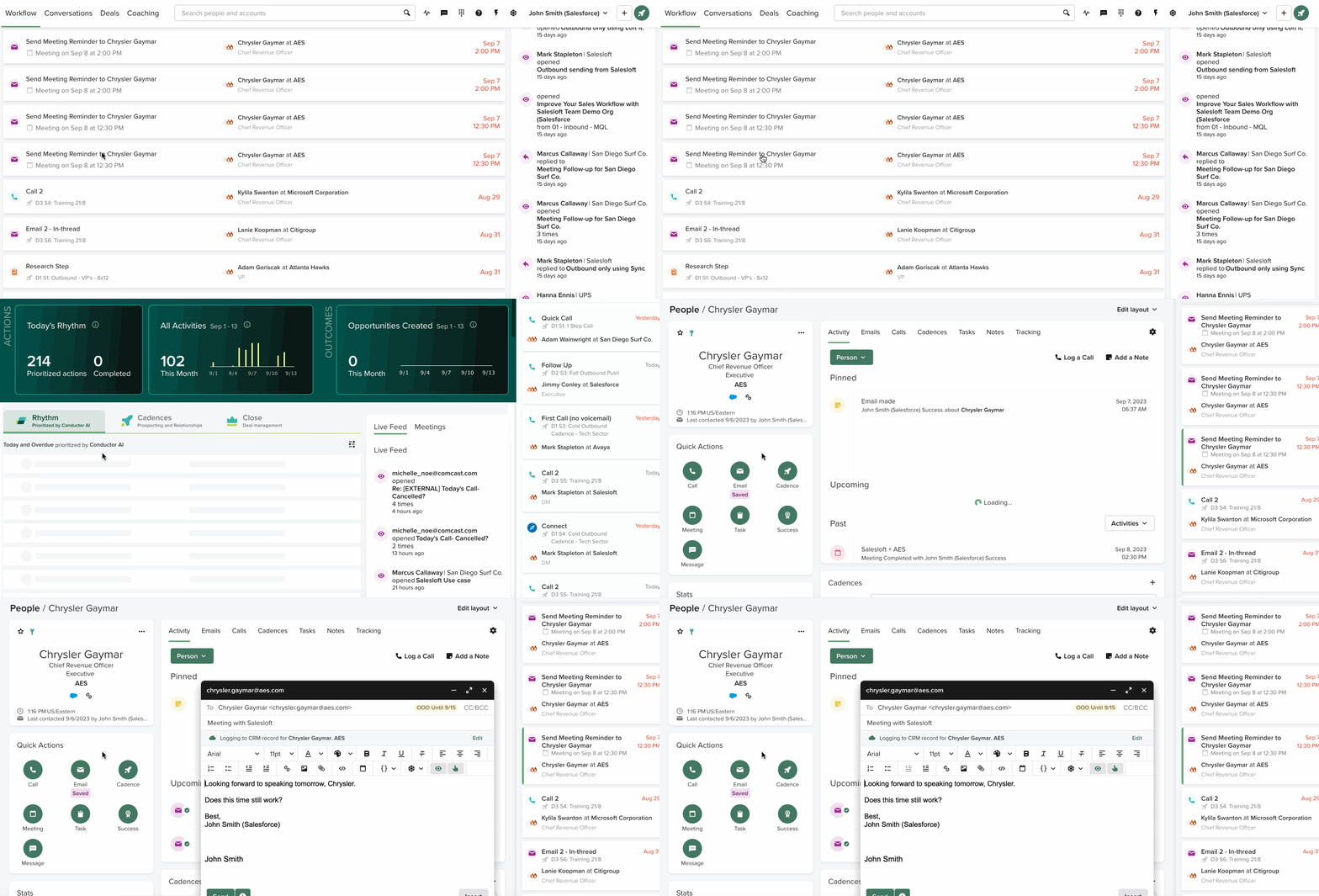
The Meeting Reminder Play automatically creates an email task that you can send prior to a scheduled meeting. This Play is triggered when a Person accepts a meeting, and the Play issues a pre-defined email task.
The primary objective of the Meeting Reminder Play is to reduce the number of meeting no-shows, since you will send participants an email. Ultimately, the Meeting Reminder Play can help SDRs and AEs to achieve higher show rates.
Things to Note:
- The Meeting Reminder Play is enabled for Salesloft teams by default.
- Users must connect their calendar for this Play signal to work.
- If your team has more than one Meeting Reminder Play enabled, you'll need to set up unique user groups for each play. This prevents the play from firing multiple times for the same meeting.
- For a Meeting Reminder Play to fire, the user who owns the meeting must have their user group added to the play's configuration. For example, if an SDR books a meeting on behalf of an AE, and you want the Meeting Reminder Play to create a task for the SDR, the AE's user group must be included in the play's settings.
In this article, you will learn about the Meeting Reminder Play, including:
Default Meeting Reminder Play
All Salesloft teams will have the Meeting Reminder Play enabled by default. This means, there is no setup required for teams to leverage this play.
Things to Note: While the Meeting Reminder Play is enabled by default, a team admin can disable or edit the play if the default setting doesn’t suit your team.
The Meeting Reminder Play will generate a one-off Email Task when a Meeting is booked – meaning the meeting invite has been accepted by a participant.
Since this play is enabled by default, you may be wondering, what’s included in this Play? The default configuration for the Meeting Reminder Play includes the following settings:
- Play Name: Meeting Reminder
- Signal: Meeting Booked (requires users to set up Calendar)
- Action: Email Task action with created template. The template includes brief items that will need to be changed/added before the email is sent. The default template:
Looking forward to speaking tomorrow, {{first_name}}.

Here's a quick agenda ahead of the call:

Agenda:

Agenda item 1
Agenda item 2

Let me know if you have any changes or additional topics you want to discuss.

Speak soon!
- Due date: 24 hours before scheduled start date
Manage the Meeting Reminder Play
Admins can enable/disable Meeting Reminder Plays. They can also edit the play and overwrite the default configuration to meet the needs on everyone on the team.
Things to Note:
- The Play name will default to the type of play being created.
- If the Play is created from a Play Frameworks, the signal may not be edited.
Team admins can edit the following details inside the Meeting Reminder Play:
- Action
- Instructions or template for the action item. For example, you can edit the email template.
- Due date
Run the Meeting Reminder Play
When the Meeting Reminder Play is enabled, it will run when a meeting is booked.
So what can you anticipate? How will you actually run an email task from a Play? Let’s walk through a step-by-step example:
- Your team has enabled the Meeting Reminder Play.
- You send a meeting invite to a Person in Salesloft.
- The Person accepts the meeting invite. This signals the Meeting Reminder Play to activate. A task will be created to the Person the meeting invite was sent to with a due date 24 hours before the meeting.
- Due date depends on your team’s configuration.
- The day before your meeting, the task appears inside your Rhythm focus zone as a prioritized email task pre-filled with a template.
- When you progress through your Rhythm workflow, select the tasks. An email window will open with the previously created template. Personalize the message with your meeting details, outlining what will be covered in the meeting and how it could benefit the prospect’s business.
- Send the email to the prospect a day before the meeting. Now you are all aligned on when the meeting is taking place and what will be discussed.
Things to Note:
- If a Meeting is rescheduled the Play will automatically adjust the Due Date based on the update.
- In the event a meeting is canceled the Play will automatically remove the Task from the assigned rep.