The Rhythm Sidebar provides a streamlined view of your daily tasks and cadence steps within the Rhythm workflow, allowing you to stay focused and organized throughout your sales workflow. The sidebar is consistent whether you're working in the Salesloft web app or using the Salesloft extension, providing a seamless experience across platforms.
Why Use the Rhythm Sidebar?
- Prioritization: Spending your time most efficiently throughout the day.
- Efficiency: Quickly access and complete tasks without leaving your current workflow.
- Focus: Stay organized and prioritize your most important actions.
- Context: View tasks within the context of your overall Rhythm workflow.
- Consistency: Experience the same sidebar functionality in the web app and the extension.
Where’s the Cadence icon? Cadences have moved inside the Rhythm workflow. All of your cadence steps can be viewed either inside the Rhythm Focus Zone and inside the Cadence Focus Zone. You can select the zone that fits your workflow better — the Rhythm Focus Zone is prioritized by AI to help accomplish the most important tasks first, while the Cadence Focus Zone allows you to accomplish your created processes in an orderly fashion.
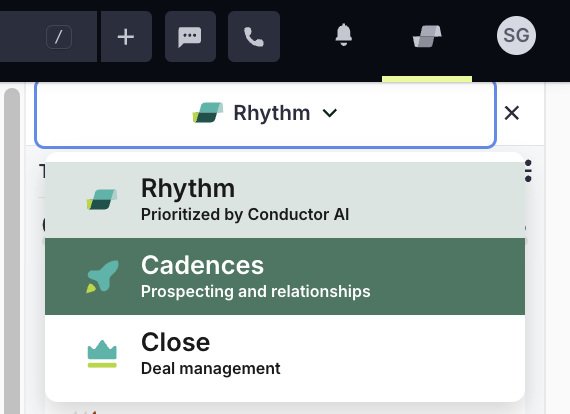
Figure 1: Access Cadence Focus Zone from Rhythm Sidebar
Inside the Rhythm Workflow, Cadences have more functionality and are more flexible. You can execute cadence steps along with one-off tasks, modify your cadence lists to better suit your needs, and focus your attention on the most important tasks.
In this article, you will learn about the Rhythm Sidebar, including:
Step 1: Accessing the Rhythm Sidebar
- The Rhythm Sidebar is located on the right side of the screen within the Rhythm workflow area in Salesloft.
- The Rhythm workflow is also available in the Side panel in the Salesloft Chrome Extension
Step 2: Using the Rhythm Sidebar
- Toggle between the three focus zones:
- Rhythm: View and complete all your scheduled tasks and activities.
- Cadence: Focus specifically on your cadence steps.
- Close: Prioritize tasks related to closing deals.
- Select a task or cadence step. The step will open.
- Run the step and complete it. You can move to the next step or leave the workflow.
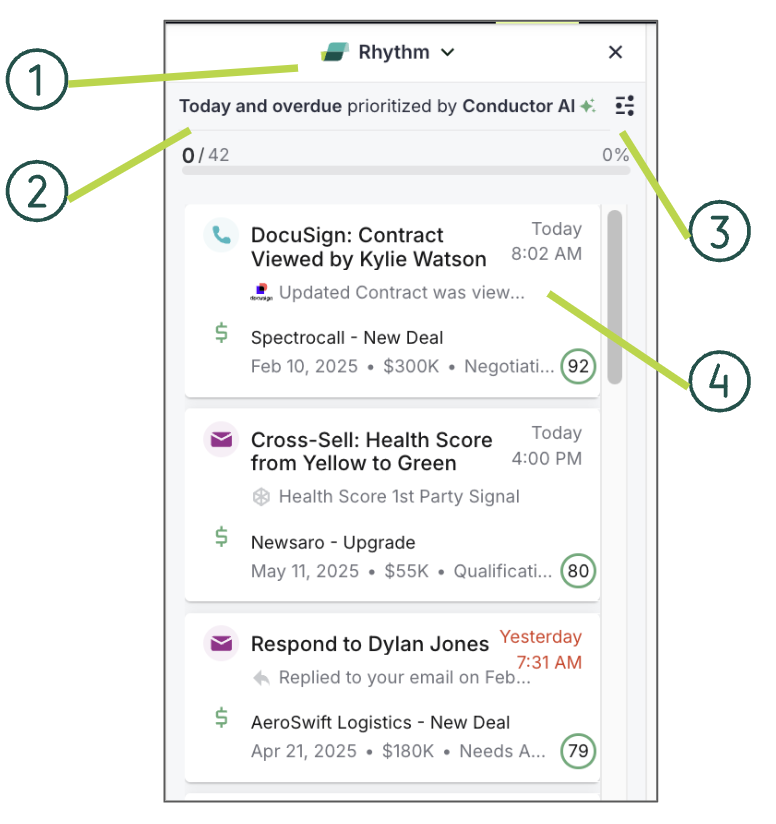
Figure 2: Example Rhythm Sidebar Layout
- Sidebar Focus Zone: Allows you to switch between Rhythm, Cadence, and Close focus zones to prioritize your tasks.
- Currently Viewing: Displays the active filters and how the task list is sorted.
- Rhythm Sidebar Filters: Provides various filter options to customize the displayed tasks.
- Task/Activity Tile: Shows individual tasks with relevant details and actions.
Tasks in the sidebar focus zones mirror the order in the corresponding focus zones on the Salesloft homepage. To rearrange tasks, use filters and sorting options to customize your workflow.
Refer to the Complete List of Salesloft Filters article for detailed information on the available filters.
Additional Resources
