The "Add to Cadence" Play action creates an "Add to Cadence" task in the assignee's Rhythm Workflow or Cadence Focus Zone when a prospect triggers a Play (the "Signal").
Essentially, this play action prompts the assigned user (typically a sales rep) to manually add a specific Person or People to a pre-selected Team Cadence.
It's the perfect way to automate a follow-up process based on high-value prospect activities, like a key content download, a reply to a previous email, or a prospect's record being updated in your CRM.
In this article, you will learn how to execute an Add to Cadence task including:
Before you start executing this task, there are some important things you should know:
- A Play must be set up for your team with the "Add to Cadence" action.
- Admins can only select a Team Cadence when setting up the Play. This ensures everyone on the team has access to the Cadence and is following the correct, standardized process.
- You must have the appropriate Salesloft permissions to add people to cadences. This functionality is included with the standard Salesloft user and admin roles.
- The Add to Cadence play action allows you to add people to a cadence and add an account to a cadence. The add account to cadence function will suggest adding the people associated to the account.
- This Recommended leads feature currently only supports ZoomInfo as the external data source for recommendations. Your organization must have a valid and active integration with ZoomInfo.
- If the system cannot find any appropriate recommendations for the account, the "Recommended Leads" section will display a message such as "No new recommendations found at this time." You can proceed with adding existing contacts as usual.
The "Add to Cadence" Play action turns a high-value prospect event into a prioritized task for the sales rep to enroll that prospect in the right follow-up cadence.
To perform the Add to Cadence task, follow these steps:
- Open the "Add to Cadence" Task: When working through your workflow, click on an Add to Cadence task assigned to you from a Play. The task window will open, presenting options for the cadence and contacts.
- Confirm the selected cadence: The play task will automatically designate an assigned cadence for you. Check the cadence name. If you would like to change the cadence or the cadence step that the People will be added to, click Change. The Select Cadence window will appear and you can select a different cadence or cadence step.
- Review and Select Existing Contacts: The task window will display existing Salesloft Person records that are associated with the account or the Play's criteria. Select any existing Salesloft contacts you wish to add to the specified cadence.
- Complete the Task: After selecting all desired existing contacts, click Add to Cadence. All selected contacts are then added to the specified cadence.
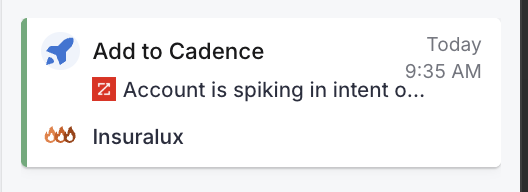
Figure 1: Run the Add to Cadence Play Task
The Recommended Leads In Add to Cadence Play Tasks allows you to discover and add new, AI-recommended contacts from external sources like ZoomInfo directly within your "Add to Cadence" workflow.
Follow these steps to complete your "Add to Cadence" task and import recommended leads directly into your cadence:
- Execute an "Add to Cadence" Play task: When working through your workflow, click on an Add to Cadence task assigned to you from a Play. The task window will open, presenting options for the cadence and contacts.
- Review the "Discover Buying group members" Recommended Leads section: Look for the new Discover Buying group members section in the task window. This section lists AI-suggested contacts from ZoomInfo who are not currently in your Salesloft database. Review the list of recommended leads. These are high-value contacts identified as a good fit for you to engage with.
- Select new, un-imported contacts: From the recommended list sourced from ZoomInfo, Check the boxes next to the new external contacts you want to add to the cadence..
- Things to Note: The system prevents adding contacts on your Do Not Contact (DNC) list. The UI will also flag likely duplicates of existing Salesloft People.
- Complete the task: The system will automatically create the new Salesloft Person records and add them to the Cadence in the background.
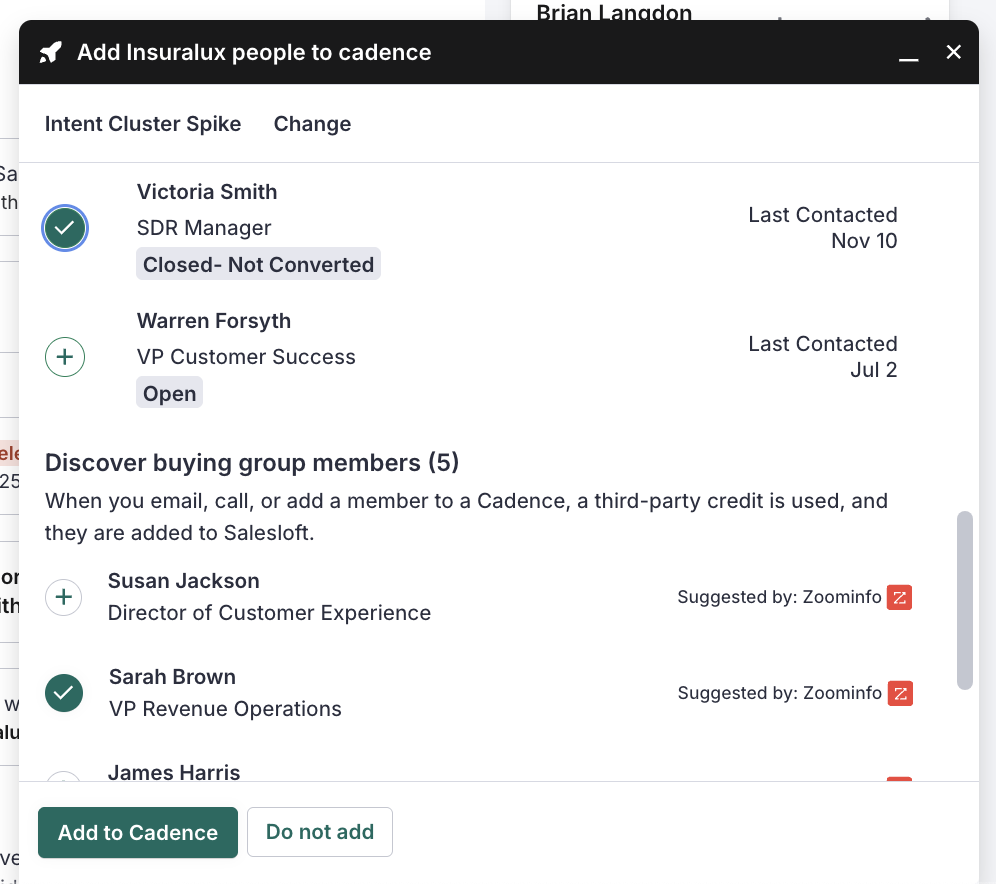
Figure 2: Recommended Leads in the Add to Cadence Play Task
Add to Cadence Task Window Layout
Let’s walk through the task window:
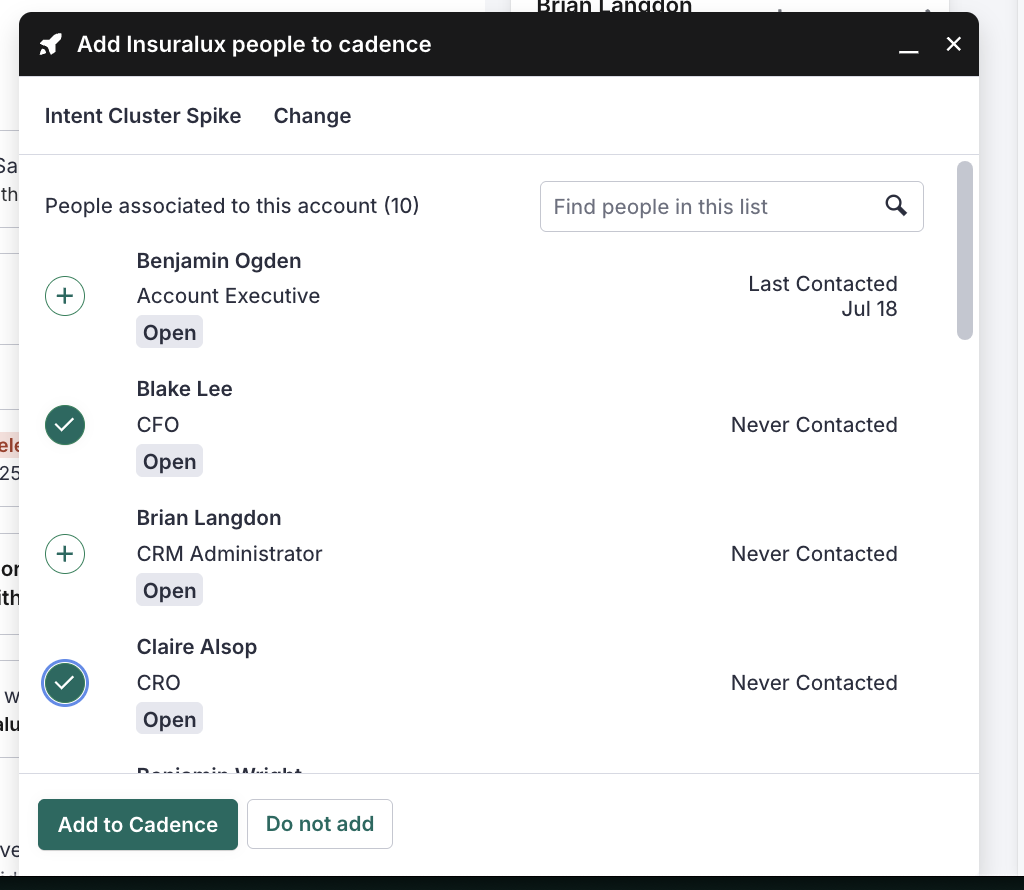
Figure 3: Add to Cadence Play Task Window
- Task Name
- Assigned Cadence
- Search
- People List
- Add to Cadence check options
- Person’s name
- Role
- Stage
- Last Contacted Date
Troubleshooting:
- Missing Recommendations: If the "Recommended Leads" section is not visible, first confirm that your organization has an active ZoomInfo integration and that your user-specific credentials are valid and connected.
- Learn how to Create a Play with an "Add to Cadence" Step in a Play to ensure this powerful feature is available for your team's workflow.
- Explore other Salesloft Play Actions to maximize your team's efficiency.
