Salesloft Connect for Outlook is an add-in that integrates Salesloft's core sales functionality directly into your Outlook inbox. Instead of switching between platforms, you can send tracked emails, manage Cadences, view Person profiles, and log notes — all without leaving Outlook.
Connect for Outlook is designed for sales reps who live in their inbox. It works alongside the Salesloft platform and requires an active Salesloft seat to use.
In this article:
|
Use Case
|
Feature
|
Documentation
|
|---|
|
As a sales rep, I want to send tracked, logged emails from Outlook
|
Loft It
|
Send Emails from Salesloft Connect for Outlook
|
|
As a sales rep, I want to insert pre-built email templates and snippets from Outlook
|
Templates & Snippets
|
Send Emails from Salesloft Connect for Outlook
|
|
As a sales rep, I want to share my meeting availability directly from an email draft
|
Insert Availability
|
Send Emails from Salesloft Connect for Outlook
|
|
As a sales rep, I want to view a prospect's Salesloft profile without leaving my inbox
|
Person Profile View
|
Salesloft Connect for Outlook: Side Panel UI Reference
|
|
As a sales rep, I want to add a prospect to a Cadence from Outlook
|
Add to Cadence
|
Salesloft Connect for Outlook: Side Panel UI Reference
|
|
As a sales rep, I want to create and manage reminders from Outlook
|
Reminders
|
Salesloft Connect for Outlook: Side Panel UI Reference
|
|
As a sales rep, I want to control which Salesforce record an email logs to
|
CRM Record Selection
|
CRM Record Selection
|
|
As a sales rep, I want to review and correct AI-suggested email sentiment labels
|
Email Sentiment
|
Send Emails from Salesloft Connect for Outlook
|
|
As a sales rep, I want to create a follow-up task for a prospect without leaving my inbox
|
Task Creation
|
Create a Task in Salesloft
|
|
As a sales rep, I want to view an account's company context (Tier, Industry, open deals) without leaving my inbox
|
Account View
|
Salesloft Connect for Outlook: Side Panel UI Reference
|
|
As a sales rep, I want to edit a prospect's record fields inline from Outlook
|
Inline Record Editing (Overview tab)
|
Salesloft Connect for Outlook: Side Panel UI Reference
|
Connect for Outlook is supported by the following Exchange and Office 365 versions:
|
Version
|
Minimum Required Build
|
|---|
|
Exchange 2013
|
CU_15 or higher
|
|
Outlook for Windows 13
|
15.0.4605.1003 or higher
|
|
Outlook for Mac 16
|
15.35 (170509) or higher
|
Things to Note: You may need to upgrade Outlook to a newer version to avoid functionality disruption.
Admins: To enable Email Tracking and CRM Record Selection for your team, configure those settings in the Salesloft admin panel and Salesforce Connector Settings.
Users: To begin using Connect for Outlook, install the Salesloft add-in from your Outlook add-in store. See the instructions below.
Install Connect for Outlook
Before you can Loft emails, view Person profiles, or manage reminders from Outlook, you need to install the Salesloft Connect add-in.
To install the add-in:
- Open your Outlook add-in store. This is accessible from the toolbar in your Outlook window.
- Search for Salesloft to bring up the Salesloft Connect listing.
- Turn the toggle on (or click Get it now) to activate the add-in.
Things to Note (Desktop — Windows/Mac): Salesloft requests "ReadWriteMailbox" permission. This is required for communication with your Exchange server and enables the Lofting feature — specifically fetching emails and attachments, inserting tracking links, and sending.
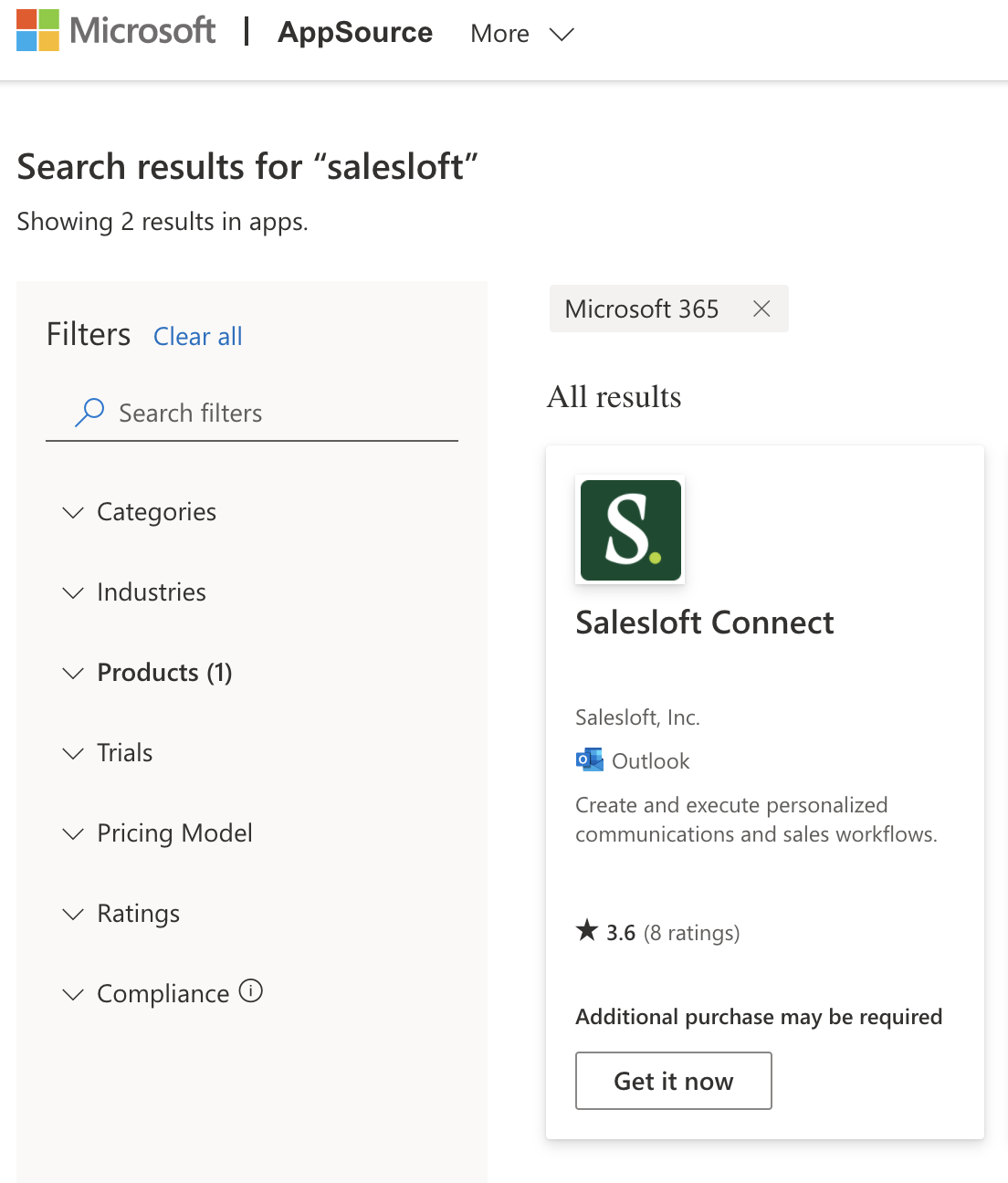
Figure 1: Salesloft Connect in the Microsoft AppSource
Disconnect the Add-in
To remove Salesloft Connect from Outlook:
- Open your Outlook add-in store or settings (the gear icon in your toolbar).
- Select Manage add-ins, then go to My add-ins.
- Find the Salesloft Connect add-in.
- Click the ellipses icon (three dots) in the bottom right corner of the add-in tile.
- Click Remove.
The add-in will be removed from your Outlook but will remain in the store. To re-enable it, select the Add button on the Salesloft Connect tile.
Once installed, the Salesloft Connect add-in is accessible from two locations in Outlook:
- Viewing or replying to an email: Click the Salesloft logo in the email toolbar — or — click the ellipses (...) → hover over Salesloft Connect → select Open Salesloft
- Drafting a new email: Click the Salesloft logo or ellipses (...) in the send bar → select Open Salesloft
Opening the panel from either location launches the Connect Side Panel with the Person Profile view.
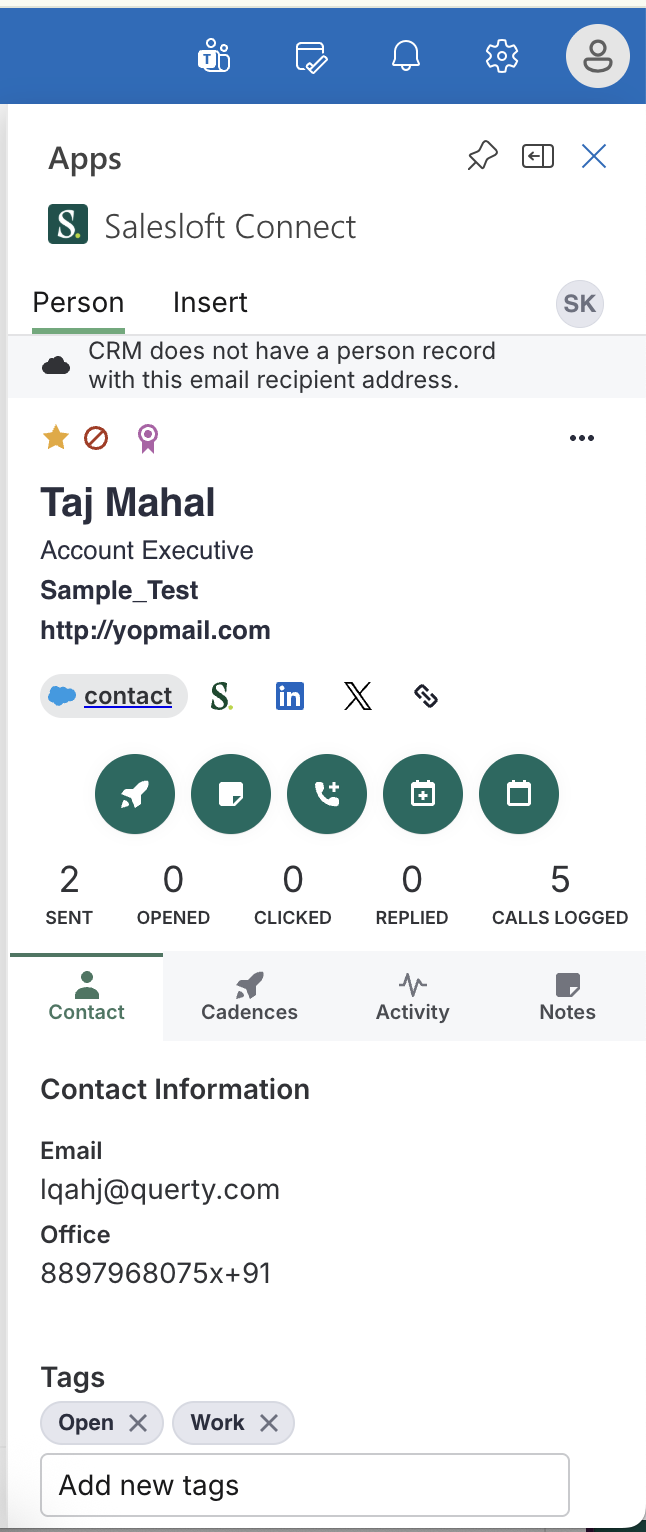
Figure 2: Salesloft Connect side panel open in Outlook with Person profile displayed
|
Term
|
Definition
|
|---|
|
Loft It
|
The action of sending an email through Salesloft so it is logged, tracked for opens/clicks/replies, and synced to your CRM. Using the standard Outlook Send button bypasses Salesloft tracking.
|
|
Person
|
A prospect or contact record in Salesloft. Connect for Outlook pulls profile data and activity from this record.
|
|
Cadence
|
A structured sequence of outreach steps in Salesloft. You can add, manage, and assign People to Cadences directly from the side panel.
|
|
CRM Record Selection
|
The ability to choose which specific Salesforce Lead, Contact, Account, or Opportunity an email logs to — instead of relying on the default.
|
|
Email Sentiment
|
An AI-suggested label (e.g., "Interested," "Not Interested") applied to inbound email replies to help track engagement quality.
|
|
Insert Availability
|
A feature that lets you share proposed meeting time blocks in an email draft, streamlining scheduling with prospects.
|
|
Task
|
A one-off action reminder in Salesloft tied to a specific Person — such as a follow-up call, email, or general action — with a due date and optional assignee. Tasks created from Outlook surface in your Rhythm Focus Zone and on the Person's profile page. See Tasks in Salesloft: Overview for full details.
|
Go deeper:
Salesloft Connect for Outlook: Side Panel UI Reference: Reference guide for every element in the Connect side panel.
Send Emails from Salesloft Connect for Outlook: How to Loft emails, use templates, insert availability, and manage tracking.
Create a Task in Salesloft: How to create a one-off follow-up task, including from the Connect side panel.
When something goes wrong:
Troubleshooting Salesloft Connect for Outlook: Solutions for common errors and issues with the add-in.
