The Side Panel is the primary interface of the Salesloft Chrome Extension, giving you access to Person records, deal context, prioritized tasks, and live engagement signals directly from their browser, Gmail, or CRM. This reference guide covers every element in the Side Panel and links to step-by-step guides for actions you can take from it.
In this article:
Click the Salesloft icon in the Chrome toolbar from any browser tab or supported location to open the Side Panel. The panel slides open from the side of your browser window and stays open as you navigate between tabs — your panel state persists across your entire browsing session. The panel loads automatically when you navigate to a Lead, Contact, Account, or Opportunity record in your CRM, and updates dynamically as you move between records.
Things to Note: If clicking the Salesloft icon does nothing, you may be on a restricted browser page (such as a New Tab page, a local file, or a Chrome settings page). Browser security prevents the extension from loading on these pages. Navigate to any live website and try again.
Also accessible from:
|
Starting Location
|
Path
|
|
Gmail
|
Open any email — the Side Panel appears alongside the message pane
|
|
Salesforce record
|
Navigate to any Lead, Contact, Account, or Opportunity — the Side Panel loads the relevant Person or Account profile
|
|
Dynamics record
|
Navigate to any Lead, Contact, or Account— the Side Panel loads the relevant Person or Account profile
|
|
Hubspot record
|
Navigate to any Lead, Contact, or Account— the Side Panel loads the relevant Person or Account profile
|
The Side Panel is the same for all roles. Some tabs and features may not be available depending on your Salesloft plan or the location you're accessing the extension from.
Things to Note:
- Some functionality may not be available in certain locations. The Rhythm tab, for example, is currently only available in Salesforce CRM.
- The Conversations card appears on the Overview tab for users with the extension. You only see calls you have permission to view.
- The Create Task and Log Call options in the ‘>’ menu appear only for users who have permission to use them.
Top Navigation Bar
The top navigation bar is present across all Side Panel views and provides access to every tab and global action. The header includes a redesigned S logo, a search icon, a notifications bell, and a profile avatar for accessing the Profile View.
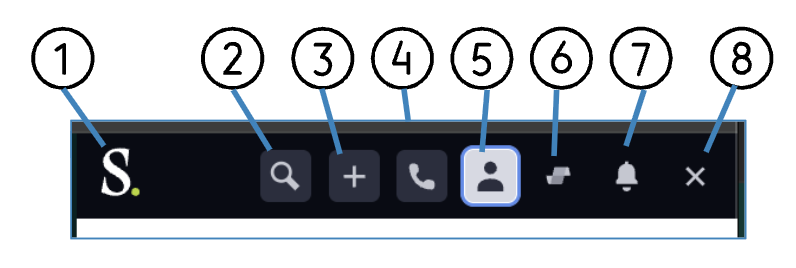
Figure 1: Connect Side Panel Top Navigation Bar (Salesforce version) with labels
|
#
|
Element
|
What It Does
|
Action
|
|
1
|
Salesloft
|
Opens the Salesloft application in a new browser window.
|
Click to open the webpage
|
|
2
|
Search
|
Search for People that have been imported into Salesloft.
|
Enter name or email to find a Person record
|
|
3
|
Open Actions ('>' menu)
|
Opens the Salesloft global actions menu to perform quick actions from any context. The menu includes Create Task and Log Call, so you can create a task or log a call from any page where the extension is open without opening a Person first.
|
Dropdown: select an action from the menu. See Create a Task in Salesloft and Log a Call.
|
|
4
|
Open Dialer
|
Opens the Dialer window to place calls using the Chrome Browser.
|
See: Make and Receive Calls Using the Salesloft Connect Dialer
|
|
5
|
Notifications bell
|
Opens in-panel notifications for tasks, reminders, and engagement signals
|
Click to view notifications
|
|
6
|
Profile avatar
|
Opens the Profile View page for account management and troubleshooting tools
|
Click to open the Profile View. See Profile View section below
|
|
7
|
Person View tab
|
Opens the Person View — a snapshot of the current Lead or Contact's Salesloft profile, including person details and nearest open opportunity.
|
See: Person View section below
|
|
8
|
Rhythm tab
|
Opens the Rhythm focus zone to execute prioritized tasks.
Only available in Salesforce CRM.
|
See: Rhythm Tab section below
|
|
9
|
Live Feed tab
|
Opens the Live Feed showing real-time buyer engagement signals.
|
See: Live Feed Tab section below
|
|
10
|
Exit
|
Close the side panel.
|
Click the X to close the panel.
|
The Profile View is a dedicated page within the Side Panel that displays your user identity and gives you direct access to settings and troubleshooting tools — without leaving your current webpage or losing your place in the panel.
To open the Profile View, click your profile avatar in the top navigation bar.
| Element | What It Does | Action |
| User name/email | Displays your Salesloft account name and email address | Display only |
| Settings | Opens your Chrome Extension settings | Click to open — see Review Your Chrome Extension Settings |
| Reload Extension | Refreshes the extension without restarting Chrome or clearing your browser cache | Click to reload — use this if the panel is stuck, showing outdated data, or not responding |
| Log Out | Signs you out of the Salesloft Chrome Extension | Click to log ou |
The Person View tab is the default landing view when you open the Side Panel on any Person record. It replaces the legacy Contact tab and surfaces both core profile details and active deal context in a single, unified view.
Things to Note: The Lead or Contact must be imported into Salesloft for Person details to appear.
Person Card Header
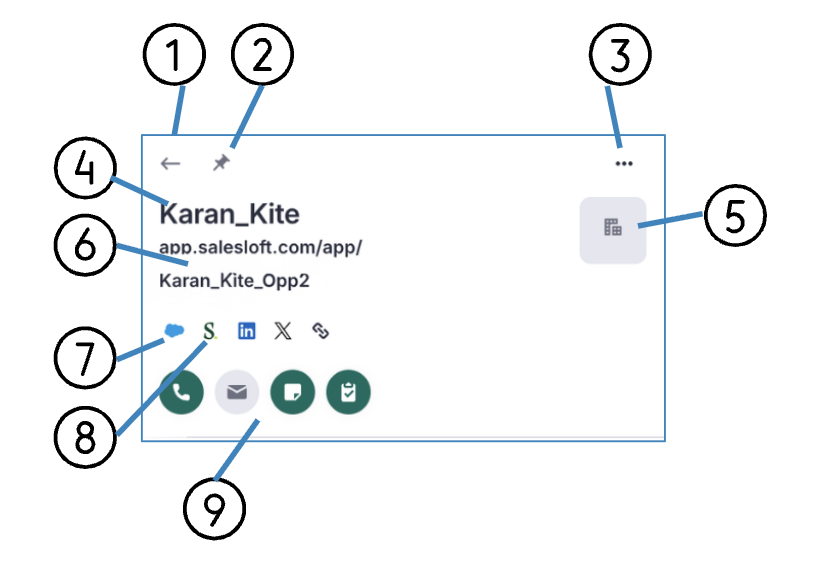
Figure 2: Person Card Header with Labels
|
#
|
Element
|
What It Does
|
Action
|
|
1
|
Back
| Go to the last page you visited in the Chrome Extension. | Click to go back |
|
2
|
Status Icons
| Shows relevant status options like recent email activity, pin option, etc. | Display only |
|
3
|
Menu
|
Opens additional person actions, including:
Edit Person
Do Not Contact
Link to Account
Mark EU Resident
Mark Out of Office
Mark as Success
Delete person
| Open the menu and select an action. |
|
4
|
Person name
|
Displays the Person's name.
|
Display only
|
| 5 |
Account
| Displays the Account associated with the Person. | Display only |
| 6 |
Nearest Open Opportunity link
| Displays a dynamic link to the single most urgent active opportunity associated with this Person — automatically filtered to exclude Closed-Won and Closed-Lost stages and past close dates, sorted by the closest upcoming close date. | Click to open the full Opportunity record in the Side Panel. See Opportunity View below. |
| 7 |
CRM connection
| Link to the Person's CRM record. | Click the CRM icon to open the record in your CRM. |
| 8 |
Salesloft Status
|
Displays the Salesloft sync status indicator — a green icon confirms an active, authenticated connection.
| Click to view the record in Salesloft |
|
9
|
Quick Actions
|
Select the icons to perform any of the following actions: Call, Send Email, Log Note, Add to Cadence, Create Task, Book a Meeting. Select More for additional actions: Log a Meeting, Log a Call.
|
Click the relevant icon to perform the action. See linked articles for step-by-step instructions.
|
|
10
|
Time and Location
(Not Labeled)
|
Displays the time and location of the Person.
|
Display only
|
| 11 |
No opportunity state
(Not Labeled)
| If no active opportunities meet the filter criteria, this area collapses automatically — no blank space is shown. | Display only |
Things to Note: If no opportunity link appears, confirm that the related opportunity has a close date in the future and a stage that is not Closed-Won or Closed-Lost. If no records match, the section collapses by design.
Person Card Tabs
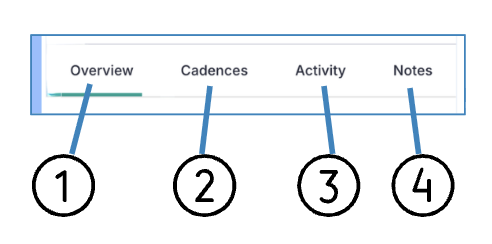
Figure 3: Person Card Tabs in the Connect Side Panel with Labels
|
#
|
Element
|
What It Does
|
Action
|
|
1
|
Overview
|
The fields displayed in the Person Details section mirror the Details block in your organization's Salesloft web app. Field display cannot be customized from within the extension. The tab also includes Ask Salesloft and the Conversations card, which shows your most recent recorded call. See Conversations Card below.
|
Display only
|
|
2
|
Cadences
| Displays information about Cadences a Person is on as well as their Cadence history. |
Display only
|
|
3
|
Activity
| Record of actions taken on the Person record, like changes in the Do not contact status or marking them as success. |
Display only
|
|
4
|
Notes
| The Notes tab allows you to log notes on the Person’s record in Salesloft. When you log a note, you can quickly reference it from the Notes tab, or view it under recent activity. Notes even log to your Salesforce activity history with the subject line “Note” for seamless logging and clarity across the platforms. |
Log and view notes
|
|
5
|
Apps
| Shows LinkedIn Sales Navigator for the person you’re viewing. Sales Navigator loads inside the tab using your existing LinkedIn sign-in. The tab appears only when your team has an app integration set up in Salesloft, such as LinkedIn Sales Navigator.
|
Click the tab to open Sales Navigator. See Use LinkedIn Sales Navigator in the Salesloft Extensions.
|
Ask Salesloft
Ask Salesloft is an AI-powered conversational interface embedded in the Chrome Extension sidepanel. It surfaces a signal badge panel — highlighting active cadences, open tasks, inbound emails, and pending voicemails — and lets you ask natural language questions about the current contact or account, grounded exclusively in your verified Salesloft interaction history.
When a response includes a draft email, the extension's native email compose window opens automatically, pre-populated with the content.
Ask Salesloft is available on both Person and Account record views under the Overview tab.
Conversations Card
The Conversations card on the Overview tab shows the most recent recorded call for the person or account you're viewing. It appears automatically when you open a Person or Account record. No setup is needed.
- On a Person record, it shows your most recent call with that person.
- On an Account record, it shows the most recent call with anyone at that company.
It works with calls recorded and transcribed in Salesloft CI and Copilot.
#
|
Element
|
What it Does
|
Action
|
| 1 | Call title | Shows the title of the call and links to the full recording. | Click to open the recording in Salesloft |
| 2 | Participants | Shows who was on the call, for example "Jacob Jones and 3 others". | Display only |
| 3 | Date and time | Shows when the call took place. | Display only |
| 4 | Thumbnail | Shows a preview of the recording. On hover, it shows Review in details page | Click to open the recording in Salesloft |
| 5 | View all | Opens Salesloft in your browser, filtered to this person or account. For an account, it opens the Conversations recordings page. | Click to see all calls |
Things to Note:
- The card shows only the most recent call. Use View all to see earlier ones.
- You only see calls you have permission to view in Salesloft.
- The card shows only calls recorded in Salesloft. Calls from other recording tools aren't included.
- You can't edit transcripts, reassign action items, or update CRM fields from the card.
- For accounts with many contacts, the card may take longer to load.
- If there are no calls, the card shows No recent call summaries recorded on a Person record, or No recent call records found on an Account record.
Opportunity View
The Opportunity View shows the details of a deal in the Side Panel, so you can check on it and update it without leaving your browser. From a Person or Account record, open a related Opportunity to see its key details and recent activity, and take quick actions.
Related Opportunities appear on the Person or Account record. Select an Opportunity name to open its full view. There is no separate Opportunity tab. You see the Opportunities that your standard Salesloft visibility and permission rules allow.
|
#
|
Element
|
What It Does
|
Action
|
|
1
|
Opportunity name
|
Displays the name of the Opportunity.
|
Display only
|
|
2
|
Account name
|
Displays the Account the Opportunity belongs to.
|
Display only
|
|
3
|
Deal owner and logo
|
Displays the deal owner and logo.
|
Display only
|
|
4
|
Record links
|
Links to the Opportunity in your CRM and in Salesloft, and to LinkedIn, X, or the company website.
|
Click a link to open it
|
|
5
|
Overview tab
|
Shows the key details of the Opportunity, such as Stage, Amount, and Close Date, and its recent activity.
|
Search for a field, or edit a field in place
|
|
6
|
Search
|
Finds a field in the Overview tab.
|
Enter a field name
|
|
7
|
Email quick action
|
Starts an email to one of the deal’s contacts. Primary contacts are marked with a star.
|
Click, then choose a contact
|
|
8
|
Call quick action
|
Calls one of the deal’s contacts.
|
Click, then choose a contact
|
Things to Note:
- When you edit a field in the Overview tab, the change is saved back to your CRM.
- You see only the Opportunities you have permission to view.
The Rhythm tab brings Salesloft's prioritized task workflow into the Side Panel so reps can execute their most important actions without opening the Salesloft app.
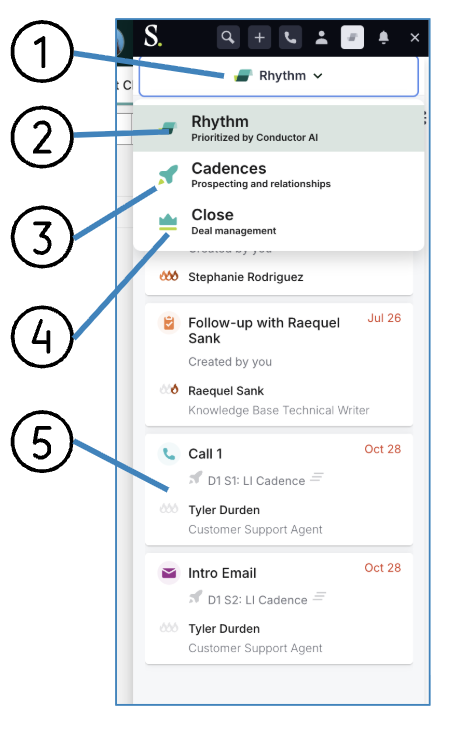
Figure 4: Rhythm tab in the Connect for Salesforce Side Panel with Labels
Things to Note: The Rhythm tab is currently only available when the extension is active in Salesforce.
|
#
|
Element
|
What It Does
|
Action
|
|
1
|
Rhythm Focus Zone Dropdown
|
Opens the focus zones dropdown so you can select with area you would like to work in.
|
Open the dropdown.
|
|
2
|
Rhythm task list
|
Displays prioritized tasks in the same order as the in-app Rhythm workflow.
|
Select a task to execute it
|
|
3
|
Cadence steps
|
Cadence steps due for execution appear in the task list and can be run directly from this tab.
|
Select a task to execute it
|
|
4
|
Close
|
Allows you to work through prioritized tasks that focus on your deals.
|
Select a task to execute it
|
|
5
|
Task tile
|
Open tasks inside your workflow. When you select a task you will be directed to the relevant Person record in your CRM and the tasks action will open.
|
Select a task to execute it
|
The Live Feed tab shows a real-time stream of buyer engagement activity tracked by Salesloft — email opens, link clicks, and other signals — so reps can act on high-intent moments as they happen.
|
#
|
Element
|
What It Does
|
Action
|
|
1
|
Activity stream
|
A chronological list of tracked buyer engagement events for People in your Salesloft account
|
Display only
|
|
2
|
Engagement notification
|
Each notification shows the Person, the type of engagement (open, click, etc.), and the time it occurred
|
Click a notification to open the related Person record
|
Understand the product:
Salesloft Chrome Extension Overview — What the extension is, where it works, and what you can do with it
Take action from this view:
Imports from Salesforce — How to import Lead, Contact, and Account records from Salesforce into Salesloft
Make and Receive Calls Using the Salesloft Connect Dialer — How to use the Dialer from the Side Panel
Use LinkedIn Sales Navigator in the Salesloft Extensions - How to view Sales Navigator for a person or account from the Apps tab
