You Create a Cadence so you can consistently communicate with people and improve your chances of engaging with them. Once the order of your actions and the content in your Cadence is ready, the next logical step is to bring People into the Cadence, also known as adding people to the Cadence.
Technically speaking, adding People to your Cadence is what sets your entire workflow in motion. When you add people to a Cadence, you can perform the Cadence actions towards each person as they arrive on that particular day, step, or action.
In this article, you will learn how to add a person or multiple people to a Cadence using Salesloft. This article includes:
- Confirm your user role has the necessary permissions to add People to cadences. The ability to add People to personal and team cadences is enabled by default for standard Salesloft admin and user roles. The permissions include:
- Personal Cadences: Manage
- Team Cadences: Run
- Before you can add people to a Cadence, they must have a Person record created inside Salesloft. You can create an individual Person or Import into Salesloft.
- Adding People to a Cadence uses the same workflow on the People page and inside the Cadence People tab.
- When adding someone who is on another Cadence, live or archived, you will be prompted that the Person is on other Cadences. Contacts can not be added to Cadences they are active on.
- You cannot add a person to a Cadence if they are already active in it.
There are a few different places within Salesloft where you can add a Person to a Cadence. We’ll walk through the process in each location here.
Add People to a Cadence from the People Page List Views
From your People list on the People Page, you can select a number of People and easily assign this Person (or selected People) to a Cadence. Most common use here is to add a group of people to a Cadence in bulk or to re-add someone to a Cadence.
Follow these instructions to add someone to a Cadence from a People list:
- Navigate to People Page: Go to the People page or the People tab inside a Cadence.
- Select People: Select the person or people you want to add.
- Add to Cadence: Click the Add to Cadence button (with the rocket ship).
- Select the Cadence: To add to a specific step, select Show Steps, choose the step, and then click Add to Cadence.
Figrue 1: (GIF) Add people to a Cadence from the People List
Add Person to Cadence from the Cadence People Actions
Adding a Person to a Cadence is one of the available People Actions you can use inside a Cadence view. This option is best for adding a single Person at a time.
As you create or edit a Cadence from the Cadence view, you might realize a very specific Account or prospect should be running through these steps. This is when you will add the Person from the Cadence view.
To add a Person from the Cadence Overview page, follow these steps:
- Navigate to the Cadence Page: Go to the Cadences Page and select a Cadence.
- Open People Actions: Click People Actions in the upper right corner and select Add to Cadence.
- Search for Person: Search for the person. If they don't exist, you can create a new person record.
Figure 2: (GIF) Add Person to Cadence from the Cadence People Actions
Add to Cadence from Person Profile Cadences Panel
The Cadences panel on a Person Profile Page or Account Profile page displays information about that Person's Cadence history, including current Cadences.
In addition to viewing the Person’s Cadence history, you can add the Person to a Cadence. Follow these steps to add a Person to a Cadence:
- Navigate to Person Profile Page: Go to a Person's Profile Page.
- Click Add to Cadence: Select the "+" button in the top right of the Cadences panel. (If you don’t see the Cadences panel, check your page layout by selecting Edit Layout in the upper right corner and make sure the Cadence panel is toggled on.)
- Search for Cadence: Search for and select the Cadence.
- Add Person to Cadence: Click "Add to Cadence."
Figure 3: The Person Profile Cadences Panel
Add to Cadence in the People at Account Panel
The People at Account panel includes all of the People linked to that Account and contains additional details and actions that sellers can take on those People.
This panel can be viewed on both the Account Profile Page and Person Profile Page. People listed in the panel are listed by the Person who was last contacted with the most recent at the top of the list.
Adding People to a Cadence from the People at Account panel is particularly useful for teams using an Account-based approach. You can learn information about the account, including People with important roles, and add them to the appropriate Cadence.
To add a Person to a Cadence from the People at Account panel, follow these steps:
- Open the People at Account Panel: On the Person Profile or Account Profile page, go to the People at Account panel.
- Select Person: Hover over the person's name and click "Add to Cadence."
- Select Cadence: Select the Cadence or Cadence step.
- Add to Cadence: Click "Add to Cadence."
Figure 4: (GIF) Add People to Cadence from the People at Account panel
Deals Stakeholder One-off Actions: Add to Cadence
Many of the tasks that take place while managing an opportunity are one-off actions like a scheduled meeting, an email, or a check-in phone call.
However, there are some instances where it makes sense to add stakeholders to a Cadence and maintain a consistent form of communication. Some examples include re-engaging a deal where communication went dead, dropping a closed-lost deal into a nurture campaign, or dropping a closed-won deal into a next steps campaign.
There are a number of use cases, but whatever your reason may be, you have the ability to add stakeholders to a Cadence from within Deals.
Things to Note:
- Teams must have Deals enabled to add Stakeholders to Cadences. If your team has not purchased Deals, you will not have access to the Deals Product Tab. When you click the Deals Product Tab, a module will appear prompting you to learn more.
- The Stakeholder must be a created Person in Salesloft. If the Person is not in Salesloft, you will not see the Add to Cadence option.
To add a stakeholder to a Cadence from Deals, follow these steps:
- Navigate to the Deals Buying Group Panel: Go to an individual Deal View and find the Deals Buying Group Panel.
- Add to Cadence: Click the ellipses (...) next to the stakeholder's name and select "Add to Cadence."
- Select the Cadence: Select the Cadence (and optionally a specific step).
- Assign the Cadence: (Optional) Assign the Cadence.
- Add to Cadence: Click "Add to Cadence."
Figure 5: The Add to Cadence button in the Deals Buying Group panel
Add to a Cadence from the Connect for Salesloft Extension
The Connect for Salesloft Chrome Extension allows you to leverage Salesloft anywhere in your Chrome browser. This means you can take immediate action as you're running through various web pages.
To add a person to a cadence from the extension, follow these steps:
- Open Salesloft Connect: Open the Salesloft Connect Extension in your Chrome browser and search for the person. If you are viewing a person record in your CRM or have an email open from a Salesloft Person, their profile will appear in the side panel.
- Add to Cadence: Add to a Cadence using one of the following methods:
- Select the Rocketship icon under the Person’s contact information
- Select the Cadences tab under the contact information, then select Add to Cadence.
- Select the Cadence: In the Add People to Cadence window, search and select the Cadence.
- Add to Cadence: Tap Add to Cadence.
Add to a Cadence from Salesloft Mobile
Salesloft Mobile makes networking more efficient by allowing you to add prospects to existing Cadences right from your phone.
By adding prospects to existing Cadences from Salesloft Mobile, you can network on the go, so you never have to miss time-sensitive communications.
To add a saved contact, or Person, to a Cadence from Mobile, follow the steps below:
- Search for the Person: Open the Salesloft Mobile app and search for the person. Before you can add someone to an existing Cadence from Mobile, you must first save their contact. To save someone as a contact, check out the People in Salesloft Mobile article.
- Open Person Page: Open their Person page.
- Add to Cadence: You can add to a Cadence from Person Actions Menu or Cadences List.
- Search for Cadence: Search and select the Cadence.
- Add to Cadence: Tap Add to Cadence.
Figure 6: Add a person to a Cadence in the Salesloft Mobile App
- Adding people to a Cadence triggers an activity log entry.
- You can add people in bulk from the People page.
You can determine which People require action by using status, stage, or tag filters.
Here’s an example: Let’s say a lot of your previous prospects have been set with the stage “Not Interested,” but you’re ready to re-engage those Accounts. You can filter your People list and add all of those People to a Cadence specifically built to maximize your potential to connect.
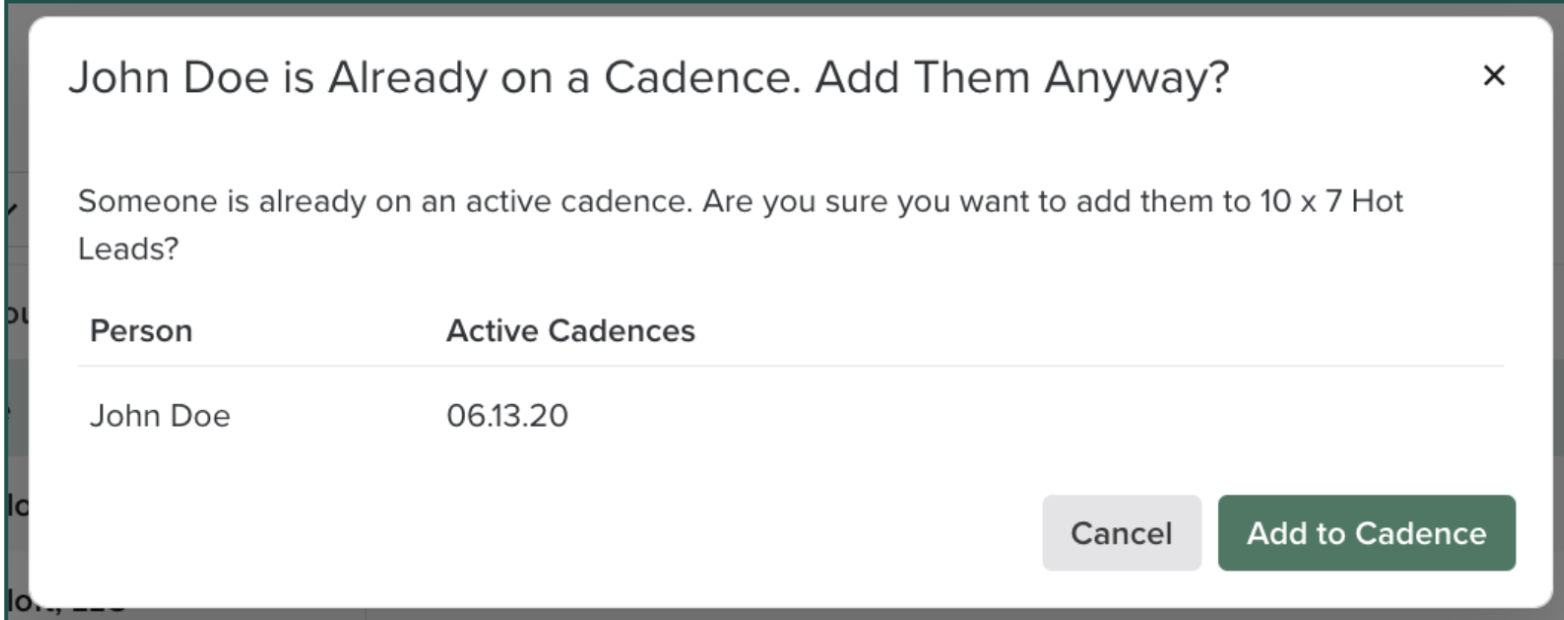
Figure 7: Add someone to a Cadence when they are already in an active Cadence.
