Bounced People refer to People whose email address fails to receive messages, i.e. emails do not deliver to the recipient’s inbox.
Addressing email bounces can greatly enhance the effectiveness of your cadences. By addressing and minimizing bounce rates, you can improve the reach of your communications and strengthen your sender reputation.
In this article, you will learn how to identify Bounced People in Cadences, including:
The People Page lists all of the People, i.e. Leads and Contacts, your team has stored.
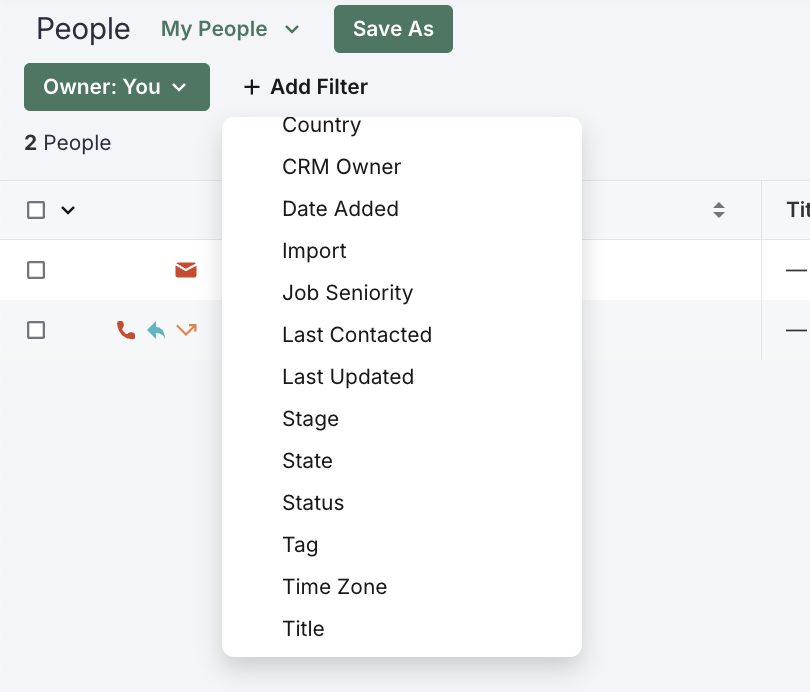
You can filter the People Page by Status or Stage filters to locate People who have been labeled ‘Bounced’.
To use filter the People Page by Status or Stage, follow these steps:
-
Navigate to the People Page.
-
Select the Owner filter to expand or refine the list of People by who owns their account.
-
Click +Add Filter, to filter by one of the following:
-
Status: filters People based on a particular status label. Click this filter, then select Bounced.
-
Stage: filters People based on a particular stage. Click this filter, then select Bounced.
-
(Optional) Click +Add Filter, then Cadence, and type the name of a cadence. This step allows you to further refine the list by Bounced people within a particular cadence.
Once you’ve filtered the People page, you can export the list to update their email addresses. You can then re-import the list from a CSV file.
Things to Note: If your admin has bi-directionally mapped emails, you can also update the email addresses from your connected CRM. Salesloft will sync those updated email addresses.
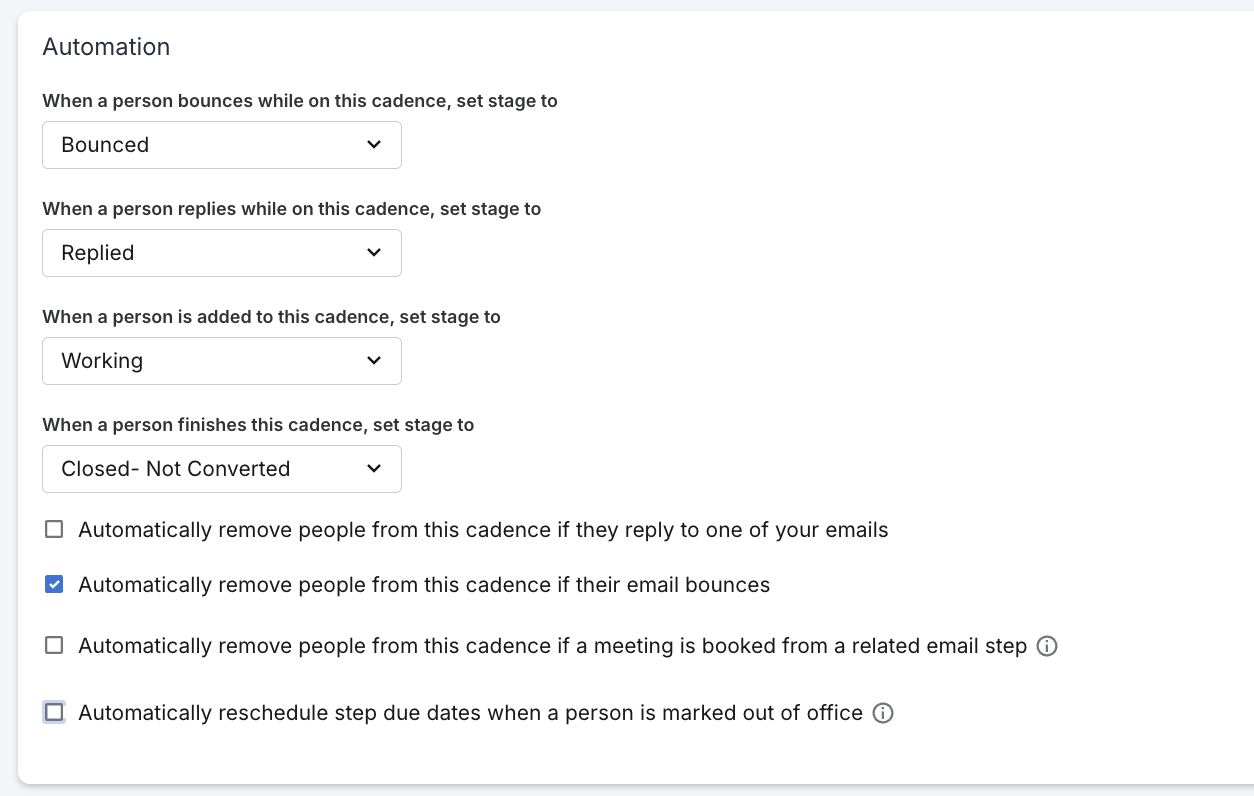
The Cadence Automation settings assign specific actions to take place when an initial action (or triggering action) occurs.
You can configure the Cadence Automation settings to help you identify Bounced People.
To configure the Cadence Automation settings, follow these steps:
-
Navigate to the Cadences page.
-
Click the title of the cadence you would like to configure this setting for.
-
Select the Settings tab then scroll to the Automation section.
-
Click the dropdown labeled When a Person bounces while on this cadence, set stage to then select Bounced.
-
*Optional* Check the box beside ‘Automatically remove people from this cadence if their email bounces’. This will ensure you don’t continue emailing Bounced People.
-
Hit Save Settings.
To learn more about the Cadence Automation settings, check out the Create a Cadence article.
The Cadence Default settings allows admins to set default stages for your team. The Cadence Default settings include:
-
Default Stage Settings
-
Stage Settings Override
Once configured, these settings will pre-populate for your entire team, making it easier to identify Bounced People.
Things to Note:
-
The Default Stage Settings overrides the following Cadence Automation settings:
-
When a person bounces while on this cadence, set stage to
-
When a person finishes this cadence, set stage to
-
Depending on how an admin establishes the Default Stage Settings, these Automation settings may appear grayed out, meaning, you are unable to edit them.
To learn more about the Cadence Default settings, check out the Manage Cadence and Tasks Settings article.
Automation Rules are predefined actions that automatically occur based on a certain trigger.
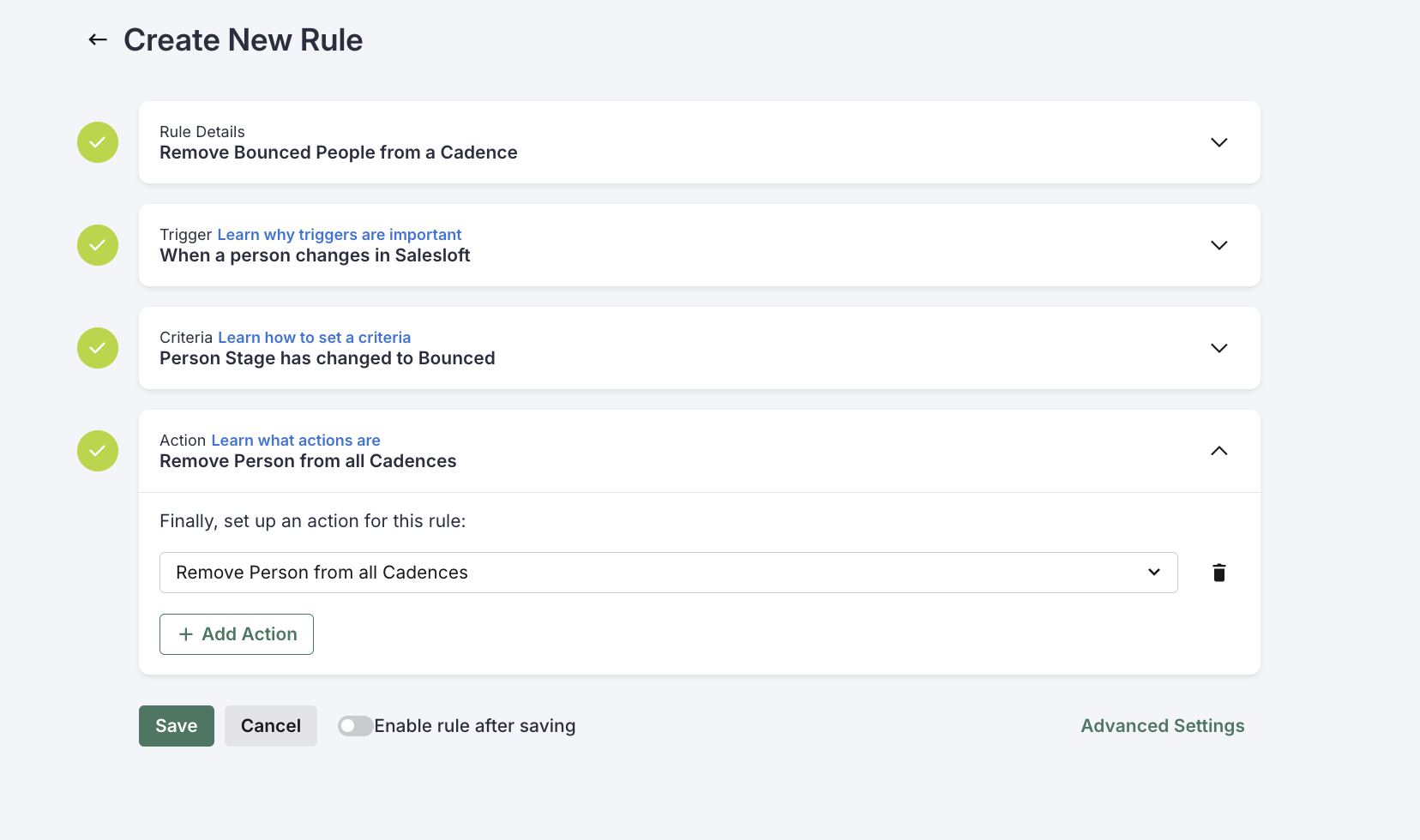
An admin can create a Bounced People Removal automation rule for your team that removes People from cadences when an email sent to them bounces.
To set up a Bounced People Removal Automation Rule, follow these steps:
-
Navigate to your settings.
-
Select Automation Rules under the Data category.
-
Click Create New Rule in the upper right corner.
-
Enter a name and description for your automation rule. We suggest using a name that clearly defines the action and trigger, ex: Remove Bounced People from a Cadence.
-
Go to the Trigger tab, then click Person Updates. A list of options will appear.
-
From the options, select When a Person changes in Salesloft.
-
Go to the Criteria tab, then select Add Criteria.
-
Click the dropdown then select Person Stage. Two additional dropdowns will appear.
-
From the middle dropdown select has changed to.
-
In the third dropdown select Bounced.
-
Go to the Action tab and use the dropdown to select remove Person from all cadences.
Best Practice Tip: Add the Person to a data hygiene cadence. Data hygiene cadences help you manage and clean up your team’s data. To do this, follow these steps:
-
Complete steps 1 - 11.
-
Click the +Add Action button
-
Select Add to cadence then choose your data hygiene cadence.
Things to Note:
- Data Hygiene cadences can include 1 ‘other’ step. Configure this step to prompt you to research the person’s email address, update it, then add them back into the cadence.
- Salesloft does not add People back to the cadence once they are removed. If you removed a Bounced Person from a cadence and updated their email address, you will need to manually add them back to the cadence.