If your upcoming Cadence Action has already been completed outside of Salesloft, you can skip the Person to the next step in your Cadence.
In this article, you will learn how to skip Cadence steps in Salesloft. This article includes:
For a quick overview of the four different ways to skip a cadence step, check out the video below:
- You must have a Salesloft account.
- Skipping steps helps you maintain a relevant and efficient Cadence flow.
- Regularly review your Cadences and skip steps as needed to avoid unnecessary or redundant communication.
There are various methods to skip Cadence steps using Salesloft to fit your workflow. Follow the steps wherever you are working your cadences.
Method 1: Skip from the Rhythm Workspace
Cadence steps appear in the Rhythm and Cadence Focus Zones seen on the Salesloft home page (aka the Workspace).
To skip a Cadence Step from the Rhythm Workspace, follow these instructions:
- Go to the Rhythm homepage: Access the homepage to Salesloft. You will land on this page whenever you login to the platform.
- Find your Step: Find the step in the Rhythm or Cadence worflows. Hover over the step
- Click “Skip Step”: Select the Skip step icon. A notification will appear that the task has been deleted.
Method 2: Skip Step from Side Panel
The Side Panel is where you run the steps of your Cadence. As you run Cadence steps, you may realize that a Person doesn’t need to run a step. In these moments, you can skip the step right from the Cadence Side panel.
To skip a contact on a step from the Side Panel, follow these steps:
- Open the Side Panel: Open the side panel by clicking the Rhythm Workflow icon in the upper right corner.
- Locate the Person: Find the Person who you would like to skip. Hover over a person's name from the list of people running that step. Actions will appear in place of the metrics.
- Skip the Step: Select the Skip this Step icon. The person’s name on the Cadence list will fade away and a pop-up notification will appear to inform you the step has been skipped.
Method 3: Skip from the Cadence People Tab
The People tab inside a Cadence allows you to view the People who are actively running in that cadence. From this view, you can also take actions to control the Person’s cadence activity including skipping cadence steps.
To skip a Person on a step from the People tab in a Cadence, follow these instructions:
- Access the Cadence People Tab: Access the Cadence you need to move People on and select the People tab of the Cadence.
- Filter and Sort (Optional): Use the filters and sorting options to refine the list of People if needed.
- Select People: Select specific People or all the People you want to move. Cadence actions will appear at the top of the list.
- Open Cadence Actions: Click the down arrow to the right of the Add to Cadence button (rocket ship icon). A drop-down menu will appear.
- Select "Skip this Step": From the Cadence Actions dropdown, select Skip this Step. The Skip this Step window will pop up.
- Confirm: Confirm the action by clicking Skip Step. A popup notification will appear to inform you the step has been skipped.
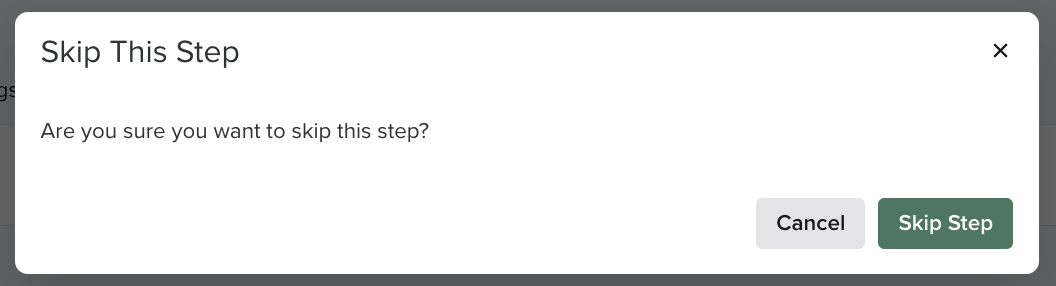
Figure 1: Skip Step from Cadence People tab
Method 4: Skip from the Person Profile Page
A Person's Profile Page contains their activity history and their Salesloft record details. From the Person Profile page you can even take actions to further your engagement with that individual.
Whenever you run a Cadence step, the Person Profile page loads by default. This is so you have all of their details right in front of you for reference. It also means you can take actions, like skipping a cadence step, in the moment.
If you are talking with someone who is running in a Cadence and realize the next step in the Cadence is no longer necessary, you can skip Cadence steps from the Cadences Panel.
Things to Note: Don’t see the Cadence Panel on your Person Profile Page? Check the Edit Layout menu in the upper right corner and make sure the Cadence Panel is turned on.
To skip a step from the Cadence Panel on the Person Profile page, follow these steps:
- Go to the Person Profile Page: Open the Person's profile in Salesloft. You will land there by default when running a Cadence step.
- Locate the Cadences Panel: Find the Cadences Panel on the Person Profile Page. If you don't see it, enable it in the "Edit Layout" menu.
- Skip the Step: Hover over the Cadence information in the panel. Click the dropdown arrow that appears and select Skip This Step.
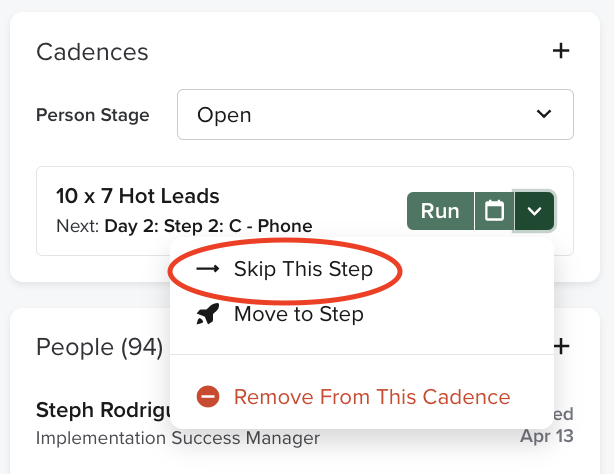
Figure 2: Skip Step from Person Profile Page
Here are some common examples that may prompt you to skip a Cadence step:
Introduction Complete
If you add someone to a new Cadence where the first step is an intro call, but you have already spoken with that Person on the phone. In this instance, you would want to skip them onto step 2.
Already Booked a Meeting
Many users send emails inside Cadences requesting to book a meeting. However, if a meeting was already booked during a phone call or previous interaction, an email that includes a meeting request is not necessary (and looks like a miss on your part).
- Identify situations where skipping Cadence steps might be beneficial for your workflow.
- Utilize the skip functionality to customize your outreach and improve engagement with your prospects.
