‘Other’ steps allow you to assign actions beyond the standard email and call touchpoints to a cadence. Whether you want to incorporate company research, send swag (or cupcakes), or reach out using the latest social trend, ‘Other’ steps allow you to incorporate unique, impactful interactions that best fit your sales process.
In this article, you will learn how to add an ‘Other’ step to a cadence. This article includes:
Before you add an ‘Other’ step, you’ll need to create a cadence.
Personal Cadences may be created by Salesloft users with the default “admin” and “user” roles or roles with the “Personal Cadences: Manage” permission enabled.
Team Cadences may be created by Salesloft users with the default “admin” and roles with the “Team Cadences: Create & Edit” permission enabled.
There are two ways to create a cadence:
To learn more about the Salesloft permissions, check out the Complete List of Available Permissions.
For a quick overview of how to add an 'Other' step to a Cadence, check out this video:
To add an ‘Other’ step to a cadence, follow these steps:
- Create a Cadence. Once your cadence is created, you will be directed to the Cadence Overview Page.
- There are multiple ways to add an ‘Other’ step depending the type of cadence, including:
- If you want to add an ‘Other’ step to a new cadence created from scratch, click Start from Scratch.
- If you want to add an ‘Other’ step to a cadence created from a framework or to an existing cadence, click Add Step beneath an existing step.
- From the Create Step window, click Other.
- Enter the Day you would like the step to run.
- (optional) Check the Enable Multi-Touch box to make your ‘Other’ step due at the same time as the previous step.
- Hit Next: Step Content.
- Give your other step a name to let you know what the purpose of this step will be. Common examples include “Research” or “Hand-Written Letter.”
- Add any instructions you would like listed.
- Click Add & Create Another to continue adding steps to your Cadence or Add Step to add the step and close the add step window.
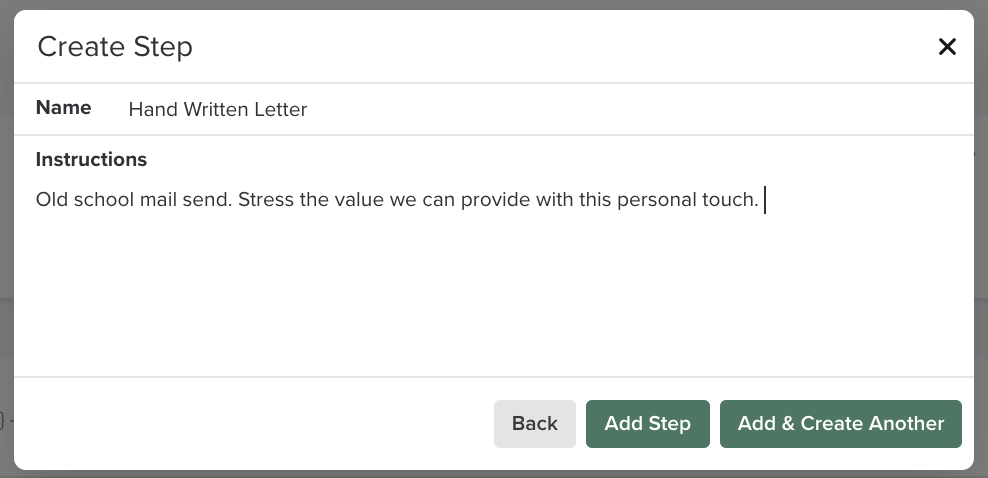
Figure 1: Create an 'Other' step window.
Other Step Details on the Cadence Overview Page
Once the step is added, you will see it on the Cadence Overview page as its own Cadence Step details panel.
The Other step includes the following details:
- Other Step Name: Designated name of the Other step. Since your other step is any recurring action you want to take within your Cadence, outside of emails and calls, the name will let you know what action to take. Common examples include, “LinkedIn Follow,” “Handwritten note,” “Send Cupcakes.”
- Instructions: Written out instructions on what should take place for your other step.
Figure 2: View 'Other' step details on the step panel.
Once you’ve added an Other step, you may add another step. You can add the following steps:
Once you’ve added steps to your cadence, you can view or edit your cadence from the Cadence Overview Page
- Run a Cadence
- Learn how to run an Other step.
