A Salesloft Cadence is a repeatable series of steps that mimics your sales process to create a consistent workflow. Cadences exist because consistent, structured communication drives better engagement rather than deciding what to do next for each prospect, reps follow a predefined plan of touchpoints across email, phone, social, and other channels.
Cadences are used by sales reps, managers, and operations teams alike: reps execute steps daily, managers monitor performance and optimize plays, and ops teams configure and govern the system. Once a Cadence is created and People are added, reps work through steps from several locations inside and outside Salesloft.
In this article:
|
Use Case
|
Feature
|
Documentation
|
|---|
|
As a rep, I want to build a repeatable outreach sequence across email, calls, and other steps
|
Create a Cadence
|
Create a Cadence
|
|
As a rep, I want to engage with prospects via email on a consistent basis
|
Add an Email Step
|
Add an Email Step
|
|
As a rep, I want to engage with prospects via phone calls on a consistent basis
|
Add an Email Step
|
Add a Phone Step
|
|
As a rep, I want to use alternative means to connect with prospects and customers on a consistent basis
|
Add an Email Step
|
Add an Other Step
|
|
As a rep, I want to use my integrations to connect with customers and prospects on a consistent basis
|
Add an Email Step
|
Add an Integration Step
|
|
As a rep, I want to immediately follow one cadence action with another to boost the likelihood of a connection.
|
Multi-touch Cadence Workflow
|
Create Multi-Touch Cadence Workflows
|
|
As a rep, I want to add prospects to a structured outreach workflow
|
Add People to a Cadence
|
Add People to a Cadence
|
|
As a rep, I want to execute my daily outreach steps in a prioritized order
|
Run Cadence Steps
|
Run Cadence Steps
|
|
As a rep, I want to execute cadence steps without leaving Salesforce
|
Cadence in Salesforce
|
Salesloft Connect for Salesforce
|
|
As a rep, I want to put my cadence activities on hold while I'm out of office
|
Pause Cadences
|
Pause Cadences
|
|
As a manager, I want cadences to be paused automatically if a rep has an Out of Office enabled
|
Seller OOO Automation
|
Set Up Seller Out of Office Automation
|
|
As a manager, I want to create shared outreach plays my entire team can run
|
Team Cadences
|
Complete Team Cadences Guide
|
|
As a manager, I want to group related cadences together and apply shared settings
|
Cadence Collections
|
Create a Cadence Collection in Salesloft
|
|
As a manager, I want to see how my cadences are performing across email, calls, and meetings
|
Cadence Analytics
|
Cadence Analytics
|
|
As an admin, I want to configure cadence system settings for my team
|
Cadence Settings
|
Manage Cadence and Tasks Settings
|
Cadence is available by default. Specific feature availability — such as the Salesloft Dialer within cadence steps — may depend on your subscription package.
Roles and Permissions
|
Role
|
What They Can Do
|
|---|
|
Admin
|
Full access to all Cadence features including creation, editing, deletion, and assignment. Default permissions include: Personal Cadences (Admin), Team Cadences, Manage Cadence Ownership, and Operational Cadences. Responsible for configuring team-level cadence system settings such as default step intervals and maximum active cadences per user.
|
|
User
|
Access to execute cadence steps and manage personal cadences. Default permissions include: Personal Cadences (Manage), Public Cadences (View and Copy), Team Cadences (Run), and Remove from All Cadences.
|
Admins
It is a team admin’s responsibility to configure Cadence system settings, such as default step intervals and maximum active Cadences per user.
Admins and users with the “Manage” Cadence permissions have the ability to create Cadences. Cadences consist of steps laid out over a series of days. There can be Email, Phone, Other, and/or Integration steps in a Cadence. Each step will be a specific type of action you will take to engage a Person.
When building the Cadence, you will want to consider the goal you are trying to accomplish. Then, decide what the best order of actions for you (or your team with Team Cadences). This means, strategically planning which steps should take place on what day. Planning could involve leveraging research and sales engagement consultants for overall approach and personalization for the customer.
To Create a Cadence, you will need to Add the Cadence from the Cadences Page. This creates the Cadence structure. Then you will add the settings for your Cadence, like the name, type of Cadence, and priority level. Here are some Cadence naming tips:
- Create a consistent Cadence naming convention that includes the year (e.g. 2021 - Q2- Outbound)
- Update soon-to-be-archived Cadence names with OLD in the name
As soon as you hit Save, you will be directed to the Cadence Overview page. The space will have two available options:
- Start from Scratch: Allows you to add steps on your own . This is best for creating your own specific Cadences.
- Start with Cadence Frameworks: Allows you to select a Cadence Framework.
Once the steps are added to the Cadence, you can Add People to a Cadence and Run Cadence Steps.
From the top navigation bar, hover over Content and select Cadences. This opens the Cadences list view.
You can also use the keyboard shortcut G C from anywhere in Salesloft to navigate directly to the Cadences page.
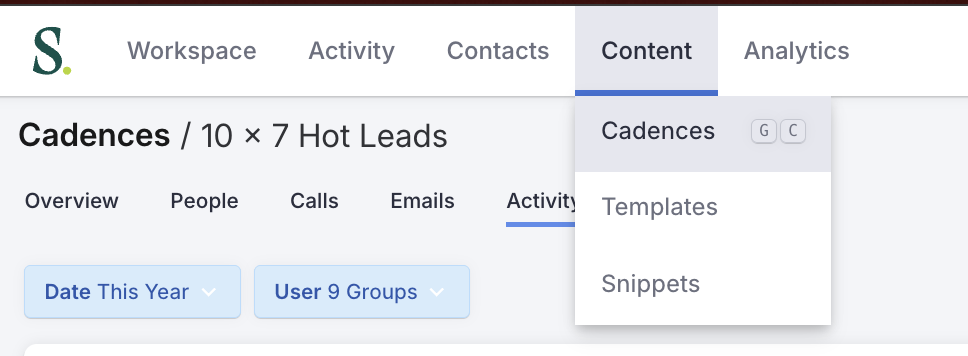
Figure 1: Access Cadences from the Top Nav
Also accessible from:
|
Location
|
Path
|
|---|
|
Salesloft Homepage
|
Cadence Focus Zone on the main dashboard
|
|
Side Panel
|
Click the Rhythm icon in the upper right corner of the navigation bar
|
Once a cadence has been created and people have been added, you can run cadence steps from the following locations:
- Salesloft Homepage — Rhythm and Cadence Focus Zones: The main dashboard where you can quickly access and initiate cadence steps.
- Side Panel: Accessible from anywhere inside the Salesloft platform via the Rhythm icon. Run steps from the Rhythm or Cadence focus zones.
- Cadence Overview Page: The individual cadence’s home page, where all steps and people are managed.
- Person’s Profile Page: Run steps from upcoming Activities in the Activity Feed and the Cadences Panel.
- Account Profile Page: Run steps from upcoming Activities in the Activity Feed and the Cadences Panel.
- Salesforce (via Chrome Extension): Run cadence steps directly from Salesforce without leaving your CRM. See: Connect for Salesforce.
|
Term
|
Definition
|
|---|
|
Cadence
|
A repeatable, multi-step outreach sequence consisting of email, phone, other, and/or integration steps laid out over a series of days.
|
|
Step
|
A single action within a cadence — such as sending an email, making a call, or completing a task — assigned to a specific day in the sequence.
|
|
Team Cadence
|
A cadence created by an admin and shared with the entire team or assigned groups.
|
|
Personal Cadence
|
A cadence created and run by an individual rep for their own use.
|
|
Collection
|
A group of related cadences that share master-level settings, throttling limits, and organizational structure. See: Cadence Collections: Overview.
|
|
Cadence Framework
|
A pre-built cadence template reps can use as a starting point when creating a new cadence.
|
|
Multi-touch Step
|
A group of cadence steps configured to run back-to-back on the same day.
|
|
People Touched
|
People added to a cadence and contacted at least one time — used as the denominator for meeting and opportunity rate calculations.
|
Get set up:
Go deeper:
