The Cadences list view is where you find, manage, and organize all cadences available to you — personal, team, and Collections. This reference covers every element in the Cadences list view and links to step-by-step guides for common actions.
In this article:
From the navigation bar, hover over Content and select Cadences. The Cadences list view loads on the All Cadences tab by default.
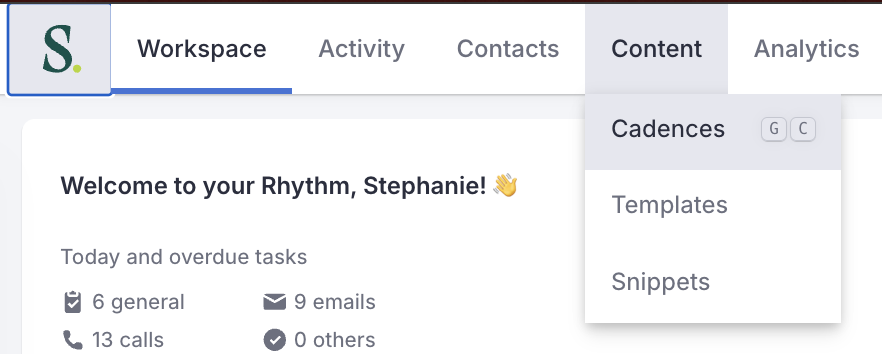
Figure 1: Cadences highlighted in the top navigation
Things to Note: Some elements and controls in the Cadences list view may not be visible or editable depending on your role and permissions. Contact your Salesloft admin if you believe you’re missing access you need.

Figure 2: Cadences Page Controls with labels
|
#
|
Element
|
What It Does
|
Action
|
|---|
|
1
|
All Cadences tab
|
Displays all cadences available to you, filtered to Personal Cadences owned by you by default
|
Select to view all cadences
|
|
2
|
Collections tab
|
Opens the Collections view for creating and managing cadence groups
|
See: Cadences Collections Tab UI
|
|
3
|
Personal Cadences filter
|
Filters the list by cadence type — Personal or Team. Set to Personal by default
|
Select to switch between Personal and Team cadences
|
|
4
|
Owner filter
|
Filters the list by cadence owner. Set to “You” by default
|
Adjust to view cadences owned by other team members
|
|
5
|
Add Filter
|
Opens additional filter options to further refine the cadence list
|
Select and choose criteria to apply
|
|
6
|
Export
|
Sends a CSV of cadence data to your Salesloft email address
|
Click to trigger export
|
|
7
|
Pause All Cadences
|
Pauses all active cadences simultaneously
|
See: Pause Cadences
|
|
8
|
Create Collection
|
Opens the collection creation flow
Only available for admins.
|
See: Create a Cadence Collection in Salesloft
|
|
9
|
Create Cadence
|
Opens the cadence creation flow
|
See: Create a Cadence
|
|
10
|
Search
|
Search cadences by name within the current filter selection
|
Enter a cadence name to search
|
Things to Note: The search bar reflects your current filter selection — for example, it will read “Search Personal Cadences” when the Personal Cadences filter is active.
Each row represents one cadence. Each column shows metadata about that cadence.

Figure 3: All Cadences List on the Cadences Page
|
Element
|
What It Does
|
Action
|
|---|
|
Number of Cadences
|
Shows the total number of cadences visible in the list based on your defined filters
|
Display Only
|
|
Checkbox
|
Click the checkbox to select the cadence. This will open additional cadence actions at the top of the list. You can select one or multiple cadences
|
Click the box to select the cadence.
|
|
Cadence
|
The cadence’s name; click to open the Cadence Overview page. An orange exclamation icon indicates missing content (e.g., an email step without a template assigned). A chevron to the right of the name indicates the cadence belongs to a Collection.
|
See: Create a Cadence
|
|
Steps Due
|
Number of people currently due to run a step in this cadence, including overdue steps
|
Display only
|
|
Active People
|
Number of people currently running in the cadence; click to open the Cadence People tab filtered to active people
|
Display. Click to view Cadence People Tab
|
|
Total People
|
Total number of people who have ever been in the cadence; click to open the Cadence People tab filtered to all people
|
Display. Click to view Cadence People Tab
|
|
Meeting Ratio
|
Percentage of people touched in the cadence who booked a meeting
|
Display only
|
|
Opportunity Ratio
|
Percentage of people touched in the cadence who resulted in an opportunity being created
|
Display only
|
|
Function
|
The cadence function label assigned in Cadence Settings — options include Inbound, Outbound, Event, Nurture, Renewal, and Other
|
See: Create a Cadence
|
|
Tags
|
Labels applied to the cadence; click a tag to filter the list to cadences with that tag
|
Display only
|
|
Owner
|
The Salesloft user who manages this cadence
|
Display only
|
|
Linked Campaign
|
The campaign associated with this cadence
|
Display only
|
Things to Note: Additional columns including Last Activity, Last Updated, Date Created, and Groups are available but may not be visible by default depending on your view configuration.
Understand the product:
Salesloft Cadence: What Cadences are, how inheritance works, and who they’re designed for
Take action from this view:
