The Collections tab is where admins create and manage Cadence Collections— the containers that group related cadences and govern their shared settings
This article covers every element in the Collections tab and links to guides for actions you can take from it, including:
From the top navigation, hover over Content and select Cadences. On the Cadence page, click the Collections tab above the cadence list view.
Page-Level Controls
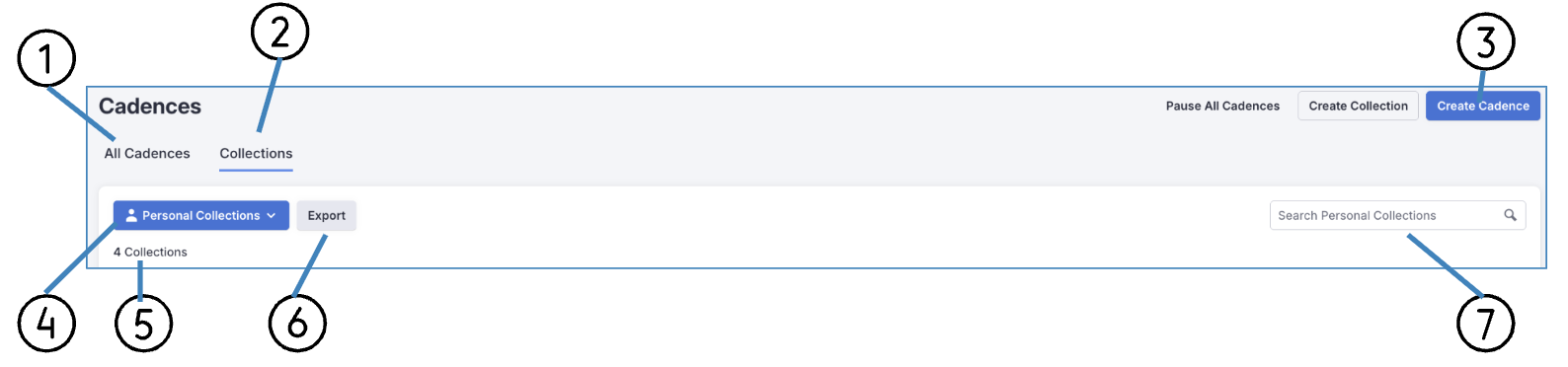
Figure 1: Page level Controls on Collections page with labels
|
#
|
Element
|
What It Does
|
Action
|
|
1
|
All Cadences
|
Opens the Cadence List View. The tab name will be underlined when you are viewing this tab.
|
Click tab to see the view.
|
|
2
|
Collections
|
Opens the Collections List. The tab name will be underlined when you are viewing this tab.
|
Click tab to see the view.
|
|
3
|
Create Collection
|
Opens the Create Collection flow where an admin names the Collection and begins configuration
|
See: Create a Cadence Collection in Salesloft
|
|
4
|
Filters
|
Parameters for your list view. The filter allows you to select between Personal or Team collections.
| Select the appropriate Filter |
|
5
|
Number of Collection
|
Number of collections visible in the list based on your filters
| Display only |
|
6
|
Export
|
Create a CSV download of the cadence collections
| Click "Export." A CSV will be emailed to you. |
|
7
|
Search Collections
|
Filters the Collections list by name
|
Enter the name of a collection to search
|
Collections List
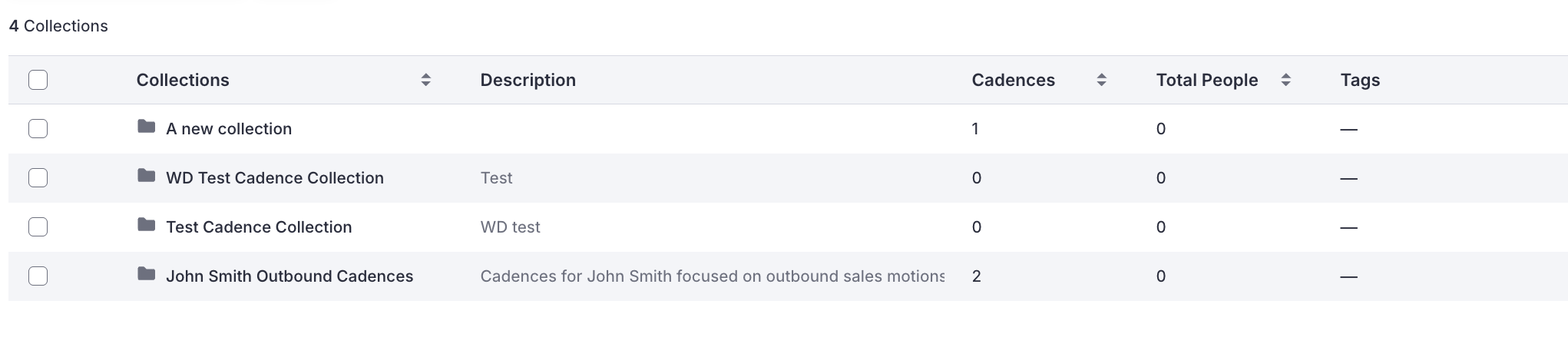
Figure 2: Collections List
|
Element
|
What It Does
|
Action
|
|
Collection Name
|
The name assigned to the Collection at creation
|
See: Create a Cadence Collection in Salesloft
|
|
Description
|
Explanation of the collection’s purpose
|
Display only
|
|
Cadence Count
|
The number of cadences currently inside this Collection
|
Display only
|
|
Total People
|
Number of People records that have been added to Cadences in this collection
|
Display only
|
|
Tags
|
Tags applied to the collection
|
Display only
|
Collection Detail View
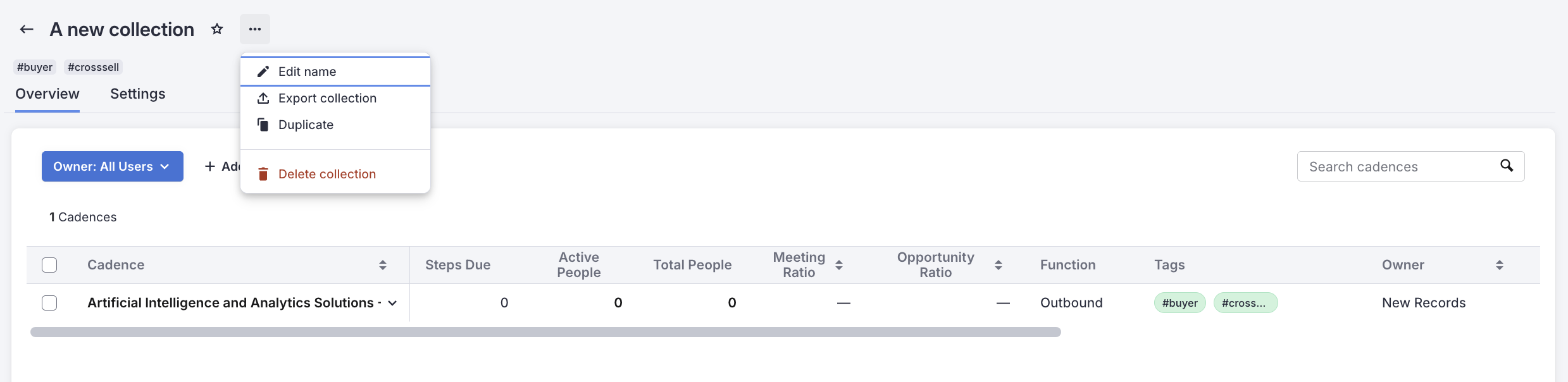
Figure 3: Collection Details List View with Collection Actions Menu open
|
Element
|
What It Does
|
Action
|
|
Collection Name
|
The name assigned to the Collection at creation
|
See: Create a Cadence Collection in Salesloft
|
|
Star
|
Pins the Collection to the top of your collection list
|
Click to pin the list to the top of your Collections list. When starred, icon will appear yellow.
|
|
Collection Actions
|
... icon opens a dropdown menu with actions specific to the collection, including:
- Edit Name
- Export Collection
- Duplicate
- Delete Collection
|
Select an icon to perform the action.
|
|
Collection Tags
|
Tags previously applied to label the collection
|
Display only
|
|
Overview
|
Tab to represent the List for your collection
|
Click to view
|
|
Settings
|
Tab to access the settings for the individual collection.
|
Click to visit the collections settings. Make any changes to the collection and click Save.
|
|
Filters
|
Criteria to refine the list view. The Owner filter is visible by default and set to “You.”
|
Adjust and add more filters to refine the list view. See: Filter Salesloft List Views
|
|
Search Cadence
|
Search the listview for a Specific Cadence
| Enter the name of a collection to search |
|
Cadence Name
| The name of the Cadence within the Collection |
Display only; click row to open the Cadence
|
|
Steps Due
|
The number of People currently due to run a step in the Cadence, including today's due steps and overdue steps
|
Display only
|
|
Active People
|
The number of People currently running in the Cadence
|
Display only
|
|
Total People
|
The total number of People who have been in the Cadence, both current and completed
|
Display only
|
|
Meeting Ratio
| The percentage of People touched on the Cadence that ultimately booked a meeting |
Display only
|
|
Opportunity Ratio
| The percentage of People touched on the Cadence that resulted in an Opportunity being created |
Display only
|
|
Function
| The Cadence Function label assigned to the Cadence — options include Inbound, Outbound, Event, and Other |
Display only
|
|
Tags
| Labels applied to the Cadence |
Display only
|
|
Groups
| The Group(s) the Team Cadence has been assigned to, controlling which team members can see it |
Display only
|
Modals and Overlays
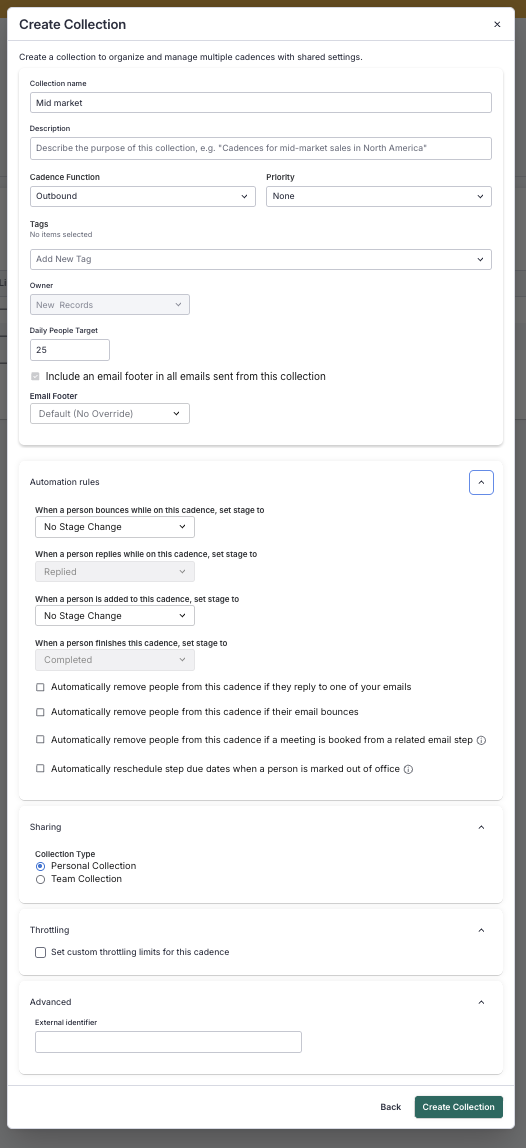
Figure 4: Create Collection Modal Expanded to show all settings included
|
Element
|
What It Does
|
Action
|
|
Collection Name field
|
Sets the name of the new Collection
|
Required — enter before saving
|
|
Description
| Explains the Collection's purpose | Optional — enter before saving |
|
Cadence Function
| Classifies the type of Cadences in the Collection — options include Outbound, Inbound, Event, Nurture, Renewal, and Other | Optional — enter before saving |
|
Priority
| Assigns a priority level to the Collection — options include High, Medium, Low, and None | Optional — enter before saving |
|
Tags
| Labels used to categorize the Collection. Type a tag name and press Enter to apply; click X next to a tag to remove it | Optional — enter before saving |
|
Automation Rules
| Sets conditions that automatically trigger actions for People in Cadences within this Collection — such as removing People when they reply, when their email bounces, or when a meeting is booked | Optional — enter before saving |
|
Sharing
| Determines whether the Collection is Personal or a Team Collection, and which Groups have access | Optional — enter before saving |
|
Throttling section (Max Starts Per Day)
|
Sets the shared throttling limit for all cadences in this Collection
|
See: Create a Cadence Collection in Salesloft
|
|
Advanced
| Sets an External Identifier to associate with this Collection for CRM reporting and activity field configuration | Optional — enter before saving |
|
Save / Cancel
|
Saves the Collection as configured or discards changes
|
Click to confirm or exit
|
Take action from this view:
