Call scorecards let managers evaluate a rep's call performance against a structured set of criteria — deal qualification, discovery technique, objection handling, and more. Conversation Intelligence supports both manual scoring and AI-assisted auto-scoring, which automatically generates draft scores for each scorecard question based on the call transcript. Managers review and adjust all AI scores before reps see any feedback.
In this article:
- Navigation may look different if your organization uses standalone access to Conversation Intelligence. This article reflects the Salesloft platform experience.
- Permission / Role: Manager (Recording or Non-Recording) or Admin role required. Reps cannot score calls.
- Scorecard template required: A scorecard template must exist before you can score a call. Admins create templates in Settings > Conversation Intelligence > Coaching > Scorecards. If no templates exist or you need a new one, contact your admin. See Manage Conversation Intelligence Coaching Settings.
- AI-assisted scoring prerequisites: AI auto-scoring requires your admin to have enabled Advanced AI Features and toggled Auto-Scoring on for the relevant scorecard template. If AI scoring is not available, you can still score calls manually.
Step 1 — Navigate to the call you want to score
In the Salesloft top navigation, hover over Activity and select Conversation Intelligence. Select Team Calls, then find and open the call you want to score.
Things to Note: Use filters to find coaching-worthy calls quickly — filter by rep name, call duration, topic mentions, or talk/listen ratio. See Access and Find a Call Recording in Conversation Intelligence.
Step 2 — Open the Score this call panel
In the top-right area of the call review page, select the Scorecard icon. The "Score this call" panel opens.
Figure 1: Scorecard icon on the Recording page
Step 3 — Select the rep and scorecard template
Select the rep you are scoring from the dropdown, then select the relevant scorecard template (e.g., MEDDIC) from the template dropdown.
Things to Note: Pre-built templates are available for common use cases. If you need a new template for a specific call type (discovery, demo, renewal, QBR), contact your admin. See Manage Conversation Intelligence Coaching Settings.
If the selected template has Auto-Scoring enabled, Conversation Intelligence will automatically:
- parse the call transcript and associated call metadata
- generate a numeric score from 1–5 (or N/A) for each scorecard question, each tagged with its related skill or category (e.g., Metrics, Economic Buyer, Decision Criteria)
- attach timestamped snippets showing the relevant moment for each scored question
- generate reasoning text for each question. This process begins as soon as you select the template.
Things to Note: Reps cannot see AI scores or any scorecard content until a manager explicitly submits the scorecard. AI scoring is a draft for manager review only.
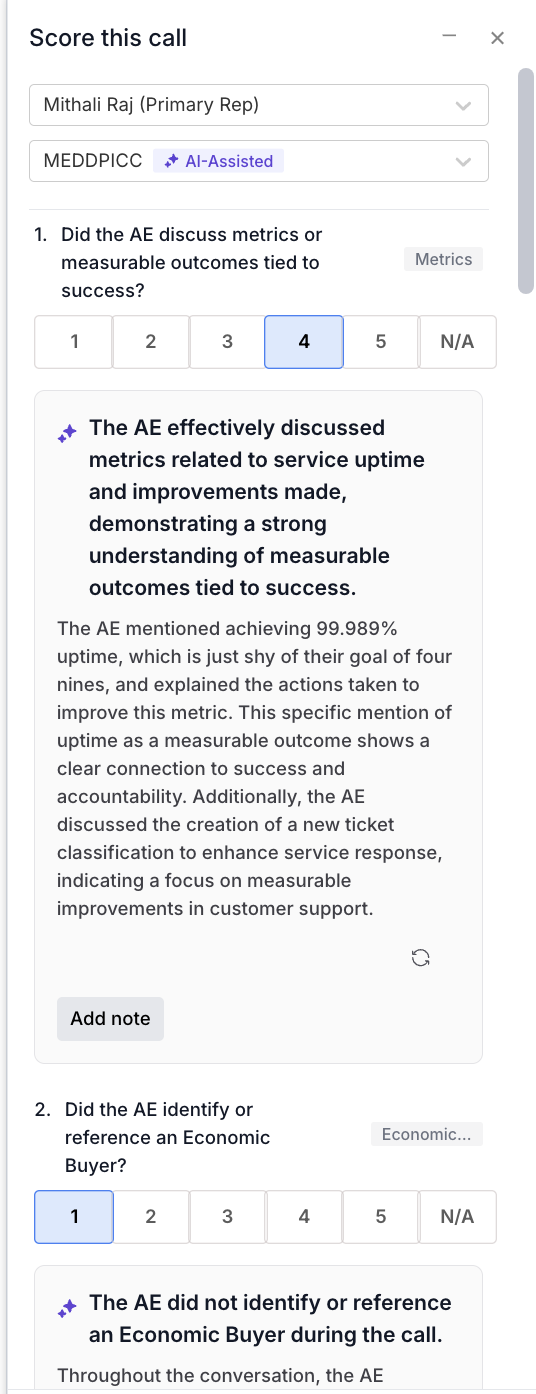
Figure 2: AI Assisted Scorecard template selected and scores generated
Step 4 — Review scores and reasoning
Review the AI-assigned score (1–5 or N/A) and the reasoning text explaining why that score was given for each question. Select any timestamped snippet to jump directly to that moment in the call recording and verify the AI's reasoning.
Step 5 — Adjust scores and add notes
For any question where you disagree with the AI score, select a different rating. Select Add note below any question to provide coaching context, specific feedback, or guidance for the rep on that particular question.
Things to Note: The AI draft is a starting point — adjust it to reflect what you actually heard and what you want the rep to focus on. Select Clear all if you want to reset your scoring session and start over.
Step 6 — Submit the scorecard
Once you're satisfied with all scores and notes, select Submit. The rep is notified that a scorecard has been shared on their call and can now view it from the call review page.
- After submitting, the scorecard status updates to show it has been shared.
- The rep receives a notification and can view the scored call from Activity > Conversation Intelligence.
- The rep's scorecard appears in the Scorecards dashboard for tracking trends over time.
- Manual scoring without AI: If Auto-Scoring is not enabled for your template, the scorecard opens with all questions blank. Score each question manually by selecting a rating and adding notes, then submit when complete.
- Scale descriptions: Admins can add a scale description to each scorecard question, describing what a score of 3 (meets expectations) looks like — for example, for "Did the AE validate or re-qualify the prospect's need or use case?", a level-3 description might be "The AE asks who else may be involved, but authority or influence is not fully clarified." AI uses this as an anchor to infer scores above or below that midpoint. If AI scores feel off for a particular question, ask your admin to add or improve its scale description. See Manage Conversation Intelligence Coaching Settings.
- Scorecard trends: Completed scorecards feed into the Scorecards section of the Conversation Intelligence Dashboard, where you can track rep scores over time and compare against team averages. See Getting Started with Conversation Intelligence: Manager Guide.
