Battlecards are coaching cards that surface automatically in the Conversation Intelligence desktop app during a live call when configured trigger words are detected in the conversation. Use this guide to create a Battlecard manually or generate one automatically from an uploaded document, then configure the trigger words that activate it on calls.
In this article:
- Navigation may look different if your organization uses standalone access to Conversation Intelligence. This article reflects the Salesloft platform experience.
- Permission / Role: Salesloft Admin or Conversation Intelligence Admin access required. Standard users cannot create or edit Battlecards.
- Desktop app required for reps: Battlecards only surface during live calls via the Conversation Intelligence desktop app. Reps must have the desktop app installed and running for Battlecards to appear.
When a rep is on a recorded call and says — or hears — a word or phrase you've configured as a trigger, the Conversation Intelligence desktop app displays the associated Battlecard. The card shows talking points, suggested responses, or key information the rep should use in that moment. Reps see the Battlecard name appear as a chip in the desktop app and select it to expand the full card content.
Common use cases:
- Competitor mentions (objection handling and differentiation points)
- Pricing objections (approved pricing responses)
- Feature questions (accurate product talking points)
- Discovery questions (recommended qualification questions)
Step 1 — Navigate to Battlecards
In the Salesloft top navigation, hover over Activity and select Conversation Intelligence, then select Battlecards from the top nav (alongside Team Calls, My Calls, Feed, Dashboard, Gametapes, and Playbooks).
Things to Note: Admins can also access Battlecards inside their Admin settings. Click your initials in the top right corner and go to Settings. Scroll to the Conversation Intelligence section and select Coaching. You will land on the Battlecards tab.
Step 2 — Create a new Battlecard
Select Add Battlecard in the top right. Choose your creation method:
- "Have Battlecard content ready? Create one from scratch" — opens the Battlecard editor where you enter content manually.
- Auto generate Battlecards — upload a document or paste text and let AI generate talking points and trigger words automatically.
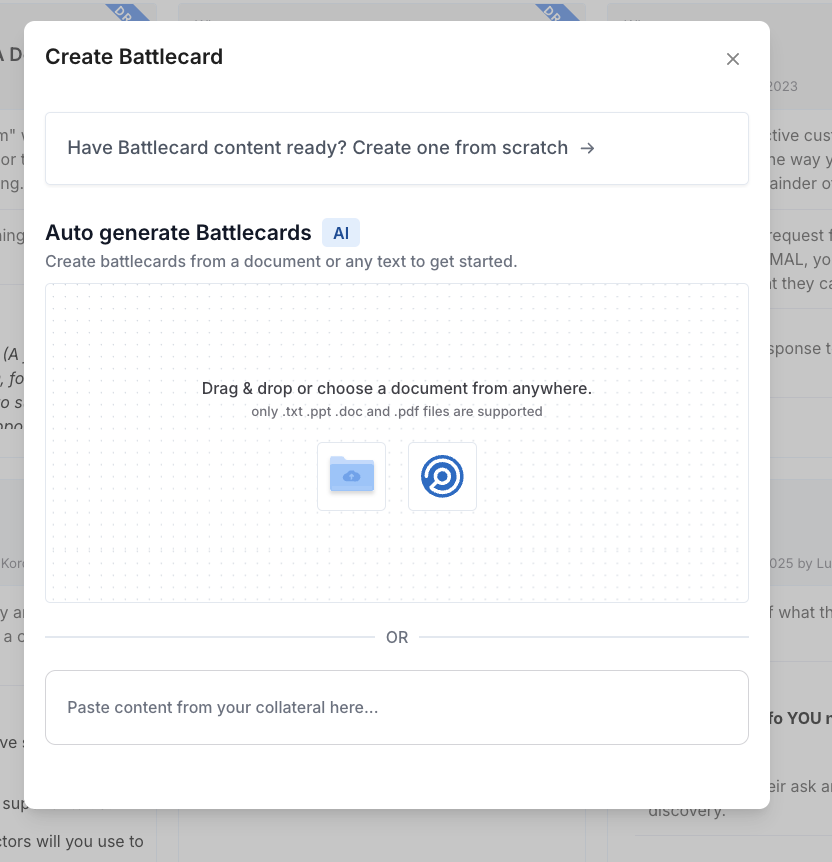
Figure 1: Create Battlecard window
Option A — Create a Battlecard from scratch
- In the Battlecard editor, enter:
- Battlecard name (what reps will see when the card triggers)
- Talking points (short, actionable bullet points — three to five is ideal)
- Trigger words (words or phrases that activate this card, e.g., "too expensive," "switching costs," "GDPR")
- Category (e.g., Competitors, Pricing, Objections)
- Select Publish to make it live immediately, or Save as Draft to publish later.
Things to Note: Keep talking points concise — reps are reading this in the middle of a live call. If you have more content, split it into multiple Battlecards with more specific trigger words.
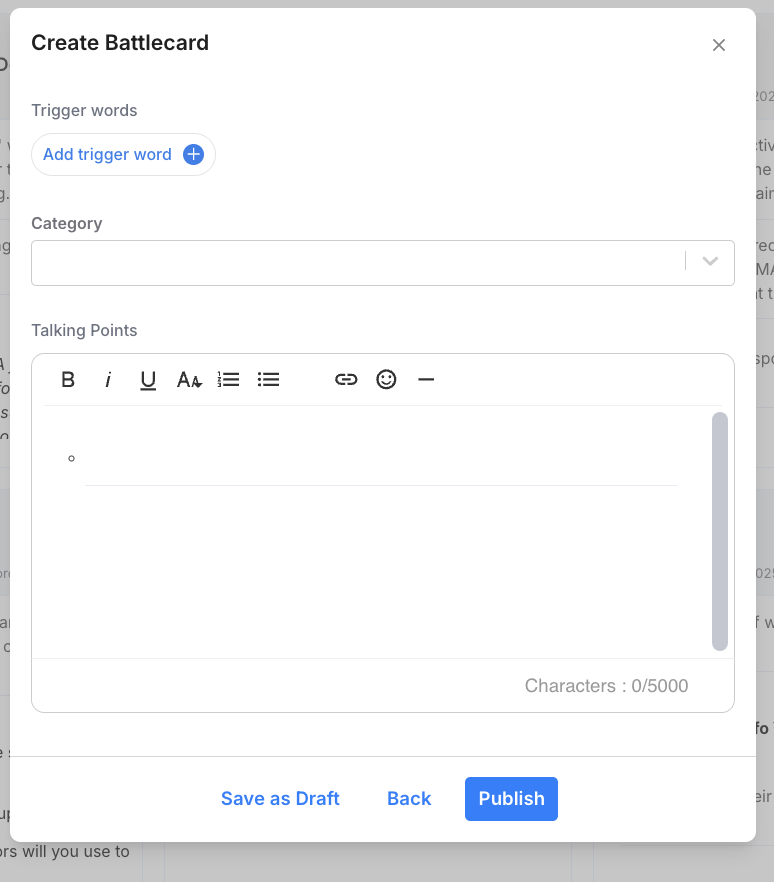
Figure 2: Create Battlecard from Scratch window
Option B — Auto-generate with Smart Battlecards
Smart Battlecards analyze provided content and generate suggested talking points and trigger words. Follow these steps to create a Smart Battlecard:
- Drag and drop a document, or choose a document from anywhere. Supported formats: plain text, PDF, PowerPoint, and Word documents. Alternatively, paste content directly into the "Paste content from your collateral here..." box.
- Review and edit the generated content — adjust anything that doesn't match how your reps actually speak on calls.
- Select a category for the card.
- Select Publish or Save as Draft.
Things to Note: Smart Battlecards works best with focused documents — a one-page competitive comparison sheet, a product FAQ, or a pricing objection guide.
- The Battlecard appears in the Battlecards list with a Published status.
- During a test call where a trigger word is used, the Battlecard name appears as a chip in the Conversation Intelligence desktop app for the rep.
- The rep can select the chip to expand and read the Battlecard content mid-call.
- Screen sharing and Battlecards: Battlecard cues are designed to be visible only to the rep, not to call participants. Best practice is to share a specific window rather than your entire desktop during calls.
- On Windows, if you share your entire desktop, Battlecard cues appear as a black box to other participants but cover your screen content.
- On Mac, cues may be visible to others due to OS-level changes. To avoid this on Zoom: go to Zoom Settings > Screenshare and select Advanced capture with window filtering from the Screen capture mode dropdown.
- If cues are still visible to others during a specific call, you can disable them for that call. Conversation Intelligence will still record the call as normal.
- Editing and deactivating Battlecards: You can edit a published Battlecard at any time from the Battlecards list. Changes take effect immediately on future calls. To stop a Battlecard from triggering, set it to Draft status or delete it.
- Categories: Create categories that match your coaching priorities: Competitors, Pricing, Discovery, Product, Objections.
| Problem | Likely Cause | Fix |
| Battlecards aren't appearing during a call | The Battlecard is still in Draft status | Only Published Battlecards trigger on calls — check its status in the Battlecards list |
| Battlecards aren't appearing during a call | The Battlecard isn't assigned to the right team or users | Confirm the card is assigned to the relevant team/users, or to "all users" if it should apply org-wide |
| Battlecards aren't appearing during a call | The rep hasn't logged into the desktop app in over 15 days | Battlecards deactivate after 15 days without a desktop app login — log back in, and they'll resume on the next call |
| Battlecards aren't appearing during a call | Your org has opted into a higher-accuracy transcription engine | This alternate transcription engine is not compatible with real-time Battlecards — this is an intentional tradeoff, not a bug. Contact support if you need both. |
| Real-time transcription (and Battlecards) wasn't available during a call | A technical issue prevented real-time processing | The transcript will still generate after the call ends, but Battlecards won't have triggered live for that call |
