Topics are keyword or AI-described concepts that Conversation Intelligence tracks across call recordings — letting your team search, filter, and analyze calls by what was discussed. Admins can use this guide to create Topics, assign them to teams, and build Topic Dashboards to visualize trends.
After completing this guide, you will be able to:
- Create and configure both Keyword Topics and Smart Topics in Settings > Conversation Intelligence
- Assign Topics to specific teams so each team sees only relevant keywords
- Build Topic Dashboards to visualize keyword mention trends across calls
- Use filters to narrow call views by Topic, team, and other criteria
This article includes:
- Navigation may look different if your organization uses standalone access to Conversation Intelligence. This article reflects the Salesloft platform experience.
- Salesloft Admin access required to create and configure Topics. Permissions on the Topics tab are granular: read-only access lets a user view recommended topics, while full access is required to accept and save topic recommendations or create new ones.
- Feature availability: The Topics section in Settings > Conversation Intelligence may be flag-gated for some orgs. If Topics does not appear as a tab, contact your account team to confirm the relevant feature flag is enabled.
- Smart Topics specifically require Advanced AI Features to be enabled for your org (Settings > Conversation Intelligence > Recorder and Transcription > AI Features). Without this enabled, only Keyword Topics will be available to create.
- Timing: Retroactive application varies by Topic type — see Step 3 below. Set up Topics as early as possible so tracking begins from the first recorded call.
Step 1 — Navigate to Topics settings
In the Salesloft top navigation, click your initials. Then go to Settings > Conversation Intelligence and select the Topics tab. The tab has two views: Your topics (topics currently configured) and Recommended topics (AI-suggested topics based on recent call patterns — see Additional Information below).
Things to Note: If the Topics tab is not visible, the feature may not be enabled for your org. Contact your account team member.
Step 2 — Choose a Topic type
Select Add Topic. A dropdown offers two paths:
- Keyword Topic — you manually define the exact words or phrases to track.
- Smart Topic — AI identifies conversations matching a natural-language description you provide, without needing exact keyword matches.
Each Topic you create is a standalone tracked item; Topics are not organized into containing "groups."
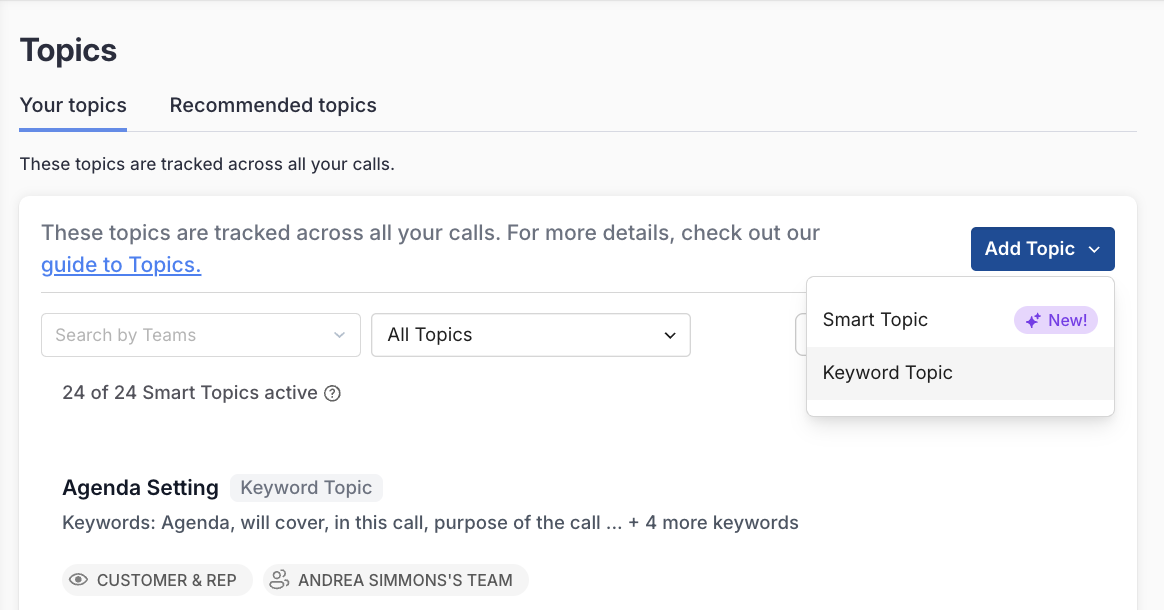
Figure 1: Add Topic options opened
Step 3 — Create a Keyword Topic
If you select Keyword Topic, follow these steps:
- Give the topic a name (e.g., "Competitors," "Pricing Objections," "New Product Features").
- Choose who the topic applies to: Customer, Rep, or both.
- Narrow to a specific team (optional).
- Add the keywords or phrases to track. Conversation Intelligence matches these as exact matches, so add variations and common misspellings to improve detection accuracy.
Timing note: Newly added keyword topics may take up to 48 hours to reflect on calls, and typically apply only to calls less than 30 days old — not the full retroactive call history.
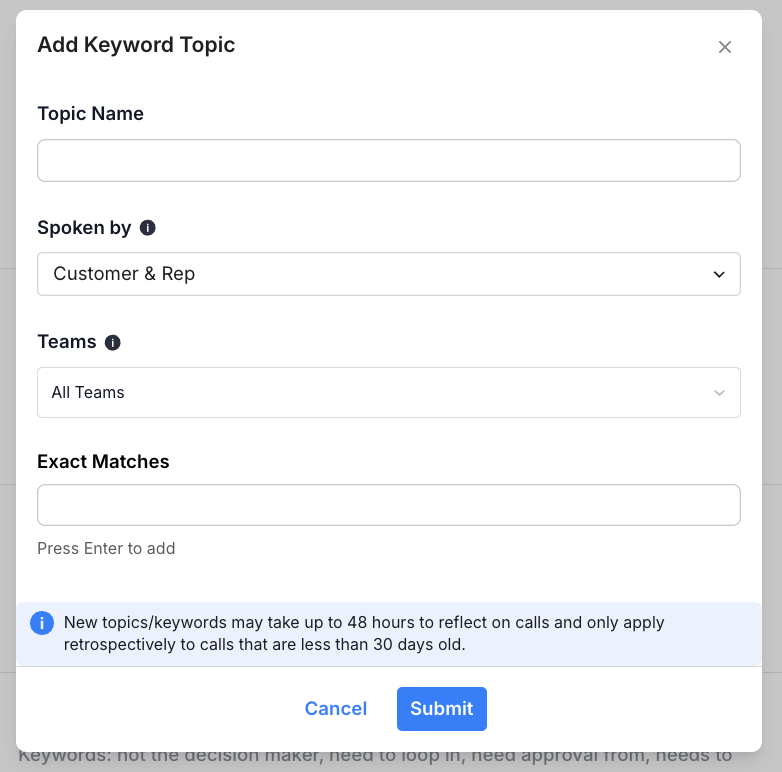
Figure 2: Add Keyword Topic Window
Step 4 — Create a Smart Topic
If you select Smart Topic, follow these steps:
- Give the topic a name.
- Choose who the topic will be talked about by: Customer, Rep, or Customer & Rep.
- Select which Teams the topic applies to (default: All Teams).
- In "Help the AI understand this topic," describe what the topic is about in natural language. Accuracy depends heavily on this description — select Show tips for guidance.
- Select Preview Results to see matching call snippets from the last 7 days, illustrating what the topic would catch. Refine your description and re-preview until the results look right — add detail or qualifying words if you're seeing too few or the wrong matches; remove qualifiers if results are too narrow.
- Select Create Smart Topic to save.
Timing note: Smart Topics are tagged on all future calls and are also applied retrospectively to your past 10 calls.
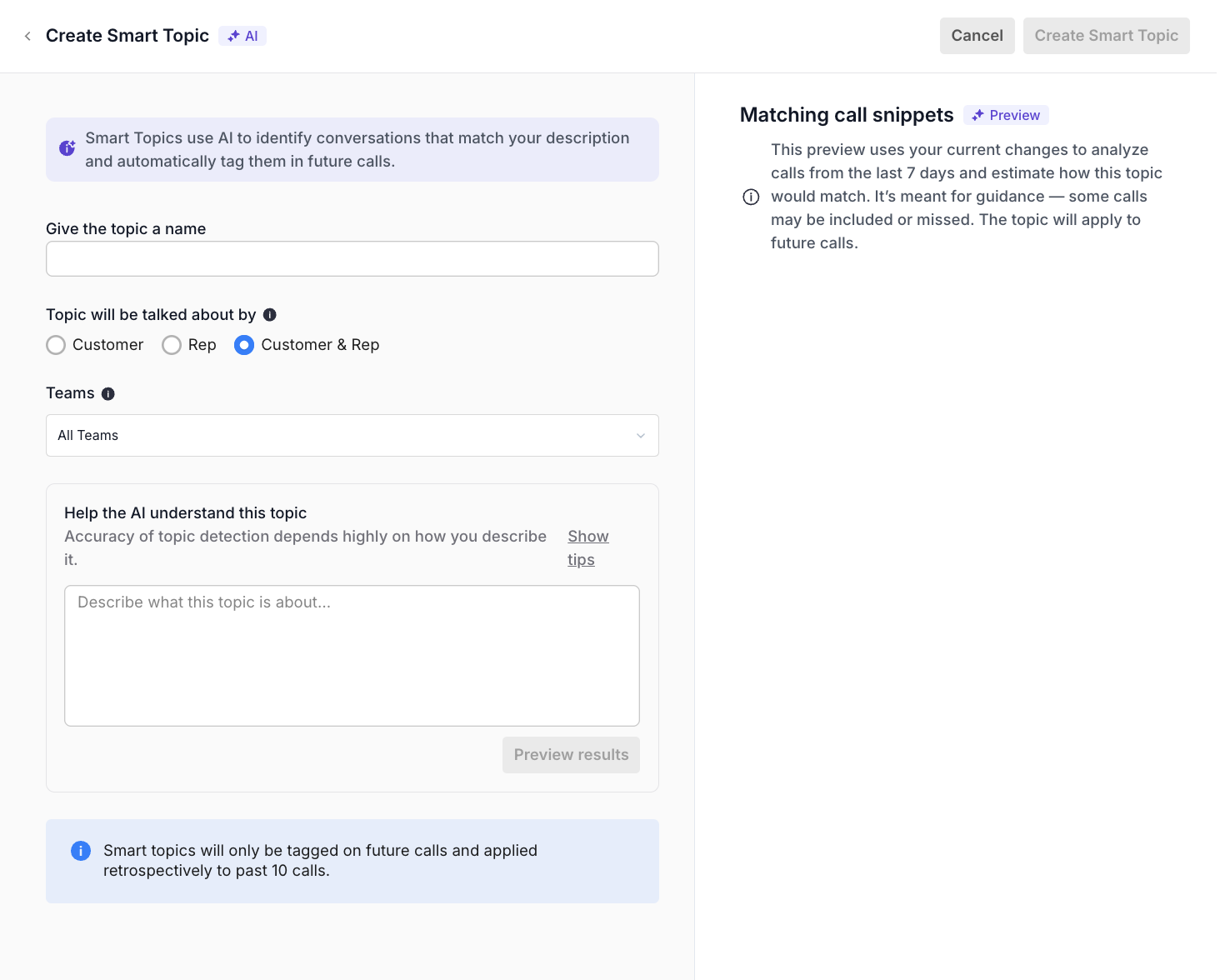
Figure 3: Create Smart Topic page
Smart Topic best practices:
- Be specific — avoid generic terms with multiple meanings (e.g., "API integration for Salesforce" rather than "integration").
- Include contextual details — note the situation in which the topic comes up (demos, onboarding calls, etc.).
- Avoid ambiguity — use precise phrases (e.g., "Q4 pricing strategy" rather than "pricing").
- Iterate — refine your description and re-preview if results don't match expectations.
Step 5 — Repeat for additional Topics
Create separate Keyword or Smart Topics for each category to track — competitors, objections, pricing, product features, and so on.
Team assignment happens as part of each individual Topic's own settings, not through a separate global screen:
- When creating a Topic (Keyword or Smart), select the relevant team(s) in the Teams field during setup.
- To change an existing Topic's team assignment, locate the Topic in Your Topics, open its overflow (•••) menu, and update the Teams selection.
- You can rename the Topic in the same dialog.
Topics assigned to a specific team are visible only to users on that team when filtering calls and viewing dashboards; Topics left on "All Teams" are visible org-wide.
To change a topic's team, follow these steps:
- Go to the topic list.
- Select a topic. The Edit Keyword topic window will appear.
- In the Teams field, use the dropdown menu to select a team
- Hit Submit to save.
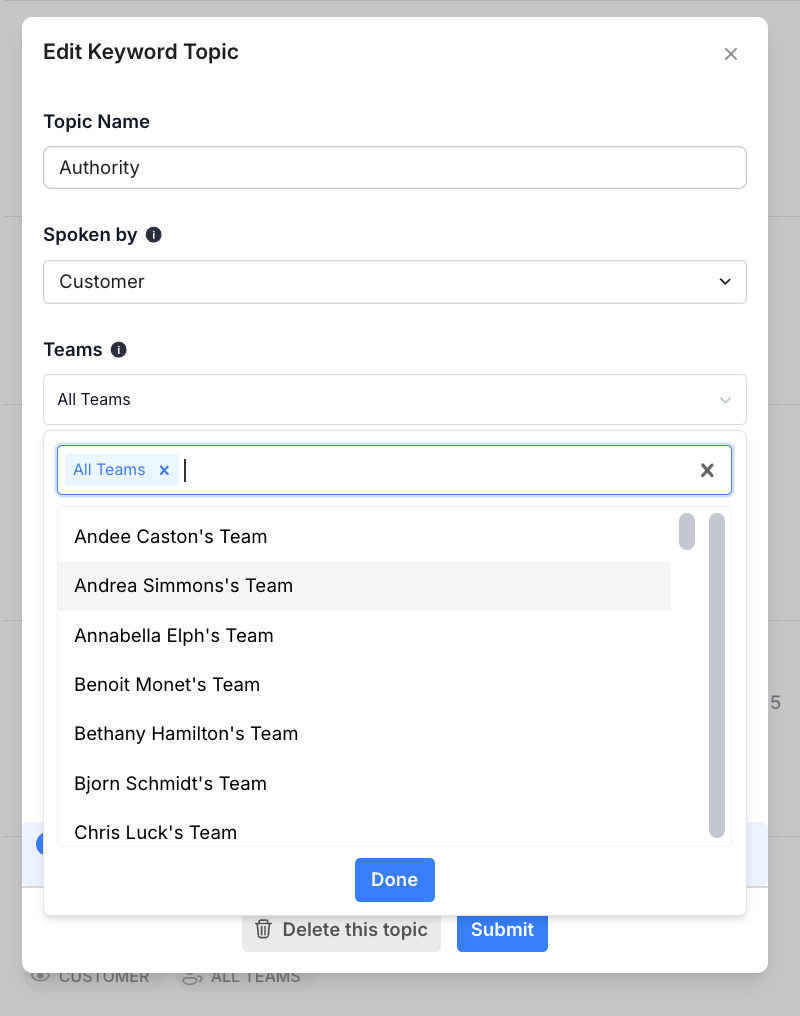
Figure 4: Assign a team topic
Topic Dashboards let you visualize how often Topics are mentioned, track trends over time, and segment by CRM attributes. All users can create and save Topic Dashboards. Who you can share a saved dashboard with depends on org-level permissions.
Step 1 — Navigate to the Topic Dashboard view
In the Salesloft top navigation, hover over Activity and select Conversation Intelligence. Select the Dashboard tab, then choose Topics from the left-hand navigation (alongside Overview, Competitor Insights, Team Insights, AI Themes, and Scorecards).
Step 2 — Select Topics to track
Choose one or more Topics from the Topics dropdown to include in the dashboard. Use the Reps and Team filters, and select + More Filters for additional narrowing options.
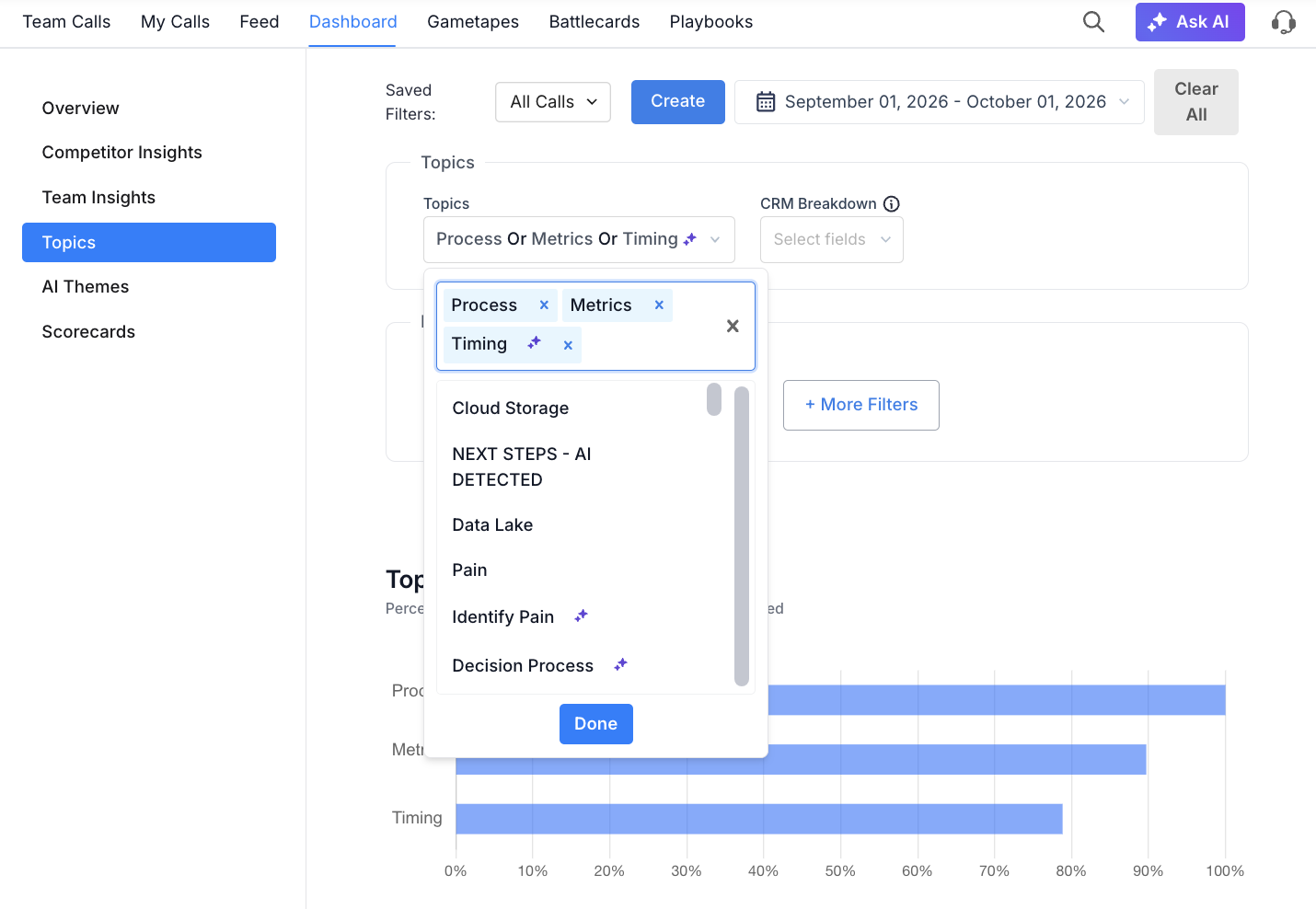
Figure 5: Select Topics for the Topic Dashboard
Step 3 — Review the dashboard graphs
The Topic adoption graph shows the percentage of calls where each selected Topic was detected (not a raw mention count). Below it, Call snippets displays the latest matching call snippets inline, with video thumbnails you can play directly from the dashboard. A Trend graph further down shows topic adoption over time.
Step 4 — Add CRM breakdown segments (optional)
Select the CRM Breakdown field next to Topics and choose a CRM attribute to segment by (e.g., Deal Stage, a custom Salesforce picklist field).
IMPACT: Only Dropdown/Picklist type Salesforce fields are supported for CRM breakdown segmentation. Custom fields must first be imported by an admin — see Import CRM Fields in CRM Settings.
Step 5 — Drill down to specific call moments
Call snippets already appear inline on the Topic adoption view. Select See all next to a snippet group to see the full list of calls where that Topic appeared, with timestamps linking directly to the relevant moment in the recording.
Step 6 — Save the dashboard as a filter
At the top of the dashboard, select Saved Filters > Create. Name the filter, set Filter Visibility to choose who can see this saved dashboard, and optionally enable alerts for significant Topic mention changes. Select Save.
- Topics appear in Settings > Conversation Intelligence > Topics with keywords (Keyword Topics) or a description (Smart Topics) configured.
- After a recorded call, Topics mentioned during the call appear as tags or highlights in the call review page.
- The recordings list in Activity > Conversation Intelligence can be filtered by Topic.
- Topic Dashboards display adoption percentages, call snippets, and trends for selected Topics.
Topic Recommendations: Under the Recommended topics tab, Conversation Intelligence surfaces AI-generated topic suggestions based on patterns in recent transcripts. Review and accept from this tab — read-only users can view these; full-access users can accept and save them.
Shared Filters: When building call list views in Activity > Conversation Intelligence, users can apply and save shared filters that combine Topic selections with other filters (team, date range, and more).
Competitor Sentiment in Filters: Competitor mentions tracked via Topics are also available as a filter in the recordings list and in the Deal Summary Agent.
