The Truly Integration connects Salesloft directly to the Truly Phone System. It ensures call and disposition data are shared seamlessly between the two platforms, while giving users a seamless user experience when working in both applications.
As a licensed Salesloft Admin, you can set up the Truly Integration for your team.
In this article we will walk through requirements and setup instructions, including:
- Your company must have licenses in place for both Salesloft and Truly. To learn more about Truly, visit https://truly.co/
- Additional Salesloft setup may be required to use the Truly integration. Please reach out to your Salesloft representative for more information.
- All questions should be routed to Truly’s support team.
In order for users to be able to log calls to Salesloft, they need to be able to complete the required form fields of Disposition and Sentiment. If users do not complete these mapped form fields, the Salesloft API will reject the call logging request (same as in their user interface)
Admins therefore need to create a Truly Form that:
- Has two fields, one with the string “disposition” and one with the word “sentiment” in the api_key field.
- Ensures that the values in the fields map to the values in Salesloft (otherwise, Salesloft’s API will throw a validation error)
- Is assigned to one or more Teams in Truly that have Salesloft users.
To activate the the Truly-Salesloft Integration, a team admin will need to complete steps in Salesloft followed by the individual user setup in Truly.
Follow the steps listed below:
In Salesloft:
- Navigate to the Team Settings and go to the Dialer tab.
- When third party dialing is enabled, you will see the 3rd Party Dialer Settings.
- If you do not see these settings, please reach out to your Salesloft representative.
- Under 3rd Party Dialer Settings, select the following options:
- My Third Party Dialer Uses: Tel Links
- Log Calls With Salesloft Logger: No (unchecked)
End User Setup in Truly:
- Have users in the app navigate to Settings.
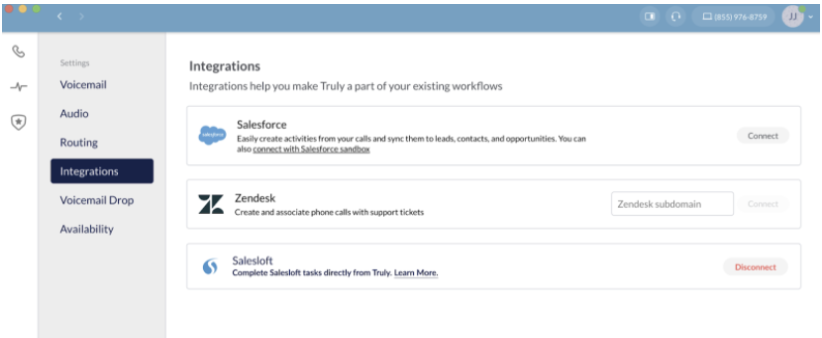
- Go to the Integrations page and click on Connect in the Salesloft integration panel.
The user initiates a call by clicking any native Salesloft control. All native click-to-call buttons in Salesloft now send calls to the Truly app.
All native click to call buttons in Salesloft now send calls to the Truly app.
If the call was initiated from Salesloft’s Chrome Extension or Web App, users will be presented an option to “Log To Salesloft”. Clicking this button will send the call into the Salesloft system, mark the cadence step as completed and automatically progress the user to the next cadence step.
Users will log call dispositions in Truly, using required Disposition and Sentiment parameters.
Things to Note: Users will be required to complete the required Disposition and Sentiment parameters, or they will get an error returned when clicking the Log To Salesloft button.
The call automatically syncs to Salesloft and Salesforce, completing the task and automatically progressing the user to the next step.
