Giving your meeting participants the option to reschedule meetings from the meeting invite creates a flexible communication pipeline and shows meeting participants that you value their time.
When you schedule meetings with Salesloft, you can offer your meeting participants the option to reschedule right from the meeting invite itself.
Participants that click the reschedule link will be able to reschedule the meeting according to your availability. Once a better time is chosen, Salesloft sends you a notification to inform you the meeting has been rescheduled.
In this article, you will learn how to include reschedule links in your Salesloft meeting invites. This article includes:
Before You Include a Reschedule Link in Your Meeting Invites
For an overview of including a reschedule link in meeting invites, check out the video below.
Adding a reschedule option to your meeting invites ensures that the meeting date and time accommodate everyone’s needs.
As a Salesloft user, setting up reschedule options is a two-step process. First, you need to set your in office hours so rescheduled meetings only fall during your work windows. Second, you will turn on the reschedule link. Turning on the reschedule link will add the options to reschedule the meeting from the meeting details on anyone's calendar.
To add the Reschedule Meeting option to your meeting invites, follow these steps:
- Access Calendar Settings: Navigate to your Calendar settings.
- Open Availability and Privacy: Select Availability and Privacy from the top menu options.
- Configure In-Office Hours: Set your In-Office Hours.
- Things to Note: This step allows Salesloft to add your availability to the calendar that a person sees when they click the reschedule meeting link.
- Enable Reschedule Link: Check the Reschedule Link box.
- Save: Hit Save. Once you’ve set your In-Office Hours and added the Reschedule Link option, you’re all set!
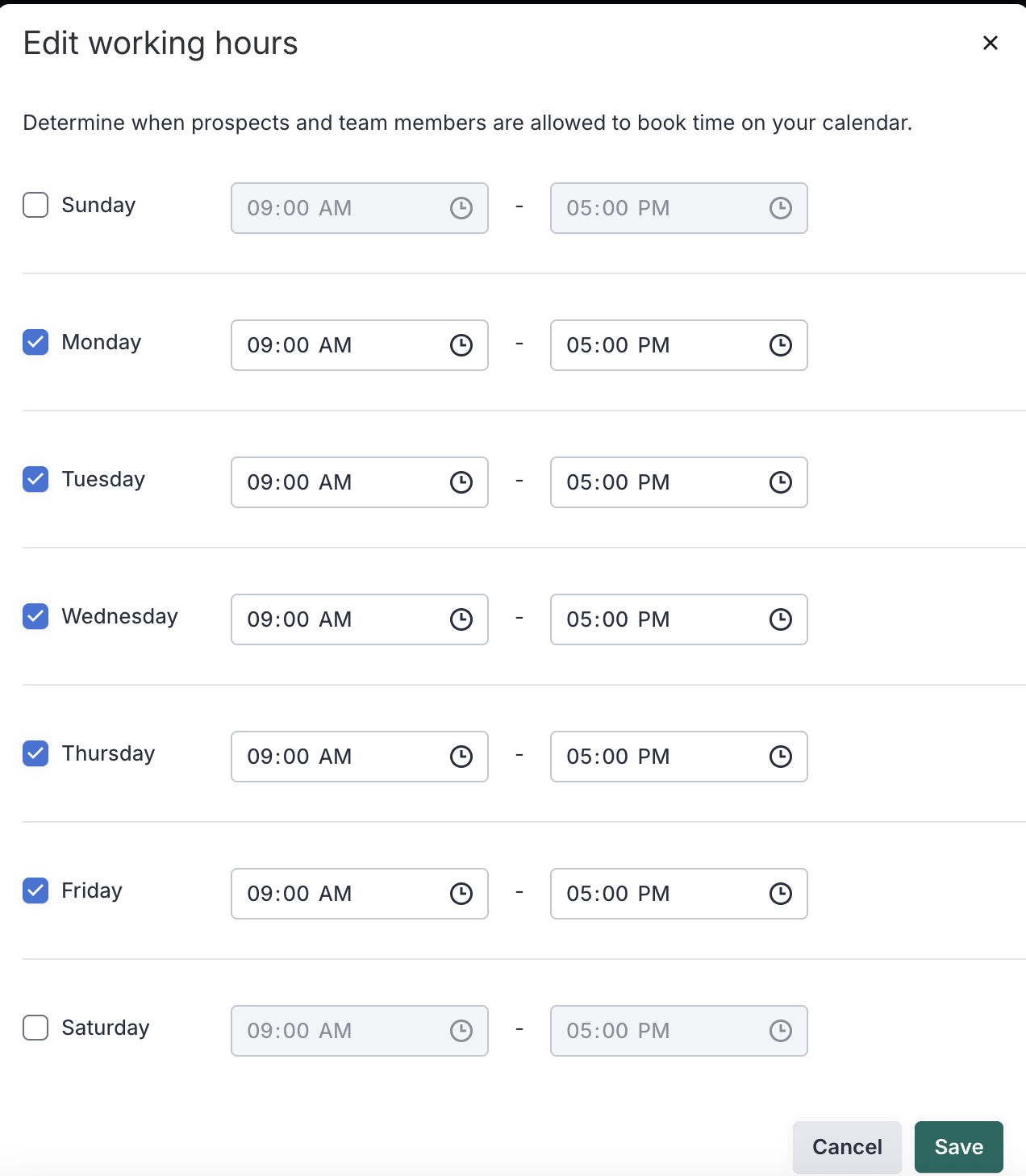
Figure 1: Edit working hours configuration screen
Disable The Reschedule Link
To disable or remove the reschedule link from your scheduled meetings, take the following steps:
- Open Calendar Settings: Navigate to Settings, then Calendar.
- Locate and disable the Setting: Go Availability & Privacy and scroll down until you see the heading Reschedule link. Uncheck the box to ensure future meetings will not be rescheduled.

Figure 2: Reschedule link setting
The reschedule option inside your meeting invites adds the clickable link inside the meeting details on anyone's calendar. This link allows meeting participants to view your availability and reschedule the meeting.
Let’s walk through what meeting participants will see when they open your meeting invite and click the reschedule link.
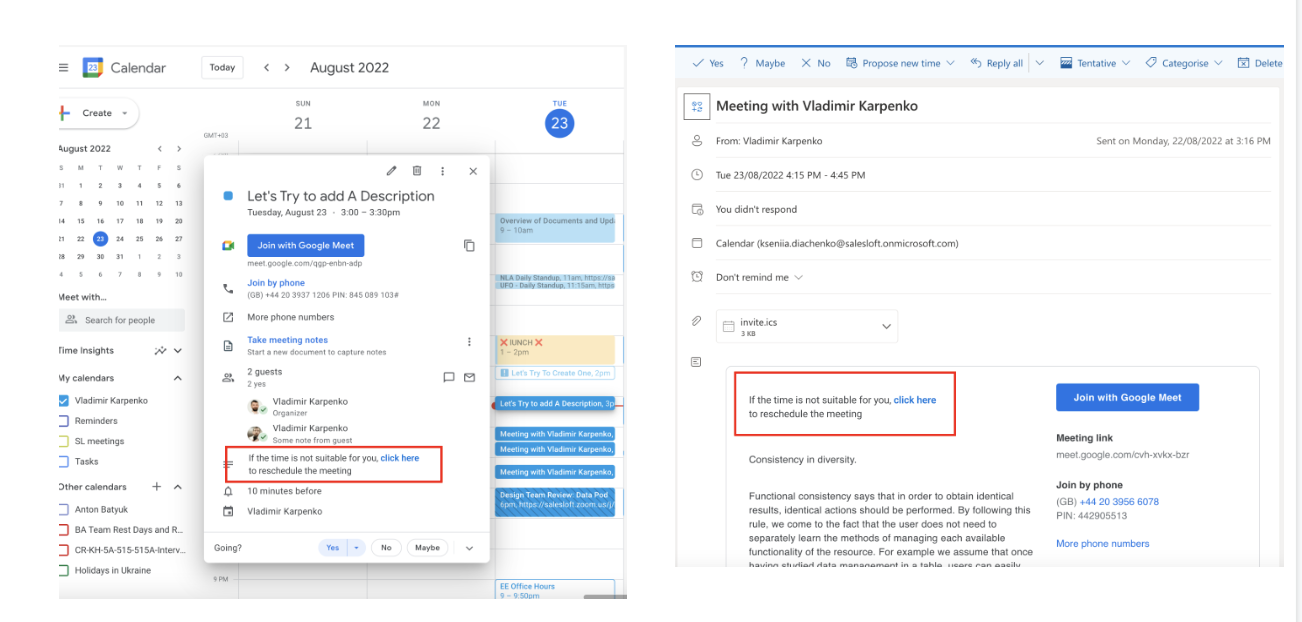
Figure 3: A Google Calendar displaying the reschedule meeting link
- From the meeting participant's calendar, they can select the meeting:Inside the Meeting Details, they will see the option "If the time is not suitable for you, click here to reschedule the meeting."
- The participant selects “Click Here”: A calendar listing your availability will appear.Your prospect can review your availability, select a date and time.,
- Prospect Confirms selection: Once your prospect confirms their preferred date and time, they will be directed to a confirmation page that lists the new meeting date and time.
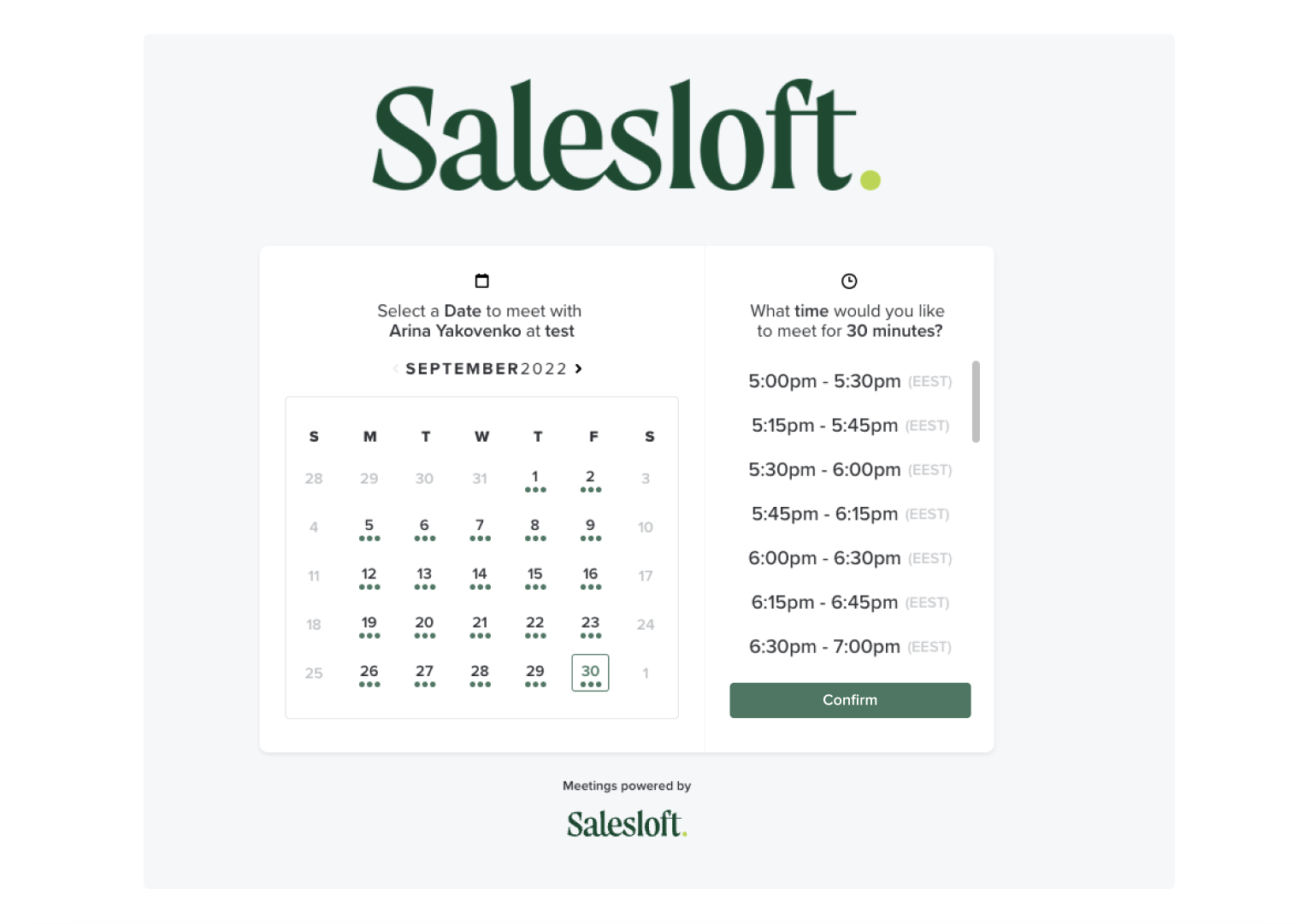
Figure 4: The reschedule a meeting menu
When a prospect reschedules a meeting, you’ll receive notifications via:
- Email
- In-App Live Feed
- Person Profile Page
- Salesloft Mobile Live Feed
Let’s look at these notifications:
Email
When a prospect reschedules a meeting, an email will notify you. From the email, click ‘Go to Profile Page’ to see details about the updated meeting.
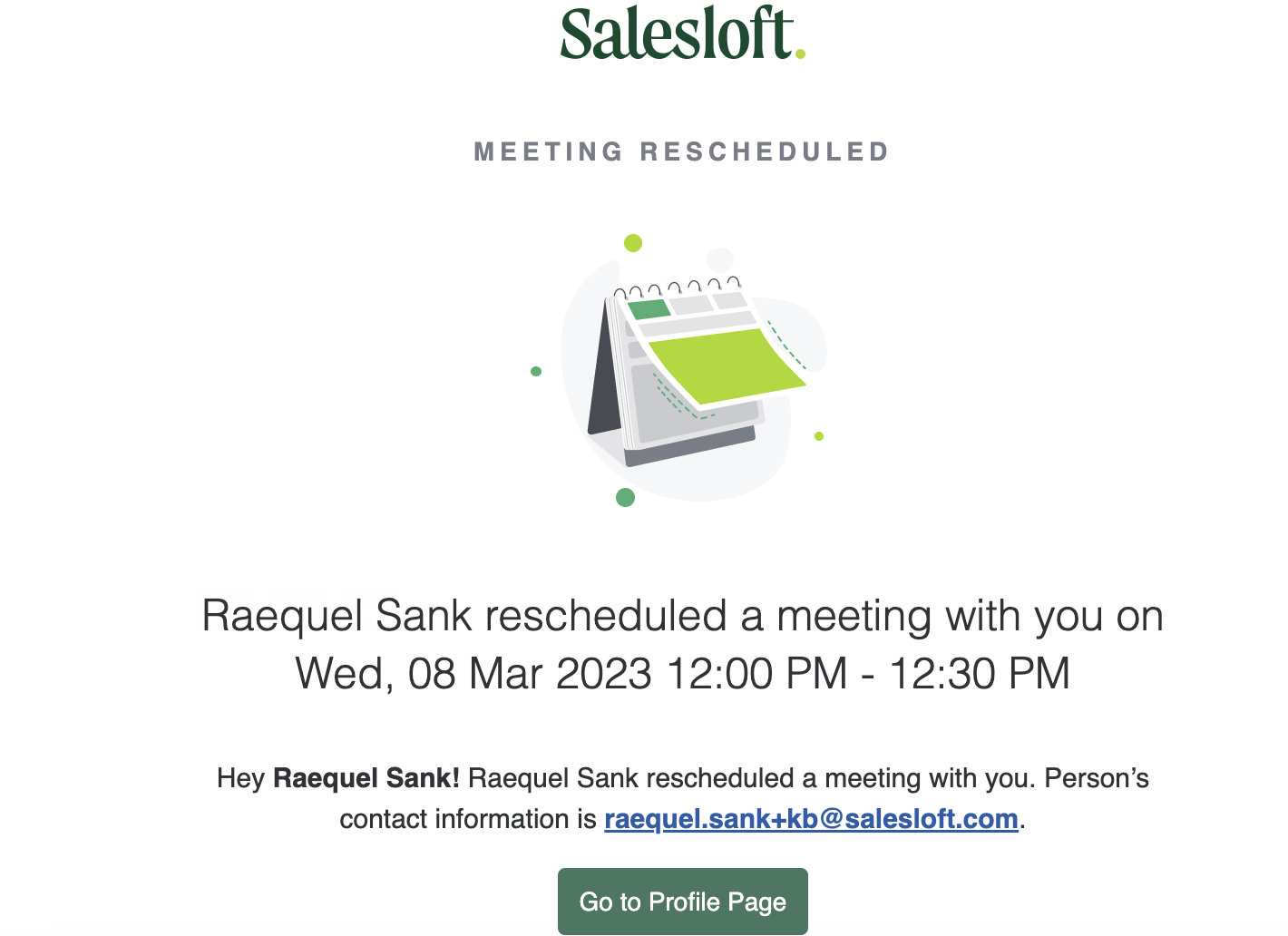
Figure 5: The reschedule a meeting success message
In-App Live Feed
When a prospect reschedules a meeting, you will receive an in-app Live Feed notification. To access this notification, open Salesloft and click the Live Feed icon.
The meeting reschedule notification will be listed and will include the meeting participant's name, and the new meeting date and time. Click the prospect’s name to visit their Person profile page.
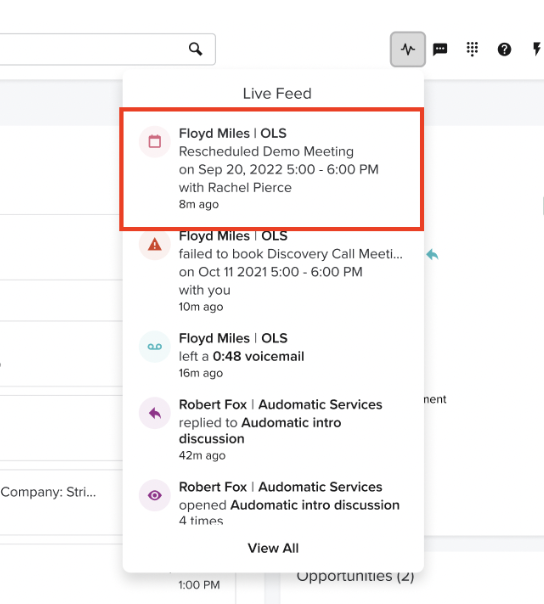
Figure 6: The reschedule meeting notification in the in-app live stream
Person Profile Page
When a prospect reschedules a meeting, the action will appear on the Person’s profile page. The action will appear labeled Rescheduled by Prospect.
You can click the action to open a drop-down with more information about the updated meeting.
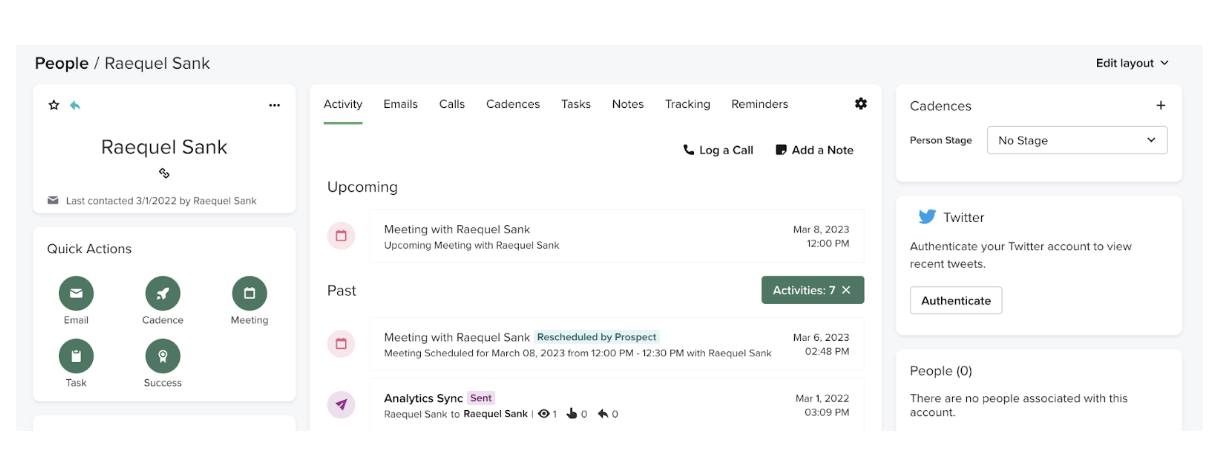
Figure 7: A rescheduled meeting event on the Activity Feed
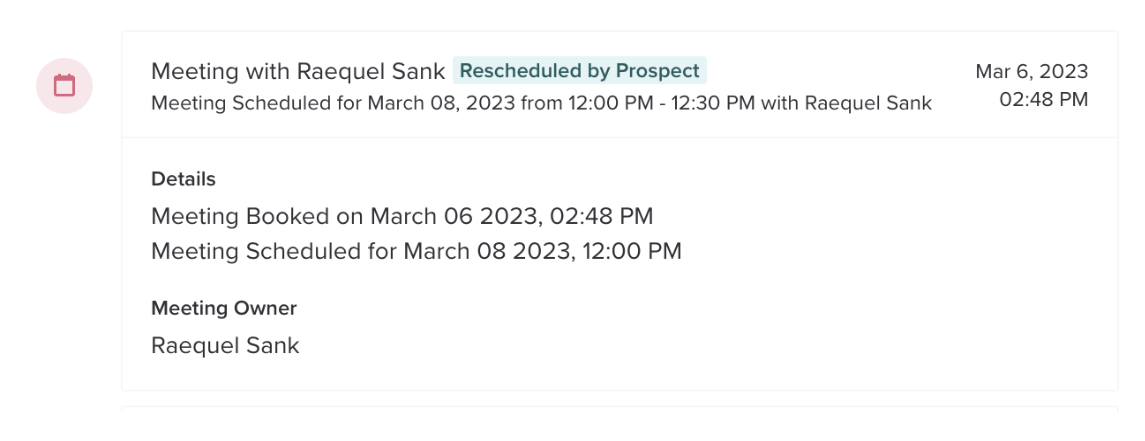
Figure 8: Rescheduled Meeting activity indicating it was rescheduled by the prospect
Salesloft Mobile Live Feed
When a prospect reschedules a meeting, Salesloft Mobile users will also receive a notification via the Salesloft Mobile Live Feed.
- Monitor your meeting schedule for any reschedules made by participants.
- Review the notifications you receive when meetings are rescheduled to stay informed.
- Periodically review your in-office hours to ensure they accurately reflect your availability.
