Recorder settings control how and when the Conversation Intelligence bot joins and records meetings — including what the bot is named, which meetings it auto-records, which platforms it joins, which participants or domains should never be recorded, and whether pre-call alerts are sent before meetings.
In this article:
- Navigation may look different if your organization uses standalone access to Conversation Intelligence. This article reflects the Salesloft platform experience.
- Permission / Role: Salesloft Admin or Conversation Intelligence Admin access required for all steps. Standard users cannot change recorder settings. Changes apply org-wide.
- Connect Integrations: Platforms must also be connected under Integrations Admin Settings for the bot to join them.
- Slack connected: Pre-call actions require Slack to be connected to Conversation Intelligence. See Manage Your Team's Recording Platform with Conversation Intelligence.
- Custom bot name availability: Custom bot display names may be available only on certain plan tiers — confirm with your account team if the field appears restricted.
Step 1 — Connect Your Recording platform Integration
Go to Settings > Conversation Intelligence > Integrations. Connect at least one recording platform (Web Conferencing - Zoom, Microsoft Teams, or Google Meet).
Step 2 — Navigate to Recorder and Transcription Settings
In the Salesloft top navigation, click your initials in the upper right corner and select Settings. Go to the Conversation Intelligence section, then select Recorder and transcription. This area has four sub-tabs:
- Transcription settings
- AI Features
- Recorder settings
- Auto correct
Select the Recorder tab. You will see a variety of recording platform options.
Things to Note: Changes in Recorder settings save automatically — there is no Save button.
Step 2 — Select recording methods per platform
For each connected platform — Zoom, MS Teams, and Google Meet — select a recording method from its dropdown:
- Cloud Recorder
- Salesloft CI Bot
- Do not record
See Manage Your Team's Recording Platform with Conversation Intelligence for more information.
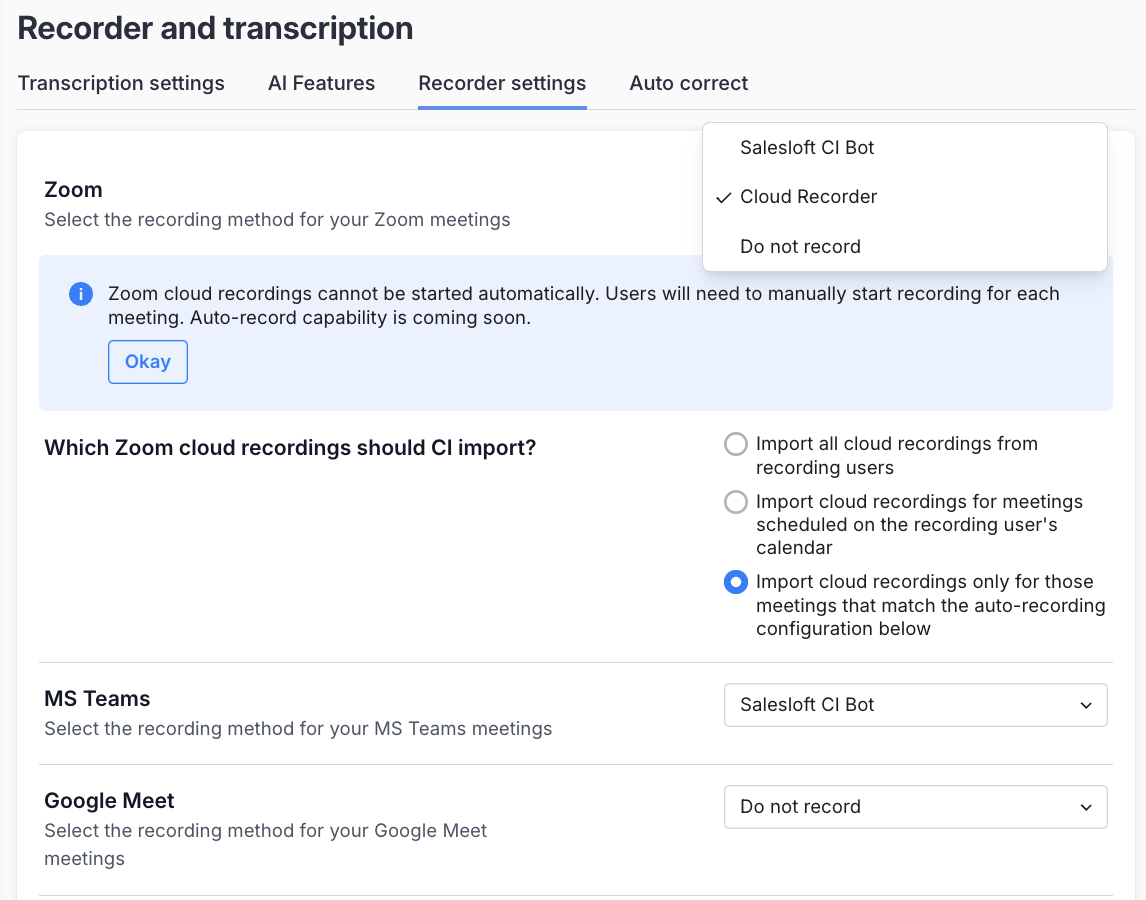
Figure 1: Selecting a recording method for Zoom meetings in the Recorder Settings
Step 3 — Change the bot display name (optional)
In the Salesloft CI Bot Name field, clear the existing name and enter a new one. The change saves automatically and takes effect on the next call the bot joins. You will see a notification on the screen when the name is saved and applied to your team.
Things to Note:
- The bot's display name appears to all meeting participants in the video platform when it joins. Keep it recognizable and professional.
- Use only letters, numbers, spaces, and the symbols - ' . _ @.
- ⚠️ Changing the bot name affects the entire org immediately.
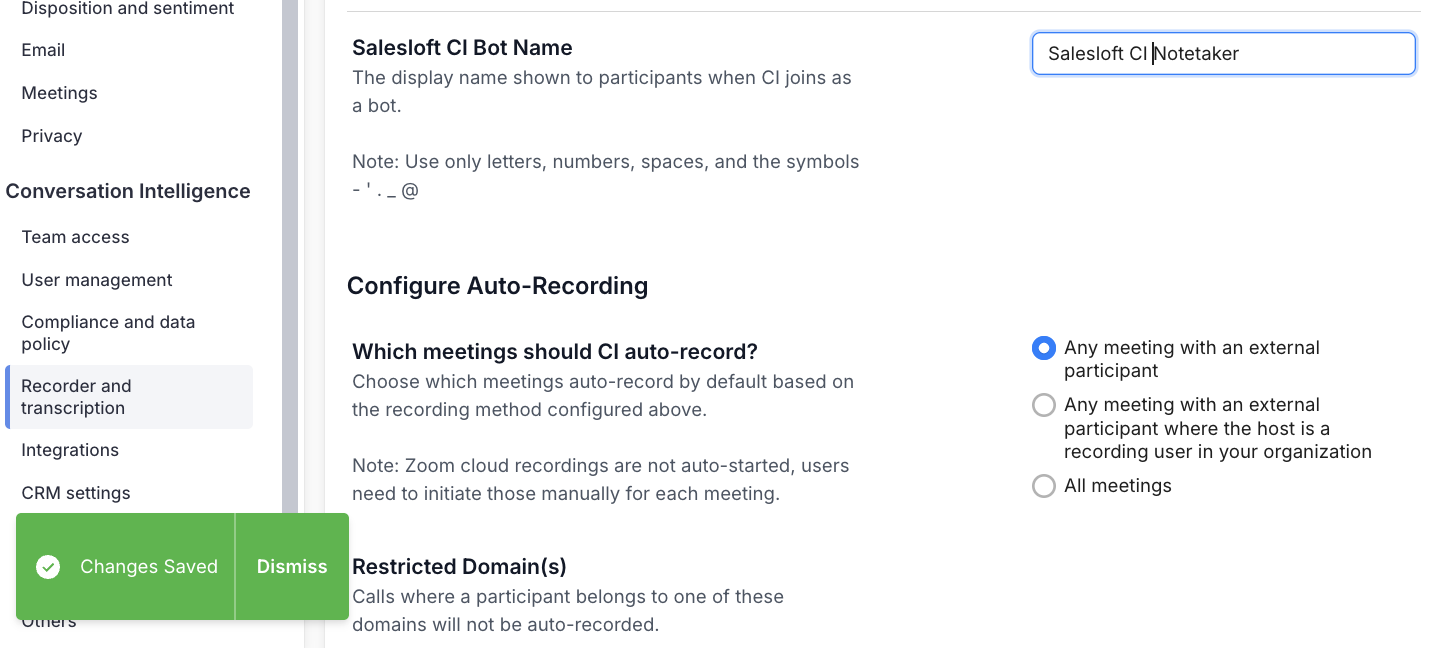
Figure 2: Updated Bot Display Name
Step 4 — Configure auto-recording rules
Under Configure Auto-Recording, select which meetings the bot should join:
- Any meeting with an external participant — recommended default
- Any meeting with an external participant where the host is a recording user in your organization
- All meetings
- Things to Note: Selecting "All meetings" will cause the bot to join internal team meetings and one-on-ones. Confirm with your legal or compliance team before enabling this setting.
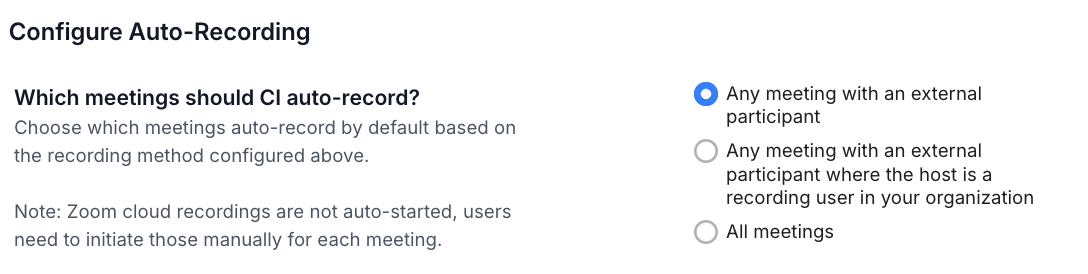
Figure 3: Auto-Recording Settings
Step 5 — Configure restricted domains and emails
Under Restricted Domain(s) and Restricted Email(s), add any domains or specific email addresses that should prevent auto-recording when present in a meeting. Type the domain or email and press Enter to add it; select Show More to view the full current list. Changes save automatically.
Things to Note: Restricted domains and emails prevent auto-recording only. If a user manually toggles recording on, the bot will still join. Restricted settings are not a compliance enforcement mechanism.
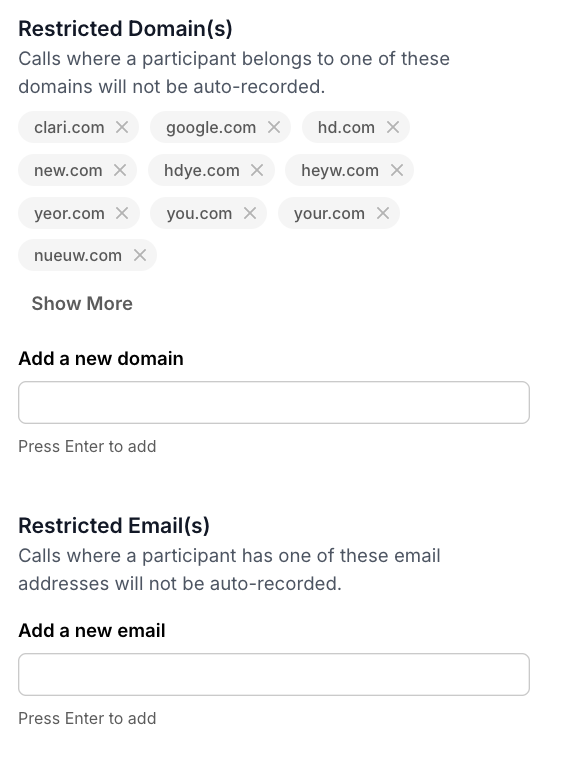
Figure 4: Restricted Domains and Emails
Step 6 — Allow or prevent users from manually controlling recording
Locate Allow users to control recording of their meetings. Toggle On to let users turn recording on or off for any of their own meetings, overriding the auto-record settings above; toggle Off to restrict recording to the auto-recording rules only.

Figure 5: Allow users to control recording setting enabled
- Bot name change: The new name appears when the bot joins the next scheduled meeting.
- Auto-recording rules: Check the Upcoming Calls panel in My Calls to confirm upcoming meetings show the expected recording status.
- Restricted domains: A test meeting with a restricted domain participant should not show recording enabled in the Upcoming Calls panel.
- Pre-call actions: The user should receive a Slack message at their configured time before their next scheduled external meeting.
- Zoom-specific setup: For Zoom to work with the bot, local recording must be enabled at the org level in your Zoom admin settings, and two specific Zoom settings must be unchecked. These are one-time setup steps separate from Recorder Settings. See Manage Your Team's Recording Platform with Conversation Intelligence.
- Consent and the consent page: The pre-meeting consent page is configured separately under Compliance and Data Policy. See Configure Recording Consent and Compliance in Conversation Intelligence.
- Post-call actions: Conversation Intelligence also supports post-call automated actions — sending Smart Summaries to Slack, logging activities to Salesforce, and more.
