When a meeting doesn't happen as planned, like when it's missed, canceled, or rescheduled, you can mark it "Not Attended."
By marking meetings ‘Not Attended’, you can maintain a clear picture of your meeting activity.
In this article, you will learn how to mark a meeting ‘Not Attended’. This article includes:
To mark a meeting ‘Not Attended’, follow these steps:
- Access the Live Feed panel: You can view the Live Feed from any of the following locations:
- Rhythm Workflow Page: This is your Salesloft Home page. It shows the Live Feed on the right side.
- Notification Icon: This bell icon is in the top navigation bar. It shows a dot with a number when new Live Feed events happen. Click it to open a menu with your events.
- Live Feed Page: Click the Notification icon, then scroll to the bottom of the menu. Click View All Events to see your full Live Feed history.
- Click the Meetings tab: Click Meetings at the top of the Live Feed panel.
- Mark a Meeting Not Attended: Hover over the meeting you want to update. Click the dropdown arrow that appears, then select Not Attended.
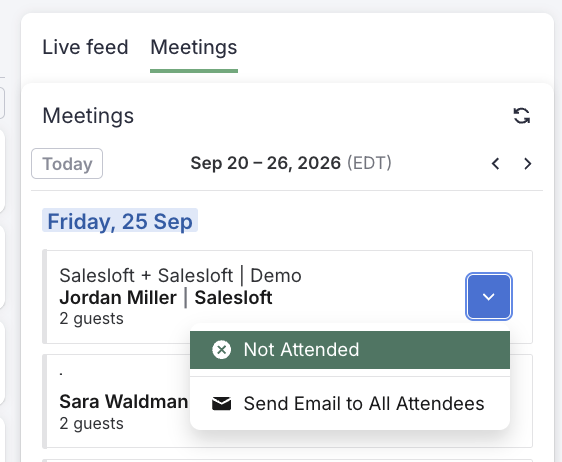
Figure 1: Mark a Meeting ‘Not Attended’.
Marking a meeting as not attended helps keep your reports and meeting counts correct. To learn more about meeting activity, check out your Meeting Analytics.
