The Team Coaching Goal Panels allow you to track your team’s progress towards specific goals, like the number of opportunities created within a certain timeframe. You can find the Team Coaching Goal Panels on the Team Coaching Dashboard.
The Goals Panels show how your team is progressing towards specific goals. Each panel contains a colored growth chart that shows goal progress along with other data relevant to that specific goal. These goals are the sum of your group goals (not the sum of individual goals) set from the Compare Teams tab.
Salesloft admins can add or remove Coaching Goal Panels to customize the dashboard based on the goals you want to track. Whether you’re prioritizing a single goal or tracking multiple objectives, you have the flexibility to customize your Goals Panels to your preference.
In this article, you will learn how to manage the goals panels in the Team Coaching Dashboard. This article includes:
You can have a maximum of three (3) panels on display. If you have three panels selected already, you must remove one panel before adding another. This will be the case for any team using Coaching for the first time.
Before you manage the Team Coaching Goals Panels, it’s important to know which goals panels you have access to.
Salesloft offers the following goals panels:
- Meetings Booked
- Opportunities Created
- Closed Won
- Total Activities
- Success
- New Pipeline Added
The goals panels you have access to depends on your team’s Salesloft setup:
- Teams with Salesforce connected as their CRM: Meetings Booked, Opportunities Created, Closed Won
- Teams with a CRM connected but no Deals access: Successes, Meetings Booked, Opportunities Created
- Teams with no CRM connected: Total Activities, Successes, Meetings Booked
Things to Note: Salesloft Deals is only available to customers who use Salesforce as their CRM.
For a quick overview of managing your team Coaching Goals Panels, check out the video below:
To change the Goals Panels seen on the Team Coaching Dashboard, follow these steps to add and remove panels:
- Navigate to the Team Coaching page: Hover over the Workspace tab, then select Coaching. You will automatically land on the Team tab.
- Select “Add/Remove Panels”: Click Add/Remove Panels on the right-hand side of the page. A dropdown menu will appear.
- Enable Panels: From the dropdown, click the toggle beside the goals you want to enable. When the toggle area is blue, that goal is turned on and visible in the dashboard.
- Things to Note: You can have a maximum of three panels on display. If you already have three panels selected, you must remove one panel before adding another. When the toggle area is gray, it is turned “off”. As soon as two or fewer panels are selected, you will have the ability to add panels.
- Click “Save”: Once the panels you wish to view are selected, hit Save. The Goals Panels will instantly refresh to show you the panels you have selected.
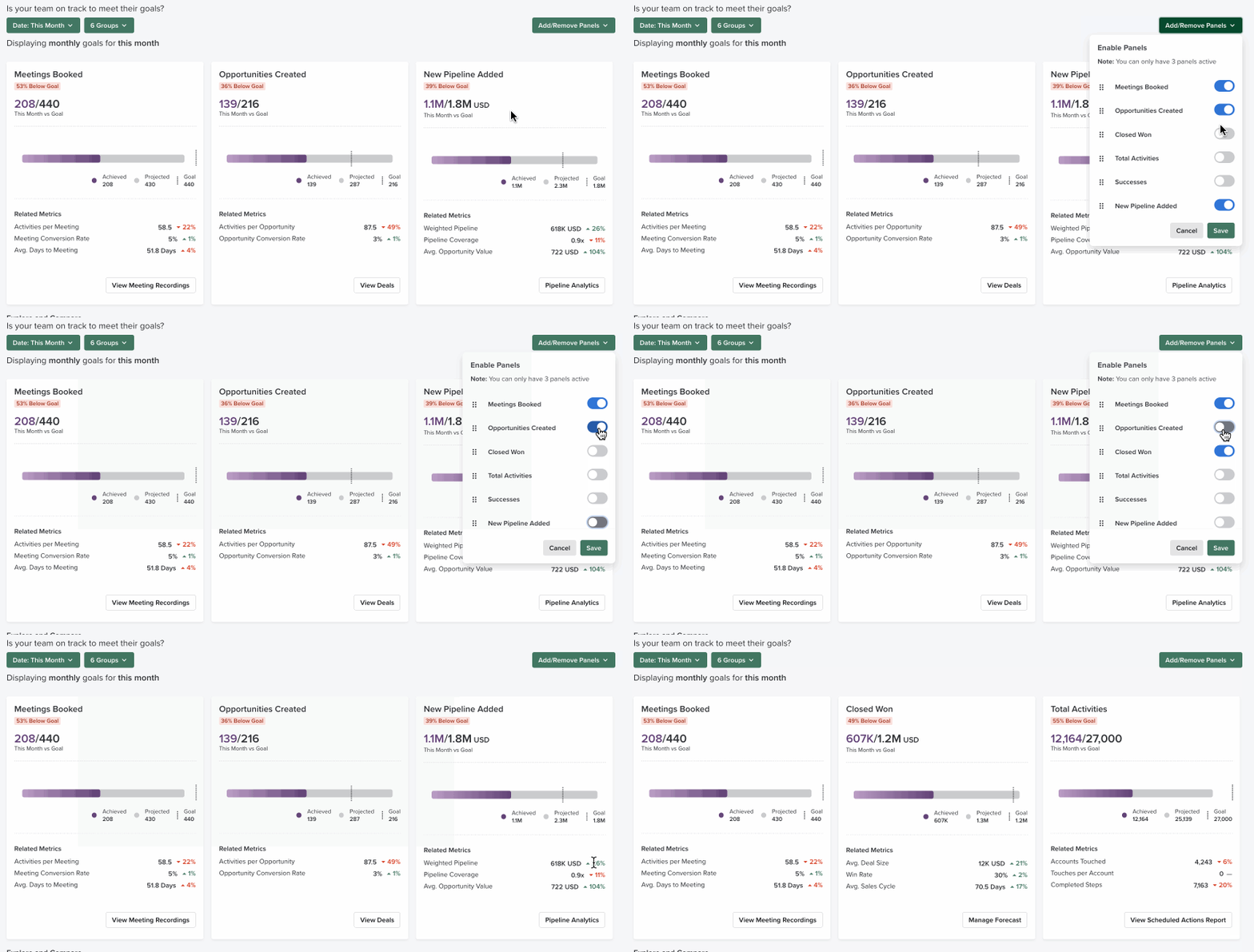
Figure 1: Click the toggles to add or remove Coaching Goals panels.
Your goals panels will appear in the order they are displayed inside the Add/Remove Panels window. This means, whichever panel is closest to the top of the Enable Panels dropdown will be first. The Goals Panel order from left to right will match the Enable Panels dropdown from top to bottom.
To reorder your goals panels, follow these steps:
- Navigate to the Team Coaching page: Go to the Team Coaching Dashboard.
- Select “Add/Remove Panels”: Click the Add/Remove Panels button. A dropdown menu will appear with the option to Enable Panels. You can Add or Remove panels to see the panels you want to display.
- Drag and drop the panel: Find the panel you want to move. Hover over the six-dot icon to the left of the panel name. A hand icon will appear. Click and hold the icon. Then, drag the icon up or down in the list to move the panel. The rest of the panels will shift accordingly as you drag the panel. Let go of the panel when it’s in the order you would like. Repeat steps for any panels you wish to reorder.
- Save: Click Save. The panels will refresh to your preferred order.
Check out the additional information section for suggestions on ways to order your Goals Panels.
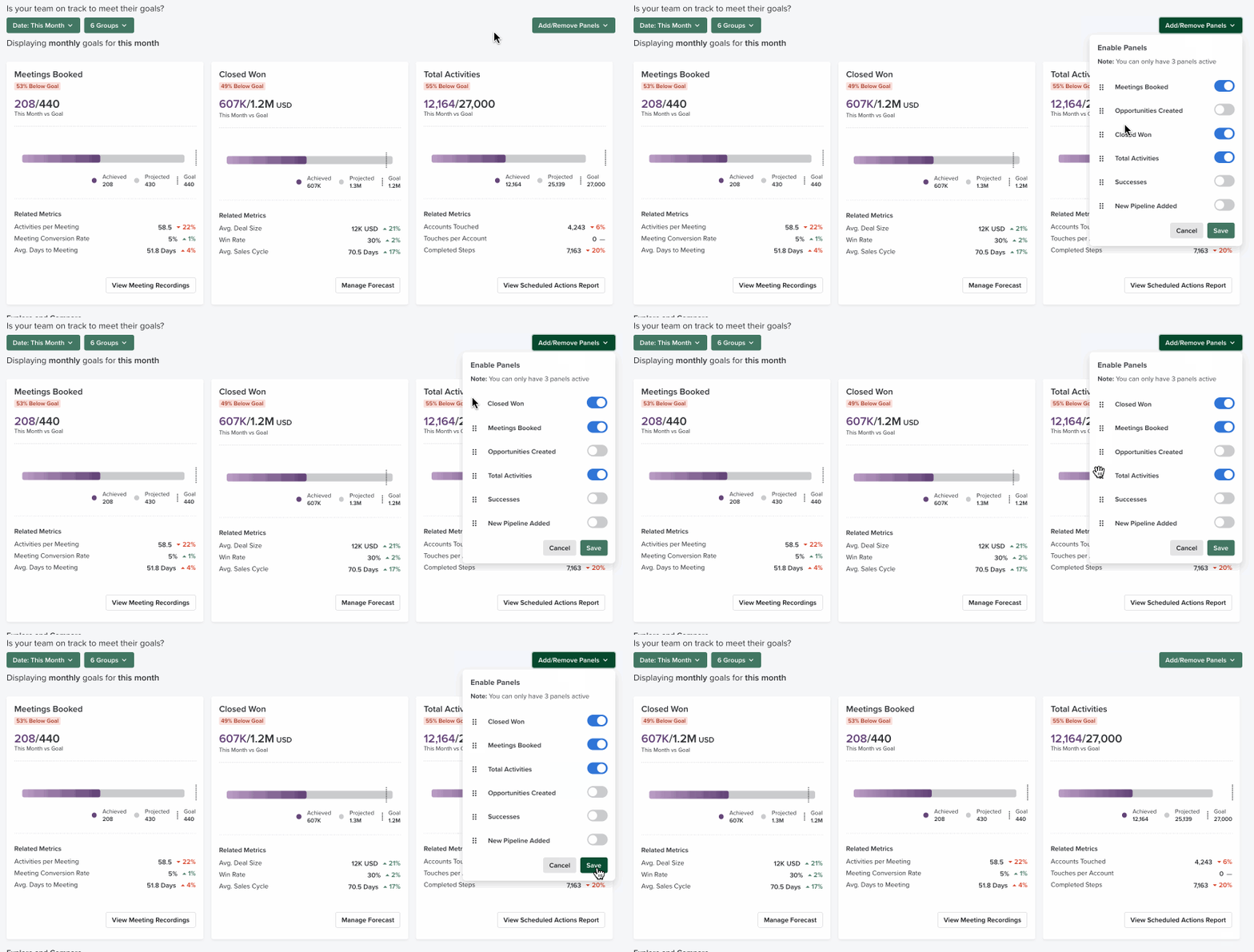
Figure 2: Click and hold Coaching Goals panels to rearrange them.
Learn how to Decide the Right Goals for Your Team.
Panel Order Best Practice
Just like the panels themselves, the order of the panels you’ve selected can be rearranged. The order is entirely up to you and your preference. Here are some suggestions of ways you can order your Goals Panels:
- Alphabetically: For a clean, classic display.
- Most important to least important: Help your team visualize your priorities with the top priority as the first thing you see (or vice versa).
- Building goals: Goals that impact the next goal. For example, if your goals are Total Activities, Meetings Booked, Closed Won, you can test the assumption that the number of activities could lead to more meetings booked which could equal more Closed Won business.
Now that you’ve set up your Goals Panels, here are some next steps:
