When you book a meeting in Salesloft, the meeting invite fields are automatically filled out using a default meeting invite. This default meeting invite is called a Meeting Default.
Meetings Defaults automatically populate to help you schedule meetings more efficiently. By using meeting defaults, you can save time and ensure consistency– so you can focus on the conversation instead of formatting every invite from scratch.
In this article, you will learn how to edit your meeting defaults. This article includes:
Before you edit your meeting defaults, you’ll need to connect your calendar to Salesloft. If you do not connect your calendar to Salesloft, the meeting default(s) you edit will not be applied.
Watch this quick video to learn how to edit your meeting defaults:
To edit your meeting defaults, follow these steps:
- Go to your settings.
- Select Calendar from the left menu options.
- Click the Meetings Setup tab.
- From the Meeting Defaults section, click Edit. This will open the Edit Meeting Defaults page.
- From the Edit Meeting Defaults page, complete the following fields:
- Title: Default title of the meeting. You can choose to type the meeting title or add a dynamic tag.
- Video Conferencing: Add your default video conferencing link or a custom location link
- Things to Note:
- If your team has set a default video conferencing provider, this field may appear grayed out and uneditable.
- If you enabled the Google Meet Integration or the Microsoft Teams Integration, a Video Conferencing field will appear and include your default meeting link. In this case, you can skip the Video Conferencing field.
- Location: Enter a custom meeting location or your Zoom for Meetings link.
- (optional) Description: Describe what the meeting will entail. You can include your meeting room code or a link from a third-party video conferencing platform.
- Meeting Duration: Length of the meeting in minutes.
- Hit Save.
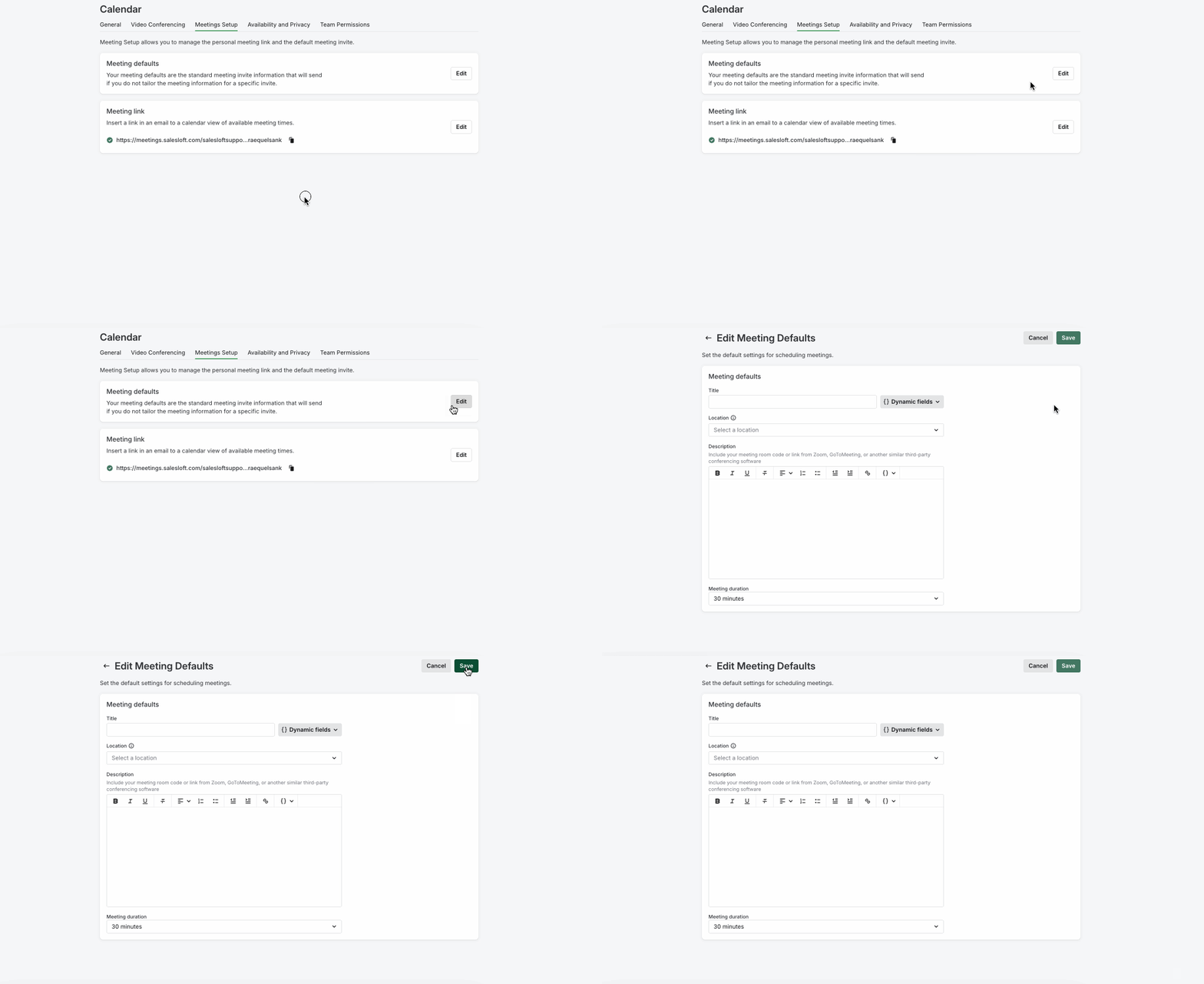
Figure 1: Edit your default meeting invite from the Calendar settings.
Regularly Review and Update: Your messaging should evolve based on what works best. Periodically check your default meeting invite and adjust based on feedback or changing needs.
