Sales forecasts require your team to consider the future. Your forecast helps you gauge your book of business. It also could impact short-term spending decisions for your organization.
While creating a forecast can set a plan in motion, it's important to know you can trust the forecasted numbers. The best way to earn that trust is to prove the accuracy of your forecasts.
Within Salesloft's Forecast, teams have the ability to export a history report of your complete Forecasts. The Forecast history can be downloaded as a CSV file. This history report can be used to push into a business intelligence tool to match up with attainment data to measure forecast accuracy.
Things to Note:
- The Export History Report option will be visible to Salesloft admins by default. Users with the Export Analytics permissions will also have access to the Export History Report.
- The Forecast History Report contains 2 years worth of user-submitted forecasts
- The Forecast History Report shows forecasts for all users and all segments
To download the Forecast History Report, follow these steps:
- In the Salesloft top menu, hover over Workspace. A dropdown menu will appear. Select Deals.
- Click Forecast in the Deals product area of Salesloft.
- Select Export History Report found on the upper right side of the page. The Export Forecast History Report window will appear.
- In the Export Forecast History Report window, click Export. A notification will inform you that the export will be sent to your email.
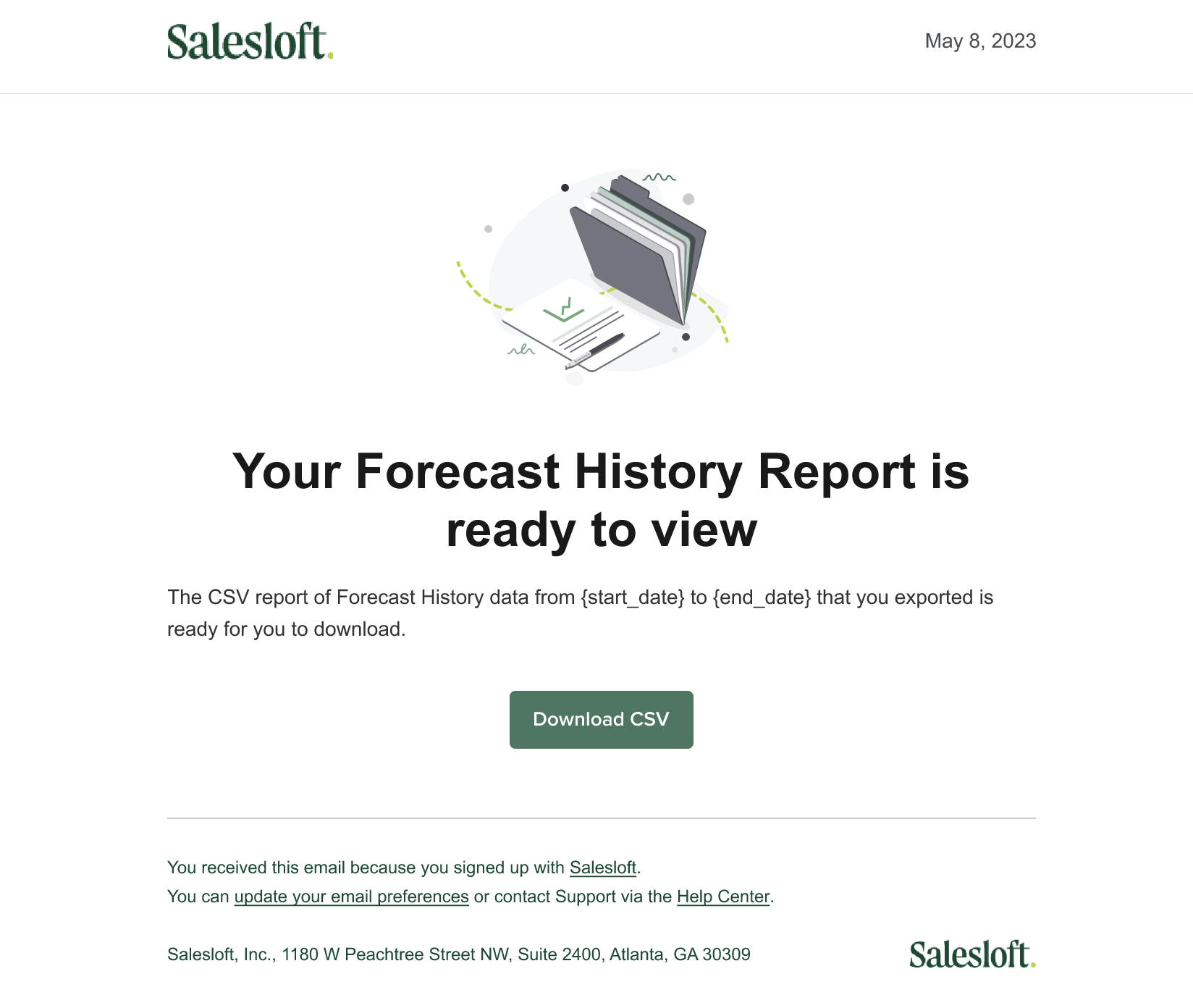
- Check your email. You should see an email that your export is ready to download. Open the email.
- Inside the email, click Download CSV. This will bring you into Salesloft and automatically start to download the file.
The Forecast History CSV file includes the following fields:
- Forecast User Name
- Salesloft User Email
- Forecast User CRM ID
- Submitter Name
- Forecast Type
- Forecast
- Date of Submission
- Segment Name
- Note
