Scenario Planning enhances and interacts with Forecast Multiple Submissions. Depending on your Admin setup, a user will have one or multiple forecast types and timeframes to submit numbers for. With Scenario Planning, you can easily identify and add deals you are committing to close to each forecast you submit.
When submitting your forecast, it’s important to review your deals and identify the ones you are committing to close. If you have multiple forecast types and timeframes to submit numbers for, this process can become time-consuming.
Salesloft's Scenario Planning simplifies the deal review process by helping you determine which deals you are committing to close right in Salesloft. You can use Scenario Planning just before submitting your forecast, and between forecasts, to better/more confidently gauge your forecast number.
Things to Note: Segments allow you to include or exclude deals from different forecasts across segments as well. A deal included in one segment will also be included in any other segment the deal is part of.
In this article, we’ll discuss all aspects of Scenario Planning, including:
For each active forecast, you can choose specific deals to include or exclude from each forecast type, such as Forecast and High Forecast (as seen below).
Learn more about Forecast Rollup Metrics in our article.
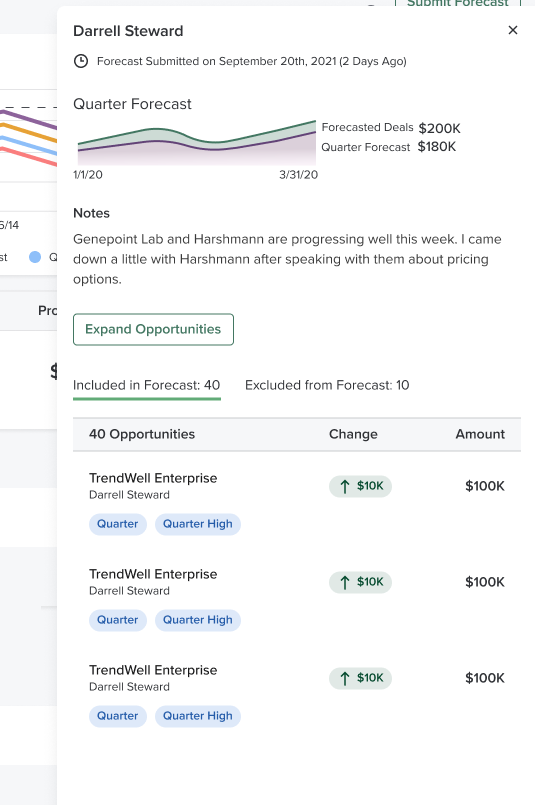
The first place you can include Forecast deals is the Quarter Forecast. To configure this inclusion, proceed as follows:
- On the Deals Forecast page, click the Quarter Forecast cell. This action opens a flyout menu.
- Things to Note: The flyout shows all open deals with close dates in your chosen timeframe. Each deal in the list has blue/grey tags that indicate which forecasts include that deal. There will likely be an overlap of some deals between types and timeframes.
- Hover over the deal you want to configure, and a button to add or remove deals from the forecast will appear.
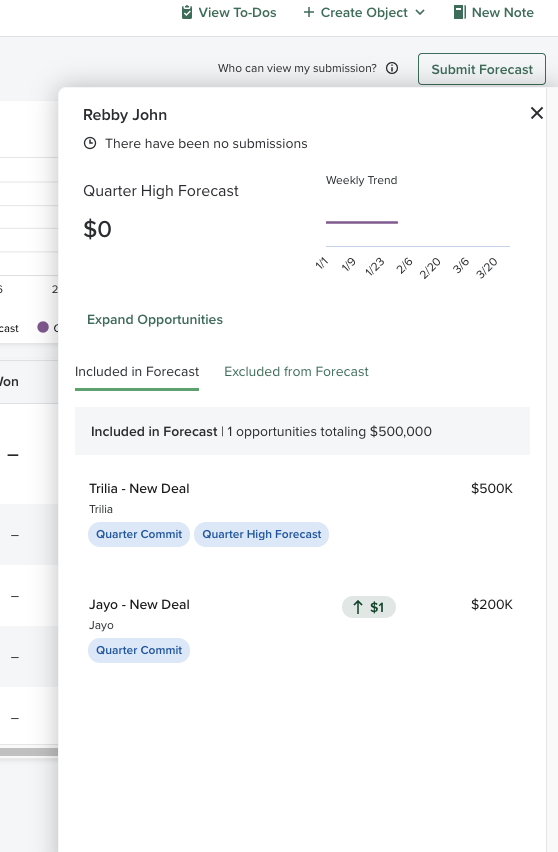
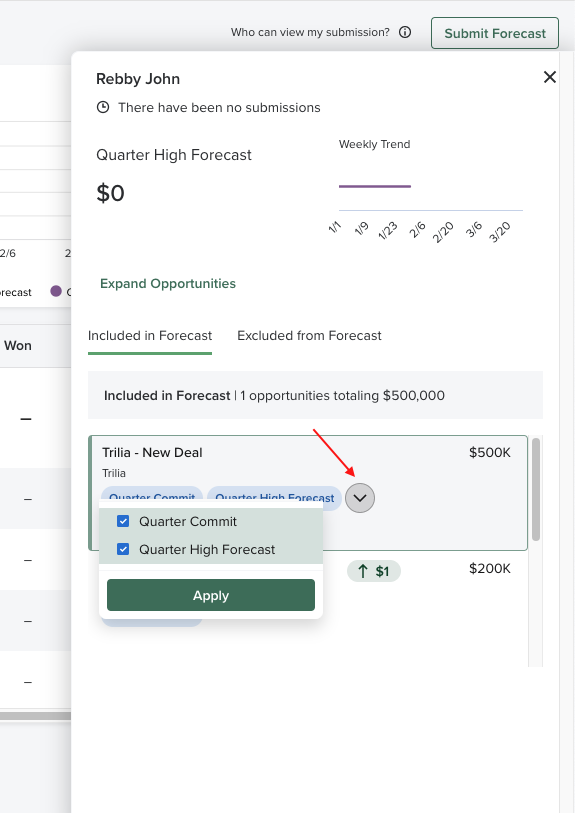
- Click the button to add your chosen deal to additional forecasts or remove it from existing forecasts. Once you remove the deal, it no longer appears in the Included in Forecast section and moves to the Excluded from Forecast section.
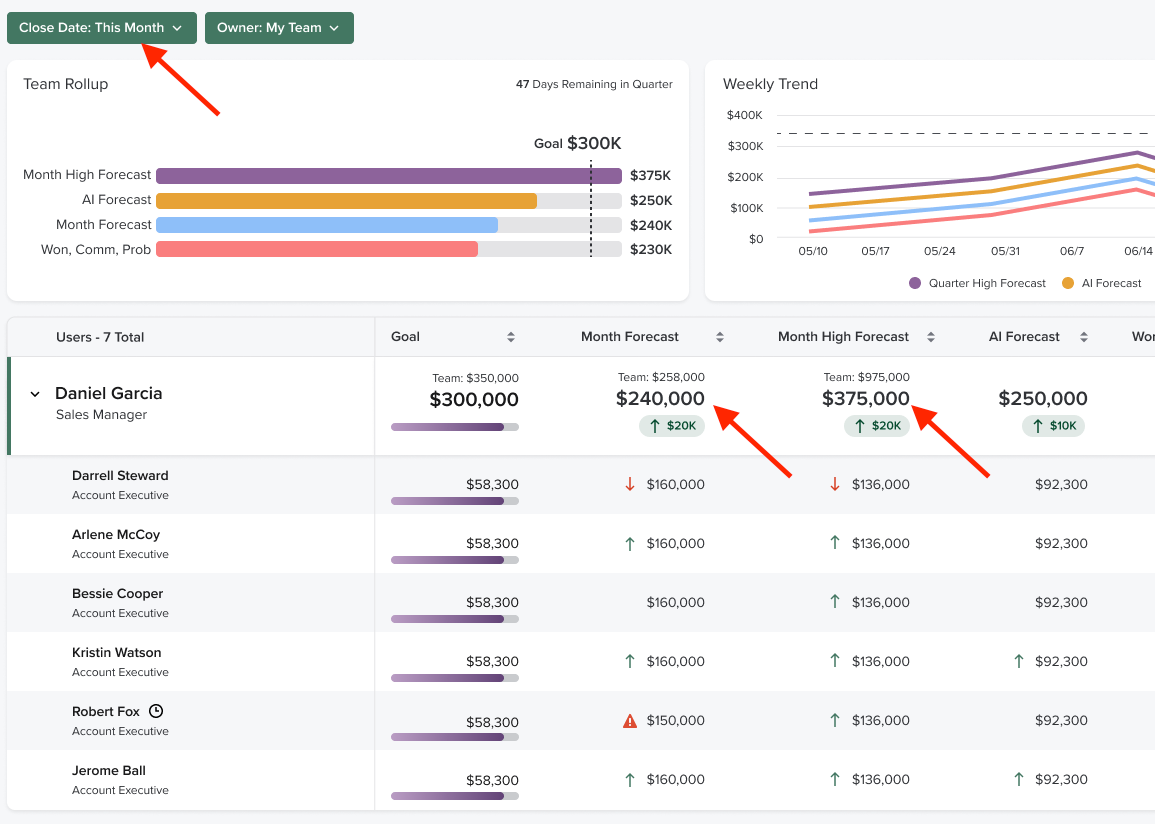
To configure the deal inclusion for This Month:
- Filter deals by the Close Date filter with This Month as an active timeframe.
- Click on the forecast types for This Month to view/manage deals that are included or excluded.
- Review the drill-down to see the list of included or excluded deals in the forecast with a close date of This Month.
You may also want to add and remove deals by focusing on certain rollup categories. For example, let’s say you want to focus only on deals in the Forecast Category Commit. In this instance, you could click on the Commit cell in your rollup to view all deals in Commit. From there, you can determine which of those deals to include in your forecasts.
In the rollup, there is no division of included/excluded deals, since this list of deals may be included or excluded in multiple forecasts. To see which forecasts each deal is included in, check the deal’s tags.
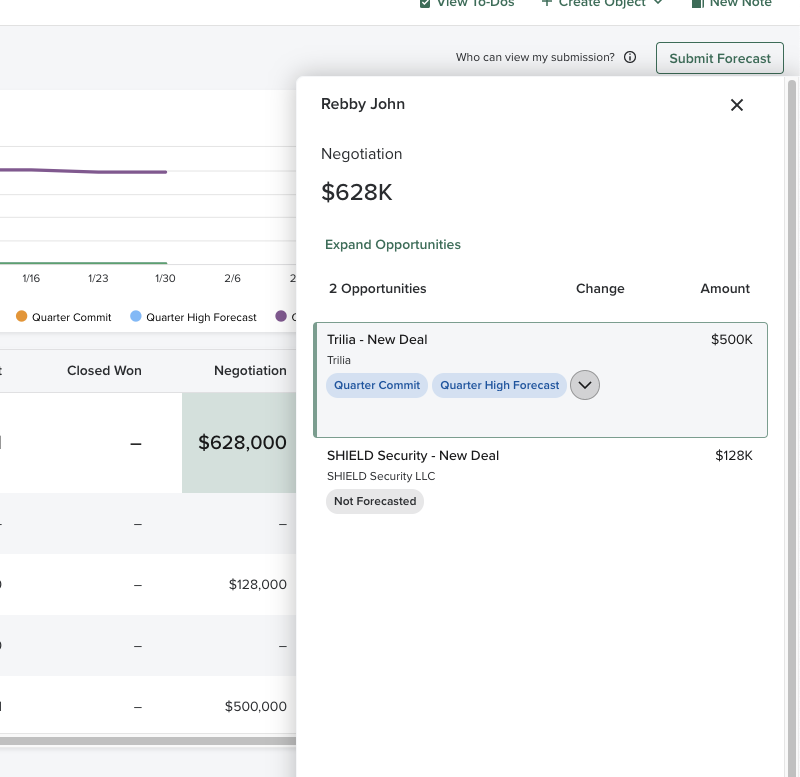
As seen above, you can manage which deals are included/excluded in his forecasts by clicking the cells in your rollup row in the hierarchy table. If you want visibility into which deals your reps are including/excluding from their forecasts, click on any of the cells beside a rep.
Things to Note: You cannot add/remove deals from a rep’s forecast. You can only add or remove deals from your own forecasts.
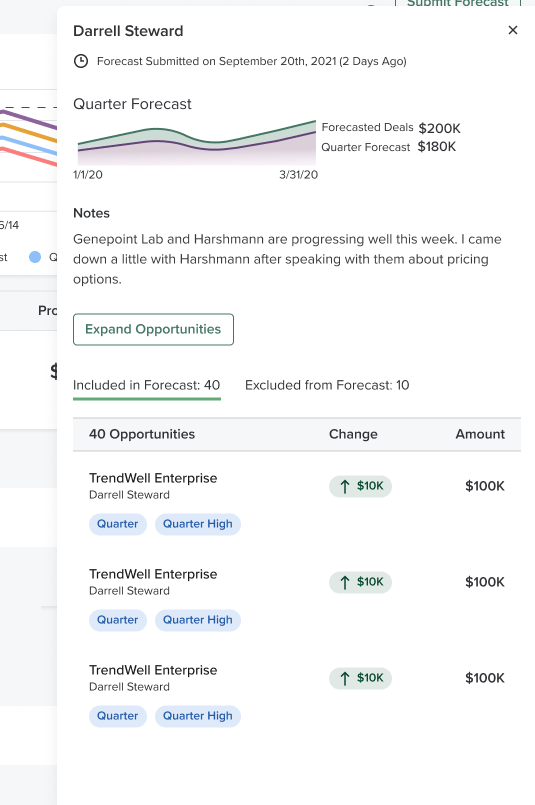
Scenario Planning helps you save time adding deals by using automatic inclusion. Salesloft can streamline the deal-selection process with two types of automation:
- Closed Won Deals: These deals will be included by default in the timeframe they are closed in.
- Adopt Direct Reports Included Deals: If a user has direct reports, their list of included deals will be adopted by what their direct reports have included themselves. That way, they are not assigning one by one for each deal but can edit their own forecast.
