Groove Email Sync
Overview
Using Groove’s email sync, you can ensure that all of your reps’ email activity is being logged back to Salesforce, no matter where they’re sending them from.
Automatic Sync (Background Sync)
Groove can automatically log inbound and outbound emails to your Salesforce account. You can turn on automatic email sync, by following the steps below:
-
-
Toggle on “Sync email to Salesforce in the Background”
Note: If you don’t see this option, your admin may have disabled it.
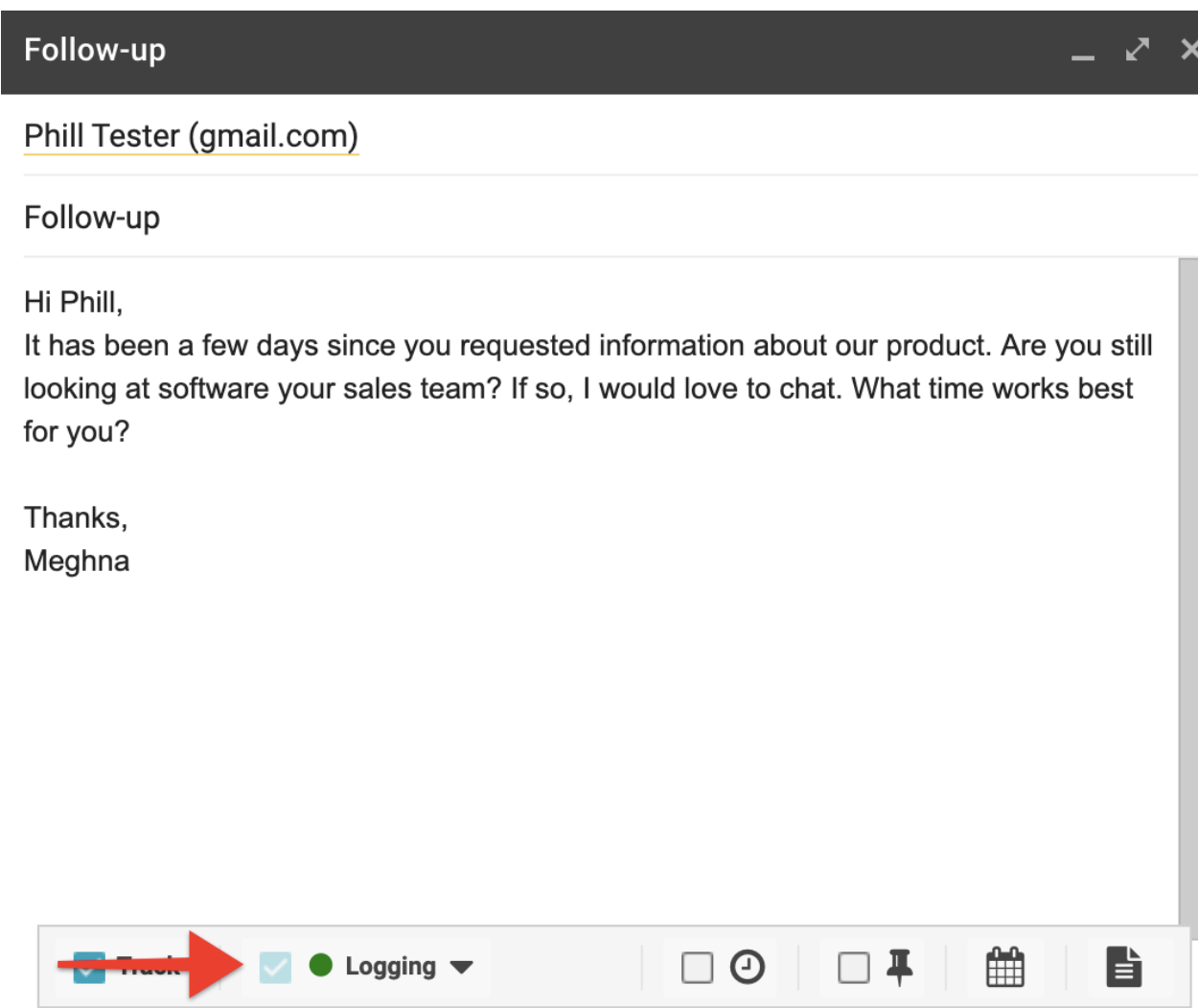
If background sync is turned on, the checkbox next to logging will automatically be checked and unable to be unchecked. Therefore, all emails will automatically log to Salesforce.
Manual Sync
If you do not want Groove to automatically sync emails to Salesforce, you can manually select which emails sync back to Salesforce by checking the box next to “Not Logging” on each individual email you send.
You will know that the email is “Not Logging” when the dot next to the logging option is red and you will know that the email is “Logging” when the dot is green as shown below.
Select Which Record the Email is Synced to
There are two ways you can select which record the email gets attached to.
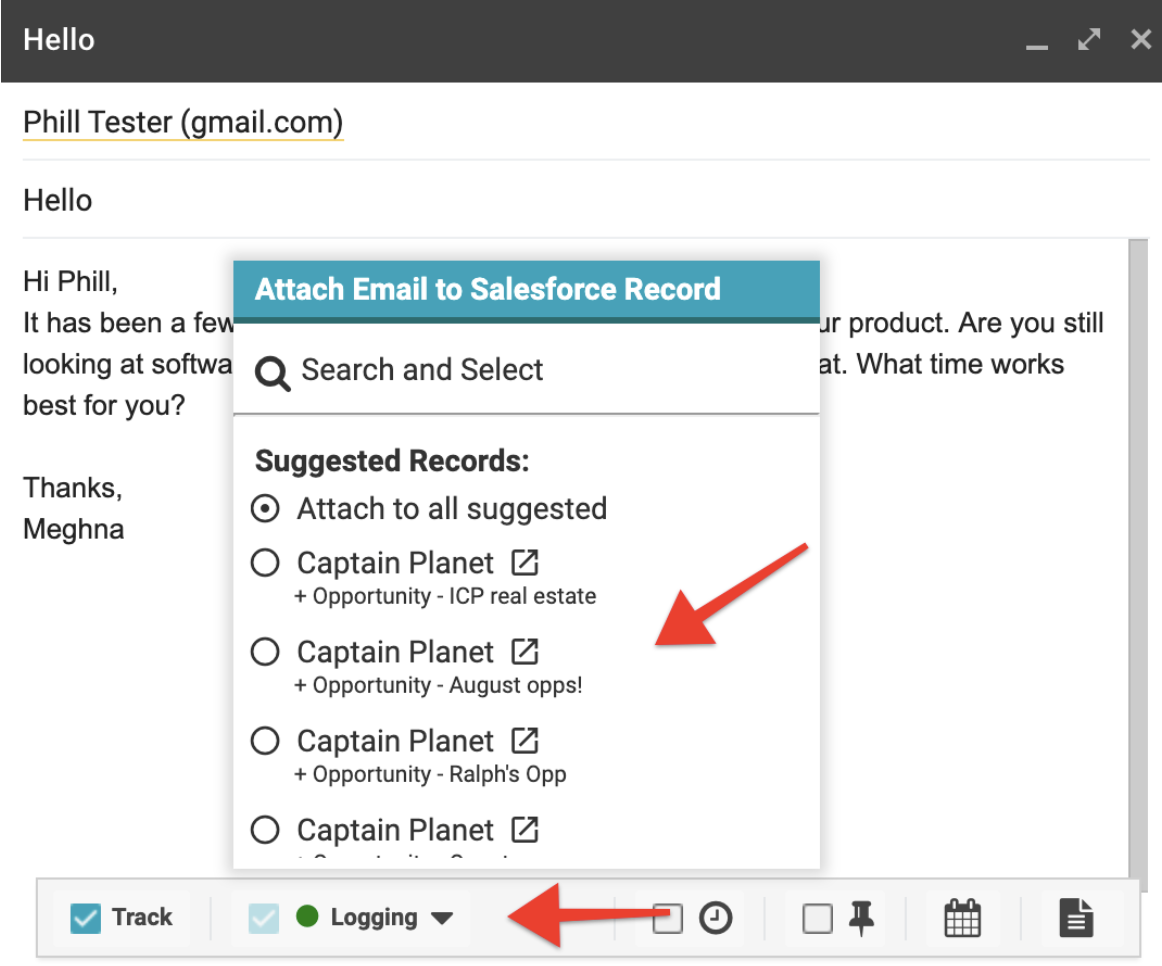
The first is by clicking on “Logging” and scrolling through the list of suggested records. You can select which record you want the email to be attached to in Salesforce simply by clicking on the circle next to that record.
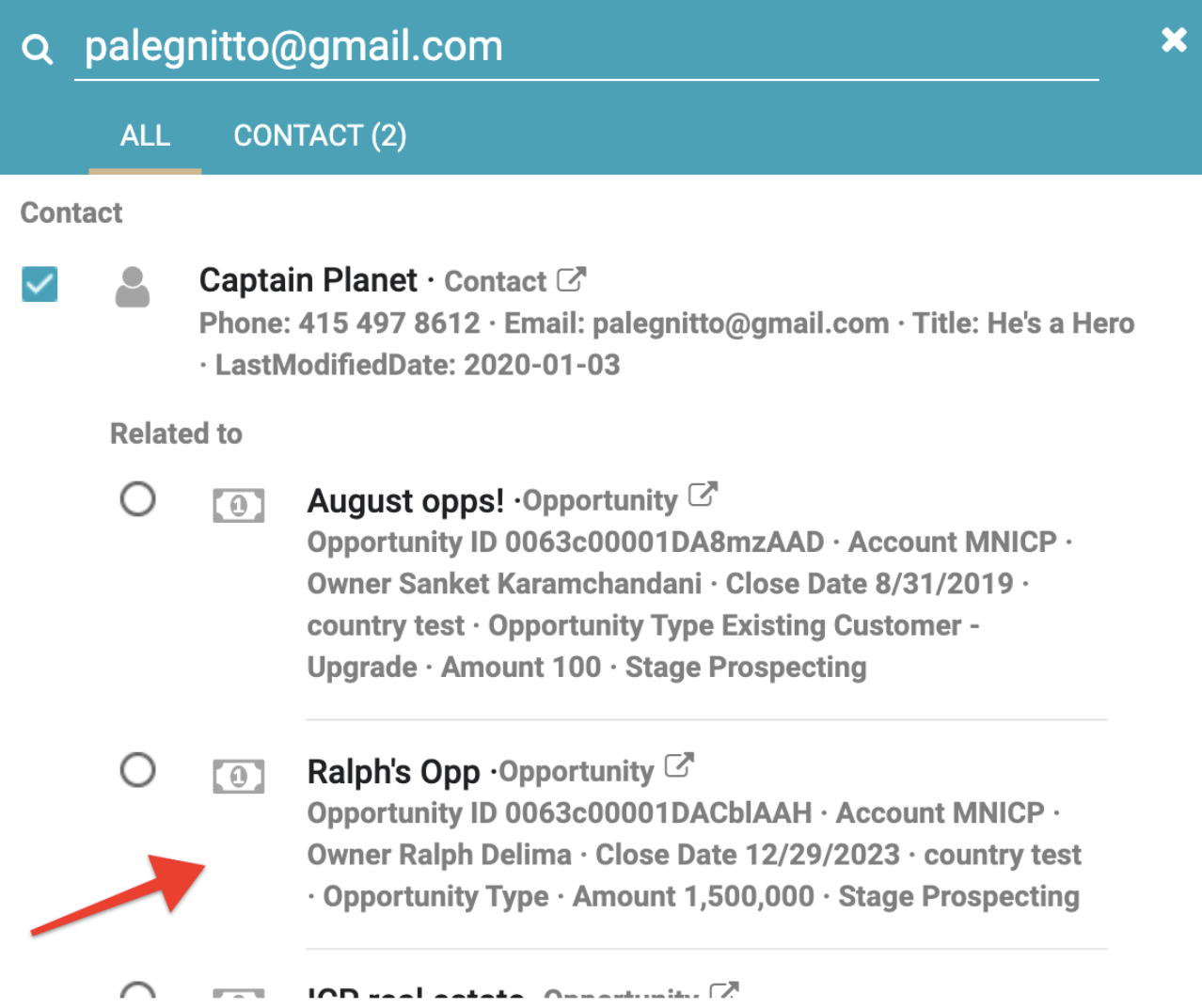
The second is by clicking on “Search and Select” and scrolling through the list of suggested records. This view allows you to see additional information about the opportunity/account.
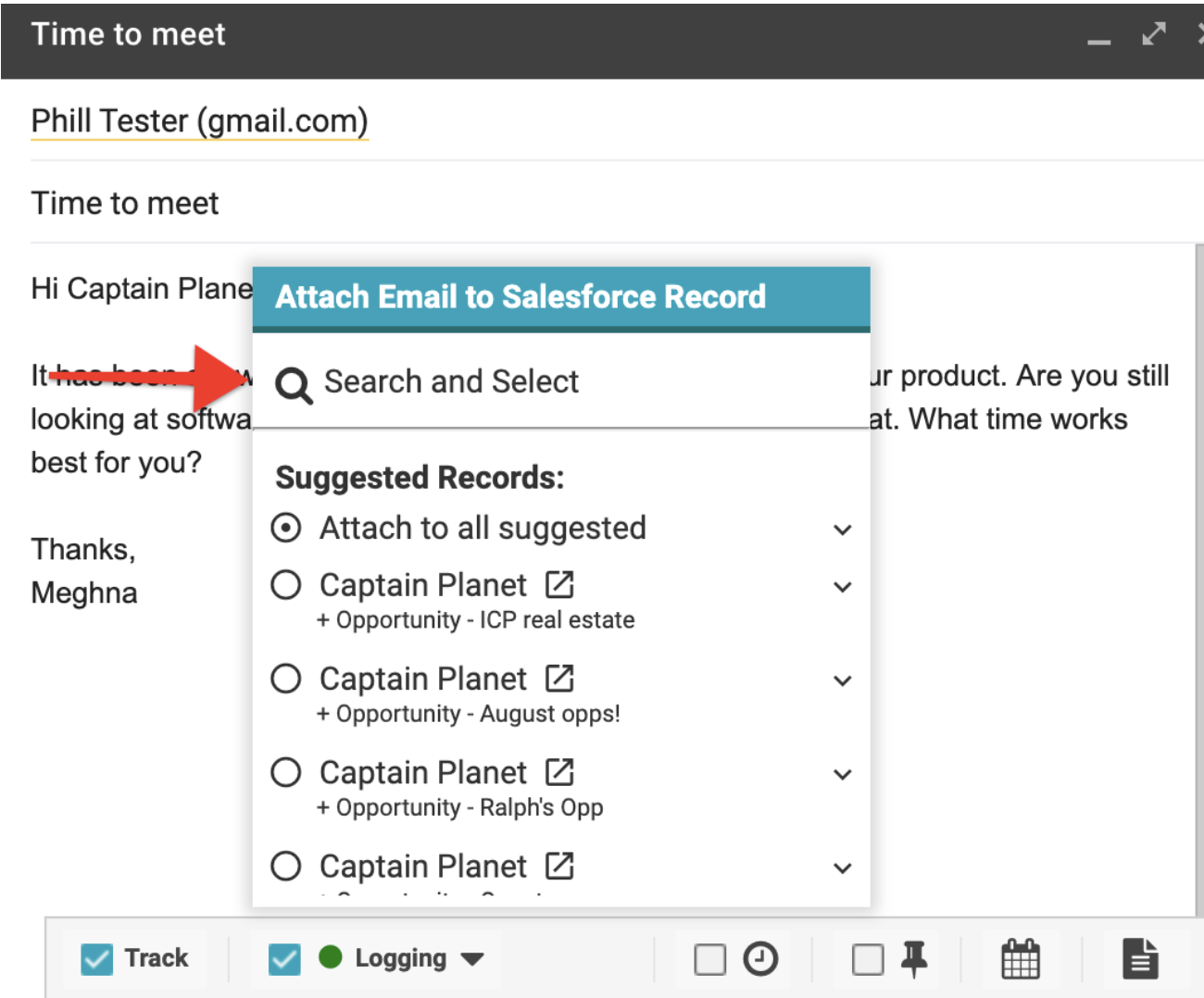
You can select which record you want the email to be attached to by clicking on the circle next to that record and clicking on “Attach”.
Where is Your Email Logged?
After sending a logged email, you will see a pop up at the top of your page. If you click on the arrow, you will be able to see directly into Salesforce and to view where the email was logged.
Ensure Personal Emails Don’t Get Synced
Groove syncs your emails to Salesforce by attaching those messages to contact or lead profiles within your Salesforce instance. This means that emails sent to recipients not associated with Salesforce will never be synced without your permission, so you never need to worry about Groove bringing your personal messages to the professional sphere.
To avoid having emails from your personal email address log via Groove, it is advised to create a new Chrome profile to use when accessing personal email inboxes. Instructions on how to set up a chrome profile can be found here.
Ensure Internal Emails Don’t Get Synced
Sending Internal emails that you don’t want synced? Groove’s blocklist feature prevents certain domains from having their emails logged to Salesforce! Easy steps to configure your blocklist can be accessed in our help center here!
Admin Configuration
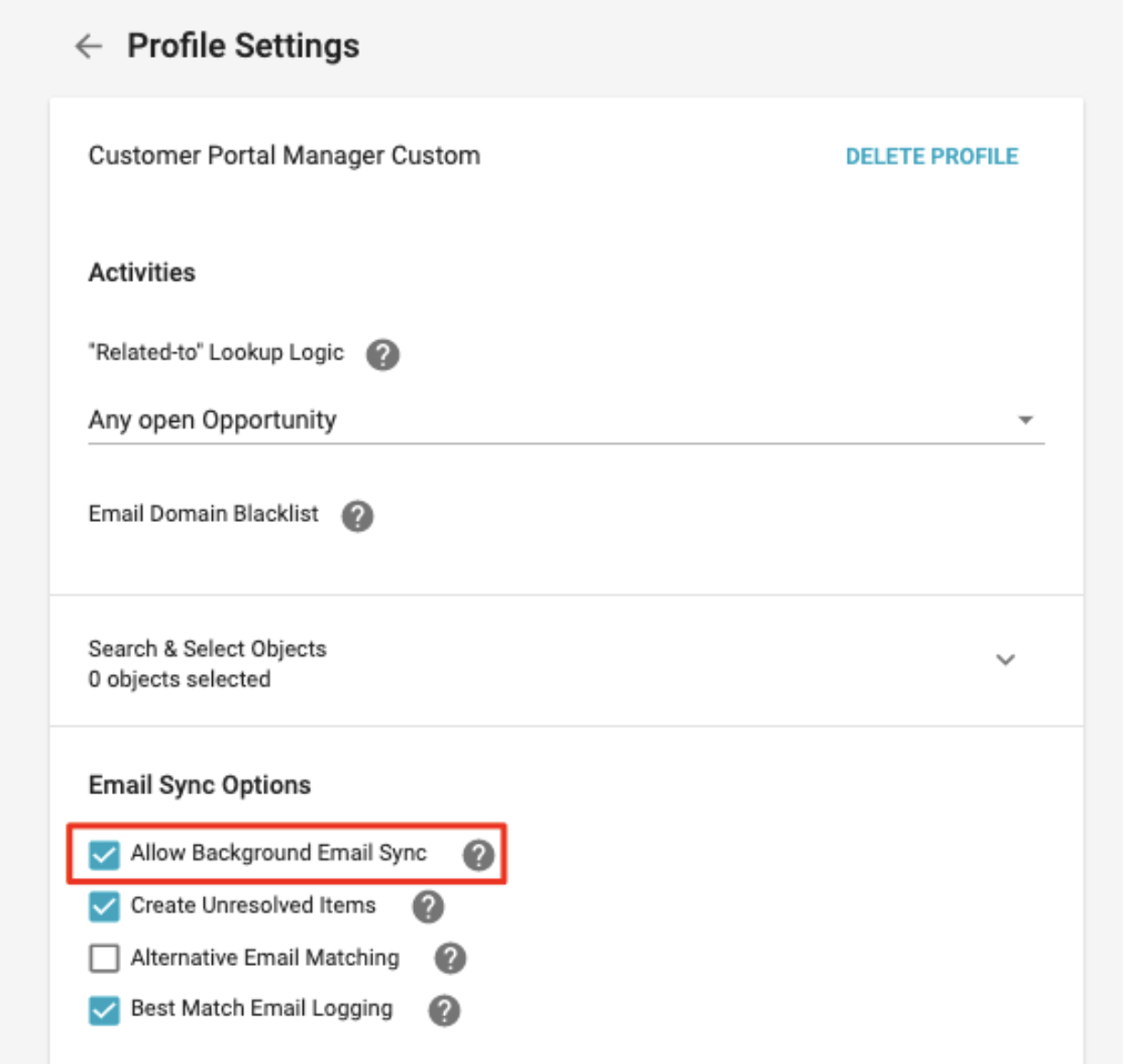
If you want to enable or disable the option for your team to turn on automatic email sync, you can do that by either checking or unchecking the option to Allow Background Email Sync in your org’s Profile Settings found here.